
Learning how to reapply thermal paste on a desktop CPU is one of the most useful maintenance skills a PC owner can pick up. Dried-out or unevenly spread paste is a common reason temperatures creep up over time, and a fresh application often brings things right back down. This guide walks through the entire process from prep to cleanup, step by step.
Key Takeaways
- Old thermal paste dries out and loses effectiveness after a few years, causing higher idle and load temperatures.
- The job requires powering down the system, removing the cooler, cleaning both surfaces, and applying a fresh, thin layer of paste.
- A pea-sized dot or thin line in the center of the CPU is usually enough – more paste is not better.
- Reseating the cooler with even pressure prevents air pockets and hot spots.
- Most CPUs benefit from repasting every two to four years, or sooner if temperatures have noticeably climbed.
Before You Start
A little prep work goes a long way toward making this task smooth and safe. Shut the computer down completely and unplug the power cable from the wall or the power supply itself. Press the power button once or twice after unplugging to drain any residual charge from the system. Touch a bare metal part of the case, or use an anti-static wrist strap, to discharge static electricity before touching any internal components. If the cooler has been running hot recently, give the system a few minutes to cool down before opening it up.
Gather these items before starting:
- A fresh tube of thermal paste, sized for the CPU being worked on
- 90 percent or higher isopropyl alcohol
- Lint-free or microfiber cloths, or coffee filters
- A plastic spudger or old gift card for spreading paste, if not using the dot method
- A screwdriver matching the cooler mounting hardware
- Compressed air for clearing dust from the surrounding area
Tip: Take a quick photo of the cable layout and cooler orientation before removing anything. It saves guesswork during reassembly.
Step-by-Step: Reapplying Thermal Paste on a Desktop CPU
Remove the Cooler
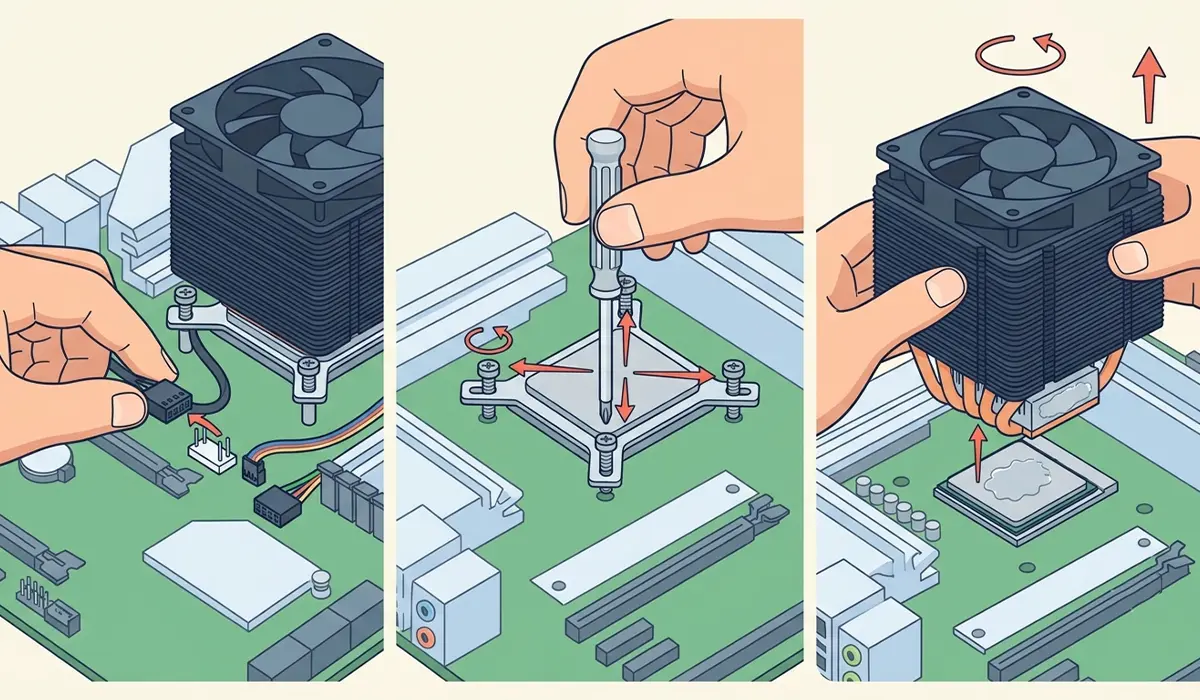
- Step 1: Disconnect the CPU fan cable from the motherboard header, then unplug any RGB or pump cables if the cooler has them.
- Step 2: Loosen the cooler’s mounting screws in a diagonal pattern, a little at a time, rather than fully tightening or loosening one screw before moving to the next. This keeps even pressure on the socket as it releases.
- Step 3: Gently twist the cooler side to side, without prying at the CPU itself, to break the old paste’s seal. Lift it straight up and set it aside on a clean surface.
Clean the Old Paste
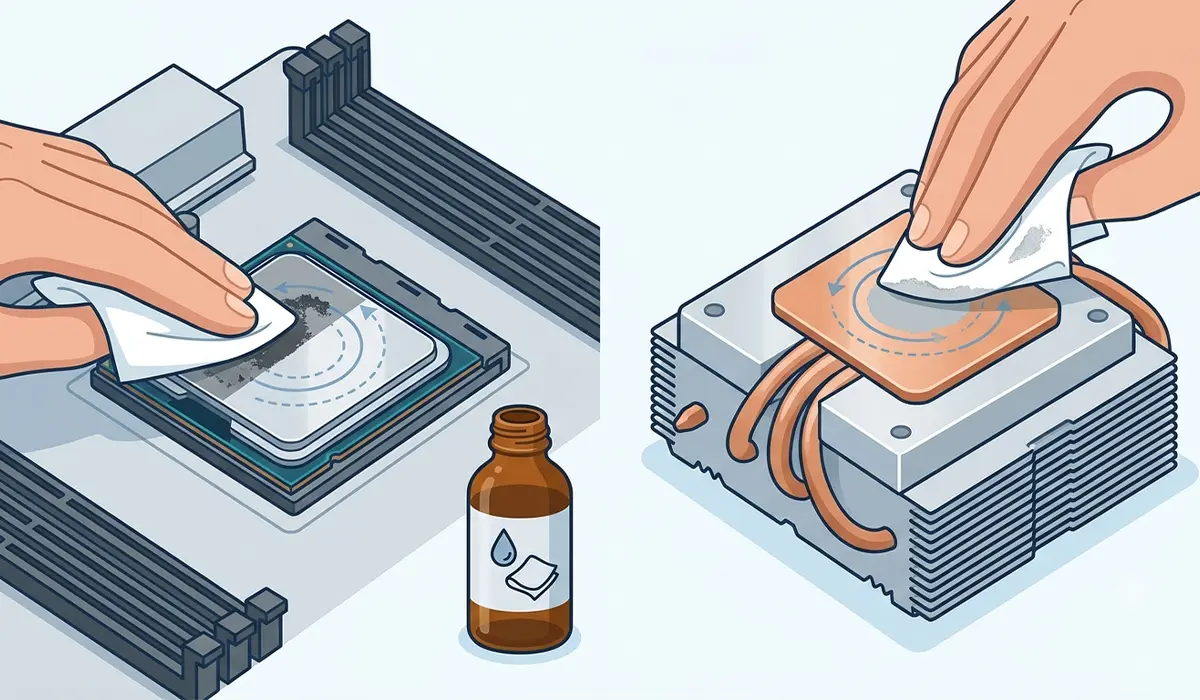
- Step 4: Apply a small amount of isopropyl alcohol to a lint-free cloth and wipe the CPU surface in gentle circular motions until all old paste is gone and the metal lid looks clean and streak-free.
- Step 5: Repeat the same cleaning process on the cooler’s contact plate, since dried paste there will affect the next application just as much as residue on the CPU.
- Step 6: Let both surfaces air dry for a minute or two before moving forward. Any leftover alcohol will evaporate quickly on its own.
Apply Fresh Paste
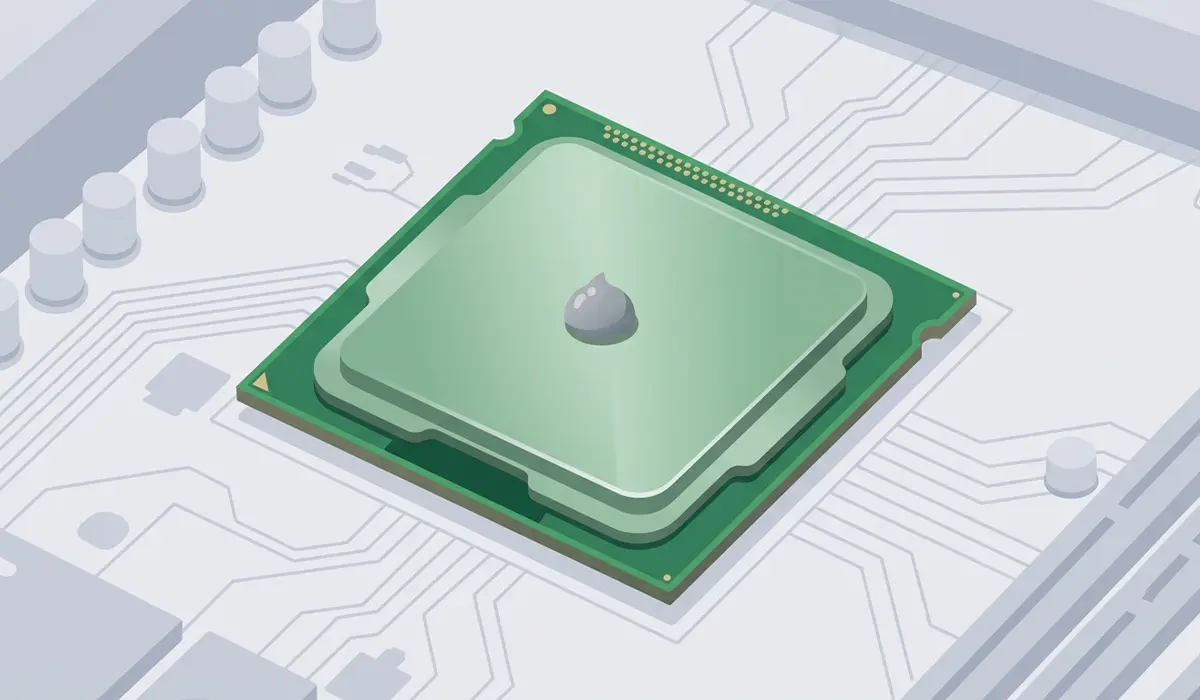
- Step 7: Place a pea-sized dot of thermal paste in the center of the CPU. For larger CPU dies, a small X or a few smaller dots spread across the surface works well too.
- Step 8: Avoid spreading the paste manually unless using a paste specifically designed for it. The pressure from mounting the cooler naturally spreads a properly sized dot into an even layer.
Reseat the Cooler
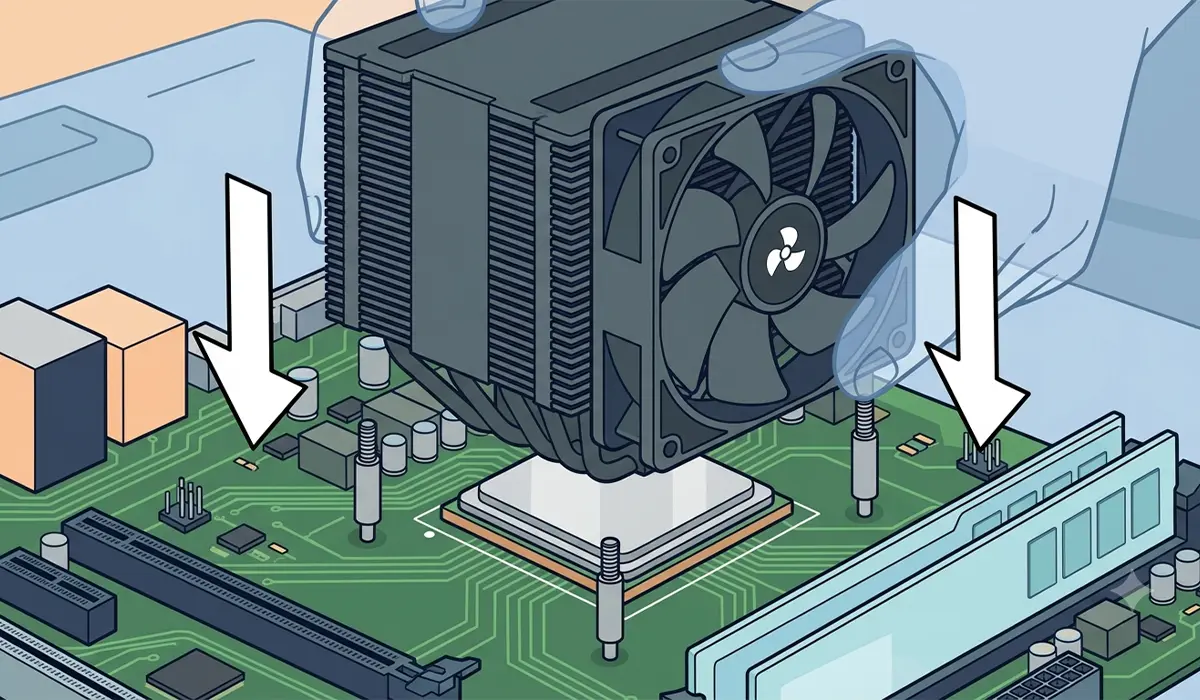
- Step 9: Lower the cooler straight down onto the CPU without sliding it side to side, which can push paste unevenly or off to one edge.
- Step 10: Tighten the mounting screws in a diagonal, crisscross pattern, a few turns at a time, until the cooler sits firm and even. Avoid overtightening past what the manufacturer specifies.
- Step 11: Reconnect the fan cable and any other cooler cables to their original headers.
Tip: If the cooler bracket allows it, a light back-and-forth twist right before final tightening helps the paste settle evenly across the surface.
Common Problems and Fixes
Temperatures Are Still High After Repasting
This usually points to uneven mounting pressure or a paste layer that is too thick or too thin. Removing the cooler, wiping both surfaces clean, and reapplying with a smaller, centered dot often resolves it.
PC Will Not Boot After Reassembly
Double-check that all power connectors, including the CPU’s 4-pin or 8-pin motherboard connector, are fully seated. A loose cable disconnected during the cooler removal is the most common culprit.
Paste Squeezed Out Around the Edges
A small amount of overflow at the edges is normal and harmless as long as it has not touched other components. Wipe away excess with a cloth and isopropyl alcohol, taking care not to let liquid drip onto the motherboard.
Fan Runs Loud or Spins Inconsistently After the Job
This often means the fan cable was not seated in its header properly. Reopen the case and confirm the connector clicks fully into place.
Frequently Asked Questions
How often should thermal paste be reapplied?
Most desktop CPUs benefit from fresh paste every two to four years. Systems running hotter than usual or approaching the higher end of that range are good candidates for a repaste sooner.
What is the best amount of thermal paste to use?
A pea-sized dot in the center of the CPU is enough for most consumer processors. Using too much paste can create air pockets or squeeze-out, while too little can leave uncovered spots.
Can rubbing alcohol be used instead of isopropyl alcohol?
Isopropyl alcohol at 90 percent concentration or higher works best because it evaporates quickly and leaves minimal residue. Lower concentration rubbing alcohol contains more water and can leave streaks behind.
Is it necessary to remove the motherboard to reapply thermal paste?
No, the motherboard does not need to be removed from the case. The cooler can be detached and the CPU accessed directly while the motherboard stays mounted.
Does the CPU need to be removed from the socket to repaste?
No, removing the CPU from its socket is not required for repasting. The paste is applied and cleaned directly on the CPU lid while it stays seated in the socket.
What happens if thermal paste is left off entirely?
Running a CPU without thermal paste allows air gaps between the CPU and cooler, which conduct heat poorly. Temperatures will spike quickly, and the system may shut down or throttle heavily to protect itself.
How long does thermal paste take to cure?
Many modern pastes reach full performance within the first 24 to 48 hours of use, though a break-in period of a few days is common. Temperatures may shift slightly as the paste settles.
Can old thermal paste be reused instead of applying new paste?
Reusing old, dried paste is not recommended, since it has lost the consistency needed to fill microscopic gaps between the CPU and cooler. Fresh paste should always be used when reseating a cooler.
Is it safe to touch the CPU pins or contacts during this process?
The top of the CPU lid is safe to handle, but the underside pins or contact pads should be avoided entirely. Bent pins or damaged contacts can prevent the CPU from working at all.
When should a professional handle this instead?
If a cooler feels stuck, if the CPU appears to lift with the cooler during removal, or if there is uncertainty about socket type and mounting hardware, it is worth having a professional handle it. Opening the case and cooler may also affect warranty coverage, so checking that first is worthwhile.
