
A keyboard typing wrong characters is one of the most disorienting problems a computer user can run into, especially when letters, numbers, or symbols swap places without warning. Most of the time the cause sits in software settings rather than a broken keyboard, and the fix takes only a few minutes once the right setting gets tracked down.
Key Takeaways
- A wrong keyboard layout or input language is the single most common cause of characters appearing incorrectly.
- Accessibility features like Sticky Keys, Filter Keys, and Toggle Keys can quietly interfere with normal typing.
- Outdated or corrupted keyboard drivers can cause dropped, duplicated, or mismatched characters.
- Debris under the keys or a failing switch can mimic a software problem, so physical inspection still matters.
- Most fixes involve Windows settings and take just a few minutes, with no tools or disassembly required.
Common Causes of a Keyboard Typing Wrong Characters
Before jumping into fixes, it helps to understand why this happens in the first place. Several distinct issues can produce the same frustrating symptom.
Incorrect Keyboard Layout or Input Language
Windows lets multiple keyboard layouts and languages sit installed at once, and it is easy to switch between them by accident with a keyboard shortcut. A US layout keyboard paired with a UK or international input language, for example, will often print the wrong symbol when the @ sign, quotation marks, or the key next to Enter gets pressed.
Accessibility Features Left On by Accident
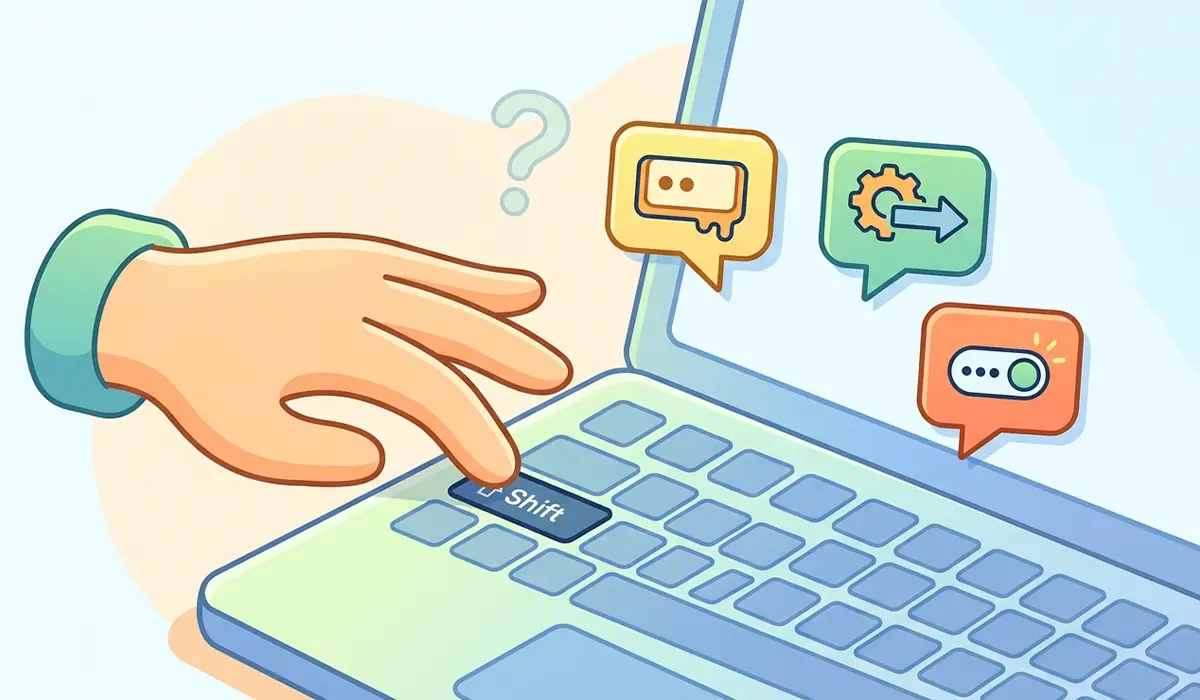
Sticky Keys, Filter Keys, and Toggle Keys are built for users who need modified key behavior, but they get toggled on unintentionally more often than people realize, usually by holding Shift or another key too long. Once active, they change how key presses register, which can look identical to a hardware fault.
Outdated, Missing, or Corrupted Keyboard Drivers
A driver that has not updated properly, or one damaged by a failed Windows update, can misinterpret signals from the keyboard. This shows up as characters that repeat, drop, or do not match what was actually pressed.
Autocorrect and Text Replacement Settings
Some apps, and Windows itself, include text replacement or autocorrect features that swap certain characters automatically. This tends to look like a keyboard issue even though the keyboard is working exactly as intended.

Physical Debris or a Failing Key Switch
Crumbs, dust, or a sticky substance under a key can cause it to register a second, unintended press, or fail to register cleanly. On laptops, a worn-out switch under a frequently used key can behave the same way over time.
How to Fix a Keyboard Typing Wrong Characters
Work through these fixes in order. Most people resolve the problem in the first two or three steps.
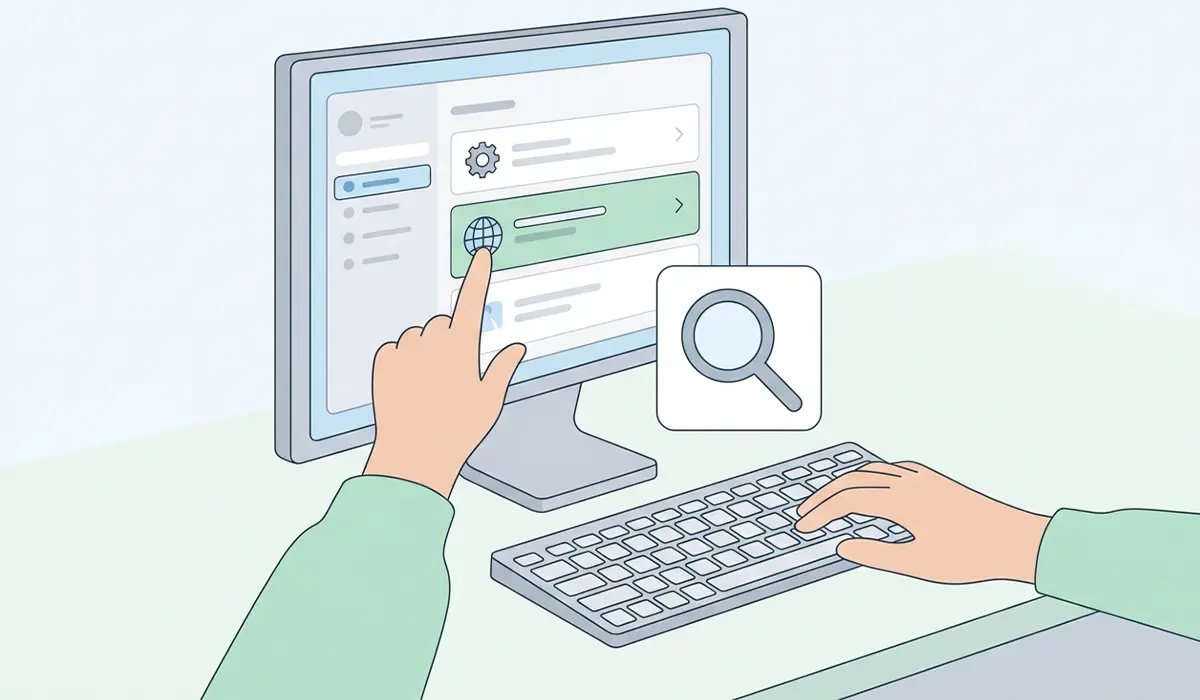
- Step 1: Open the Windows Settings app, go to Time & Language, then Language & Region, and check which keyboard layout and input language are currently active. Compare this against the physical keyboard being used. A mismatch here explains the vast majority of wrong-character cases.
- Step 2: If more than one language or layout is listed, remove the ones not in use, or switch the active one using the language icon in the taskbar or the Windows key plus Spacebar shortcut. Test typing a few common symbols afterward to confirm the fix.
- Step 3: Check whether Sticky Keys, Filter Keys, or Toggle Keys are active. In Settings, go to Accessibility, then Keyboard, and turn off any of these that are enabled unless they are needed for accessibility reasons.
- Step 4: Confirm Num Lock is in the expected state if numbers on a numeric keypad are printing as letters or symbols instead, since this is a frequent cause on laptops with a shared numpad layer.
- Step 5: Open Device Manager, expand Keyboards, right-click the listed keyboard device, and select Update driver. Choose the option to search automatically for updated software.
- Step 6: If updating does not help, right-click the same keyboard entry and select Uninstall device, then restart the computer. Windows reinstalls a fresh driver automatically on startup, which often clears up corruption the update option could not fix.
- Step 7: Test typing in a plain text editor rather than a browser or document app. If the problem disappears, an app-level autocorrect or text replacement setting is the likely cause rather than the keyboard itself, and that app’s settings should be checked next.
- Step 8: Turn the keyboard over and gently tap it to dislodge loose debris, then use a can of compressed air along the rows of keys to clear out dust or crumbs. For a laptop keyboard, avoid tipping liquid or spray cleaners near the keys.
- Step 9: Test the keyboard on a different computer, or test a different keyboard on the same computer, to isolate whether the issue follows the hardware or stays with the machine. This single step narrows down almost every remaining case.
Tip: Keep a plain text editor open while testing each step. It removes autocorrect and formatting shortcuts from the equation and shows exactly what the keyboard is sending.
Common Problems and Fixes
Symbols Print Correctly but Letters Still Swap
This points toward a driver issue rather than a layout mismatch, since layout problems almost always affect symbols and punctuation first. Reinstalling the driver through Device Manager, as covered in Step 6, resolves this in most cases.
Only One Specific Key Misbehaves
A single problem key, rather than the whole keyboard, usually points to debris or a worn switch under that key rather than a settings issue. Cleaning around that key with compressed air and a small plastic pry tool to gently lift the keycap, where the keyboard design allows it, often clears the problem.
The Problem Comes Back After Restarting
If a language or layout keeps reverting after every restart, a startup app or a synced Microsoft account setting may be resetting it. Checking Settings, then Accounts, then Sync your settings, and adjusting language sync there usually stops the reset from recurring.
Wrong Characters Only Happen in One App
When the issue is isolated to a single program, the fix belongs in that app’s own settings rather than Windows. Look for an autocorrect, autoformat, or text replacement section within the app’s preferences.
External Keyboard Works Fine but the Built-In One Does Not
This points toward the internal keyboard hardware or its connection rather than a Windows-wide setting, since an external keyboard bypasses that hardware entirely. At this point, a loose internal keyboard ribbon cable is a strong possibility, and this is a reasonable place to stop and have a qualified repair technician take a look rather than opening the laptop chassis without experience, since doing so can affect the warranty.
Frequently Asked Questions
Why is the keyboard typing the wrong symbols but the right letters?
This almost always points to a mismatched keyboard layout or input language rather than a hardware fault, since letters tend to stay consistent across layouts while punctuation and symbols shift position.
Can a virus cause a keyboard to type the wrong characters?
It is uncommon, but certain malware can interfere with keyboard input or install unwanted keyboard layouts. Running a full scan with a trusted antivirus tool is a reasonable step if settings and driver fixes do not resolve the issue.
Why does the keyboard type numbers instead of letters?
This is a classic sign that Num Lock is active on a laptop where the numeric keypad shares space with regular letter keys, turning part of the keyboard into a temporary numpad.
Does updating Windows fix keyboard character problems?
Sometimes. A pending Windows update can carry a corrected keyboard driver, but running Windows Update alone will not fix a layout mismatch or an accessibility feature that has been left switched on.
Why did this problem start suddenly after a Windows update?
Updates occasionally reset language preferences or replace a driver with a mismatched version. Reviewing the language and layout settings covered in Steps 1 and 2 after any recent update is worth doing as a first check.
Is it safe to remove a keyboard driver?
Yes. Uninstalling a keyboard driver through Device Manager and restarting is a standard troubleshooting step, and Windows automatically reinstalls a default driver on startup.
Why does a laptop keyboard type double letters?
Double characters usually point to a sticking key switch, often caused by dust or a small amount of spilled liquid residue under the keycap, rather than a software setting.
How can the correct keyboard layout be identified?
The physical layout printed on the keys, such as US, UK, or another regional layout, should match the input language selected in Windows settings for symbols and punctuation to print correctly.
Should a laptop keyboard be repaired or replaced if cleaning does not help?
If cleaning and driver troubleshooting do not resolve a persistent physical issue, replacement of the keyboard assembly is generally more reliable than repeated repair attempts, and this is a good point to consult a professional technician.
Can a Bluetooth or wireless keyboard have this same problem?
Yes, and the same layout, driver, and accessibility checks apply. Low battery levels or signal interference can also cause dropped or delayed keystrokes that look like wrong characters, so trying a fresh battery or a wired connection helps rule that out.
