
A Wi-Fi adapter not showing in Device Manager usually means Windows has lost track of the hardware, hidden it, or disabled its driver entirely. The good news is that this is rarely a sign of a dead adapter, and most cases get fixed with a few targeted steps rather than a hardware swap.
Key Takeaways
- A missing Wi-Fi adapter is almost always a driver, power management, or BIOS setting issue, not physical damage.
- Showing hidden devices in Device Manager often reveals an adapter that Windows quietly disconnected.
- Reinstalling or updating the network adapter driver resolves the majority of cases.
- Laptops sometimes disable the wireless radio through a BIOS setting or a physical switch.
- A Windows network reset clears out corrupted adapter configurations without affecting personal files.
Common Causes of a Missing Wi-Fi Adapter
Several everyday situations cause a Wi-Fi adapter not showing in Device Manager, and narrowing down the cause makes the fix much faster.
Corrupted or Outdated Driver
A driver that failed to load correctly after an update, or one that has become corrupted, can cause Windows to stop recognizing the adapter at all.
Adapter Disabled in BIOS or by a Hardware Switch
Many laptops include a BIOS toggle for the internal wireless card, and some older models still have a physical Wi-Fi switch or a function-key shortcut that turns the radio off.
Windows Update Conflicts
A recent Windows update can occasionally overwrite a working driver with an incompatible one, which knocks the adapter out of Device Manager’s visible list.
Power Management Settings
Windows sometimes powers down network hardware to save battery, and on certain systems that setting causes the adapter to disappear instead of simply going idle.
Hidden Devices
Device Manager only shows connected hardware by default. If the adapter was recently disconnected at the driver level, it moves into a hidden category that most users never check.
How to Fix a Wi-Fi Adapter Not Showing in Device Manager
Work through these fixes in order, since they move from the simplest checks to the more involved ones.
Show Hidden Devices
- Step 1: Right-click the Start button and select ‘Device Manager’.
- Step 2: Click the ‘View’ menu at the top and select ‘Show hidden devices’.
- Step 3: Expand ‘Network adapters’ and look for the Wi-Fi adapter, which may appear grayed out.
- Step 4: Right-click the grayed-out entry and choose ‘Enable device’ if that option appears.
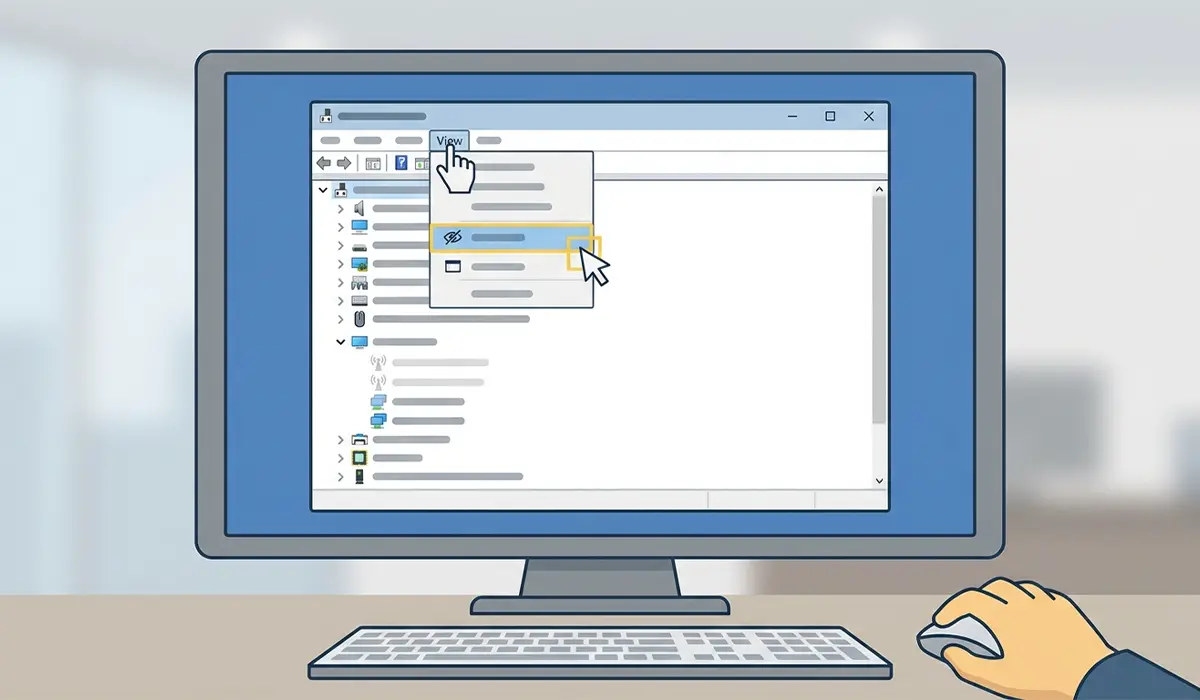
Tip: If the adapter shows up grayed out after this step, that alone confirms the hardware is intact and the issue sits at the software level.
Update or Reinstall the Network Adapter Driver
- Step 1: Open Device Manager and expand ‘Network adapters’.
- Step 2: Right-click the Wi-Fi adapter, if visible, and select ‘Uninstall device’.
- Step 3: Check the box for ‘Attempt to remove the driver for this device’ if it appears, then confirm.
- Step 4: Restart the computer. Windows reinstalls a fresh driver automatically during startup in most cases.
- Step 5: If the adapter still does not appear, visit the laptop or motherboard manufacturer’s support page and download the current wireless driver for the exact model.
Check BIOS Settings and Physical Switches
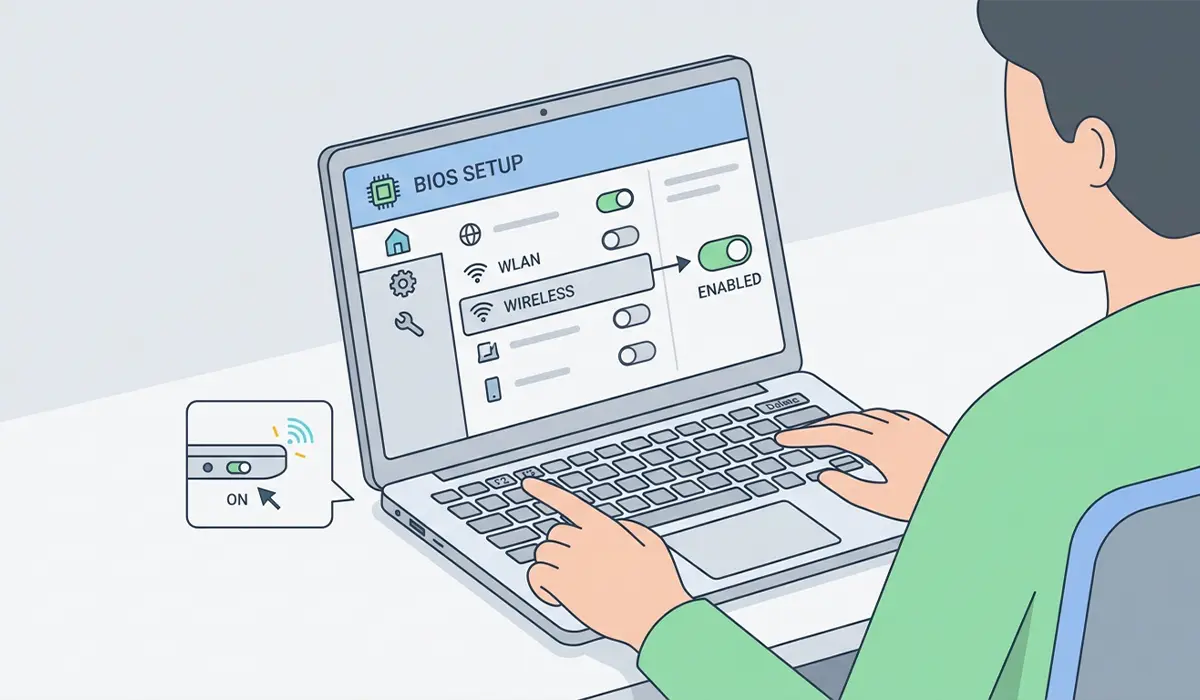
- Step 1: Restart the computer and enter BIOS or UEFI setup, typically by pressing Delete, F2, or F10 during startup.
- Step 2: Look for a section labeled ‘Wireless’, ‘WLAN’, or ‘Onboard Devices’ and confirm the wireless adapter is set to enabled.
- Step 3: Save changes and exit.
- Step 4: On laptops with a physical Wi-Fi switch or an airplane mode function key, confirm it is set to on.
Roll Back a Recent Driver Update
- Step 1: Open Device Manager and locate the Wi-Fi adapter under ‘Network adapters’.
- Step 2: Right-click the adapter and select ‘Properties’.
- Step 3: Go to the ‘Driver’ tab and click ‘Roll Back Driver’ if the option is available.
- Step 4: Confirm and restart the computer.
Tip: This option only appears when Windows has a previous driver version saved, so it will be grayed out if no earlier driver exists.
Run the Network Adapter Troubleshooter
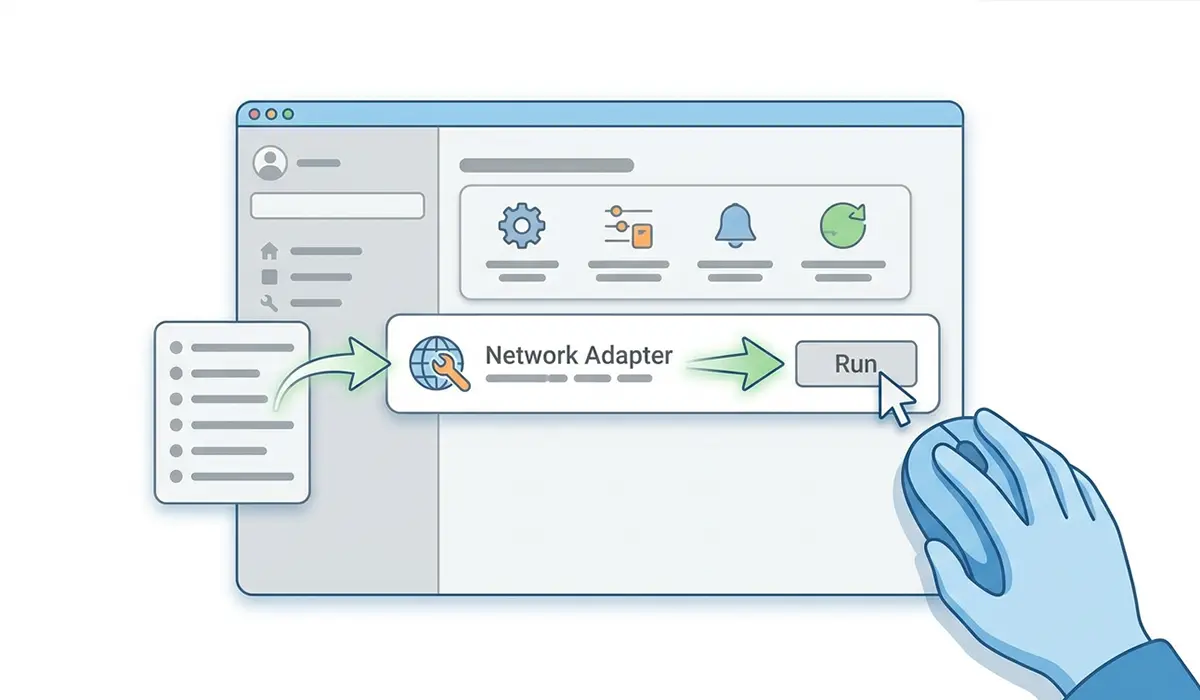
- Step 1: Open Settings and go to ‘System’, then ‘Troubleshoot’, then ‘Other troubleshooters’.
- Step 2: Find ‘Network Adapter’ and click ‘Run’.
- Step 3: Follow the prompts and apply any suggested fixes.
Reset Network Settings
- Step 1: Open Settings and go to ‘Network and internet’.
- Step 2: Scroll down and select ‘Advanced network settings’.
- Step 3: Click ‘Network reset’ and confirm.
- Step 4: Restart the computer once the reset finishes.
Tip: A network reset removes and reinstalls all network adapters and resets related settings to default, so it is worth trying after the driver-focused fixes above rather than as the very first step.
Common Problems and Fixes
Adapter Reappears Then Disappears Again After Restart
This usually points to a power management setting still fighting with the driver. Open Device Manager, right-click the adapter, go to ‘Properties’, select the ‘Power Management’ tab, and uncheck ‘Allow the computer to turn off this device to save power’.
Driver Installs but Adapter Still Shows an Error Icon
A yellow warning icon after a fresh driver install often means the wrong driver version was used. Confirm the exact adapter model using the motherboard or laptop’s official specifications page, then download the matching driver rather than a generic one.
Adapter Missing Only After a Windows Update
Check Windows Update for an optional driver rollback, or use System Restore to return to a point before the update if the issue started immediately afterward.
No Wireless Entry Appears Anywhere, Even Hidden
If nothing shows up even with hidden devices visible, the adapter may not be seated correctly on desktop PCs with a PCIe Wi-Fi card. Power down, unplug the system, and reseat the card in its slot.
Frequently Asked Questions
Why did my Wi-Fi adapter suddenly disappear from Device Manager?
This typically happens after a Windows update, a driver crash, or a change to power management or BIOS settings that disables the wireless radio.
Does a missing Wi-Fi adapter mean the hardware is broken?
Not usually. Most cases are caused by a software or driver issue rather than physical damage, especially if the adapter worked normally before.
How can I tell if my Wi-Fi adapter is hidden instead of missing?
Enable ‘Show hidden devices’ from the View menu in Device Manager. A hidden adapter often appears grayed out under Network adapters once this option is turned on.
Will reinstalling the driver delete personal files?
No. Uninstalling and reinstalling a network driver only affects the adapter software, not personal files, apps, or documents.
Can a BIOS update cause the Wi-Fi adapter to disappear?
Yes, in some cases a BIOS update resets custom settings, including whether the internal wireless radio is enabled.
Is it safe to use a generic driver instead of the manufacturer’s driver?
It is best to avoid this. A driver matched to the exact adapter model and system is far more reliable than a generic version pulled from a general driver database.
What if the Wi-Fi adapter does not appear even after a network reset?
At that point, the issue may be related to BIOS settings, a loose internal connection, or a failed adapter, and checking those areas directly is the next step.
Can a virus or malware cause this issue?
It is uncommon but possible if malware has altered network drivers or registry settings. Running a full system scan rules this out.
Does this issue affect both laptops and desktops?
Yes, though the specific causes differ slightly. Laptops are more prone to BIOS or physical switch issues, while desktops with PCIe wireless cards are more prone to seating or slot-related issues.
