
A laptop keyboard with keys not working can turn a quick email into a frustrating ordeal, especially when the letters that stop responding happen to be the ones used most. The good news is that most cases trace back to a handful of common culprits, and nearly all of them can be diagnosed and fixed without a trip to the repair shop.
Key Takeaways
- Software glitches, outdated drivers, and sticky debris cause the majority of unresponsive key issues.
- A quick restart and driver check should always come before opening the laptop.
- Compressed air and careful cleaning solve dead keys caused by dust or spills more often than people expect.
- Keys that stay dead after cleaning usually point to a damaged keyboard membrane or a loose internal connector.
- Replacing the keyboard is a realistic DIY fix on many laptops, but tight ribbon cables call for patience.
Common Causes of Laptop Keys Not Working
Before reaching for a screwdriver, it helps to understand what typically causes this problem. Most laptop keyboards fail for one of these reasons.
Software and Driver Issues
Corrupted keyboard drivers, a stuck Filter Keys setting, or a Windows update gone wrong can make specific keys stop registering even though the hardware is perfectly fine. This is often the first thing to rule out because the fix takes minutes.
Dust, Crumbs, and Spilled Liquid
Laptop keyboards sit right below where people eat lunch, sip coffee, and brush off crumbs. Over time, debris settles under the keycaps and interferes with the switch underneath. A minor liquid spill, even one that seemed to dry without damage, can leave a sticky residue that keeps a key from making contact.
Worn or Damaged Key Switches
Every keypress relies on a rubber dome or scissor switch making contact with a membrane layer underneath. Heavy daily use wears these parts down over the years, and once a switch degrades enough, that key stops responding no matter how hard it gets pressed.
Loose or Damaged Keyboard Ribbon Cable
Laptop keyboards connect to the motherboard through a thin ribbon cable. A drop, a rough repair, or even normal flexing over time can loosen this connection. When this happens, entire rows or sections of keys often stop working at once instead of just one or two.
How to Fix Laptop Keyboard Keys Not Working
Work through these fixes in order, starting with the simplest. Most people never need to go past the cleaning step.
Before You Start
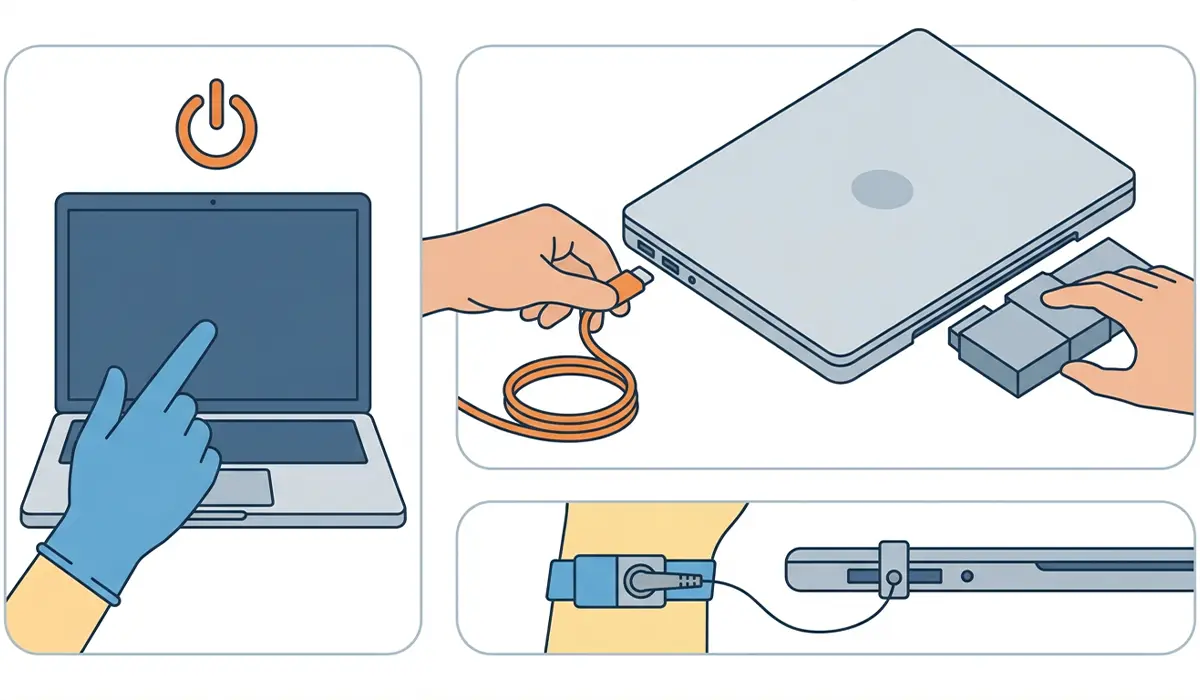
Shut the laptop down completely and unplug the charger. If the battery is removable, take it out. Let the laptop sit for a few minutes if it has been running, since components near the keyboard can hold heat. Touching a bare metal part of the laptop chassis or wearing an anti-static wrist strap helps prevent static discharge from damaging sensitive components during cleaning or disassembly.
Tools and Materials Needed
- Compressed air canister
- Soft-bristle brush (a clean, dry paintbrush works well)
- Lint-free or microfiber cloth
- 90 percent or higher isopropyl alcohol
- Plastic pry tool or old credit card
- Small Phillips head screwdriver, if disassembly becomes necessary
- Step 1: Restart the laptop fully rather than just closing the lid, since a full restart clears out many temporary glitches that affect keyboard input.
- Step 2: Check for stuck accessibility settings by opening Windows Settings, going to Accessibility, and confirming that Filter Keys and Sticky Keys are turned off unless intentionally enabled.
- Step 3: Update or reinstall the keyboard driver through Device Manager. Expand ‘Keyboards,’ right-click the listed driver, choose ‘Uninstall device,’ then restart the laptop so Windows reinstalls a fresh copy automatically.
- Step 4: Test the affected keys using the on-screen keyboard or a text editor to confirm whether the issue is consistent or intermittent, which helps narrow down a software cause versus a hardware one.
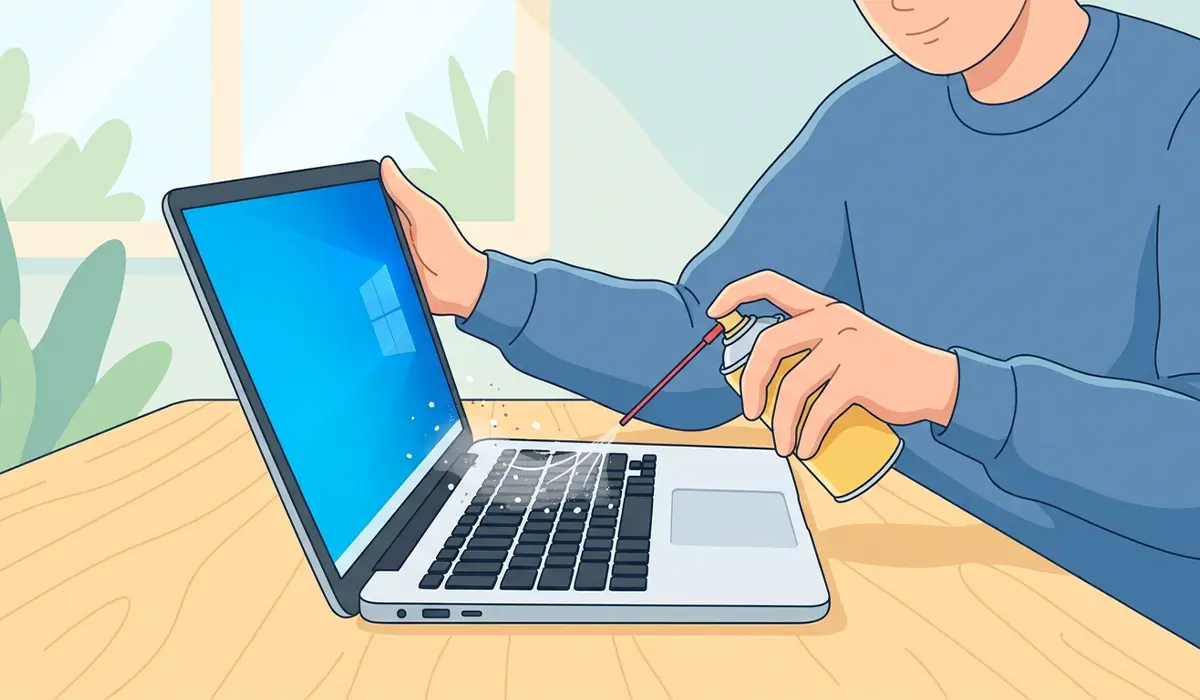
- Step 5: Power off the laptop and turn it upside down at a slight angle, then use compressed air in short bursts between the keys to dislodge crumbs and dust that have settled underneath.
- Step 6: Gently brush along the edges of the affected keys with a soft brush to loosen any remaining debris, working in the direction away from the hinge of each key.
- Step 7: For a key that feels sticky or unresponsive after a spill, dab a lint-free cloth with isopropyl alcohol and carefully wipe around the base of the key without letting liquid pool or drip further into the keyboard.
- Step 8: If a single keycap needs to come off for deeper cleaning, use a plastic pry tool to lift it gently from one edge, noting how the retention clips sit so it can be reseated correctly afterward.
- Step 9: Once cleaning is complete and everything has fully dried, reassemble any removed keycaps and test each key again to confirm the fix worked.
- Step 10: If several adjacent keys or an entire row still fail to respond, the ribbon cable connecting the keyboard to the motherboard likely needs to be reseated or the keyboard itself may need replacing.

Tip: Testing keys with the laptop tilted upside down over a light-colored surface makes it much easier to see exactly what falls out during the compressed air step, which often reveals just how much debris has accumulated.
When to Consider a Keyboard Replacement
If cleaning and driver fixes do not bring the dead keys back, the keyboard module itself may have failed internally. Replacement keyboards are widely available for most laptop models and typically install by removing a back panel or top case, disconnecting the old ribbon cable, and connecting the new one in its place. This is a manageable DIY project on many laptops, but ultra-thin models with keyboards bonded to the chassis or hidden under the palm rest assembly call for more disassembly and carry more risk of accidental damage.
Tip: Before buying a replacement, search using the exact laptop model number rather than just the brand and screen size, since keyboard layouts and connector types vary even within the same product line.
When to Let a Professional Handle It
A liquid spill that reached the motherboard, a laptop that will not power on after a spill, or a repair that requires removing the entire top case on a tightly integrated ultrabook are all good reasons to hand the job to a professional repair technician. Opening the laptop chassis may also affect the manufacturer’s warranty, so checking warranty status first is worth the extra minute.
Common Problems and Fixes
Even after following the steps above, a few specific situations tend to come up.
Keys Work Intermittently Instead of Failing Completely
This pattern usually points to a switch that is partially worn or debris that has not fully cleared. Repeating the compressed air and brush cleaning, and pressing the affected key firmly a few dozen times to help work out remaining residue, often resolves it.
An Entire Row or Section Stopped Working After Cleaning
This usually means the ribbon cable was bumped or partially disconnected during the process. Powering down, reopening the back panel, and reseating the ribbon cable connector firmly into its socket typically restores full function.
A Key Feels Physically Loose or Wobbly
This points to a broken retention clip or a dislodged rubber dome rather than a dirt problem. A replacement keycap and hinge assembly for that specific key can often be sourced separately instead of replacing the whole keyboard.
External Keyboard Works Fine But the Built-In Keyboard Does Not
This confirms the issue lives in the internal keyboard hardware or its connection, not in Windows or a driver. It narrows the fix down to cleaning, reseating the ribbon cable, or replacement.
Frequently Asked Questions
Why did my laptop keyboard suddenly stop working after a Windows update?
Updates sometimes install a generic keyboard driver in place of the manufacturer’s version, which can cause certain keys or shortcuts to misbehave. Reinstalling the driver through Device Manager usually corrects this.
Can a small amount of spilled coffee really disable just one or two keys?
Yes. Even a small amount of liquid can seep under a single keycap and leave a sticky film on the switch underneath, which prevents that one key from registering a full press while the rest of the keyboard works normally.
Is it safe to use compressed air on a laptop keyboard?
Yes, as long as short bursts are used with the laptop powered off and tilted so debris falls out rather than deeper into the keyboard. Holding the can too close or spraying continuously can push moisture from the propellant onto internal components.
Should isopropyl alcohol be used directly on the keys?
It is safer to apply the alcohol to a cloth first rather than pouring or spraying it directly onto the keyboard, which reduces the risk of liquid seeping past the keycap and reaching internal electronics.
Why do only the letters used most often stop working first?
Frequently used keys wear down their internal switch mechanism faster and also accumulate more oil, dust, and debris from repeated contact, which is why letters like E, A, and S often show problems before less-used keys.
Does using an external keyboard mean the internal one is beyond repair?
Not necessarily. An external keyboard is simply a workaround while the internal keyboard is diagnosed or repaired, and it also helps confirm that the problem is isolated to the built-in keyboard hardware rather than a system-wide issue.
How much does it typically cost to replace a laptop keyboard?
Costs vary by laptop model and by whether the work is done as a DIY replacement or through a professional repair service, so checking pricing directly from a trusted parts supplier or repair shop for the specific model is the most accurate approach.
Can liquid damage from a spill show up days or weeks later?
Yes. Corrosion from dried liquid residue can gradually worsen a connection that seemed fine right after the spill, which is why keys sometimes fail well after the incident itself.
Will reinstalling Windows fix a laptop keyboard that is not working?
It can help if the cause is deeply software related, but for most keyboard driver issues a simple driver reinstall accomplishes the same result without the time and risk involved in a full operating system reinstall.
