
Laptop thermal throttling happens when a processor or graphics chip gets too hot and automatically slows itself down to avoid damage. It shows up as sudden stuttering, dropped frame rates, or a laptop that feels fast for five minutes and sluggish after that. The good news is that most cases trace back to a handful of fixable causes.
Key Takeaways
- Thermal throttling is a built-in safety response, not a hardware failure by itself.
- Dust buildup, dried thermal paste, and blocked vents are the most common triggers.
- Cleaning the cooling system and reapplying thermal paste solves the majority of cases.
- Software settings like power plans and undervolting can reduce heat without touching hardware.
- Persistent throttling after cleaning often points to a failing fan or a design limitation.
Common Causes of Laptop Thermal Throttling
Before jumping into fixes, it helps to understand what actually drives the heat buildup. Most laptops throttle for one of the following reasons.
Dust and Debris Blocking Airflow
Fans pull in air through small vents, and those vents double as dust filters over time. A thick layer of dust on the heatsink fins or fan blades chokes airflow, so heat has nowhere to go. This is by far the most common cause on laptops older than a year or two.
Dried Out or Poorly Applied Thermal Paste
Thermal paste fills microscopic gaps between the processor and the heatsink so heat can transfer efficiently. Over several years, most pastes dry out and lose their ability to conduct heat, creating a bottleneck right at the source.
Blocked Intake or Exhaust Vents
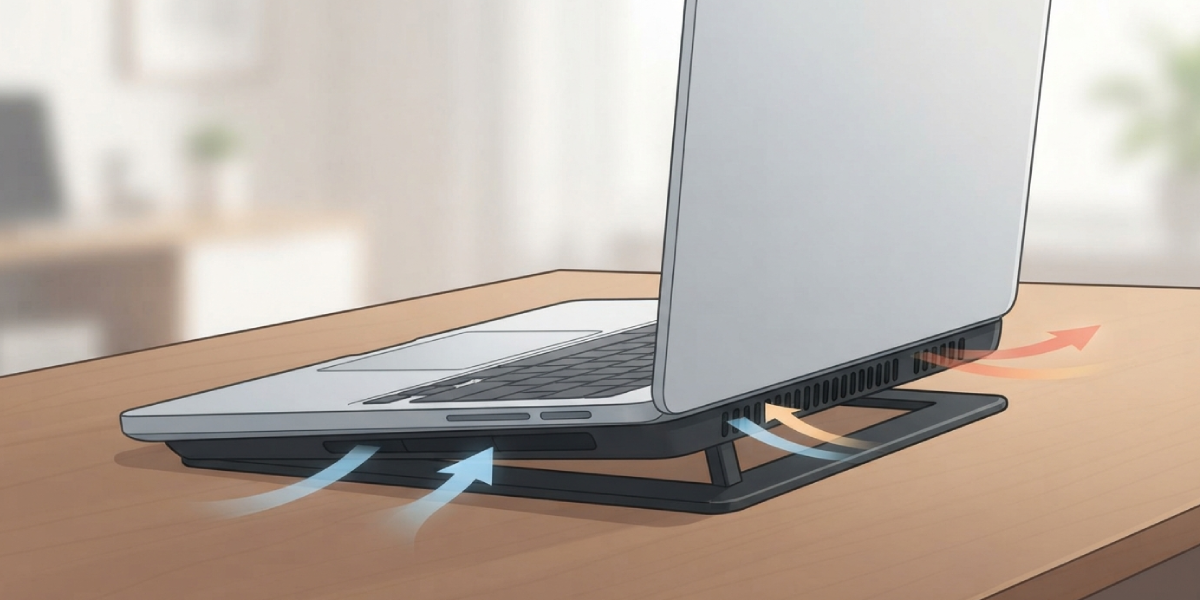
Using a laptop on a soft surface like a bed, couch, or pillow blocks the intake vents underneath. Even a laptop with a spotless interior will throttle quickly if its vents are pressed against fabric.
Aggressive Power or Performance Settings
Some laptops ship with performance modes that push the CPU and GPU harder than the cooling system can sustain. This is common on thin-and-light laptops that prioritize a slim chassis over cooling capacity.
Aging Fans or Failing Bearings
Fans lose efficiency as they age. A fan that spins slower than it should, or one that has become noisy, moves less air even when it is running at full speed.
Before You Start
A few of the fixes below involve opening the laptop, so a little preparation goes a long way toward doing this safely.
- Power off the laptop completely and unplug the charger.
- Remove the battery if it is user removable, or disconnect the internal battery connector once the case is open.
- Discharge static electricity by touching a bare metal surface, or wear an anti-static wrist strap.
- Let the laptop cool down fully if it was recently in use.
- Have the right tools ready: a small screwdriver set, compressed air, a soft brush, isopropyl alcohol at 90 percent or higher, a lint-free cloth, plastic pry tools, and fresh thermal paste.
Opening the laptop may affect its warranty, so check the manufacturer’s policy first. If the bottom panel is sealed shut, riveted, or the warranty is still active and valuable, it is worth having a qualified repair technician handle the internal cleaning and paste job instead.
How to Fix Laptop Thermal Throttling
Work through these steps in order. Most laptops recover full performance after the first two or three.
- Step 1: Check where the laptop is being used. Set it on a hard, flat surface like a desk or a laptop stand, and make sure nothing is covering the intake or exhaust vents.
- Step 2: Clean the external vents first using compressed air in short bursts, holding the fan blades steady with a toothpick or similar tool to prevent them from spinning too fast and generating current.
- Step 3: Open the bottom panel following the manufacturer’s disassembly guide, then use a soft brush and compressed air to clear dust from the heatsink fins, fan housing, and intake grilles.
- Step 4: Remove the heatsink from the CPU and GPU, wipe away the old thermal paste with a lint-free cloth dampened in isopropyl alcohol, and let the surfaces dry fully.
- Step 5: Apply a small, pea-sized or thin even layer of fresh thermal paste to the CPU and GPU dies, then reseat the heatsink and tighten the screws in a diagonal pattern for even pressure.
- Step 6: Reassemble the laptop, reconnect the battery, and power it on to confirm the fans spin up normally.
- Step 7: Update the BIOS and chipset drivers, since manufacturers occasionally release fixes that adjust fan curves and power limits.
- Step 8: Review the power plan or performance mode in the laptop’s control software and switch to a balanced setting if the highest performance mode is enabled by default.
- Step 9: Consider undervolting the CPU through the manufacturer’s tuning software or a trusted third-party tool, which can lower heat output without a noticeable drop in real-world performance.
Tip: Run a stress test before and after the cleaning and repaste, watching temperatures for ten to fifteen minutes each time. This gives a clear before-and-after comparison instead of relying on guesswork.
When a Cooling Pad Helps
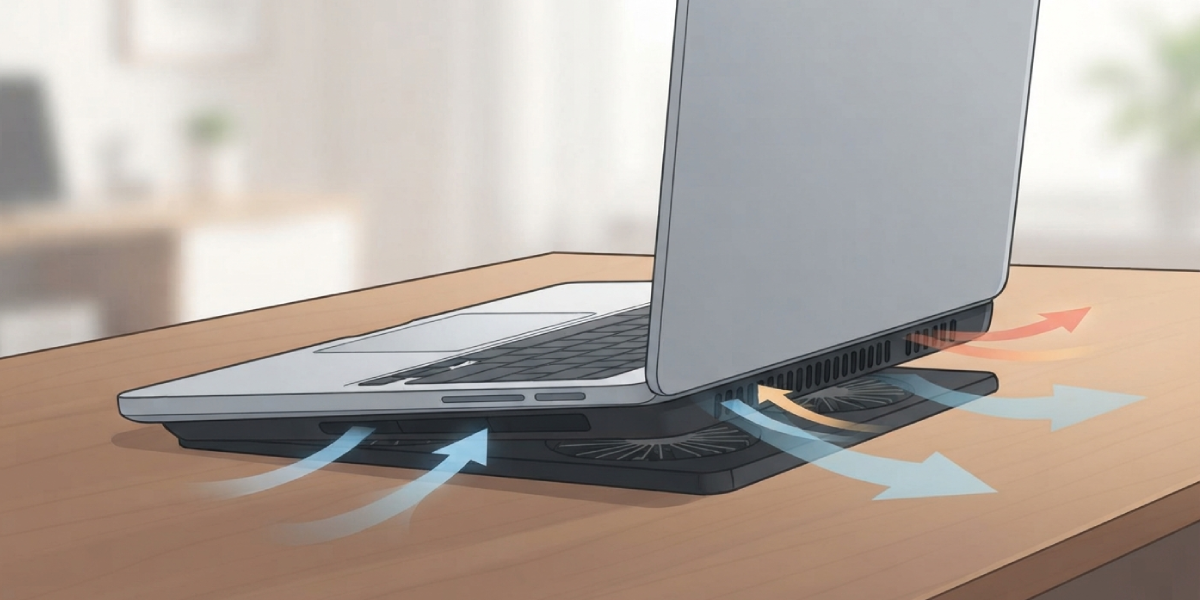
A cooling pad with its own fans can lower intake temperatures a few degrees, which sometimes buys enough headroom to delay throttling during long sessions. It is a helpful supplement, not a substitute for internal cleaning.
Common Problems and Fixes
- Laptop still throttles after cleaning and repasting: The fan itself may be weak or failing. Listen for grinding or rattling noises, and replace the fan assembly if it no longer spins at full speed.
- Fans run loud and constant after reassembly: This usually means the heatsink is not seated flush against the chip, often from too much paste or uneven screw tension. Reseat it and check that all mounting screws are snug.
- Laptop does not turn on after opening it: Double-check that the battery connector and all internal cables, including the fan and display connectors, are fully seated.
- Temperatures improved but performance still feels slow: Throttling may not be the only factor. Background software, an aging battery limiting power delivery, or storage bottlenecks can mimic throttling symptoms.
- New thermal paste made temperatures worse: Too much paste can act as an insulator rather than a conductor. Clean it off completely and reapply a thinner layer.
Frequently Asked Questions
How do I know if my laptop is thermal throttling?
Signs include a sudden drop in frame rates or responsiveness during sustained tasks, fan noise that ramps up without a matching performance boost, and CPU or GPU clock speeds that dip well below their rated boost speeds when monitored with diagnostic software.
What temperature causes thermal throttling?
The exact threshold varies by chip and manufacturer, since each processor has its own maximum safe operating temperature set by the manufacturer. Once the chip approaches that limit, it automatically reduces clock speed to bring the temperature back down.
How often should thermal paste be replaced?
Every two to four years is a reasonable interval for most laptops, though heavier use under sustained load can shorten that window.
Can thermal throttling damage a laptop?
Throttling itself is a protective measure designed to prevent damage. The real risk comes from ignoring the underlying heat problem for a long time, which can shorten the lifespan of the battery and other components.
Does undervolting really help with thermal throttling?
Yes, undervolting reduces the voltage supplied to the CPU for a given clock speed, which lowers heat output. Many laptops see a meaningful temperature drop with little to no loss in performance.
Is it safe to clean a laptop’s internal fans without opening the case?
Compressed air through the external vents removes some surface dust, but it rarely reaches the heatsink fins buried inside. A full internal cleaning gives far better results for laptops showing real throttling symptoms.
Why does my laptop throttle even when it is not gaming?
Background processes, browser tabs, and startup software can push CPU usage higher than expected. Combined with a dusty cooling system, even everyday tasks can trigger throttling on an already compromised laptop.
Will a cooling pad fix thermal throttling on its own?
A cooling pad can help at the margins, but it will not compensate for a heatsink packed with dust or dried thermal paste. Address the internal cooling system first, then add a cooling pad if extra headroom is still needed.
Can a BIOS update reduce thermal throttling?
Yes, manufacturers sometimes release BIOS updates that refine fan curves and power limits, which can noticeably change how a laptop manages heat under load.
Should thermal throttling repairs be done by a professional?
If the laptop uses a sealed or riveted case, is still under warranty, or the disassembly steps feel unfamiliar, a qualified repair technician is the safer choice over risking damage to delicate components.
