
Low FPS despite a good GPU is one of the most frustrating problems a PC gamer can run into, because the obvious suspect turns out to be innocent. When a powerful graphics card still produces choppy frame rates, the real bottleneck is almost always hiding somewhere else in the system.
Key Takeaways
- A strong GPU can still deliver low FPS if the CPU, RAM, storage, or background software is holding it back.
- CPU bottlenecking is the most common hidden cause, especially in CPU-heavy or older-generation processors paired with a newer GPU.
- Outdated drivers, overheating components, and power settings can quietly cap performance even on capable hardware.
- Monitoring software reveals exactly which component is maxed out during gameplay, which takes the guesswork out of troubleshooting.
- Most fixes involve settings and maintenance rather than new parts, so a full upgrade is rarely the first step.
Common Causes of Low FPS Despite a Good GPU
Before jumping into fixes, it helps to understand why a capable graphics card can still bottleneck. Most cases trace back to one of the following.
CPU Bottlenecking
The GPU renders frames, but the CPU tells it what to render and how often. If the processor cannot keep up, feeding instructions fast enough, the GPU sits partially idle waiting for data. This shows up as low FPS even though GPU usage in monitoring tools looks surprisingly low, often well under 90 percent.
Outdated or Corrupted Drivers
Graphics drivers get frequent updates that include game-specific optimizations. Running an old driver, or one with corrupted files from a failed update, can quietly cost significant performance without throwing any error message.
Thermal Throttling
When a CPU or GPU runs too hot, it automatically reduces its clock speed to protect itself. This is a built-in safety feature, not a malfunction, but it directly lowers frame rates. Dust buildup, dried thermal paste, and blocked airflow are the usual culprits.
Background Processes and Software Conflicts
Overlay tools, recording software, browser tabs, and even certain antivirus programs compete for CPU cycles and RAM. Most people find that a handful of background apps running silently can eat up more resources than expected.
Power Settings and Laptop-Specific Limits
Laptops running on battery power, or set to a balanced or power-saving plan, often throttle both CPU and GPU performance to save energy. Desktops can also be affected by conservative BIOS power limits.
Insufficient or Slow RAM
Not enough memory, or RAM running below its rated speed because XMP or EXPO was never enabled, forces the system to rely more heavily on slower storage and causes stuttering that looks like a GPU problem.
Step-by-Step Fixes for Low FPS Despite a Good GPU
Work through these steps in order. Each one rules out a specific cause, and most people find the issue resolves within the first four or five steps.
Diagnose Before Changing Anything
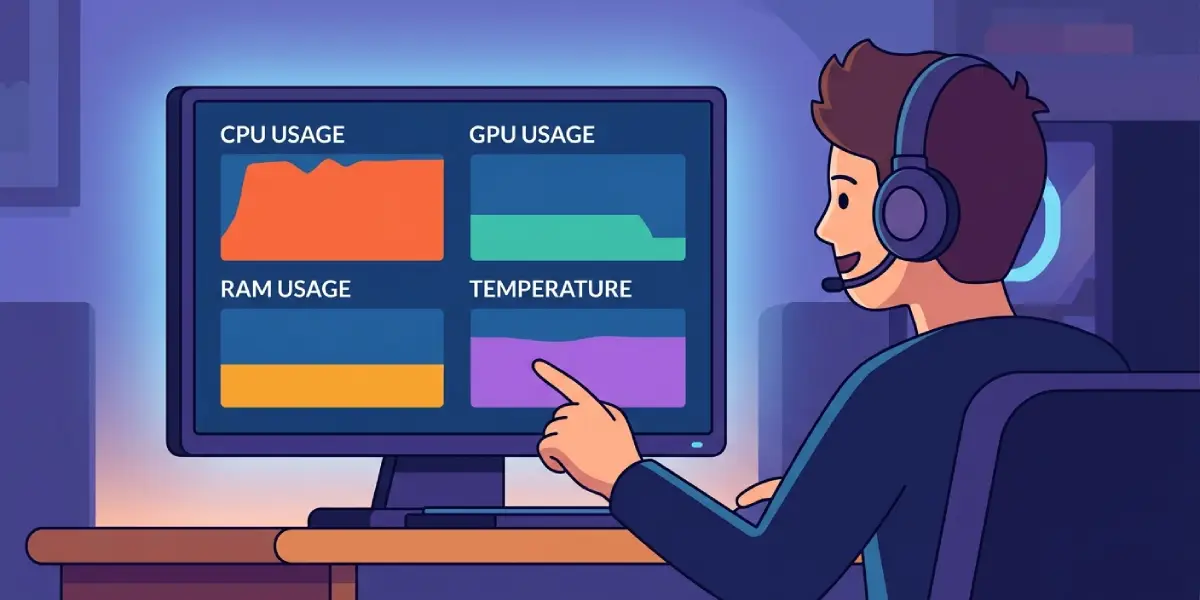
- Step 1: Open a monitoring overlay such as MSI Afterburner with RivaTuner Statistics Server, or the built-in Xbox Game Bar performance overlay on Windows. Watch CPU usage, GPU usage, RAM usage, and temperatures while playing the game that shows low FPS.
- Step 2: Note which component sits closest to 100 percent. If the CPU is maxed out while the GPU sits well below full load, that points to CPU bottlenecking. If GPU usage is high, temperatures and drivers become the next focus.
Update and Clean Up Software
- Step 3: Update the GPU driver directly from the manufacturer’s website (NVIDIA, AMD, or Intel) rather than relying only on Windows Update. Choose a clean installation option if the driver installer offers one.
- Step 4: Update the motherboard chipset drivers and BIOS to the latest stable version, since these affect how efficiently the CPU communicates with other components.
- Step 5: Close unnecessary background applications, browser tabs, and overlay software before launching a game. Task Manager’s Processes tab shows exactly what is consuming CPU and memory in real time.
Address Thermal and Power Limits
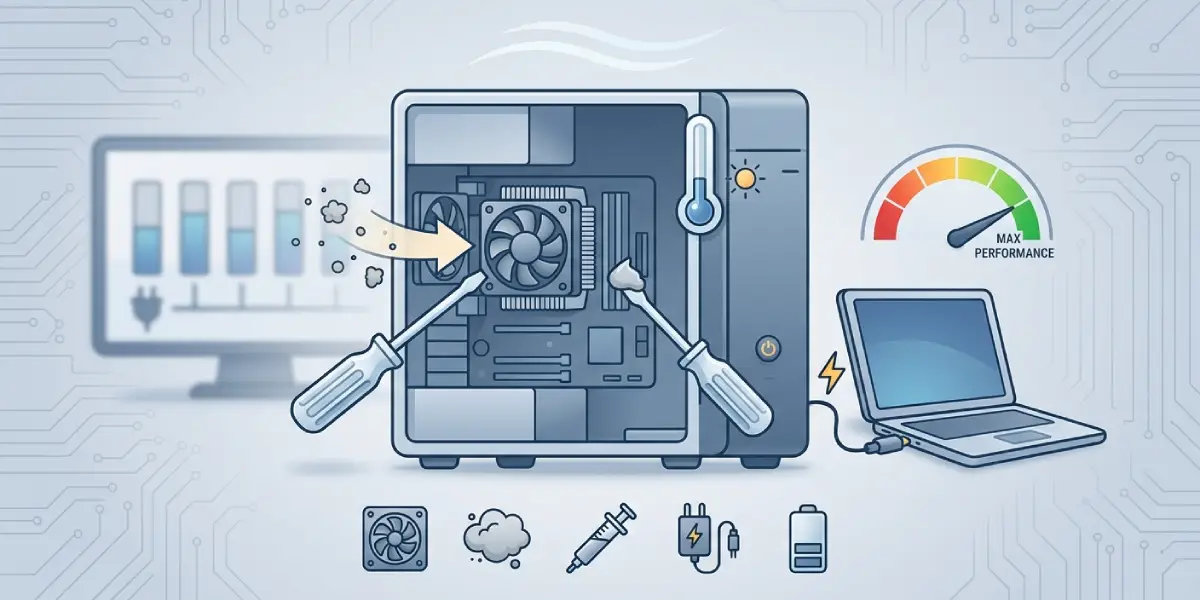
- Step 6: Check CPU and GPU temperatures under load using the monitoring software from Step 1. Sustained temperatures that trigger throttling call for improved airflow, a fresh application of thermal paste, or clearing dust from heatsinks and fans.
- Step 7: On laptops, plug into the charger and set the power plan to High Performance or the manufacturer’s equivalent. On desktops, confirm the power plan in Windows is set to Balanced or High Performance rather than Power Saver.
- Step 8: In the BIOS, verify that XMP or EXPO is enabled for RAM, since this alone can meaningfully improve frame rates in CPU-sensitive titles.
Adjust In-Game and System Settings
- Step 9: Lower CPU-intensive settings inside the game itself, such as draw distance, crowd density, and physics detail, even while keeping GPU-heavy settings like textures and resolution high. This targets the actual bottleneck instead of settings that only affect the GPU.
- Step 10: Confirm the game is set to use the dedicated GPU rather than integrated graphics, particularly on laptops. This is found in Windows Graphics Settings or the GPU manufacturer’s control panel under per-application settings.
Tip: Run the same in-game benchmark or a short gameplay session after each major step, and jot down the average FPS. This turns troubleshooting into a measurable process instead of guesswork.
Common Problems and Fixes
FPS Improves Slightly but Still Feels Stuttery
Consistent low 1 percent lows alongside a decent average FPS usually point to background disk activity or insufficient RAM. Moving the game to a solid state drive and confirming at least 16GB of RAM is installed typically smooths this out.
GPU Usage Stays Low No Matter What Changes
If GPU usage remains under 70 percent even after closing background apps and updating drivers, the CPU is very likely the limiting factor for that specific title. Some games are simply more CPU-dependent than others, and lowering CPU-affecting settings from Step 9 becomes the priority.
Frame Rates Drop Only During Long Sessions
This pattern points to thermal throttling building up over time rather than an immediate hardware limitation. Revisiting cooling, including checking that case fans are actually spinning and unobstructed, usually resolves it.
Performance Was Fine, Then Dropped After a Windows Update
Windows updates occasionally reset power plans or install a generic driver over a manufacturer’s optimized one. Reinstalling the latest GPU driver and rechecking the power plan settings from Step 7 usually restores normal performance.
Laptop Performs Well Plugged In but Poorly on Battery
This is expected behavior rather than a fault. Laptops intentionally reduce CPU and GPU performance on battery to extend runtime, so gaming sessions should stay plugged in whenever possible.
Frequently Asked Questions
Why does my GPU usage stay low even though FPS is bad?
Low GPU usage alongside poor frame rates almost always indicates a CPU bottleneck. The graphics card is waiting on the processor to supply enough instructions to keep it fully utilized.
Can old RAM cause low FPS even with a good GPU?
Yes. Insufficient RAM capacity or memory running below its rated speed because XMP or EXPO was never enabled can create stuttering and lower average frame rates, particularly in newer or more demanding titles.
Does a laptop’s power plan really affect gaming FPS?
Significantly. Balanced and Power Saver plans intentionally throttle CPU and GPU clock speeds to conserve battery, which can noticeably reduce frame rates compared to a High Performance plan while plugged in.
How can thermal throttling be confirmed as the cause?
Monitoring software that tracks temperature alongside clock speed will show CPU or GPU frequency dropping as temperatures climb toward their limit. A drop in clock speed that lines up with rising temperatures confirms throttling.
Will reinstalling GPU drivers fix low FPS?
It can, especially if the current driver is outdated or partially corrupted. A clean driver installation resolves a meaningful share of unexplained performance issues without any hardware changes.
Is background software really enough to cause noticeable FPS loss?
Yes. Recording software, browser tabs with heavy media content, and certain overlay tools can consume enough CPU and RAM to measurably affect frame rates, particularly on systems that are already CPU-limited.
Should the game or Windows be set to prioritize the dedicated GPU?
Yes, particularly on laptops with both integrated and dedicated graphics. Confirming the correct GPU is selected in Windows Graphics Settings or the graphics control panel prevents the system from defaulting to weaker integrated graphics.
Does upgrading the CPU always fix a bottleneck?
It can help significantly, but it is worth exhausting driver updates, cooling checks, RAM speed settings, and background software cleanup first, since these often close much of the performance gap without any new hardware.
Why does FPS drop only after playing for a while?
This pattern typically points to heat building up over an extended session, triggering thermal throttling. Checking case airflow, fan operation, and dust buildup usually identifies the source.
