
Merging multiple PST files into one is the fastest way to clean up a cluttered Outlook profile and stop hunting through five different data files for a single email. This guide walks through the right way to merge multiple PST files into one, using Outlook’s built-in tools, so nothing gets lost or duplicated along the way.
Key Takeaways
- A blank destination PST file is created first, then every other PST is imported into it one at a time.
- Outlook’s Import/Export wizard, not copy-paste, is the safest way to combine PST data.
- Choosing ‘Do not import duplicate items’ during import prevents doubled contacts, emails, and calendar entries.
- Subfolders need to be included manually in older Outlook builds, so that setting is worth checking each time.
- Old PST files should stay untouched until the merged file has been fully verified.
How to Merge Multiple PST Files into One
The process below works in Outlook for Microsoft 365, Outlook 2021, 2019, and 2016. It uses one new PST as a container, then pulls each existing PST into it in turn.
Method 1: Create a New Blank PST File
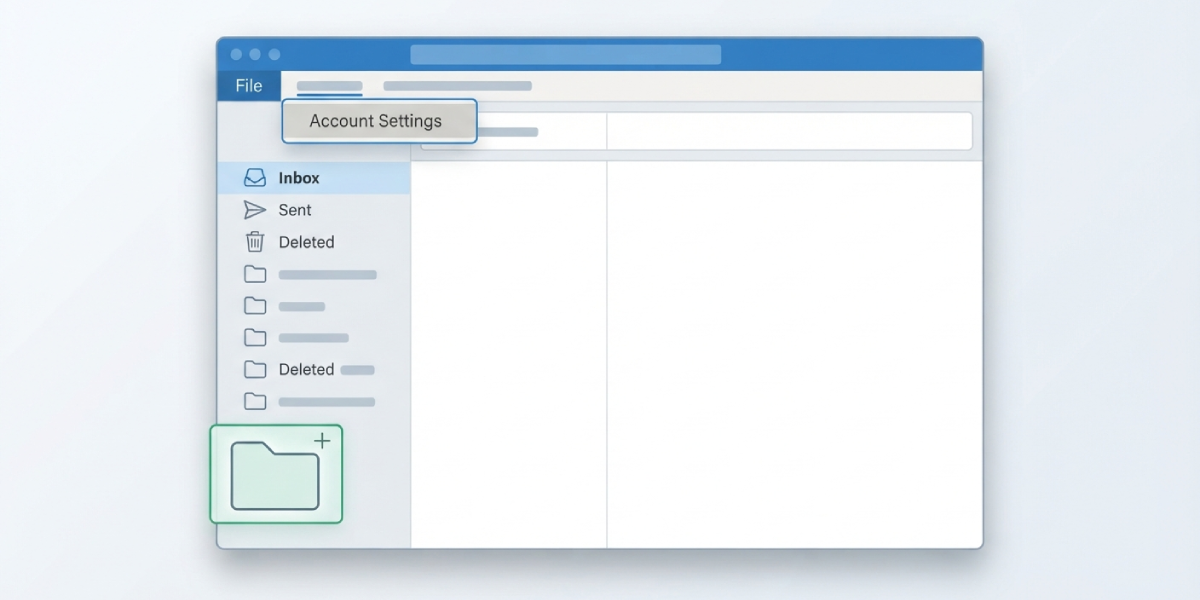
- Step 1: Open Outlook and go to the ‘File’ tab, then select ‘Account Settings’ and choose ‘Account Settings’ again from the dropdown.
- Step 2: Click the ‘Data Files’ tab, then select ‘Add’.
- Step 3: Name the file something clear, like ‘Merged Archive’, and save it in an easy-to-find location such as a Documents folder.
- Step 4: Click ‘OK’ to close the Account Settings window. A new, empty PST now appears in the folder pane on the left.
Tip: Naming the merged file something specific now saves confusion later, especially when several old PSTs are still open in the same profile during the process.
Method 2: Open Each Existing PST File
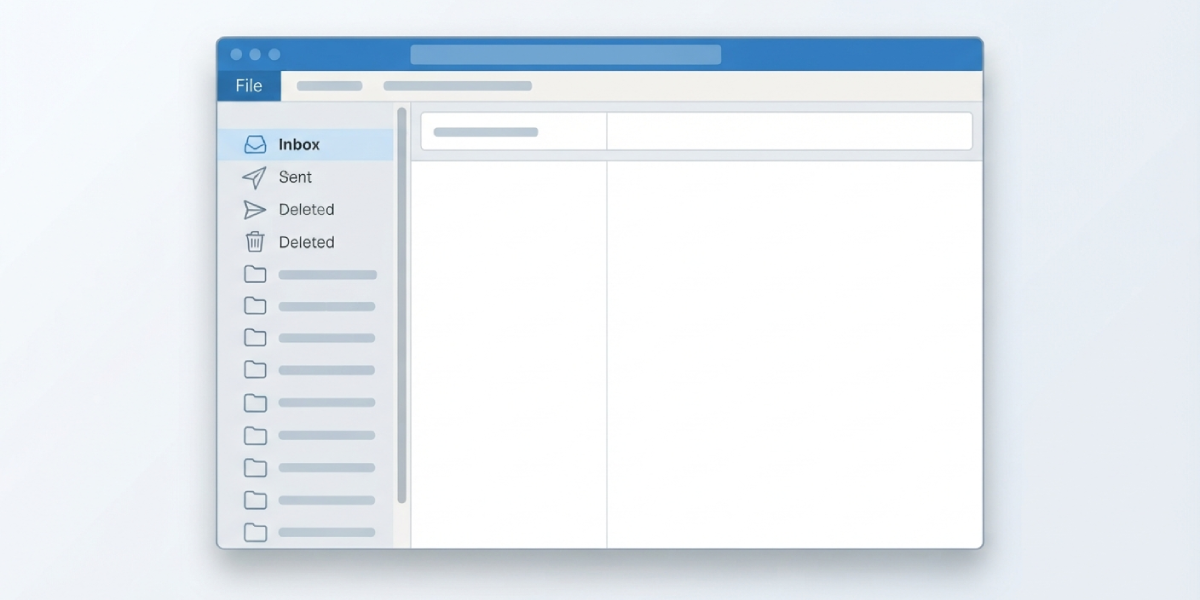
- Step 5: Go to ‘File’, then ‘Open & Export’, and select ‘Open Outlook Data File’.
- Step 6: Browse to the location of the first PST file that needs merging and select it. It appears in the folder pane, usually near the bottom.
- Step 7: Repeat this for every other PST file that needs to be combined. All of them, plus the new blank PST from Step 1, should now be visible in the folder pane at the same time.
Method 3: Import Each PST into the New File
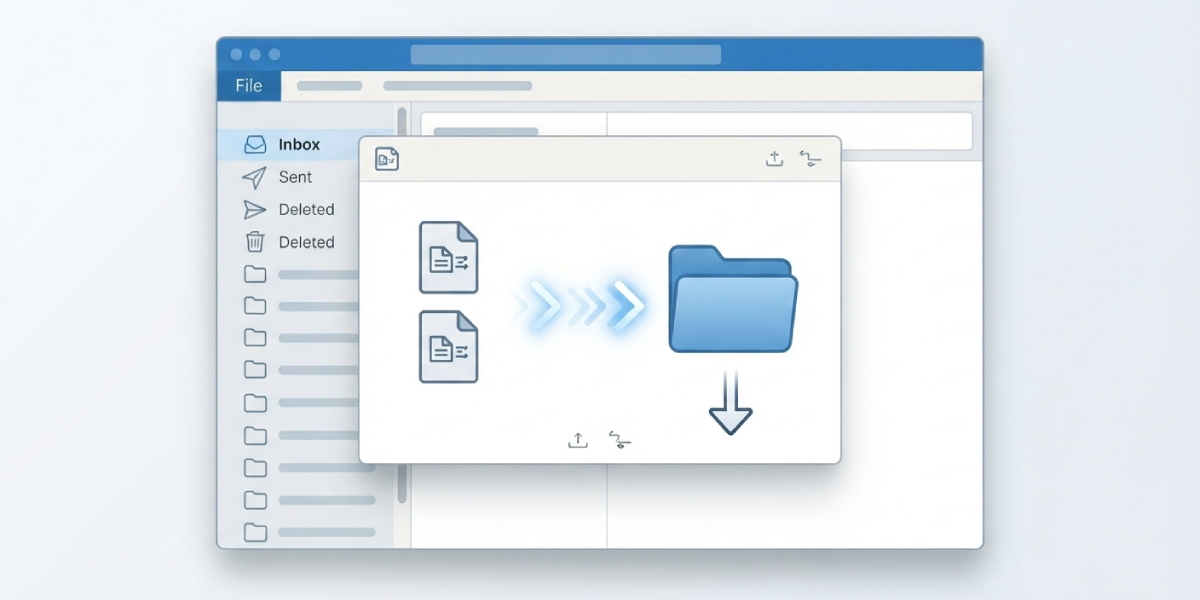
- Step 8: Go to ‘File’, then ‘Open & Export’, and select ‘Import/Export’.
- Step 9: Choose ‘Import from another program or file’, then click ‘Next’.
- Step 10: Select ‘Outlook Data File (.pst)’ and click ‘Next’.
- Step 11: Browse to the first PST file, make sure ‘Include subfolders’ is checked, and select ‘Do not import duplicate items’. Click ‘Next’.
- Step 12: On the final screen, select the root folder of that PST, confirm ‘Include subfolders’ is still checked, and choose the new merged PST (from Step 1) as the destination folder. Click ‘Finish’.
- Step 13: Repeat Steps 8 through 12 for each remaining PST file, always importing into the same merged destination file.
Tip: Selecting ‘Do not import duplicate items’ rather than ‘Replace duplicates’ keeps the newer or more complete version of an item when the same message or contact exists in more than one file.
Method 4: Verify the Merged PST File
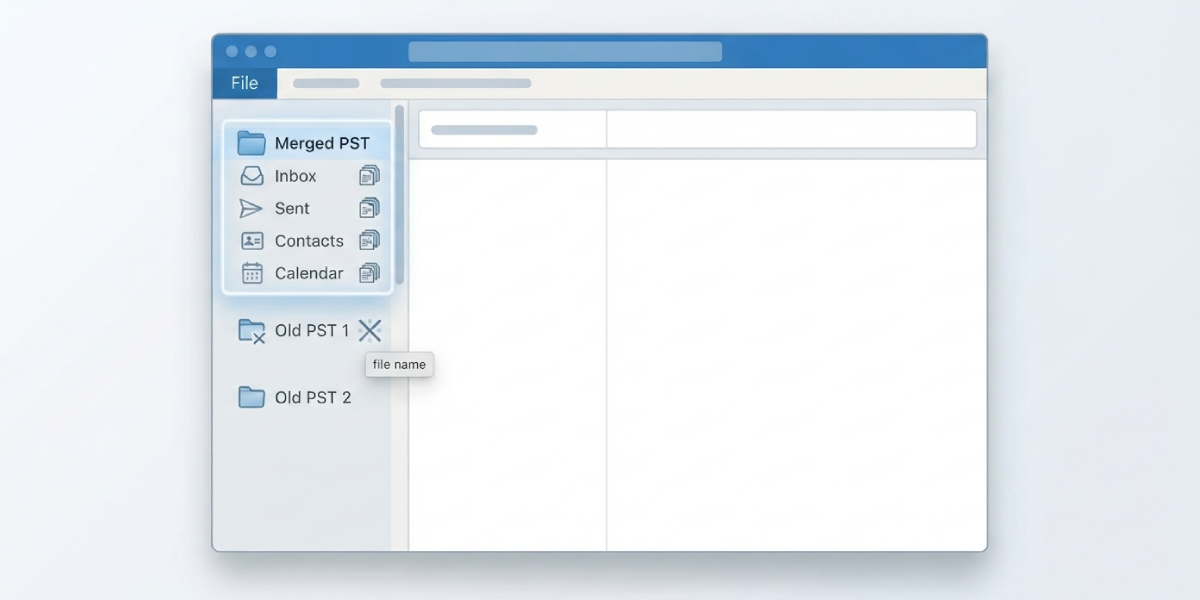
- Step 14: Expand the merged PST in the folder pane and check that Inbox, Sent Items, Contacts, and Calendar folders all show the combined content.
- Step 15: Spot-check a few older emails or contacts from each original PST to confirm they made it across correctly.
- Step 16: Once satisfied everything transferred, close and remove the original PST files from the profile by right-clicking each one in the folder pane and selecting ‘Close “[file name]”‘. This does not delete the file from disk, it only removes it from Outlook’s view.
Common Problems and Fixes
Subfolders did not get imported. This usually happens when ‘Include subfolders’ was left unchecked on either the second or final screen of the Import/Export wizard. Running the import again for that specific PST, with the box checked both times, resolves it.
Duplicate emails or contacts appeared in the merged file. This typically means ‘Replace duplicates with items imported’ was selected instead of ‘Do not import duplicate items.’ A duplicate-removal add-in, or Outlook’s own ‘Clean Up Folder’ tool, can help tidy up an already-merged file.
The PST file will not open during Step 2. The file may be password-protected from a previous setup, or it could be slightly corrupted. Running Microsoft’s Inbox Repair Tool (scanpst.exe) on the file before attempting to open it usually fixes this.
Outlook feels slow after merging several large PST files. A single PST file that grows too large, generally past a few gigabytes, can slow Outlook down. Splitting older, rarely-used content back into a separate archive PST after the merge keeps performance steady.
The merged PST is missing an entire mailbox’s worth of data. This points to one of the source PSTs never actually being opened in Step 2 before running the import. Reopening that file and repeating Step 3 solves it.
Frequently Asked Questions
Is it possible to merge PST files without using Outlook?
Third-party PST merge tools exist, but Outlook’s built-in Import/Export wizard handles the task natively without installing extra software, and it keeps full control over duplicate handling.
Will merging PST files delete the original files?
No. Merging only copies data into the new destination PST. The original PST files remain on disk and can be deleted manually afterward, once the merged file has been checked.
How long does merging multiple PST files take?
This depends on file size. A PST under 1 GB typically imports in a few minutes, while larger archives with thousands of items can take considerably longer.
Can calendar and contacts be merged along with email?
Yes. The Import/Export wizard moves every folder type, including Calendar, Contacts, and Tasks, as long as ‘Include subfolders’ stays checked during the process.
What happens if two PST files contain the same email?
Selecting ‘Do not import duplicate items’ during import prevents that email from being copied twice into the merged file.
Is there a limit to how many PST files can be merged into one?
There is no fixed limit on the number of PST files, but the resulting file size matters more than the count. Keeping the merged PST under a few gigabytes helps Outlook stay responsive.
Does the merged PST need to be set as the default data file?
Not necessarily. It only needs to be set as default if new emails should be delivered directly into it going forward, which is done from the ‘Data Files’ tab in Account Settings.
What should be done if the Import/Export option is missing from the File menu?
This can happen if Outlook is running in a limited or cached mode. Restarting Outlook, or checking that the account is not set to ‘Work Offline,’ usually restores the option.
Can archived .pst files from a different computer be merged the same way?
Yes. As long as the file is a standard .pst format, it can be opened via ‘Open Outlook Data File’ and merged using the same Import/Export steps, regardless of which computer originally created it.
