
Learning how to format a drive safely protects personal files, prevents accidental data loss, and keeps the drive itself in good working order. Whether the drive is an internal SSD, an external HDD, or a USB flash drive, the process is simple once the right precautions are in place. This guide walks through every step needed to format a drive without losing anything important.
Key Takeaways
- Always back up important files before formatting, since the process erases data on the selected drive.
- Choosing the correct file system (NTFS, exFAT, or FAT32) depends on how the drive will be used and with which devices.
- Double-checking the drive letter or disk number before formatting prevents wiping the wrong drive.
- A quick format is sufficient for most situations, while a full format is better when preparing to sell or dispose of a drive.
- Built-in tools in Windows and macOS handle formatting safely without needing third-party software.
Before You Start
A few quick precautions make the difference between a smooth format and a stressful mistake. None of this takes long, and skipping it is the most common reason people lose files they meant to keep.
- Close any programs or files currently open on the drive.
- Back up anything important to another drive, an external drive, or cloud storage.
- If formatting an internal drive, confirm the computer is plugged into power so it does not shut off mid-process.
- For external drives, use a working cable and a stable USB port to avoid an interrupted connection during formatting.
Tip: If unsure whether a folder has been fully backed up, open it and manually confirm the file count matches what is expected before moving forward.
How to Format a Drive Safely: Step-by-Step
On Windows
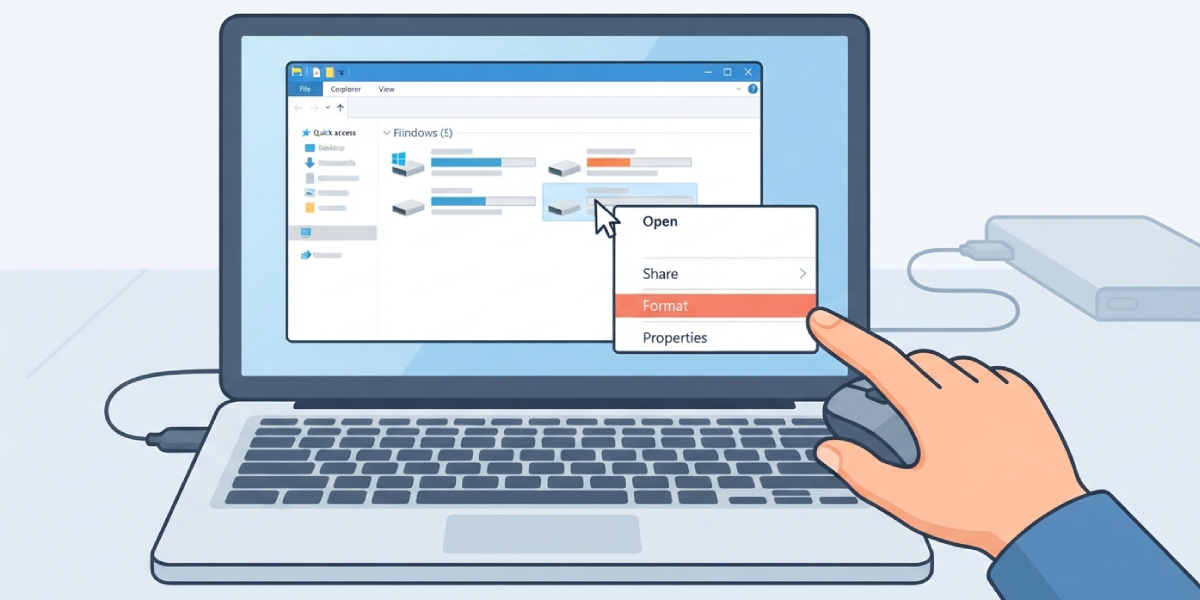
- Step 1: Connect the drive if it is external, then open File Explorer and confirm it appears with the correct name and size.
- Step 2: Right-click the drive and select ‘Format’ from the menu.
- Step 3: In the Format window, choose the appropriate file system. NTFS works well for internal drives and Windows-only use, exFAT suits drives shared between Windows and macOS, and FAT32 is best for smaller drives used in older devices or basic electronics.
- Step 4: Leave the allocation unit size on its default setting unless there is a specific reason to change it.
- Step 5: Enter a volume label if desired, then check ‘Quick Format’ for a fast erase or leave it unchecked for a full format that also scans for bad sectors.
- Step 6: Click ‘Start’, confirm the warning prompt, and wait for the process to finish.
On macOS
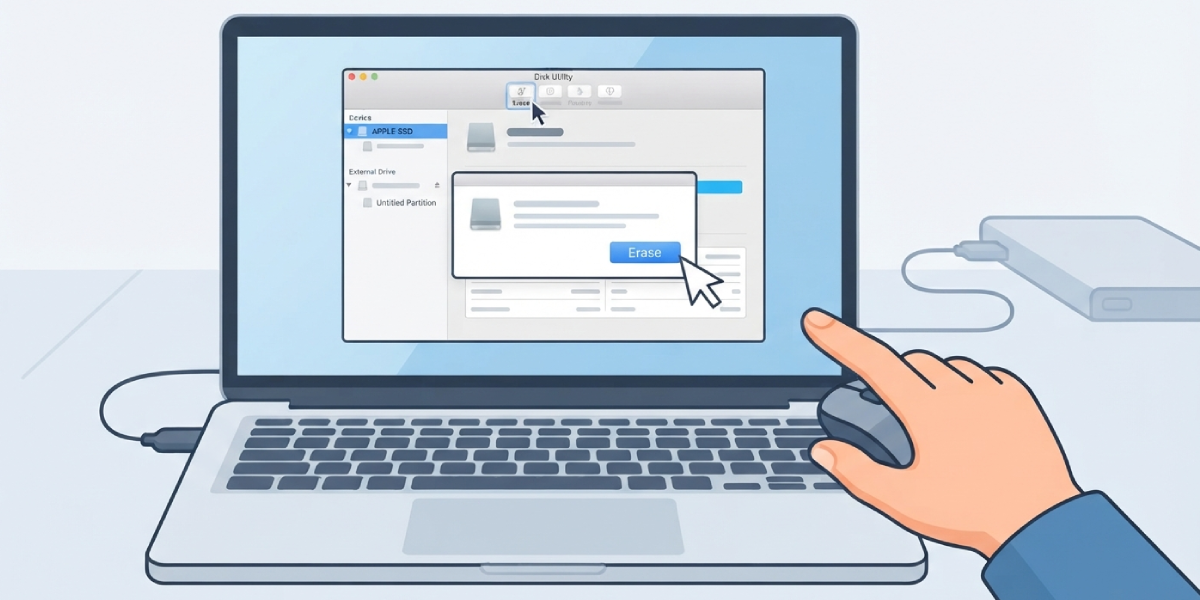
- Step 1: Open Disk Utility from Applications, then Utilities.
- Step 2: Select the correct drive from the sidebar, being careful to choose the actual drive and not a partition by mistake.
- Step 3: Click ‘Erase’ near the top of the window.
- Step 4: Choose a format such as APFS for modern Mac-only use, macOS Extended (Journaled) for older compatibility, or exFAT for cross-platform sharing with Windows.
- Step 5: Name the drive, then click ‘Erase’ and confirm.
Tip: When a drive will be used with both Windows and Mac computers, exFAT avoids the file size limits of FAT32 and the compatibility issues of NTFS or APFS.
Common Problems and Fixes
The Format Option Is Grayed Out
This usually means the drive is currently in use by a background process or another open window. Close any file explorer windows, media players, or backup software pointing to that drive, then try again.
Windows Cannot Complete the Format
This often points to a failing drive, a bad connection, or write protection enabled on the device. Try a different cable or USB port first. If the drive has a physical write-protect switch, such as some SD cards, check that it is switched off.
The Drive Shows the Wrong Size After Formatting
A drive showing less space than expected is normal, since manufacturers calculate capacity differently than operating systems do. A drive showing far less space than it should, however, may indicate a counterfeit or failing drive and is worth testing with a capacity-check tool.
Files Are Still Recoverable After a Quick Format
A quick format clears the file table but not the underlying data, which is why recovery software can often restore files afterward. For drives being sold, donated, or disposed of, a full format or a dedicated secure-erase tool is the safer choice.
Frequently Asked Questions
What is the difference between a quick format and a full format?
A quick format clears the drive’s file table so it appears empty, which takes just a few moments. A full format also checks the drive surface for errors and overwrites data more thoroughly, which takes considerably longer.
Will formatting a drive remove a computer virus?
Formatting the affected drive removes most malware stored on it, but it will not clean an infection that has spread elsewhere, such as a router or other connected device. A full system reinstall is the more reliable option after a serious infection.
Can a formatted drive be recovered?
Yes, in many cases. A quick format does not erase the actual data right away, so recovery software can often retrieve files until new data overwrites them. This is why sensitive drives being discarded need a full format or secure-erase method instead.
Which file system should be chosen when formatting a drive?
NTFS suits internal drives on Windows systems, APFS suits internal drives on modern Macs, and exFAT works well for external drives shared between both platforms. FAT32 remains useful for older or basic devices with limited file system support.
Is it safe to format a brand-new external drive?
Yes. New drives sometimes come pre-formatted in a file system that is not ideal for the intended use, so reformatting to the preferred format is a normal and safe first step.
Why does Windows ask to format a drive that was working fine before?
This message usually appears when the drive’s file system has become corrupted or unreadable. Before formatting, it is worth trying a data recovery tool first, since important files may still be retrievable.
Does formatting a solid-state drive wear it out faster?
A standard format has minimal impact on an SSD’s lifespan. Modern SSDs are built to handle a large number of write cycles, and an occasional format falls well within normal, safe use.
What happens if the wrong drive gets formatted by mistake?
If a full format has not completed, stopping immediately gives data recovery software the best chance of restoring files. Avoiding any further writes to that drive, including installing recovery software onto it, greatly improves the odds of success.
Do USB flash drives need to be formatted differently than hard drives?
The formatting steps are the same, though flash drives often work best with exFAT or FAT32 due to their smaller storage capacity and use across a wider range of devices, including cameras and car stereos.
