
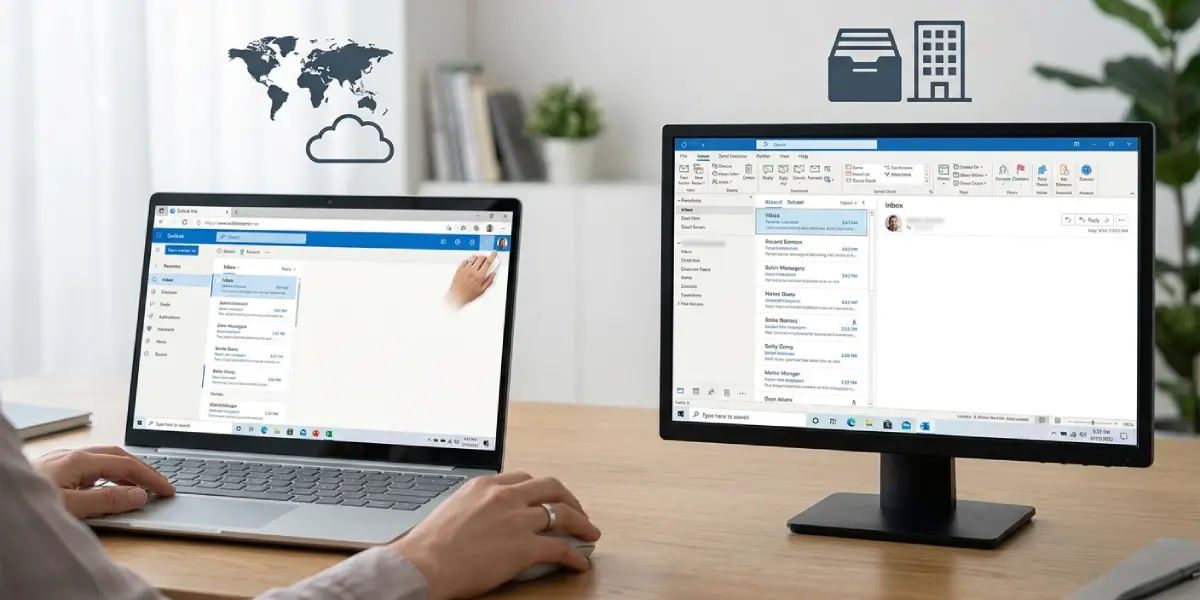
Outlook desktop and web showing different mail is one of the most common frustrations for anyone juggling both versions of the app. Usually it comes down to sync settings, filters, or view options that quietly differ between the two. The good news is that the fix rarely takes more than a few minutes once the mismatch is tracked down.
Key Takeaways
- Mismatched Cached Exchange Mode settings are the most frequent cause of Outlook desktop and web showing different mail.
- Rules, Sweep actions, and Focused Inbox settings can behave differently depending on where they were created.
- View filters like Unread, Flagged, or ‘Filter Email’ often hide messages that are actually present in both places.
- Forcing a manual sync and clearing the local cache resolves most stubborn mismatches.
- Multiple accounts or forwarding rules signed into only one app can make inboxes look completely out of sync.
How to Fix Outlook Desktop and Web Showing Different Mail
The steps below walk through the checks in the order that resolves the issue fastest for most users. Start from the top and test after each step before moving to the next one.
Step-by-Step Guide
- Step 1: Confirm the same account is signed in on both. Open the account name in the top corner of Outlook desktop and compare it exactly to the account shown in the top right of Outlook on the web. A second or shared mailbox added to only one location is a common reason messages do not match.
- Step 2: Force a manual sync in the desktop app. Click Send/Receive in the ribbon, then select Send/Receive All Folders. This pushes the desktop client to catch up with whatever the server already has, which is usually what the web app is showing.
- Step 3: Check Cached Exchange Mode. Go to File, then Account Settings, then Account Settings again, double-click the email account, and look at the slider under Offline Settings. If it is set to keep only a limited number of months of mail offline, older messages will appear on the web but not in the desktop app.
- Step 4: Compare Focused Inbox settings. Outlook web and desktop each have their own Focused/Other toggle under the View tab. If one is turned on and the other is off, mail can appear sorted or ‘missing’ from the main view even though it has arrived.
- Step 5: Review active filters. In desktop, check the View tab for any Filter Email option (Unread, Flagged, or Has Attachments). On the web, check the filter icon above the message list. A leftover filter in one app is one of the easiest things to overlook.
- Step 6: Look for rules or Sweep actions. Rules created in one version sometimes move, archive, or delete messages before they even show up elsewhere. Check File, then Manage Rules and Alerts in desktop, and Settings, then Mail, then Rules on the web.
- Step 7: Clear the browser cache for Outlook on the web, or try a private/incognito window. Browsers occasionally hold onto an outdated version of the mailbox view.
- Step 8: Repair the Outlook data file if desktop still lags behind. Go to File, Account Settings, Account Settings, select the Data Files tab, choose the file, and click Open File Location to run the built-in repair tool (SCANPST.EXE) if corruption is suspected.
- Step 9: Restart both apps. Close Outlook desktop completely (not just minimize it) and refresh the web browser tab. A fresh session clears out minor sync glitches that build up over a long day of use.
Tip: Before assuming something is broken, click the same folder in both apps and sort by date received. Most ‘missing mail’ reports turn out to be a filter quietly hiding messages rather than the message actually being absent.
Common Problems and Fixes
Messages appear on web but never arrive on desktop
This almost always points to Cached Exchange Mode limiting how far back mail is stored locally. Widening the offline mail range in Step 3 brings older messages back into view on desktop.
Read/unread status does not match between the two
This happens when Send/Receive has not run recently on desktop. Manually triggering Send/Receive All Folders, or reducing the automatic send/receive interval under Send/Receive Groups, keeps status changes synced closer to real time.
A folder exists on web but not in desktop
Right-click the account name in desktop and choose Update Folder List, or close and reopen Outlook. Newly created folders on the web sometimes need a manual refresh before desktop picks them up.
Deleted mail keeps reappearing
Check for a rule or forwarding setting active only in one app, and make sure Deleted Items is not being auto-emptied on close in one version while the other keeps the setting off, under Options, then Advanced.
Search results differ between desktop and web
Desktop search sometimes needs its index rebuilt. Go to File, Options, Search, Indexing Options, and rebuild the index. This does not affect actual mail, only how quickly and completely desktop can find it.
Frequently Asked Questions
Why does Outlook desktop show fewer emails than Outlook on the web?
This is usually caused by a limited Cached Exchange Mode range in the desktop app. Widening that setting under Account Settings brings older mail back into the desktop view.
Is Outlook desktop or Outlook web the more accurate source?
Outlook on the web reads directly from the server in real time, so it is generally the most current view. Desktop can lag briefly until it syncs.
How often does Outlook desktop sync with the server?
By default it syncs automatically every few minutes, but the exact interval is adjustable under Send/Receive Groups in the Send/Receive tab.
Why do rules work on one version but not the other?
Rules can be set to run only on the client where they were created unless marked as server-side. Server-side rules apply everywhere; client-only rules apply only in that specific app.
Can two different Focused Inbox settings cause this issue?
Yes. Focused Inbox is configured separately in desktop and on the web, so mail sorted into Other on one side can still land in the main inbox on the other.
Does clearing the browser cache fix Outlook web mismatches?
It often does, especially when the mailbox appears stuck on an older state. A private browsing window is a quick way to confirm whether cache is the culprit.
Will repairing the Outlook data file delete any mail?
No. The built-in repair tool fixes structural issues in the local data file without removing messages, though a backup beforehand is always a sensible precaution.
Why does deleted mail keep showing back up in one version?
A rule, forwarding setting, or an auto-empty-on-close option enabled in only one app can cause this. Checking both locations usually reveals the mismatch.
How long should it take for changes to sync between desktop and web?
Most changes reflect within a couple of minutes. If a longer delay persists after a manual Send/Receive, restarting the desktop app usually clears it.
