
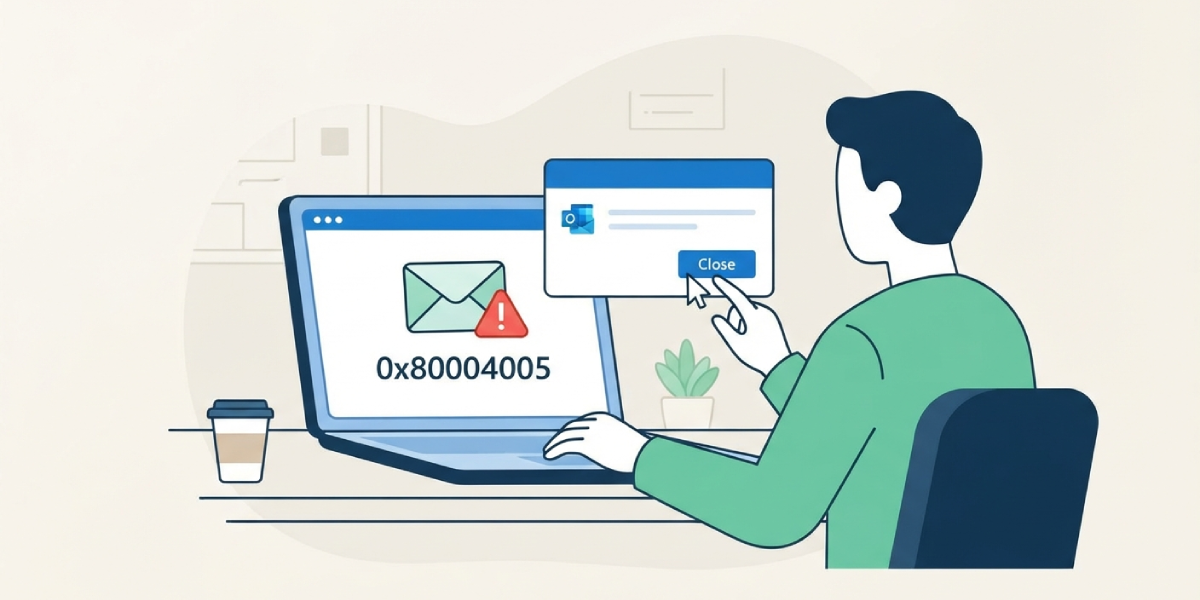
Outlook error 0x80004005 usually shows up mid-send or during a send/receive cycle, and it almost always points to a corrupted data file, a conflicting antivirus add-in, or a damaged Outlook profile. The good news is that this error responds well to a short, methodical fix – no reinstall required in most cases.
Key Takeaways
- Outlook error 0x80004005 is most often caused by a corrupted PST/OST file or an antivirus add-in scanning email traffic.
- The Inbox Repair Tool (SCANPST.EXE) resolves this error in the majority of cases within minutes.
- A damaged Outlook profile or a stale OST file can also trigger the error, even after the data file is repaired.
- Temporarily disabling antivirus email scanning helps confirm whether a security add-in is the real culprit.
- Creating a fresh Outlook profile is the most reliable last-resort fix.
Step-by-Step Guide to Clearing Outlook Error 0x80004005
Work through these steps in order. Most people find the issue resolved by Step 2 or Step 3, so there is no need to jump straight to rebuilding a profile.
- Step 1: Close Outlook completely, including any background process still running in Task Manager. Note whether the error appears when sending, receiving, or simply opening the app, since that detail narrows down the cause.
- Step 2: Locate the Outlook data file. Go to File, then Account Settings, then Account Settings again, and open the Data Files tab to find the file path for the PST or OST in use.
- Step 3: Run the Inbox Repair Tool. Search for scanpst.exe on the computer (commonly under Program Files\Microsoft Office\root\OfficeXX), open it, browse to the data file located in Step 2, and click Start to scan and repair.
- Step 4: Reopen Outlook and attempt the same send or receive action that triggered the error. If it clears, the fix is complete.
- Step 5: If the error persists, temporarily disable antivirus email scanning. Open the antivirus software, find the email or Outlook protection module, and turn it off, then restart Outlook and test again.
- Step 6: If the error still shows up, remove and re-add the email account. Go to Control Panel, open Mail, select Show Profiles, choose the affected profile, and remove the account before re-adding it with the correct server settings.
- Step 7: As a final step, create a brand-new Outlook profile from Control Panel > Mail > Show Profiles > Add, set it as the default, and open Outlook using that profile instead of the old one.
Tip: Before repairing any data file, make a backup copy of the .pst or .ost file first. This way, if the repair tool trims anything unexpected, the original file is still available.
Checking Which Data File Is Affected
Large mailboxes or accounts with multiple data files sometimes make it unclear which file is actually causing the error. Right-click the folder showing the error inside Outlook, select Data File Properties, and check the file path listed there to confirm it matches the one repaired in Step 3.

Common Problems and Fixes
- SCANPST.EXE reports no errors, but 0x80004005 still appears. This usually means the issue sits with an add-in rather than the data file. Start Outlook in safe mode by holding Ctrl while launching it, then test again with add-ins disabled.
- The error returns right after a new profile is created. This typically happens when the old OST file was reused instead of letting Outlook generate a fresh one. Rename the old .ost file so Outlook rebuilds it from scratch on next launch.
- Repair tool can’t find or access the data file. Outlook is likely still running in the background. Open Task Manager, end any outlook.exe process, and try scanpst.exe again.
- Error only happens when sending large attachments. This points to a server-side send limit rather than a corrupted file. Check the mailbox provider’s attachment size limit and compress the file before resending.
- Antivirus re-enables scanning automatically after a restart. Some security suites reset settings on reboot. Add Outlook as an exception in the antivirus settings instead of just disabling scanning temporarily.
Frequently Asked Questions
What does Outlook error 0x80004005 actually mean?
It is a generic, unspecified error code that Outlook returns when a send/receive operation or file access fails. It rarely points to one exact cause on its own, which is why the fix involves checking the data file, add-ins, and profile in sequence.
Is the Inbox Repair Tool safe to run?
Yes. SCANPST.EXE is a built-in Microsoft utility designed specifically to detect and fix corruption in PST and OST files. Backing up the file first is still recommended as a precaution.
Can antivirus software really cause this error?
Yes. Many antivirus programs scan outgoing and incoming email through an Outlook add-in, and a conflict in that scanning process is one of the most common triggers for 0x80004005.
Will deleting the OST file delete email?
No, as long as the account is an IMAP or Exchange/Microsoft 365 account. The OST is a local cache of server data, so Outlook rebuilds it automatically the next time it connects.
How long does the repair process usually take?
For most mailboxes, SCANPST.EXE finishes within a few minutes. Very large PST files, especially those several gigabytes in size, can take considerably longer.
Does creating a new profile delete existing emails?
Not if the account uses IMAP or Exchange, since messages remain stored on the server. For POP3 accounts, confirm the data file location before removing the old profile so stored messages are not lost.
Why does the error only happen with one specific email account?
This usually points to a problem isolated to that account’s data file or server settings rather than Outlook itself, since other accounts in the same profile continue working normally.
Should Outlook be updated before trying these fixes?
Yes. Go to File, then Office Account, then Update Options, and select Update Now before troubleshooting further, since some versions of this error trace back to a known bug patched in a later update.
What if none of these steps clear the error?
Check the mail server or Microsoft 365 admin settings for account-level restrictions, since a small number of 0x80004005 cases originate on the server side rather than in Outlook.
