
Learning how to partition a new drive in Windows is one of the first things a fresh hard drive or SSD needs before it becomes usable storage. Whether the drive just came out of the box or was pulled from another machine, Windows will not let anything get saved to it until it has been initialized, partitioned, and formatted correctly.
Key Takeaways
- A brand new drive must be initialized before Windows can see it in File Explorer.
- Disk Management, built into Windows, handles the entire process without extra software.
- Choosing GPT over MBR is the right call for almost every modern PC.
- A single partition works for most users, but splitting a drive into multiple partitions is useful for separating an operating system from personal files.
- Formatting with NTFS is the standard choice for a Windows-only internal drive.
Before You Start
This is a software task, not a physical repair, so the prep work is light. A few basics still matter before opening Disk Management.
- Confirm the drive is properly connected, either installed internally with a data and power cable or plugged in through a USB enclosure or dock.
- Back up anything important if the drive already has data on it, since partitioning can erase existing information.
- Sign in to Windows with an administrator account, since disk partitioning requires admin permissions.
Tip: If the drive is not showing up in File Explorer at all, that is expected for a brand new drive. It needs to be set up in Disk Management first before it will appear as a usable drive letter.
How to Partition a New Drive in Windows
The process below covers a completely new drive from start to finish, using the Disk Management tool that comes built into Windows.
Step-by-Step Instructions
- Step 1: Right-click the Start button and select ‘Disk Management’ from the menu. This opens the built-in tool Windows uses to manage drives and partitions.
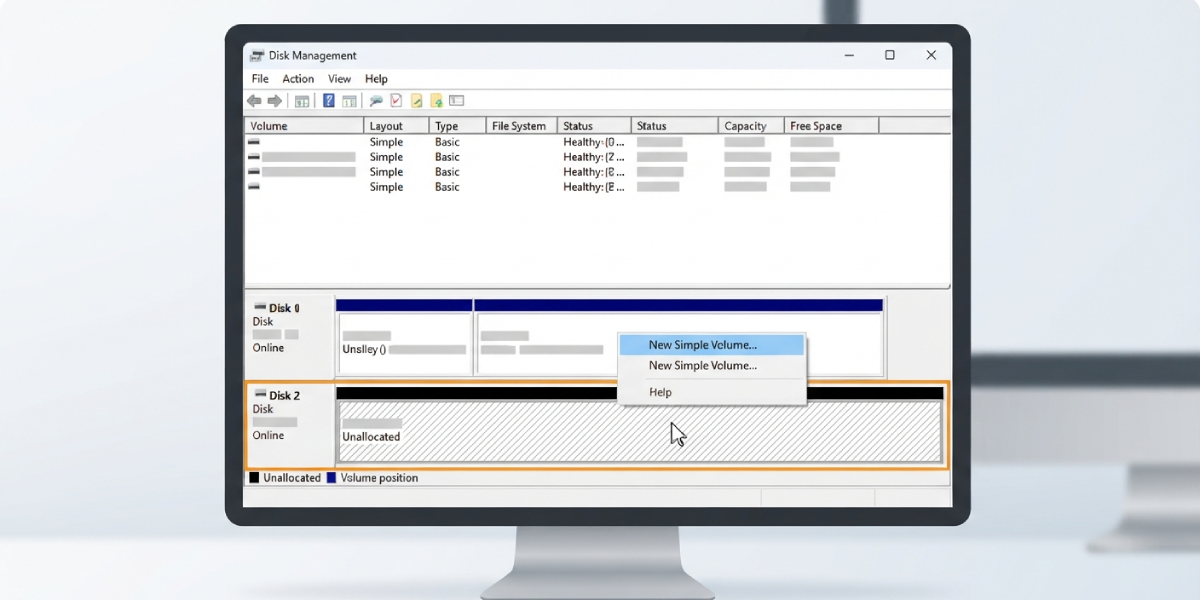
- Step 2: Look for the new drive in the lower panel. It usually appears labeled as ‘Unknown’ and ‘Not Initialized,’ with the space marked as unallocated.
- Step 3: If a pop-up window appears asking to initialize the disk, choose GPT (GUID Partition Table) unless there is a specific reason to use MBR, such as needing compatibility with a very old system. If no pop-up appears, right-click the drive’s box on the left side (where it shows the disk number) and select ‘Initialize Disk’ manually.
- Step 4: Right-click the unallocated space next to the drive and choose ‘New Simple Volume.’ This launches a wizard that walks through the rest of the setup.
- Step 5: Set the partition size. For a single partition using the entire drive, leave the default value as is. To split the drive into multiple partitions, enter a smaller size in megabytes for the first partition, then repeat the process later on the remaining unallocated space.
- Step 6: Assign a drive letter. Windows picks one automatically, and in most cases the default is fine to keep.
- Step 7: Choose the file system. Select NTFS for a standard internal drive used with Windows. Keep the allocation unit size at ‘Default’ unless there is a specific technical reason to change it.
- Step 8: Give the volume a label, something short and descriptive like ‘Data’ or ‘Backup,’ then confirm ‘Perform a quick format’ is checked and click ‘Next.’
- Step 9: Click ‘Finish’ to complete the wizard. The new partition will appear in File Explorer within a few seconds, ready to store files.
Tip: A quick format is sufficient for a healthy new drive and only takes a few seconds. A full format takes much longer because it scans the entire drive for bad sectors, which is really only necessary when there is a specific reason to suspect the drive has a problem.
Creating Additional Partitions
Splitting a drive into more than one partition works the same way as the steps above, just repeated. After the first partition is created, any remaining space still shows as unallocated in Disk Management. Right-click that leftover space and run through ‘New Simple Volume’ again to turn it into a second partition with its own drive letter.
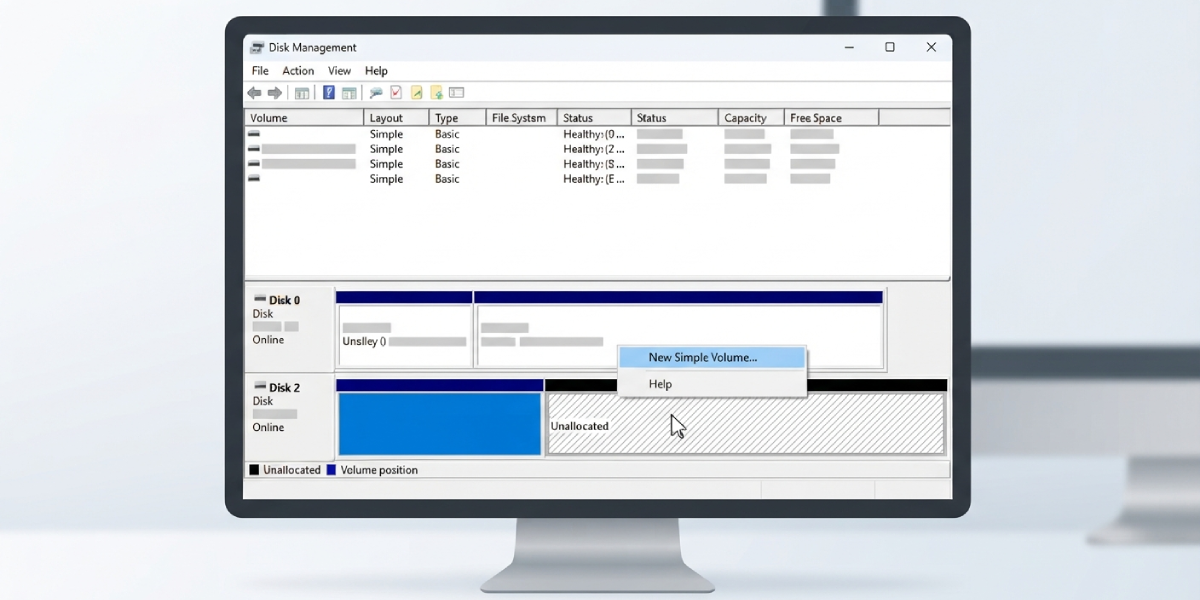
This is a common setup for people who want one partition for the operating system and programs, and a separate one for documents, photos, or game libraries.
Common Problems and Fixes
- The drive does not appear in Disk Management at all. This usually points to a connection issue rather than a partitioning problem. Reseat the SATA or power cable on an internal drive, or try a different USB port and cable on an external one. If the drive still does not show up, it may need to be tested on another machine to rule out drive failure.
- The ‘Initialize Disk’ option does not appear. This typically means the disk is already initialized. Right-click directly on the disk box on the left side of Disk Management to check its current status before assuming it needs to be initialized again.
- An error appears saying the operation failed while creating the volume. This can happen if antivirus software or another background process is briefly locking the disk. Closing other disk utilities and trying the wizard again usually resolves it.
- The new partition does not get a drive letter. Right-click the partition in Disk Management, choose ‘Change Drive Letter and Paths,’ then click ‘Add’ and select a letter manually.
- The full drive capacity is not showing up. On drives larger than 2TB, MBR caps usable space at around 2TB. Switching to GPT during initialization resolves this, though it does require wiping and starting over if the drive was already set to MBR.
Frequently Asked Questions
Do I need third-party software to partition a new drive in Windows?
No. Disk Management, built directly into Windows, handles initializing, partitioning, and formatting a new drive without needing any extra tools.
Should I choose GPT or MBR when initializing a new drive?
GPT is the right choice for nearly every current PC, especially systems using UEFI firmware. MBR is mostly relevant only for very old systems or specific legacy compatibility needs.
What file system should I use for a new internal drive?
NTFS is the standard file system for an internal drive that will be used with Windows, since it supports large file sizes and modern security features.
Is it better to use one large partition or multiple smaller ones?
A single partition is simpler and works well for most people. Multiple partitions can help organize data, such as separating an operating system from personal files, but they are not required for a drive to function properly.
Will partitioning erase data that is already on the drive?
Yes, creating a new partition on unallocated space does not affect existing data, but reformatting an existing partition will erase everything on it. Any drive with important files should be backed up first.
Can a partition be resized after it has already been created?
Yes. Disk Management includes ‘Shrink Volume’ and ‘Extend Volume’ options that let a partition be resized later, as long as there is adjacent unallocated space available for extending.
Why does the new drive show as ‘unallocated’ instead of ready to use?
This is normal for any brand new drive. Unallocated space simply means no partition has been created yet, and it needs to go through the New Simple Volume wizard before it can store files.
Does a quick format leave old data recoverable?
Yes, a quick format only clears the file table rather than overwriting the actual data, so previous files can sometimes still be recovered with specialized software. A full format is more thorough if permanently erasing sensitive data is the goal.
Why does an external USB drive show up differently than an internal one?
External drives sometimes come pre-formatted with a file system like exFAT for cross-platform compatibility, which can make them appear ready to use without going through Disk Management. They can still be repartitioned the same way as an internal drive if needed.
What is the maximum number of partitions a single drive can have?
A GPT disk supports up to 128 primary partitions, which is far more than most users will ever need. MBR disks are limited to four primary partitions unless one is configured as an extended partition.
