
Outlook error 0x800CCC0F usually shows up mid-send or mid-receive, cutting off the connection to the mail server without warning. It’s a connection timeout error, and it almost always points to something interrupting the link between Outlook and the mail server rather than a corrupted mailbox. This guide walks through exactly what causes it and how to clear it in a few focused steps.
Key Takeaways
- Outlook error 0x800CCC0F is a network/connection timeout, not a data-corruption error.
- Antivirus or firewall software scanning email traffic is one of the most common triggers.
- Incorrect server timeout settings or an unstable internet connection can also cause it.
- Fixing it involves checking connectivity, adjusting Outlook’s timeout setting, and reviewing security software.
- Repairing the Outlook profile clears the error when settings alone don’t resolve it.
How to Fix Outlook Error 0x800CCC0F Step by Step
The steps below move from the quickest checks to the more involved fixes. Most people find that one of the first three steps resolves the issue without needing to touch the account setup at all.
Check the Internet Connection First
- Step 1: Close Outlook completely and open a browser to confirm the internet connection is stable. A quick page load test is enough to rule out a dropped Wi-Fi signal or a router hiccup.
- Step 2: If the connection is on Wi-Fi, switch to a wired connection temporarily or restart the router. Reopen Outlook and try sending or receiving mail again.
Increase the Server Timeout Setting
- Step 3: Open Outlook, go to File, then Account Settings, then Account Settings again from the dropdown.
- Step 4: Double-click the email account that’s throwing the error, then select ‘More Settings’.
- Step 5: Click the Advanced tab. Under ‘Server Timeouts’, drag the slider from the default toward the ‘Long’ end, or set it as high as it will go.
- Step 6: Click OK, then Next, then Finish, and restart Outlook to apply the change.
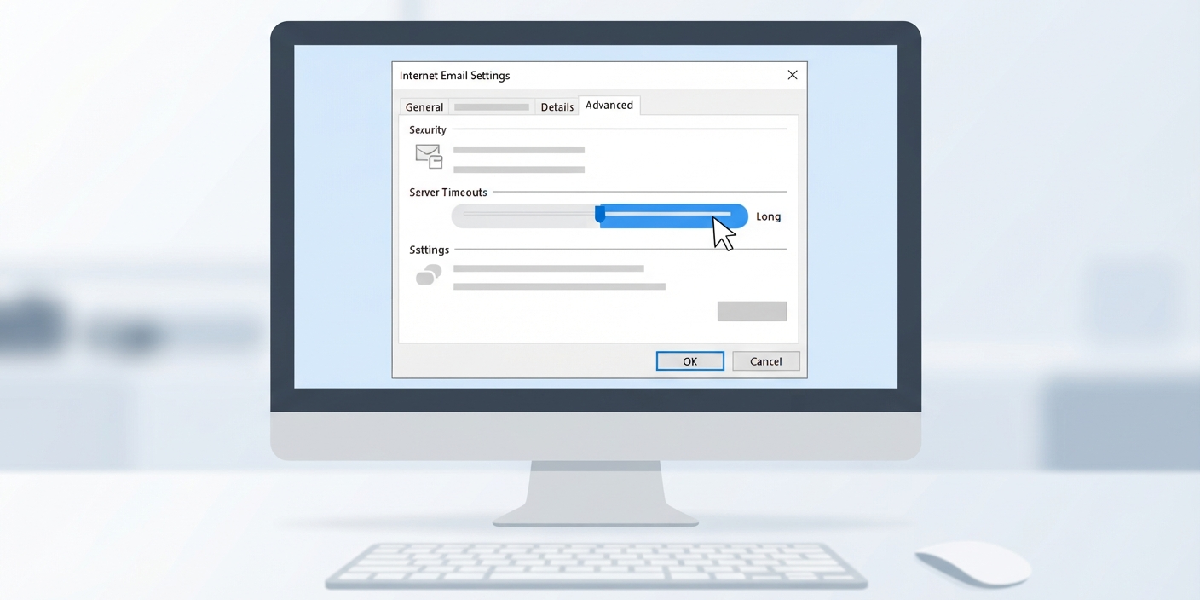
Tip: A short timeout is one of the most overlooked triggers for 0x800CCC0F, especially on slower or congested networks. Stretching that window out often clears the error on its own.
Temporarily Disable Antivirus Email Scanning
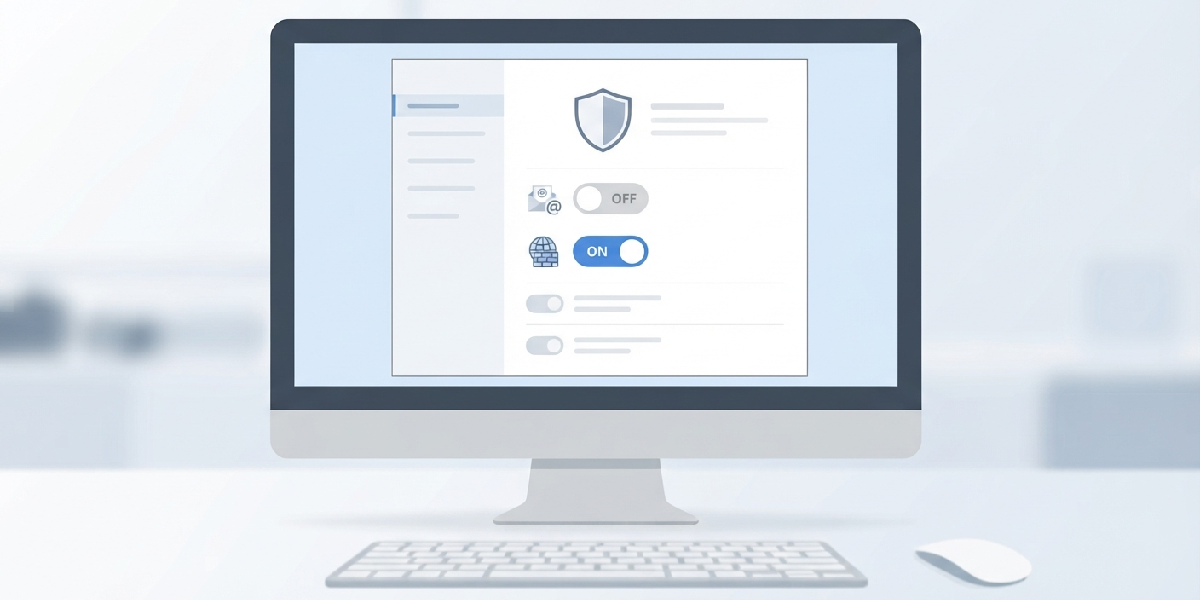
- Step 7: Open the antivirus program’s settings and look for an ‘Email Scanning’ or ‘Email Protection’ feature.
- Step 8: Turn that feature off temporarily and restart Outlook to test whether mail sends and receives normally.
- Step 9: If the error disappears, add Outlook as an exception in the antivirus settings instead of leaving scanning off permanently.
Repair the Outlook Profile
- Step 10: Close Outlook, open the Control Panel, and select Mail.
- Step 11: Click ‘Show Profiles’, select the affected profile, then click ‘Properties’ and choose ‘Repair’.
- Step 12: Follow the prompts to complete the repair, then restart Outlook and test sending and receiving mail.
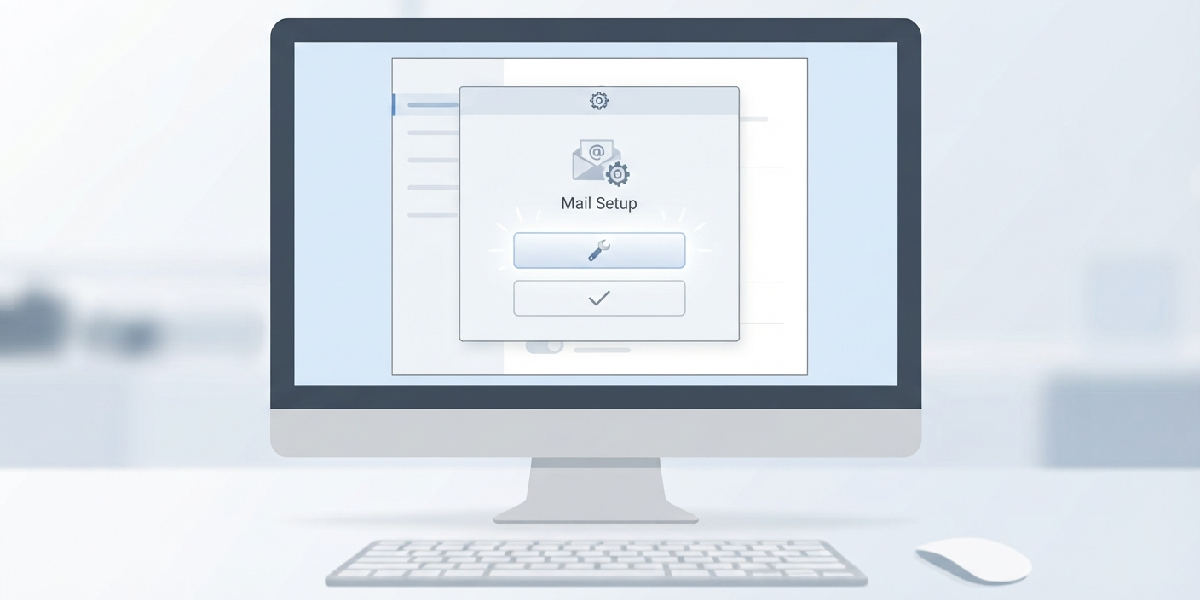
Tip: A profile repair rebuilds the connection settings behind the scenes without touching saved emails, so there’s no risk of losing messages during this step.
Common Problems and Fixes
- The error keeps returning after increasing the timeout: The connection itself may be the real bottleneck. Test on a different network to confirm whether it’s local or server-side.
- Antivirus exception doesn’t stop the error: Some firewall software scans separately from antivirus email protection. Check the firewall’s application rules for Outlook as well.
- Error only happens with large attachments: Large files can exceed the server’s send timeout even with a long client-side setting. Try sending the file through a cloud link instead.
- Profile repair option is greyed out: Close every Outlook window, including background processes in Task Manager, then reopen Control Panel and try again.
- Error appears only on one device: This usually points to a local setting or security software conflict rather than a server problem, since other devices connect fine.
Frequently Asked Questions
What does Outlook error 0x800CCC0F actually mean?
It means Outlook lost its connection to the mail server before a send or receive operation finished, usually due to a network interruption, a short timeout setting, or security software blocking the connection.
Is Outlook error 0x800CCC0F caused by a corrupted PST file?
Not typically. This error is connection-related rather than file-related, so a PST repair is rarely the fix, though a profile repair can still help by resetting connection settings.
Does a VPN cause Outlook error 0x800CCC0F?
Yes, a VPN can trigger it if the connection is unstable or routes traffic through a slower path. Disconnecting the VPN temporarily helps confirm whether it’s the source.
Can antivirus software really block Outlook from sending email?
Yes. Email scanning features intercept outgoing and incoming mail traffic, and a slow or misconfigured scan can time out the connection, producing this exact error.
How long should the server timeout be set to?
Setting it near the maximum on the Advanced tab slider works well for most connections, particularly on networks that are slower or have occasional latency spikes.
Will repairing the Outlook profile delete any emails?
No. A profile repair rebuilds the connection and configuration settings only; existing emails, folders, and the PST or OST file remain untouched.
Does this error affect both sending and receiving mail?
It can affect either, depending on which operation was interrupted. Some users only see it while sending large attachments, while others see it during a routine sync.
Is Outlook error 0x800CCC0F common on IMAP accounts?
It appears on both IMAP and POP accounts, since the error relates to the connection itself rather than the account protocol in use.
What should be checked first when this error suddenly starts appearing?
Start with the internet connection, since a dropped or unstable connection is the most frequent trigger and the quickest one to rule out.
