
Outlook folders not showing on all devices is a common sync issue that leaves custom folders visible on a desktop but missing from a phone, tablet, or web browser. This usually comes down to folder subscriptions, sync settings, or a stalled cache, and each of those can be fixed without rebuilding the mailbox from scratch.
Key Takeaways
- Missing folders almost always trace back to IMAP subscription settings, incomplete sync, or an outdated cached mailbox.
- Folders created directly on the server (via Outlook desktop or web) should sync automatically once subscriptions are refreshed.
- Mobile apps often need folders manually subscribed to before they appear in the folder list.
- Rebuilding the local cache resolves most stubborn cases where folders exist on the server but not on a specific device.
- Checking account type (Exchange, Microsoft 365, IMAP, POP) first saves time, since the fix differs by account type.
How to Fix Outlook Folders Not Showing on All Devices
Work through these steps in order. Most people find the folder reappears within the first two or three steps, so there is no need to jump straight to a full account reset.
Step-by-Step Fix
- Step 1: Confirm the account type in Outlook desktop by going to File, then Account Settings, then Account Settings again. Exchange and Microsoft 365 accounts sync folders automatically, while IMAP accounts require manual folder subscriptions.
- Step 2: For IMAP accounts, right-click the account name in the folder pane and select ‘IMAP Folders’ or ‘Folder Options.’ Look for a list of available folders and make sure the missing one has a checkmark next to it, then click ‘Subscribe.’
- Step 3: On the device where the folder is missing, force a manual sync. In Outlook desktop, click ‘Send/Receive’ then ‘Update Folder.’ In the Outlook mobile app, pull down on the folder list to refresh, or tap the account name and select ‘Sync now’ if available.
- Step 4: Check folder visibility settings on mobile. Open the Outlook app, tap the menu icon in the top left, tap the account name, and look for a folder list. Some folders are hidden by default and need to be tapped or toggled to show in the main view.
- Step 5: Clear the local cache if the folder still does not appear. On Windows, this means recreating the Outlook data file cache through File, Account Settings, selecting the account, then ‘Change,’ then ‘More Settings,’ and adjusting the Mail to Keep Offline slider before restarting Outlook. On mobile, removing and re-adding the account often clears a stale local cache.
- Step 6: Confirm the folder was not accidentally created inside a subfolder or under ‘Other Folders’ rather than at the top level of the mailbox, since this changes how it displays across devices.
- Step 7: Sign out and back into Outlook on the web (outlook.com or the Microsoft 365 portal) to confirm the folder exists on the server. If it appears there, the issue is isolated to the specific device and steps 3 through 5 apply. If it does not appear there either, the folder may not have synced up from the original device yet.
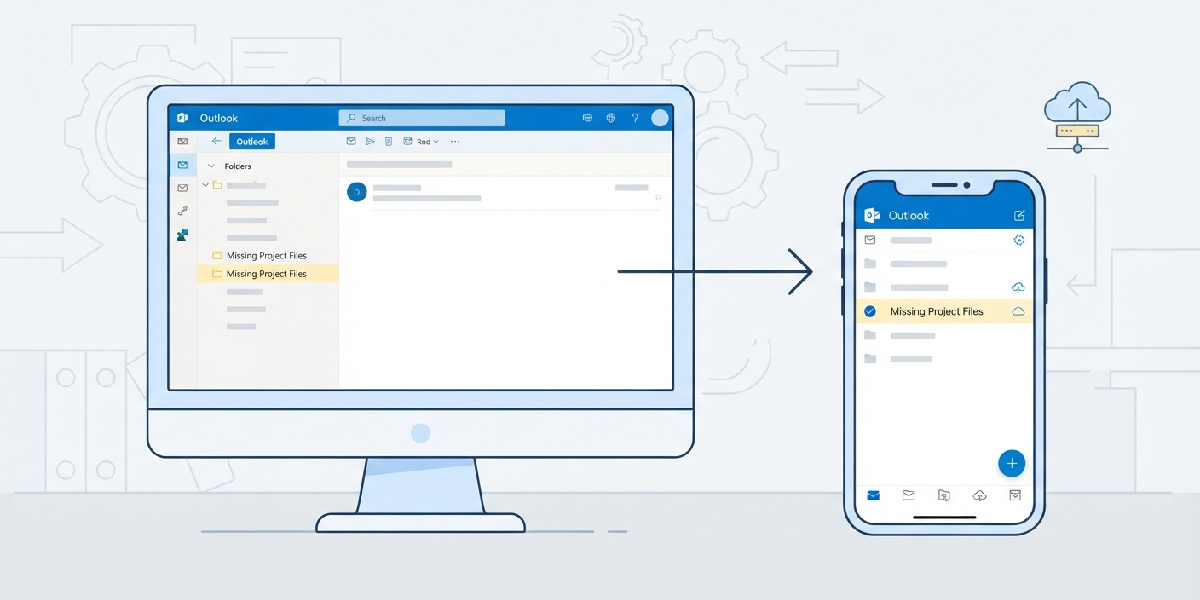
Tip: Creating folders through Outlook on the web instead of a single device tends to sync faster across phones, tablets, and desktop apps, since the web version writes directly to the server rather than waiting on a local sync cycle.
When Using Exchange or Microsoft 365 Accounts
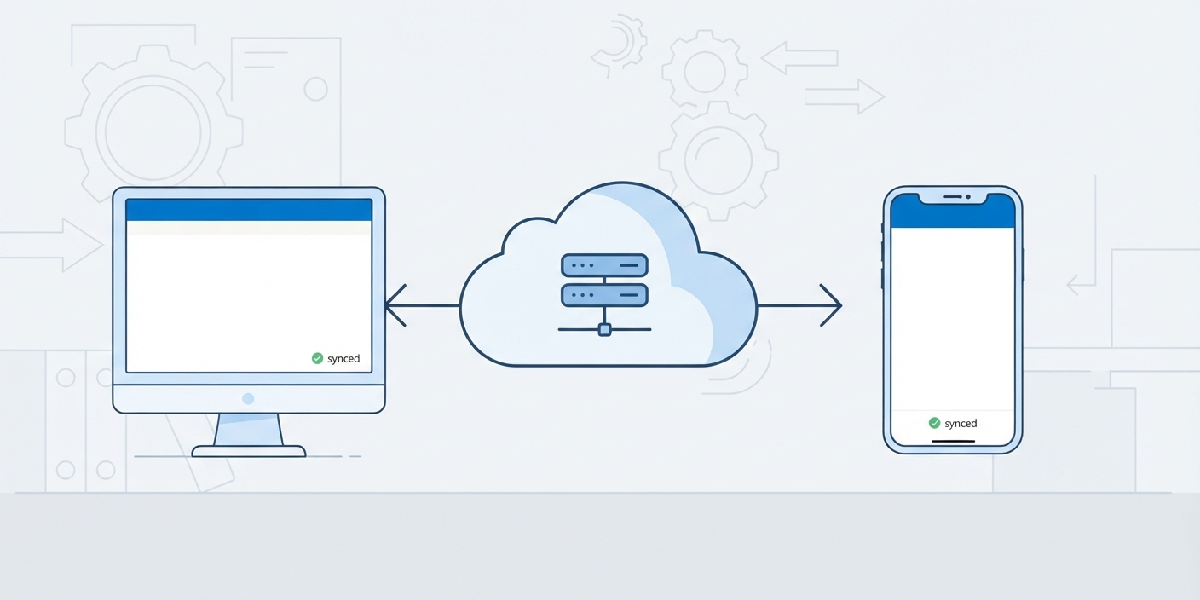
These account types rely on server-side sync, so folders should show up everywhere within a few minutes. If a folder is still missing after ten minutes or so, the fix is almost always a forced sync (Step 3) or a cache rebuild (Step 5), rather than a subscription issue.
Common Problems and Fixes
- Folder shows on desktop but not on mobile: This is typically an unsubscribed IMAP folder or a mobile app that has not refreshed. Subscribe to the folder from desktop first, then force-refresh the mobile app.
- Folder appears briefly then disappears: This often points to a sync conflict between two devices editing folder structure at the same time. Wait a few minutes for sync to settle, then check again on all devices.
- Folder only shows in Outlook on the web: The desktop or mobile app cache is likely out of date. Clearing the cache (Step 5) usually resolves this within one sync cycle.
- Subfolders missing even though the parent folder shows: Some accounts limit how many folder levels sync to mobile. Try moving important subfolders up one level if this becomes a recurring issue.
- New folder never appears anywhere: Double-check it was actually saved rather than left as an unsaved ‘New Folder’ prompt, which happens easily if a click lands outside the naming box before pressing Enter.
Frequently Asked Questions
Why do Outlook folders show on one device but not another?
This usually happens because the second device has not synced recently, has the folder unsubscribed (common with IMAP accounts), or is running on an outdated local cache that has not picked up the change yet.
Does creating a folder in Outlook desktop automatically sync it to mobile?
For Exchange and Microsoft 365 accounts, yes, though it can take a few minutes. For IMAP accounts, the folder may also need to be manually subscribed to before it becomes visible on other devices.
How long does it typically take for a new folder to sync across devices?
Most Exchange and Microsoft 365 accounts sync within a few minutes. IMAP accounts can take longer, especially if the folder has not been subscribed to on the affected device.
What is the fastest way to force Outlook to sync folders?
Click ‘Send/Receive’ then ‘Update Folder’ in Outlook desktop, or pull down to refresh in the Outlook mobile app. This triggers an immediate sync rather than waiting for the next scheduled cycle.
Why does a folder disappear after being visible for a short time?
This is often a temporary sync conflict, especially if the folder was renamed, moved, or edited from two devices close together in time. It typically resolves on its own within a few minutes once sync settles.
Do hidden or unsubscribed folders count against mailbox storage even if they are not visible?
Yes, an unsubscribed IMAP folder still exists on the server and counts toward mailbox storage. Visibility settings only control what shows in the folder list, not what is stored.
Will removing and re-adding the account fix missing folders?
In many cases, yes. Removing and re-adding the account forces a fresh download of the folder structure and often resolves cache-related issues that a manual sync did not fix.
Does this issue affect shared or delegated mailboxes as well?
Yes, shared mailboxes can show the same syncing behavior, particularly with folder subscriptions on mobile devices. The same subscription and sync steps apply.
Is there a setting that limits how many folders sync to mobile devices?
Some mobile configurations limit sync depth for subfolders rather than the total folder count. Moving frequently used subfolders closer to the top level can help them appear more reliably.
