
Outlook error 0x800CCC80 appears when classic Outlook for Windows cannot finish a send or receive task with the mail server. The usual result is a message stuck in the Outbox or a Send/Receive window that ends in a red error. In most cases the cause is a connection problem, a wrong server setting, or security software getting in the way, and the steps below fix each one in the order that works fastest.
Key Takeaways
- Error 0x800CCC80 is a send/receive failure between classic Outlook and the mail server.
- Start with the quick checks: internet connection, Work Offline mode, and a stuck Outbox message.
- Verify the account’s server names, ports, encryption, and SMTP authentication next.
- If the error persists, test in safe mode, repair Office, or create a new Outlook profile.
Outlook Error 0x800CCC80: Causes and Fixes Step by Step
Work through these in order. Each step takes only a few minutes, and many people find the problem is solved by Step 2 or Step 3.
Quick Checks
- Step 1: Confirm the connection and turn off offline mode. Open a website in a browser to confirm the internet works. Then in Outlook, select the Send / Receive tab and look at the Work Offline button. If it is highlighted, click it once to go back online, then press F9 to run Send/Receive again.
- Step 2: Clear a stuck message from the Outbox. A single oversized or corrupted message can block everything behind it, much like one jammed page stopping a whole print queue. Open the Outbox folder, double-click the stuck message, and either remove large attachments or copy the text into a new message. Delete the stuck one and run Send/Receive again.
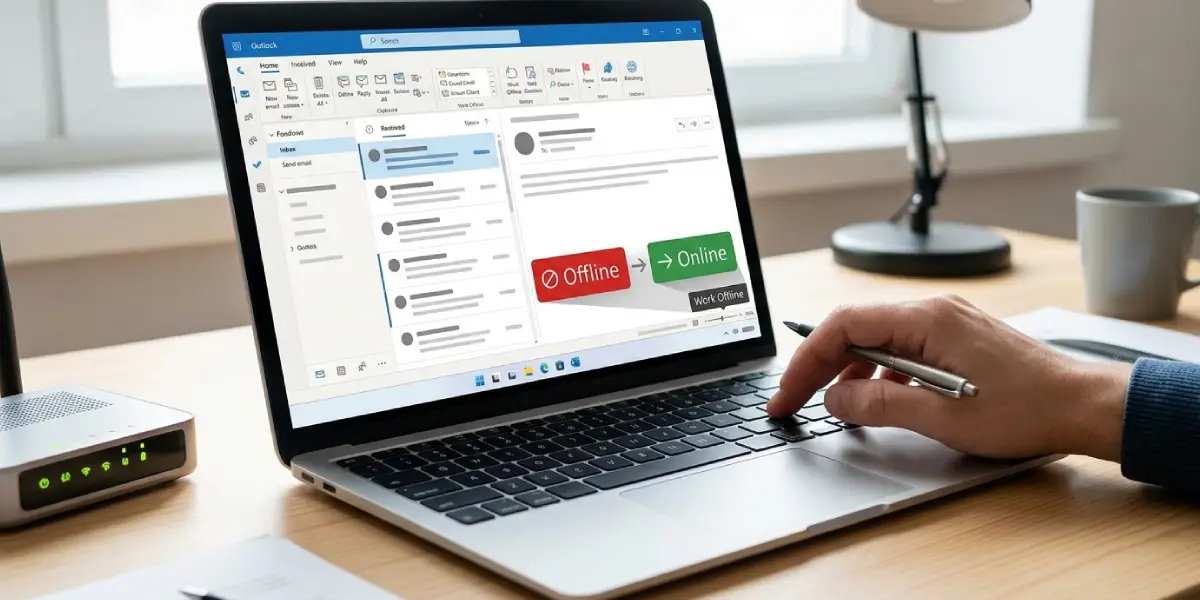
Tip: Switch Outlook to Work Offline before opening the stuck Outbox message. This stops Outlook from trying to send it again while it is being edited or deleted.
Account and Server Fixes
- Step 3: Review the account settings. Select File, then Account Settings, then Account Settings again. On the Email tab, select the affected account and click Repair if the button is available, or click Change to check the details. Confirm the incoming and outgoing server names exactly match what the email provider publishes, and that the user name and password are correct.
- Step 4: Turn on SMTP authentication and check ports. In the Change Account window, click More Settings. On the Outgoing Server tab, tick the SMTP authentication checkbox and choose the option to use the same settings as the incoming mail server. On the Advanced tab, confirm the ports and encryption match the provider. Common values are IMAP on port 993 with SSL/TLS, POP3 on port 995 with SSL/TLS, and SMTP on port 587 with STARTTLS or port 465 with SSL/TLS. Click OK, then Next, then Finish, and restart Outlook.
- Step 5: Pause email scanning in security software. Some antivirus and firewall tools scan outgoing and incoming mail and can interrupt the connection. Open the security program, temporarily disable its email scanning feature, and run Send/Receive again. If the error disappears, leave email scanning off or add Outlook as an allowed program, then switch the rest of the protection back on.
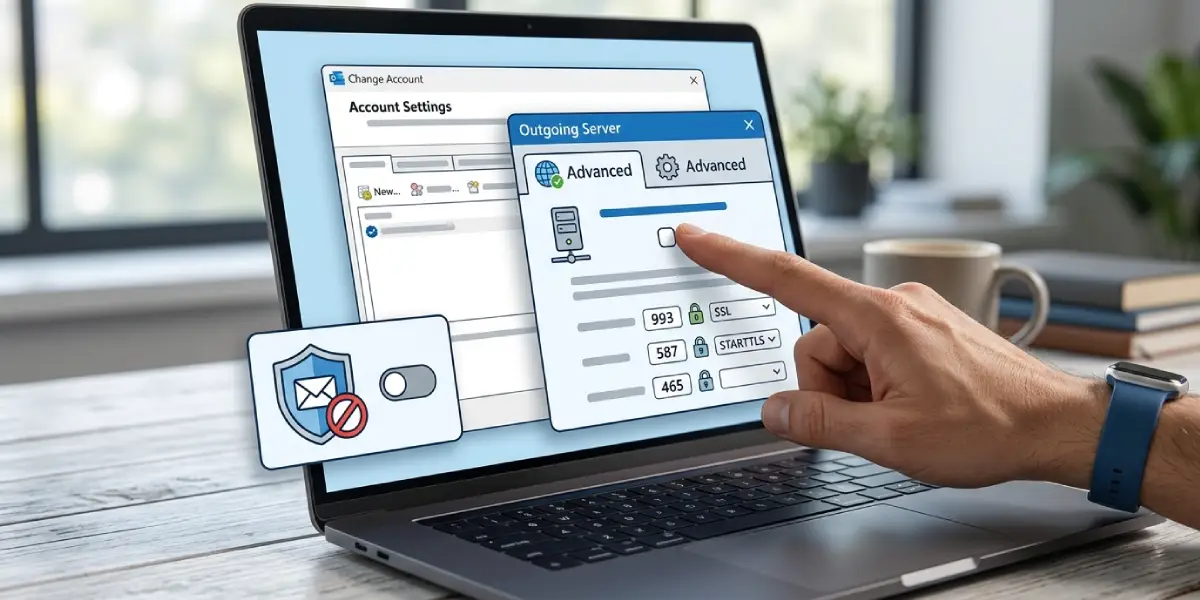
Tip: Test with one change at a time. If two settings change at once, it becomes impossible to know which one solved the problem.
Deeper Fixes
- Step 6: Start Outlook in safe mode. Close Outlook, hold the Ctrl key, and open Outlook again, then click Yes when asked about safe mode. Alternatively, press Windows key + R, type outlook /safe, and press Enter. If the error is gone in safe mode, an add-in is the culprit. Go to File, then Options, then Add-ins, choose COM Add-ins from the Manage list, click Go, and clear the checkboxes one at a time to find the offender.
- Step 7: Update and repair Office. In Outlook, select File, then Office Account, then Update Options, then Update Now. If the error continues, close Outlook, open Settings, go to Apps, then Installed apps, find Microsoft 365 or Microsoft Office, select Modify, and choose Quick Repair. If that does not help, run Online Repair, which takes longer but replaces damaged files more thoroughly.
- Step 8: Create a new Outlook profile. Close Outlook and open Control Panel, then Mail (Microsoft Outlook), then Show Profiles. Click Add, name the new profile, and enter the email account details when prompted. Select the option to always use this profile, or choose it at startup, then open Outlook and test Send/Receive. A fresh profile clears corrupted profile data without touching the mailbox stored on the server.
Common Problems and Fixes
What Usually Triggers the Error
Knowing the trigger saves time. The most frequent causes are an unstable or blocked connection to the mail server, outgoing server settings that lack authentication, incorrect ports or encryption type, antivirus email scanning, a stuck or oversized Outbox message, a faulty add-in, and a damaged Outlook profile or Office installation. Each step above targets one of these.
The Error Returns After Restarting Outlook
This usually points to a setting that was never actually saved or to an add-in loading at startup. Re-open the account settings, confirm authentication and ports were saved, and then repeat the safe mode test in Step 6.
Only One Account Shows the Error
When other accounts send and receive normally, the problem sits in that single account’s configuration. Re-enter the password, confirm the server names, and check whether the provider now requires an app password or a different sign-in method. If the provider has changed its security requirements, the old settings will fail even though nothing changed in Outlook.
The Error Appears Only With Large Attachments
Many providers cap the size of a single message, and a message above the cap can time out or be rejected. Reduce the attachment size, compress the files, or share a link to a cloud-stored file instead of attaching it. Then remove the oversized message from the Outbox as described in Step 2.
The Error Remains After a New Profile
If a new profile still fails, the issue is almost certainly outside Outlook itself. Recheck the network, test the same account in a web browser through the provider’s webmail, and contact the email provider or network administrator to confirm the server is accepting connections.
Frequently Asked Questions
What does Outlook error 0x800CCC80 mean?
It is a send/receive error in classic Outlook for Windows that indicates the program could not complete a task with the mail server, such as sending a message or downloading new mail.
Does the error mean the emails are lost?
No. Messages already stored on the mail server remain safe, and unsent messages stay in the Outbox until they are sent or deleted.
Which Outlook versions can show this error?
It is most often reported in classic desktop Outlook for Windows, including the versions that come with Microsoft 365 and older Office releases.
Can antivirus software cause error 0x800CCC80?
Yes. Antivirus and firewall programs that scan incoming and outgoing email can interrupt the connection. Temporarily disabling email scanning is a quick way to test this.
Which ports should be used for the outgoing mail server?
Many providers use port 587 with STARTTLS or port 465 with SSL/TLS for SMTP. The exact values depend on the provider, so confirm them in the provider’s published settings.
How can a stuck Outbox message be removed?
Switch Outlook to Work Offline on the Send / Receive tab, open the Outbox folder, then delete the message or move it to Drafts. Switch back online afterward and run Send/Receive.
Will creating a new Outlook profile delete the mailbox?
No. A new profile only creates fresh local settings. Mail stored on the server for IMAP, Exchange, and Microsoft 365 accounts is downloaded again once the account is added.
When is Online Repair better than Quick Repair?
Quick Repair is faster and fixes minor file problems. Online Repair reinstalls the Office files and is the better choice when Quick Repair does not clear the error.
