
Learning how to set the default sending account in Outlook takes about a minute and saves a lot of embarrassment. Without it, a message meant for a client can leave from a personal address, or the other way around. The steps below apply to the classic Outlook desktop app for Windows.
Key Takeaways
- The default account is chosen under File, Account Settings, on the Email tab.
- Selecting an account and clicking Set as Default makes it the sender for new messages.
- The default account shows a checkmark and moves to the top of the list.
- Replies still go out from the account that received the original message.
- Any single message can override the default through the From button.
How to Set the Default Sending Account in Outlook: Step-by-Step
- Step 1: Open the Outlook desktop app on the computer.
- Step 2: Click the File tab in the top-left corner of the ribbon.
- Step 3: On the Info page, click Account Settings, then choose Account Settings again from the dropdown menu.
- Step 4: In the window that opens, stay on the Email tab. Every account connected to Outlook appears in this list.
- Step 5: Click the account that should send new messages by default.
- Step 6: Click Set as Default above the list. A checkmark appears beside that account and it moves to the top.
- Step 7: Click Close, then start a new email. The From line should show the account just selected.
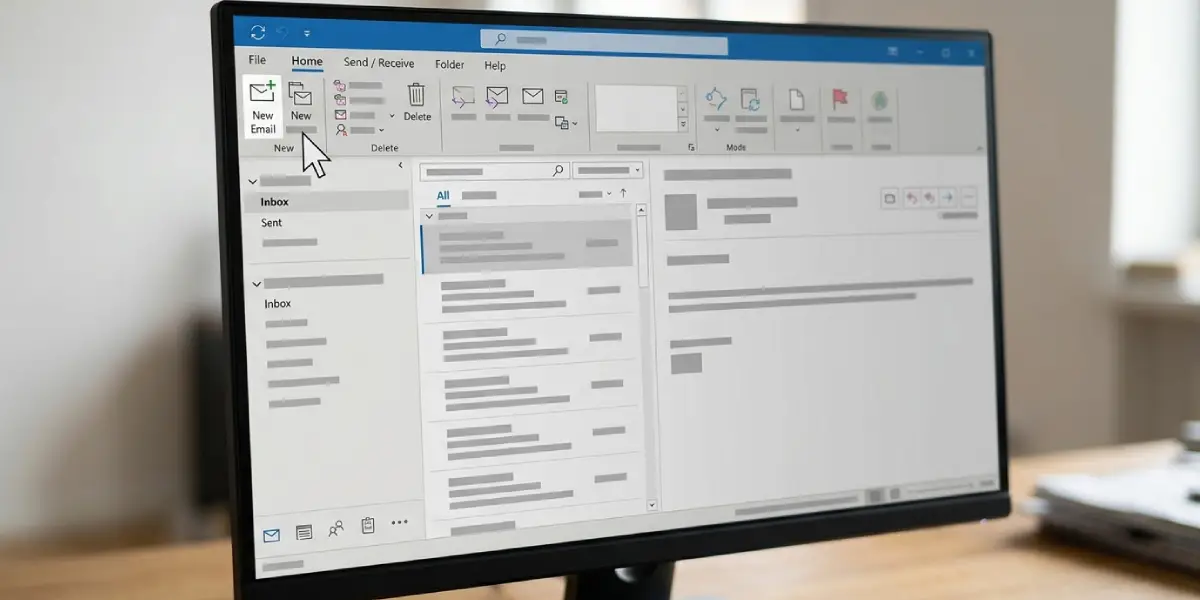
Tip: Open a new message right after the change and look at the From line before closing the settings for good. A ten-second test confirms the switch worked.
Check That the Steps Match the Version of Outlook in Use
These steps match classic Outlook, which has a File tab on the ribbon. Outlook with a toggle labeled New Outlook in the top-right corner uses a different layout. Switching that toggle off returns the classic interface, where the menu path above applies.
Send One Message From a Different Account
Changing the default is a permanent preference, but exceptions come up all the time. Say a freelancer uses a work address by default and needs to answer one personal email. In a new message, click the From button and pick the other account. Only that message is affected.
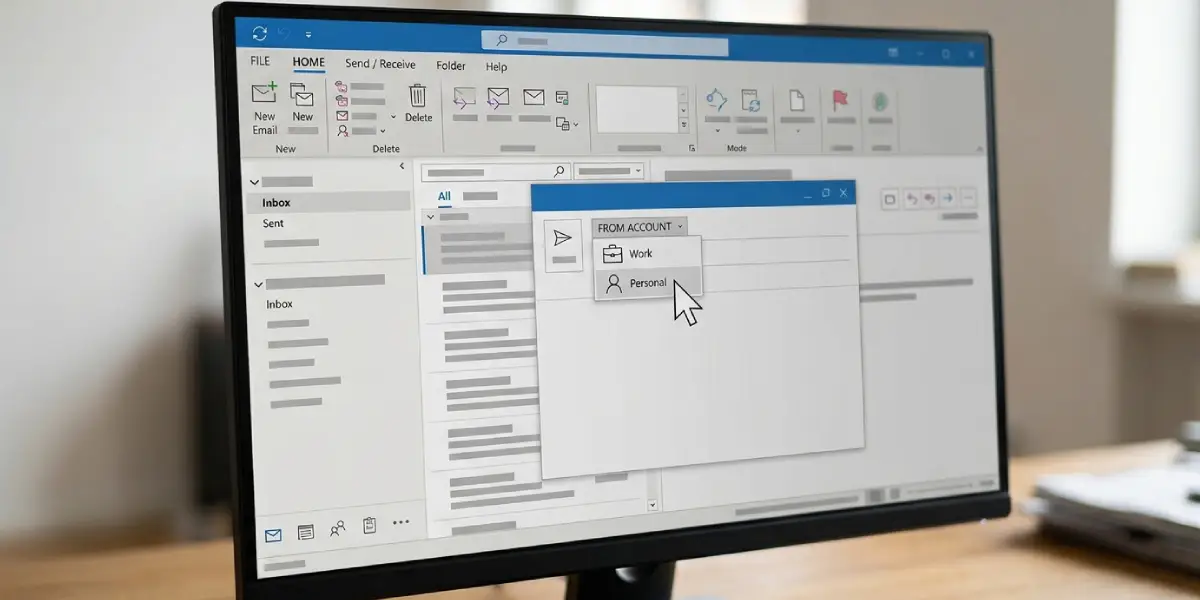
Tip: When a new message is started while a folder from another account is open, Outlook uses that folder’s account in the From line. Click the Inbox of the account that should send before pressing New Email to avoid surprises.
Common Problems and Fixes
Set as Default Is Greyed Out
This usually means the selected account is already the default. Look for the checkmark beside it. To change the default, click a different account in the list first.
New Emails Still Leave From the Wrong Account
Check which mailbox is open when New Email is clicked. A new message can pick up the account of the folder currently in view. Open the Inbox of the intended account, or confirm the From line before sending.
Replies Go Out From a Different Address Than the Default
This is normal behavior. A reply or forward is sent from the account that received the original message. Use the From button on the reply if another address is needed.
The Change Does Not Seem to Apply
Close Outlook completely and reopen it, then open the Email tab again and confirm the checkmark sits beside the right account. If the checkmark is missing, repeat Steps 2 through 6.
The Account Is Missing From the List
Only accounts already added to Outlook can be chosen as the default. If an address does not appear on the Email tab, add it there with the New button, then select it and click Set as Default.
Frequently Asked Questions
Where is the default account setting in Outlook?
Go to File, then Account Settings, then Account Settings again. On the Email tab, select an account and click Set as Default.
How can the current default account be identified?
Open the Email tab under Account Settings. The default account has a checkmark beside it and is listed first.
Can more than one default sending account exist?
No. Outlook allows a single default account at a time. Choosing a new one automatically replaces the previous default.
Does changing the default account affect incoming mail?
No. The setting controls only which account is used for new outgoing messages. Mail continues to arrive in every connected mailbox as before.
How can a different account be used for just one email?
Click the From button in the message window and choose another account. The default setting stays untouched for future messages.
Why does a reply come from an address that is not the default?
Outlook sends replies from the account that received the original message. This keeps the conversation tied to the address the sender used.
Why is the Set as Default button unavailable?
The button is greyed out when the highlighted account is already the default. Select a different account to make it active.
Do email accounts from different providers work as the default?
Yes. Any account listed on the Email tab can be set as the default, whether it is a Microsoft 365, Outlook.com, Gmail, or other IMAP or POP account.
Is a restart needed after changing the default account?
Usually not. The change applies to the next new message. If the From line still shows the old account, close and reopen Outlook.
