
Outlook error 0x800CCC92 pops up when the mail server rejects the username or password tied to an account, and it usually stops send and receive activity in its tracks. This guide walks through the exact steps needed to clear the error and get mail flowing again, without wasting time on guesswork.
Key Takeaways
- Error 0x800CCC92 almost always points to a login or authentication problem, not a broken internet connection.
- Re-entering the password rarely works on its own if Windows has cached an old credential.
- Accounts protected by two-factor authentication, such as Gmail or Yahoo, often need an app password instead of the regular login password.
- Clearing saved credentials and re-adding the account resolves the issue in most cases.
- Outdated authentication methods and overzealous antivirus scanning can also trigger this error.
Step-by-Step Guide to Fixing Outlook Error 0x800CCC92
Follow these steps in order. Most people find the problem resolved by step four, but working through the full list clears even the stubborn cases.
- Step 1: Note which account triggers the error. Outlook usually names the email address in the error dialog, and this matters when a profile has more than one account connected.
- Step 2: Confirm the password is correct by logging into that account’s webmail directly in a browser. If the webmail login fails too, the account password needs to be reset with the provider before anything else will work.
- Step 3: Open Windows Credential Manager by typing ‘Credential Manager’ into the Start menu search bar, then select ‘Windows Credentials’. Look for entries related to Outlook or the mail provider (they often start with ‘MicrosoftOffice16_Data’ or the provider’s domain name) and remove them.
- Step 4: Restart Outlook. It should prompt for the password again. Type it carefully, and make sure ‘Remember my credentials’ is checked before selecting OK.
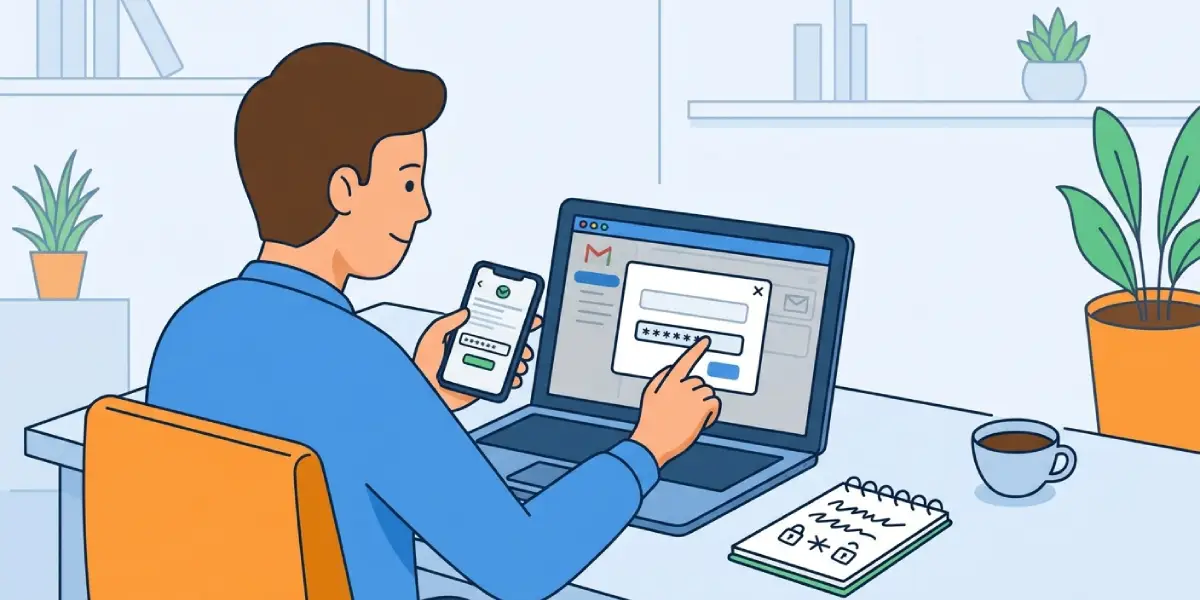
- Step 5: If the account uses two-factor authentication (common with Gmail, Yahoo, and some Outlook.com accounts), generate an app-specific password from that provider’s security settings and use it in place of the regular login password.
- Step 6: Go to File, then Account Settings, then Account Settings again. Select the affected account and choose Change, then More Settings.
- Step 7: On the Outgoing Server tab, confirm ‘My outgoing server (SMTP) requires authentication’ is checked and set to ‘Use same settings as my incoming mail server’.
- Step 8: On the Advanced tab, check that the incoming and outgoing port numbers and encryption method match what the email provider currently publishes, since providers occasionally update these.
- Step 9: If the error persists, remove the account entirely from File, Account Settings, and add it back from scratch. This forces Outlook to re-authenticate using the current sign-in method, including modern authentication where required.
- Step 10: Temporarily disable any antivirus email-scanning add-in and test again. Some security software intercepts the login handshake and causes this exact error.
Tip: Before touching any settings, write down the current server addresses and ports shown under More Settings. That way, if a change makes things worse, reverting is a thirty-second job instead of a guessing game.
When the Account Uses Microsoft 365 or Outlook.com
These accounts typically rely on modern authentication rather than a stored password. If step 9 does not clear the error, sign out of the Microsoft account entirely from Outlook’s account settings, then sign back in through the browser prompt that appears. This refreshes the authentication token that Outlook uses behind the scenes.

Common Problems and Fixes
- The password keeps getting rejected even right after a reset. This almost always means Windows Credential Manager still has the old password cached. Repeat step 3 and make sure every related entry is deleted before restarting Outlook.
- The error only shows up when sending mail, not receiving. This points to the outgoing server authentication box mentioned in step 7. Double-check that setting specifically, since incoming mail can work fine while outgoing fails.
- The error came back after a Windows update. Updates sometimes reset cached credentials or security policies. Clear Credential Manager again and re-add the account.
- Webmail login works, but Outlook still fails. This is a strong sign that an app password is needed. Regular login passwords do not work for desktop mail clients once two-factor authentication is turned on.
- The account locks out repeatedly after a few failed attempts. Some providers temporarily lock accounts after several bad login tries. Wait 15 to 30 minutes, confirm the correct password through webmail first, then retry in Outlook.
Frequently Asked Questions
What does Outlook error 0x800CCC92 actually mean?
It means the mail server rejected the username or password Outlook sent during login. Outlook itself is not broken; the credentials it is using are not being accepted by the server.
Does this error mean the account password was changed by someone else?
Not necessarily. It more commonly happens after a routine password change, a security policy update from the provider, or Windows caching an outdated credential.
Why does the password work on the phone but not in Outlook on the computer?
Mobile mail apps often use modern authentication automatically, while a desktop Outlook profile set up earlier may still be using a stored password or older authentication method that the server no longer accepts.
Is an app password different from a regular email password?
Yes. An app password is a separate, randomly generated code created specifically for apps like Outlook when two-factor authentication is active on the account. It is generated in the provider’s security settings and used only in Outlook, not for logging into webmail.
Will removing and re-adding the account delete existing emails?
No, as long as the account uses IMAP or Exchange, since mail is stored on the server and simply re-downloads into Outlook. For POP accounts where mail is stored locally, back up the PST file first before removing the account.
Can antivirus software really cause this specific error?
Yes. Email-scanning features in some antivirus programs intercept the authentication process between Outlook and the mail server, which can produce the same rejection error.
How long does clearing Credential Manager take to fix the issue?
Usually just a few minutes. After deleting the cached entries and restarting Outlook, the new login prompt appears immediately, and the error clears as soon as valid credentials are entered.
What if none of these steps fix the error?
Contact the email provider’s support directly, since a server-side account restriction or a security hold may be blocking third-party app access entirely, which cannot be resolved from within Outlook alone.
