
Setting up Yahoo Mail in Outlook for Mac only takes a few minutes once the correct sign-in method is used. Most connection failures happen because people try to type a regular password where Outlook expects a Yahoo sign-in or an app password instead. This guide walks through the process cleanly, from start to finish, so mail starts syncing on the first try.
Key Takeaways
- Outlook for Mac connects to Yahoo Mail through Yahoo’s own sign-in window, not a typed password field.
- Two-step verification on the Yahoo account usually requires generating an app password first.
- The setup happens under Outlook > Settings > Accounts, using the plus (+) button.
- Sending and receiving should both be tested right after the account connects.
- Most sign-in failures trace back to a browser pop-up being blocked or an outdated Outlook version.
How to Add a Yahoo Mail Account in Outlook for Mac
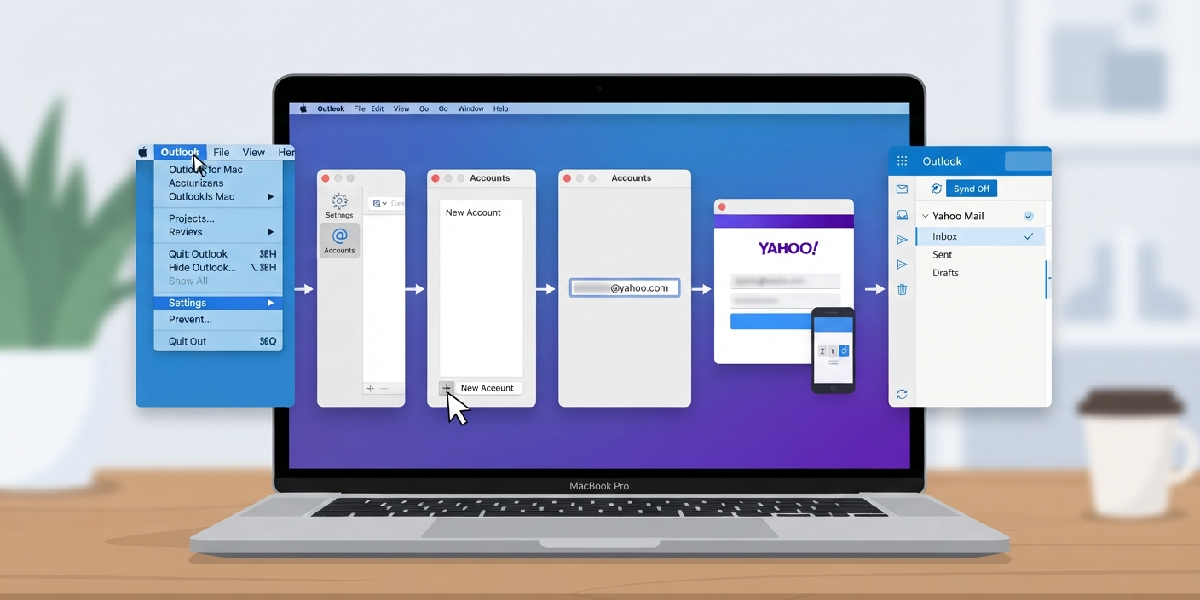
- Step 1: Open Outlook for Mac and click the Outlook menu in the top menu bar, then choose Settings.
- Step 2: Select Accounts from the Settings window that appears.
- Step 3: Click the plus (+) icon in the lower-left corner of the Accounts panel and choose New Account.
- Step 4: Type the full Yahoo email address, including @yahoo.com, and press Return.
- Step 5: A Yahoo sign-in window will open inside Outlook. Enter the Yahoo password on this screen, not on any Outlook-branded field.
- Step 6: If two-step verification is turned on for the Yahoo account, Yahoo will prompt for an app password instead of the regular one. Generate this ahead of time by going to Yahoo Account Info > Account Security > Generate app password, then paste that 16-character code into the sign-in window.
- Step 7: Approve any two-step verification prompt sent to a phone or authenticator app, if applicable.
- Step 8: Once Outlook confirms the connection, click Done to close the setup window.
- Step 9: Wait for the folder list to populate on the left side of Outlook, which shows the account has synced successfully.
Confirming the Account Works
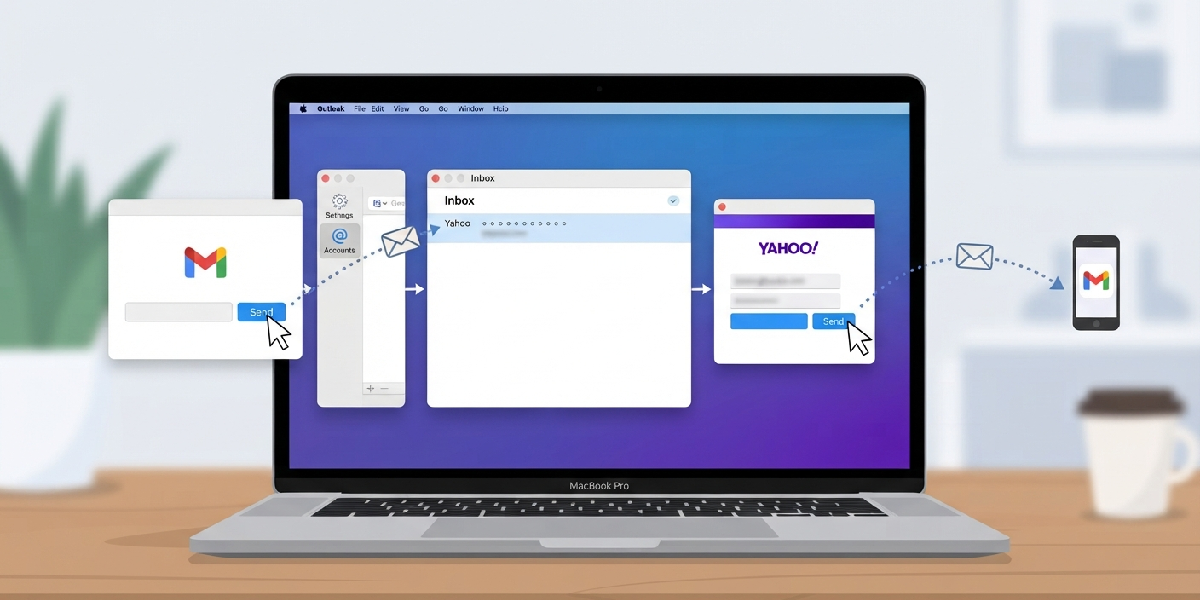
Send a quick test email to a personal address, such as a Gmail or iCloud inbox, and check that it arrives without delay. Then send a message from that outside account back to the newly added Yahoo address inside Outlook. This two-way check catches most setup issues before they become a daily annoyance.
Tip: Keep the Yahoo app password saved somewhere secure, like a password manager, since it may be needed again if the account ever needs to be re-added after a Mac update or Outlook reinstall.
Common Problems and Fixes
The Yahoo Sign-In Window Never Opens
This usually points to a pop-up blocker or a security tool interfering with the embedded browser window. Quit Outlook completely, reopen it, and try adding the account again. If the window still fails to appear, restart the Mac and repeat the steps, since a stuck background process is often the real culprit.
Outlook Rejects the Regular Yahoo Password
This happens when two-step verification is active on the Yahoo account. Generate an app password from Yahoo Account Security settings and use that code in place of the normal password. Regular passwords will not work once two-step verification is enabled.
Emails Are Not Syncing After Setup
Open Outlook > Settings > Accounts, select the Yahoo account, and check that it shows as connected rather than showing an error icon. If an error appears, remove the account using the minus (-) button and add it again from scratch, since a partial or interrupted setup can leave the connection unstable.
Sent Emails Are Not Reaching Recipients
Confirm the account was added through the standard sign-in flow rather than a manual IMAP setup with incorrect outgoing server settings. Removing and re-adding the account through Outlook > Settings > Accounts almost always resolves this, since it restores the correct server configuration automatically.
Frequently Asked Questions
Does adding Yahoo Mail to Outlook for Mac require an app password?
Only if two-step verification is turned on for the Yahoo account. Without it, the standard Yahoo sign-in window handles authentication directly.
Where is the app password generated for Yahoo Mail?
Inside the Yahoo account, go to Account Info, then Account Security, and select Generate app password. Choose a name like Outlook and copy the code it creates.
Can more than one Yahoo account be added to Outlook for Mac?
Yes. Repeat the same setup steps using the plus (+) button in Accounts for each additional Yahoo address.
Why does Outlook keep asking for the Yahoo password repeatedly?
This is often a sign that an app password is needed instead of the regular one, especially when two-step verification is active on the Yahoo account.
Is it safe to enter the Yahoo password inside Outlook?
Yes, since the sign-in happens through Yahoo’s own secure window embedded in Outlook, not through a field controlled by Microsoft.
What should be done if the Yahoo account disappears after a Mac update?
Reopen Outlook > Settings > Accounts and check whether the account still appears. If it is missing, add it again using the same steps, using the saved app password if one was generated earlier.
Does removing the Yahoo account from Outlook delete the emails?
No. Removing the account only disconnects it from Outlook. All emails remain safely stored on Yahoo’s servers and can be viewed again through the Yahoo website or by re-adding the account.
Why does the Yahoo sign-in window look different from Outlook’s usual design?
That window belongs to Yahoo, not Outlook. Yahoo controls its own branding and layout for the sign-in screen used during account setup.
Can Yahoo Calendar or Contacts be added along with the Yahoo Mail account?
Outlook for Mac syncs Yahoo Mail through the standard account setup, and calendar or contact syncing depends on what Yahoo makes available through that same connection at the time of setup.
