
The Outlook we can’t connect right now error appears when Outlook cannot reach the mail server, so the inbox stays empty or stuck on a loading screen. The cause is usually a network hiccup, Work Offline mode, an expired sign-in, a faulty add-in, or a damaged profile. The steps below start with the fastest checks and move toward the deeper repairs.
Key Takeaways
- The error means Outlook cannot talk to the mail server, most often because of the network, Offline mode, or a stale sign-in.
- Testing the same mailbox in Outlook on the web quickly shows whether the problem is local or on the service side.
- Turning off Work Offline, signing out and back in, and updating Outlook fix most cases.
- Safe Mode isolates add-ins, and a new Outlook profile clears a corrupted one.
How to Fix the Outlook We Can’t Connect Right Now Error Step by Step
Quick Checks First
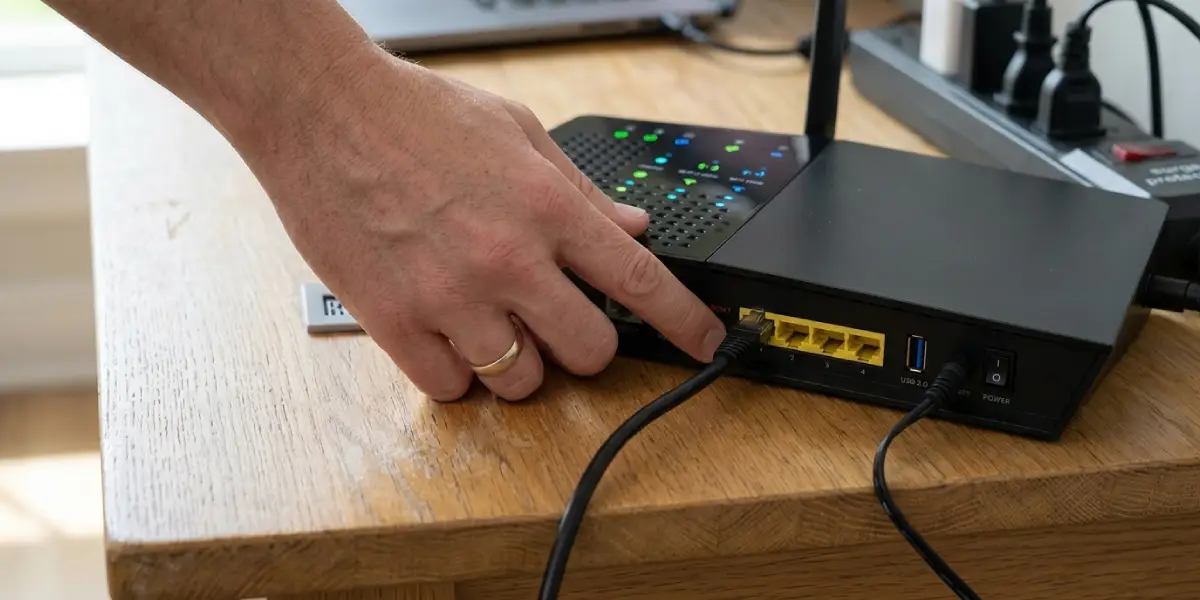
- Step 1: Confirm the internet connection works. Open a website in a browser, then restart the router if pages load slowly or not at all. If another network is available, such as a phone hotspot, connect to it and reopen Outlook. A working hotspot points to the original network or its firewall.
- Step 2: Sign in to the same mailbox in Outlook on the web at outlook.office.com for work or school accounts, or outlook.live.com for personal accounts. If mail loads there, the mailbox is healthy and the problem sits on the device. If the sign-in fails or the page will not load, check the Service health page in the Microsoft 365 admin center or contact the IT administrator.
- Step 3: Turn off Work Offline. In classic Outlook, open the Send/Receive tab and look at the Preferences group. If the Work Offline button is highlighted, select it once to switch it off. The status bar at the bottom of the window should stop showing ‘Working Offline’ within a few seconds.
- Step 4: Disconnect any VPN and restart Outlook completely. Close the app, press Ctrl + Shift + Esc to open Task Manager, end any leftover Outlook process, and then open Outlook again. A VPN or proxy can block or reroute mail traffic, and a background process can keep an old, broken connection alive.
Tip: Test with Outlook on the web before changing any settings. It takes under a minute and tells right away whether the issue is the account or the device.
Deeper Fixes When the Error Stays
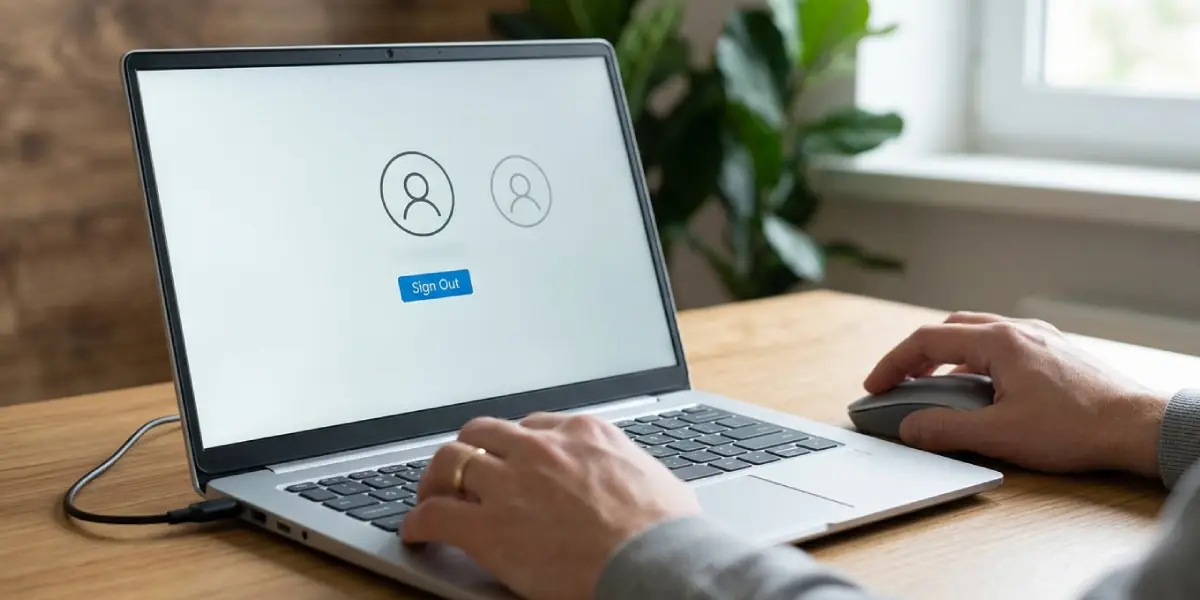
- Step 5: Sign out and sign back in. In classic Outlook, go to File, then Office Account, and select Sign out. Close Outlook, reopen it, and sign in again with the current password. This refreshes saved credentials, which is the usual fix after a password change or a long period without signing in.
- Step 6: Update Outlook. Go to File, then Office Account, select Update Options, and choose Update Now. Restart Outlook once the update finishes, since an outdated build can fail to connect even when everything else is configured correctly.
- Step 7: Start Outlook in Safe Mode to rule out add-ins. Press Windows key + R, type outlook /safe, and press Enter. If the mailbox connects, go to File, then Options, then Add-ins. Set Manage to COM Add-ins, select Go, clear the checkboxes, and then turn add-ins back on one at a time to find the one causing the problem.
- Step 8: Create a new Outlook profile. Close Outlook, open Control Panel, and select Mail (Microsoft Outlook). Choose Show Profiles, then Add, name the new profile, and enter the email account details. Under ‘When starting Microsoft Outlook, use this profile’, select the new profile and open Outlook again.
- Step 9: If the error appears in the new Outlook for Windows, repair the app. Open Windows Settings, go to Apps, then Installed apps, find Outlook (new), open its menu, and choose Advanced options. Select Repair first. If the error remains, select Reset, then sign in to the account again.
Tip: Before creating a new profile, note any accounts that use local data files. Microsoft 365, Exchange, and Outlook.com mail stays on the server, but a local PST file has to be attached again afterward.
Common Problems and Fixes
The error returns right after turning off Work Offline
Outlook is probably switching back because the connection drops again. Check for an unstable Wi-Fi signal or an active VPN, then repeat Step 1 and Step 4.
Outlook keeps asking for a password and never connects
Saved credentials are likely outdated. Sign out as shown in Step 5, restart Outlook, and sign in fresh. If the prompt keeps looping, build a new profile as shown in Step 8.
The error only appears on one network
That network may be blocking the mail service through a firewall or proxy. Connect through a different network to confirm, then ask the network owner or IT team to allow Outlook traffic.
The error began after a password change
The old password is still stored on the device. Signing out and back in with the new password refreshes it, and Step 5 covers the exact path.
Outlook works in Safe Mode but not normally
An add-in is interfering. Return to Step 7 and disable add-ins one by one until the mailbox connects in normal mode, then leave the offending add-in turned off or update it.
Outlook on the web also fails to load
The cause is outside Outlook itself. A service outage or an account restriction is likely, so check the Service health page or contact the administrator instead of repairing the local app.
Frequently Asked Questions
What does the Outlook we can’t connect right now error mean?
It means Outlook could not reach the mail server at that moment. Common triggers are a weak or blocked network, Work Offline mode, outdated saved credentials, a problematic add-in, or a damaged profile.
How can I tell if Outlook is in Offline mode?
The status bar at the bottom of the Outlook window shows ‘Working Offline’ or ‘Disconnected’. On the Send/Receive tab, the Work Offline button also appears highlighted when the mode is active.
Does a VPN cause this error?
It can. A VPN may reroute or block the connection to the mail server. Disconnecting the VPN and reopening Outlook is a quick way to test this.
Will creating a new Outlook profile delete emails?
No, not for Microsoft 365, Exchange, Outlook.com, or IMAP accounts, because the mail stays on the server and downloads again. Local PST data files are not deleted, but they must be attached to the new profile again.
How do I start Outlook in Safe Mode?
Press Windows key + R, type outlook /safe, and press Enter. Another option is to hold the Ctrl key while opening Outlook and confirm the Safe Mode prompt.
Can updating Outlook fix the error?
Yes, an outdated build can fail to connect. Go to File, then Office Account, select Update Options, and choose Update Now.
Why does the error appear on one computer but not another?
The cause is tied to that device, such as its profile, saved credentials, add-ins, or network. If the same mailbox works on another computer or in Outlook on the web, the account itself is fine.
How can I check whether the problem is on the Microsoft side?
Sign in to the mailbox in Outlook on the web and check the Service health page in the Microsoft 365 admin center. If the mailbox loads in the browser, the issue is local to the Outlook app or device.
