
Knowing how to set up an email signature in Outlook saves the daily chore of typing a name, title, and phone number at the bottom of every message. Once a signature is saved, Outlook adds it automatically to new emails and, if chosen, to replies and forwards too. The steps below cover classic Outlook for Windows, new Outlook, Outlook on the web, and Outlook for Mac.
Key Takeaways
- A signature is created in the Signatures settings, then assigned as the default for new messages and for replies and forwards.
- Classic Outlook for Windows uses File > Options > Mail > Signatures, while new Outlook and Outlook on the web use Settings > Accounts > Signatures.
- Outlook for Mac keeps signatures under Outlook > Settings > Signatures.
- Setting a default signature is what makes it appear automatically, so this step should never be skipped.
- Logos, links, and formatting can be added directly in the signature editor.
Step-by-Step Guide: How to Set Up an Email Signature in Outlook
The menus differ slightly depending on which version of Outlook is installed. The easiest way to tell the versions apart is the toggle at the top right of the window. If a ‘New Outlook’ toggle is switched on, follow the new Outlook steps. If the window has a File tab in the top left corner, it is classic Outlook.
Classic Outlook for Windows
- Step 1: Open Outlook and select File in the top left corner.
- Step 2: Select Options, then choose Mail in the left pane.
- Step 3: Click the Signatures button in the Compose messages section.
- Step 4: On the E-mail Signature tab, click New, type a name for the signature such as ‘Work’ or ‘Personal’, and click OK.
- Step 5: Click inside the Edit signature box and type the signature text. A typical signature includes a full name, job title, company, phone number, and website.
- Step 6: Use the formatting toolbar above the box to change the font, size, and color. The picture icon adds a logo, and the hyperlink icon makes a website or email address clickable.
- Step 7: Under Choose default signature, pick the email account from the E-mail account list. Then set the signature for New messages and for Replies/forwards.
- Step 8: Click OK to save, then click OK again to close Outlook Options.
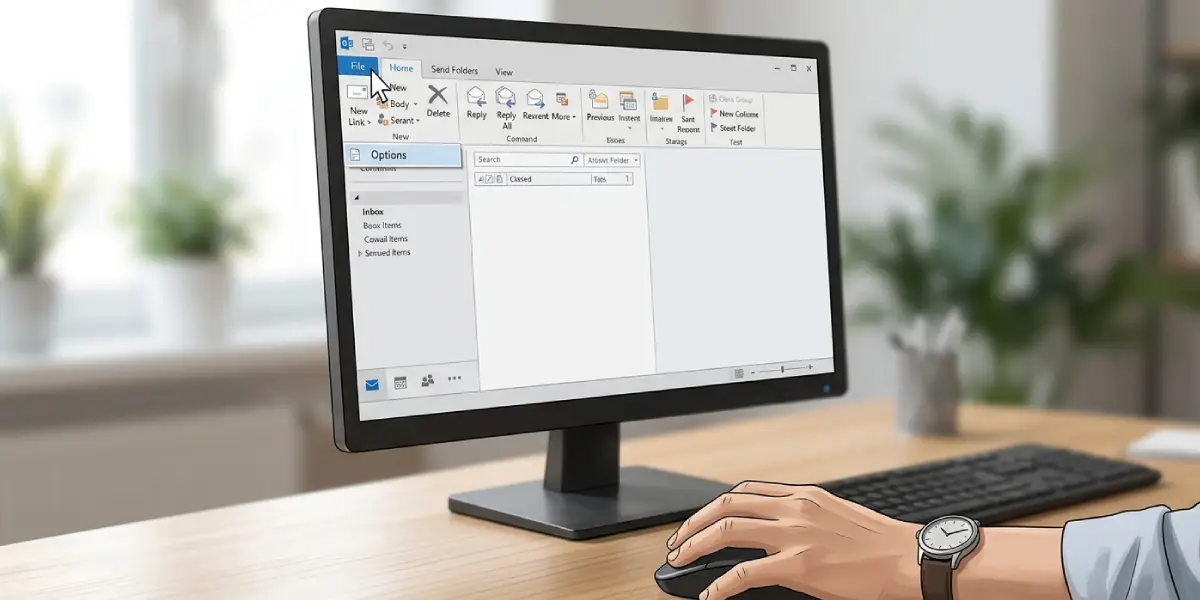
Tip: A signature can also be reached while writing an email. Open a new message, select the Message tab, click Signature, and choose Signatures to land on the same screen.
New Outlook for Windows and Outlook on the Web
- Step 1: Select the Settings gear icon in the top right corner.
- Step 2: Choose Accounts, then select Signatures.
- Step 3: Click New signature and give it a name.
- Step 4: Type the signature in the editing box and format it with the toolbar. Images and links can be inserted from the same toolbar.
- Step 5: Under Select default signatures, choose the email account, then pick the signature for New messages and for Replies/forwards.
- Step 6: Click Save to apply the changes.
Outlook for Mac
- Step 1: Open Outlook and select Outlook in the menu bar, then choose Settings.
- Step 2: Under Email, select Signatures.
- Step 3: Click the plus (+) button to create a new signature.
- Step 4: Enter a name and type the signature text in the editing area. The toolbar handles fonts, images, and links.
- Step 5: Choose the default signature for new messages and for replies and forwards from the options for the selected account.
- Step 6: Save the signature, then close the Signatures window.
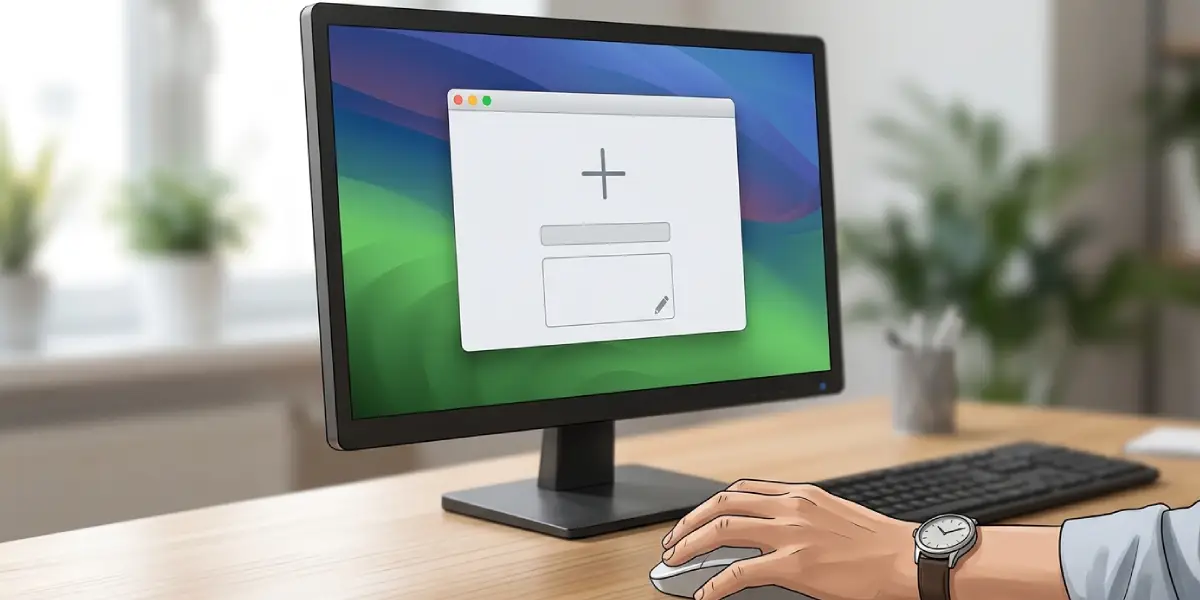
Tip: Open a new email right after saving. If the signature shows up at the bottom, the setup worked. If the space is blank, the default signature was likely left unset for that account.
Common Problems and Fixes
The signature does not appear in new emails
This almost always means no default signature was assigned to the email account being used. Return to the Signatures settings, select the correct account, and set the signature under New messages. People with several accounts often set a default for only one of them.
The signature is missing from replies and forwards
The Replies/forwards setting is separate from the New messages setting. Open the Signatures settings and choose the signature in the Replies/forwards list for the right account.
The signature looks plain or loses its formatting
Messages written in plain text cannot hold fonts, colors, or images. In classic Outlook, go to File > Options > Mail and set Compose messages in this format to HTML. After that, new messages will keep the signature formatting.
The logo shows up as a red X or an attachment
Some recipients block images by default, so a logo can appear as a blank box or a small attachment. Keeping the image small and including the key details as text, such as the phone number and website, keeps the signature useful even when the picture is blocked.
The wrong signature appears for a certain account
Each email account has its own default signature. Open the Signatures settings, select the problem account in the account list, and assign the correct signature there.
Frequently Asked Questions
Where is the signature setting in Outlook?
In classic Outlook for Windows, it is under File > Options > Mail > Signatures. In new Outlook and Outlook on the web, it is under Settings > Accounts > Signatures. In Outlook for Mac, it is under Outlook > Settings > Signatures.
How do I add a logo to an Outlook signature?
Open the signature in the editor, place the cursor where the logo should appear, and click the picture icon in the toolbar. Choose the image file, then resize it if needed so it does not dominate the message.
Can I create more than one signature in Outlook?
Yes. Outlook allows several signatures, such as a full version for new emails and a shorter one for replies. Each one is created with the New option in the Signatures settings.
How do I make my signature appear on replies and forwards?
In the Signatures settings, choose the email account and select the signature in the Replies/forwards list. Without this choice, the signature may only appear on new messages.
How do I make a link clickable in my signature?
Select the text in the signature editor, click the hyperlink icon, and enter the web address. Outlook will turn the selected text into a clickable link.
How do I edit an existing Outlook signature?
Open the Signatures settings, select the signature from the list, make the changes in the editing box, and save. In classic Outlook, click OK to apply the update.
Can I use a different signature for each email account?
Yes. The default signature is chosen per email account, so each account can have its own signature for new messages and for replies and forwards.
How do I remove the signature from a single email?
Click into the signature area of the message and delete the text before sending. The saved signature stays untouched and will still appear on future emails.
