
A bloated Outlook data file slows down searches, delays syncing, and can even stop new mail from arriving. This guide shows exactly how to reduce and compact an oversized PST file using Outlook’s built-in tools, without losing any messages in the process.
Key Takeaways
- Emptying Deleted Items and Junk Email first makes the biggest immediate difference in file size.
- Archiving old messages moves data out of the active PST without deleting anything permanent.
- The Compact Now feature reclaims the empty space left behind after cleanup, shrinking the actual file on disk.
- Compacting can take anywhere from a few minutes to over an hour, depending on how large the file has grown.
- Outlook must stay open and idle during the compact process for it to finish properly.
Step-by-Step Guide to Reduce and Compact an Oversized PST File
Method 1: Clean Out Unnecessary Items First
Compacting only reclaims space that has already been freed up, so the cleanup has to happen before the compact tool does any real good. Most people find that a quick pass through a few folders removes far more clutter than expected.
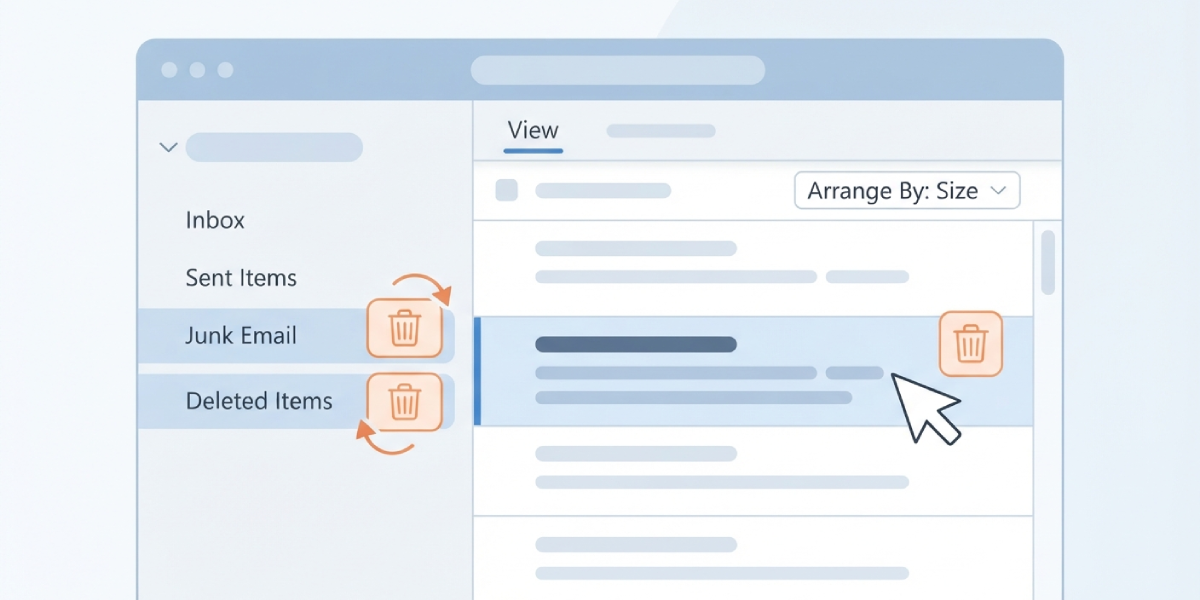
- Step 1: Open Outlook and go to the Deleted Items folder, then right-click it and choose ‘Empty Folder’.
- Step 2: Right-click the Junk Email folder and select ‘Empty Folder’ as well.
- Step 3: Sort large folders like the Inbox by size (View tab, Arrange By, then Size) and delete or move oversized attachments and old newsletters that are no longer needed.
- Step 4: Check the Sent Items folder for large outgoing attachments, since these get overlooked far more often than incoming ones.
Tip: If storage space allows, save large attachments to a folder on the computer or to OneDrive, then delete the attachment from the email itself while keeping the message text.
Method 2: Archive Older Messages
- Step 5: Select File, then choose ‘Tools’ or ‘Cleanup Tools’ depending on the Outlook version, and click ‘Archive’.
- Step 6: Choose the account or PST file to archive, set a cutoff date such as anything older than one year, and select a location for the archive file.
- Step 7: Click OK and let Outlook move the older items into the archive PST automatically.
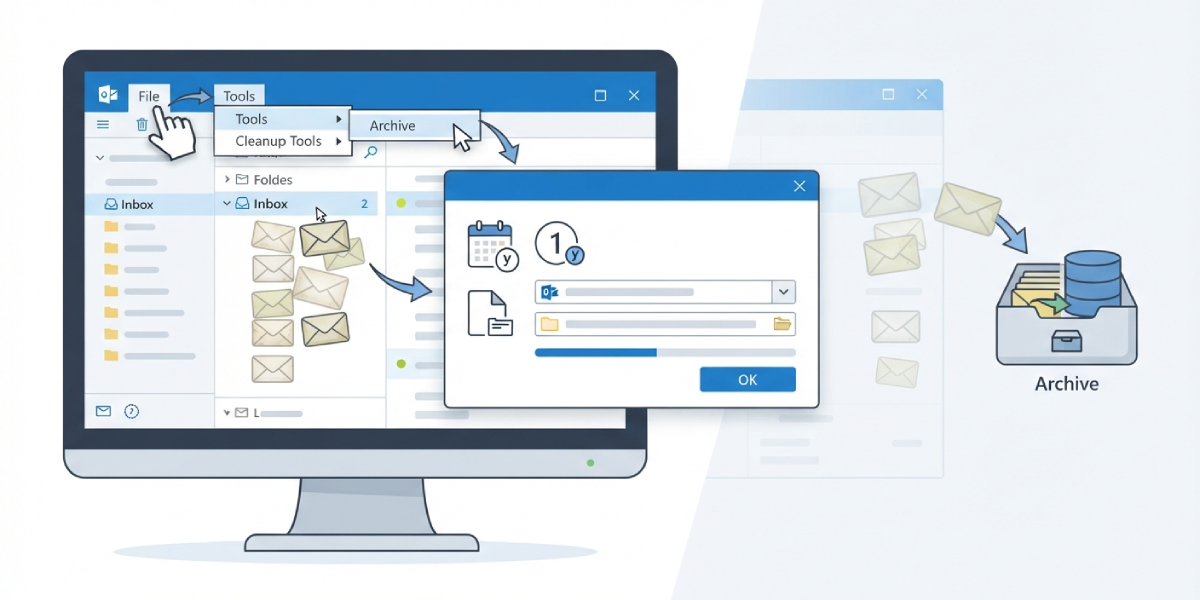
Archiving does not delete anything permanently. It simply relocates older items into a separate, smaller PST file that can still be opened and searched whenever needed.
Method 3: Compact the PST File
This is the step that actually shrinks the file size on disk. Emptying folders only marks space as available; compacting is what physically removes that empty space from the file.
- Step 8: Click File in the top-left corner of Outlook, then select ‘Account Settings’ and click ‘Account Settings’ again from the dropdown.
- Step 9: Go to the ‘Data Files’ tab and click on the PST file that needs to be compacted.
- Step 10: Click ‘Settings’, which opens the Outlook Data File dialog box.
- Step 11: On the General tab, click the ‘Compact Now’ button.
- Step 12: Leave Outlook open and let the process run until it finishes, then click OK to close the dialog.

Tip: Compacting works best overnight or during a lunch break, since Outlook needs to stay open and mostly idle for the process to complete without interruption.
Common Problems and Fixes
Compact Now button is greyed out. This usually means Outlook is still indexing or syncing the file. Close and reopen Outlook, wait a few minutes for background sync to settle, then try the Data Files tab again.
Compacting seems stuck or frozen. Large files can take a long time to process, and the progress bar does not always update smoothly. Avoid closing Outlook during this step; interrupting a compact in progress can corrupt the data file.
File size barely changed after compacting. This typically means not enough items were deleted or archived beforehand. Go back to Step 1 and Step 2, remove more content, then run Compact Now again.
PST file is at or near the 50 GB limit. Compacting will not help much at this point since the file is simply full of active data. Archiving a larger batch of older items into a second PST file is the more effective fix here.
Outlook runs slowly for a while after compacting. This is normal as Outlook rebuilds its search index for the newly compacted file. Performance typically returns to normal within an hour or so.
Frequently Asked Questions
How long does it take to compact a PST file?
Small files under 1 GB usually finish in a few minutes. Files in the 10 to 20 GB range can take 30 minutes to an hour or more, depending on the computer’s speed and available disk space.
Will compacting a PST file delete any emails?
No. Compacting only removes the empty space left behind by previously deleted or moved items. It does not touch any existing emails, folders, or attachments.
Is it safe to keep using Outlook while a file compacts?
It is best to leave Outlook open but avoid sending, receiving, or moving emails during the process. Heavy activity while compacting can slow the process down significantly or interrupt it.
Why does the PST file keep growing back after compacting?
New mail, attachments, and calendar items continue to arrive daily, so file size naturally increases again over time. Running the cleanup and compact steps every few months keeps the file manageable.
What is the maximum size a PST file can reach?
Modern versions of Outlook support PST files up to 50 GB, though performance often starts to suffer well before that limit is reached.
Does archiving affect the ability to search old emails?
Archived items remain fully searchable as long as the archive PST file stays connected in Outlook. It simply appears as a separate folder set in the navigation pane.
Can a PST file be compacted from File Explorer instead of Outlook?
No. Compacting has to be done through Outlook’s Account Settings menu, since the data file needs to be properly closed and processed by the application itself.
What happens if the computer loses power during compacting?
An interrupted compact can corrupt the PST file. If this happens, Outlook’s built-in Inbox Repair Tool (SCANPST.EXE) can often recover the file afterward.
How often should a PST file be compacted?
Every three to six months works well for most active mailboxes, though anyone who deletes large volumes of email regularly may benefit from doing it more often.
