
Learning how to refresh PivotTable data automatically saves the daily chore of clicking Refresh and wondering whether the numbers on screen are current. Excel offers three reliable ways to do it, and the right one depends on where the source data lives. Each method below is short and can be set up in a couple of minutes.
Key Takeaways
- The built-in ‘Refresh data when opening the file’ option updates a PivotTable every time the workbook opens.
- Pivots based on an external connection can also refresh on a timer, such as every 30 minutes.
- For data typed or pasted into the same workbook, a short macro can refresh the PivotTable whenever the data changes.
- Turning the source range into an Excel Table keeps new rows included in every refresh.
Step-by-Step Guide to Refresh PivotTable Data Automatically
Start with Method 1. It works for nearly every PivotTable and needs no code. Methods 2 and 3 add timed or change-based refreshing when that is needed.
Method 1: Refresh the PivotTable Every Time the File Opens
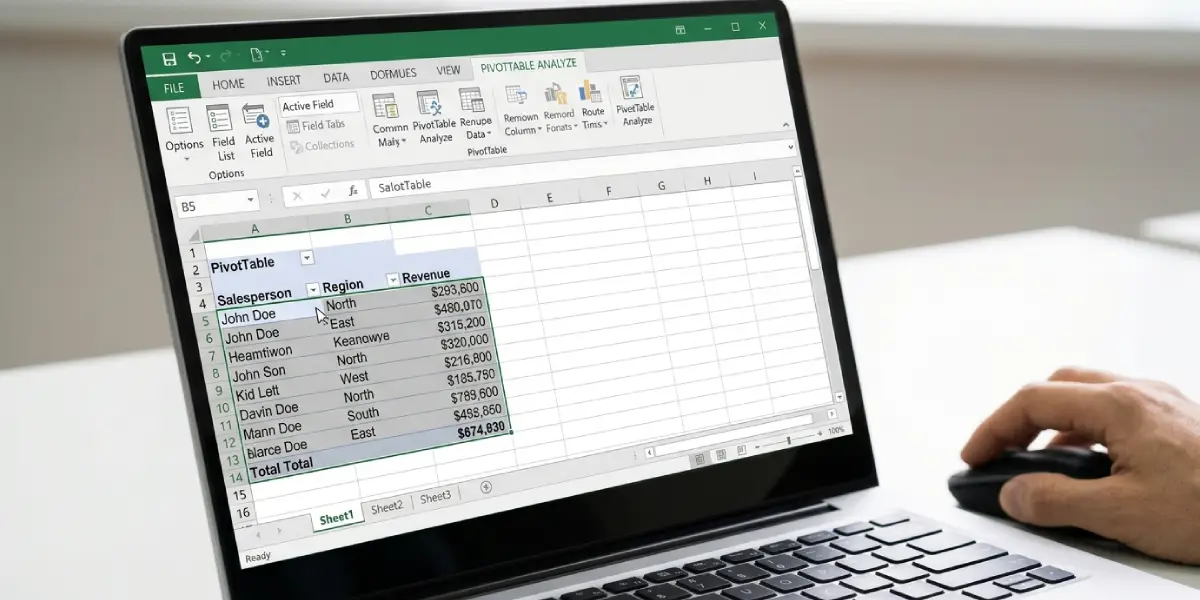
- Step 1: Click any cell inside the PivotTable so the PivotTable Analyze tab appears on the ribbon.
- Step 2: Select the PivotTable Analyze tab, then click Options in the PivotTable group on the far left. (If the button shows a drop-down arrow, choose Options from the list.)
- Step 3: In the PivotTable Options dialog box, open the Data tab.
- Step 4: Tick the box named ‘Refresh data when opening the file’.
- Step 5: Click OK, then save the workbook.
From now on, the PivotTable pulls in the latest source data each time the file is opened. This works best for reports that get opened once a day, such as a morning sales summary.
Tip: Do this on every PivotTable in the workbook. The setting belongs to each individual PivotTable, so one pivot can be updated while its neighbor stays stale.
Method 2: Refresh on a Timer for Externally Connected Data
This option appears only when the PivotTable pulls from an external connection, such as a database, a Power Query query, or the Data Model. A PivotTable built from a plain range or table on a worksheet has no timer setting, so skip to Method 3 in that case.
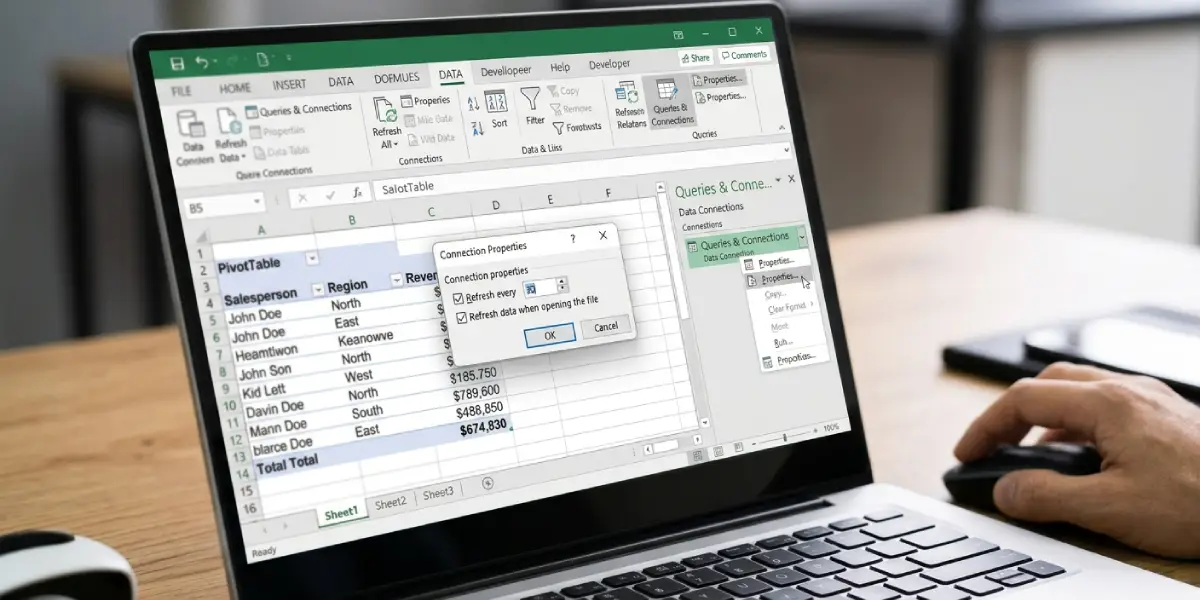
- Step 1: Go to the Data tab and click Queries and Connections to open the side pane.
- Step 2: Open the Connections tab in that pane, right-click the connection the PivotTable uses, and choose Properties.
- Step 3: In the Connection Properties dialog box, stay on the Usage tab.
- Step 4: Tick ‘Refresh every’ and type the number of minutes, for example 30.
- Step 5: Optionally tick ‘Refresh data when opening the file’ on the same tab, then click OK.
The workbook has to stay open for the timer to run. Think of it like a kitchen timer: it only rings while someone is in the room.
Tip: Pick an interval that matches how often the source really changes. Refreshing a large database every minute slows Excel down and adds nothing when the data only updates hourly.
Method 3: Refresh Automatically When Worksheet Data Changes
For pivots built on data stored in the same workbook, a small macro does the job. It refreshes everything the moment a cell on the data sheet is edited.
- Step 1: Right-click the tab of the worksheet that holds the source data and choose View Code. The Visual Basic Editor opens.
- Step 2: In the empty code window, paste the three lines shown below, exactly as written.
- Step 3: Close the Visual Basic Editor and return to the workbook.
- Step 4: Go to File, then Save As, and choose Excel Macro-Enabled Workbook (*.xlsm) as the file type.
- Step 5: Test it by changing a value in the source data. The PivotTable should update right away.
Private Sub Worksheet_Change(ByVal Target As Range)
ThisWorkbook.RefreshAll
End Sub
To refresh when the file opens instead, double-click ThisWorkbook in the Project pane of the Visual Basic Editor and paste these lines there.
Private Sub Workbook_Open()
ThisWorkbook.RefreshAll
End Sub
Make Sure New Rows Are Picked Up
Automatic refreshing only helps if the PivotTable can see new rows. When the source is a fixed range like A1:F500, rows added below row 500 are ignored no matter how often the refresh runs. Click any cell in the data, press Ctrl+T to turn it into a Table, and then point the PivotTable at that table name. After that, the table grows with the data and every refresh includes the new rows.
Common Problems and Fixes
The Refresh Every Option Is Missing or Greyed Out
The timer is available only for PivotTables tied to an external connection. If the data sits on a worksheet, use Method 3 instead, or combine Method 1 with the Table setup above.
The Macro Does Not Run
Check that the file was saved as .xlsm. When the file opens, click Enable Content on the yellow security bar. Without that click, Excel blocks the macro silently.
Column Widths Reset After Every Refresh
Right-click the PivotTable, choose PivotTable Options, open the Layout and Format tab, and untick ‘Autofit column widths on update’. Click OK and the formatting stays put from then on.
The PivotTable Still Shows Old Numbers After Opening
Confirm that ‘Refresh data when opening the file’ is ticked for that specific PivotTable, then save and reopen the workbook. Also check that the source range or table covers all the rows, since a refresh cannot include data outside the source.
Excel Shows a Message About Overlapping a PivotTable
When the refreshed PivotTable grows, it may run into cells that contain other content. Move the data or objects that sit directly below or beside the PivotTable, or give it more empty space on the sheet, and refresh again.
Frequently Asked Questions
Can a PivotTable refresh itself without any macro?
Yes. The ‘Refresh data when opening the file’ option in PivotTable Options refreshes the PivotTable each time the workbook opens, and externally connected pivots can also refresh every set number of minutes through Connection Properties.
Where is the setting to refresh a PivotTable when opening the file?
Click inside the PivotTable, open the PivotTable Analyze tab, click Options, switch to the Data tab, and tick ‘Refresh data when opening the file’.
How often can a PivotTable refresh automatically?
For externally connected data, the Usage tab in Connection Properties lets any number of minutes be entered. A PivotTable based on worksheet data has no timer, so it refreshes on open or through a macro.
Does the PivotTable refresh if the workbook is closed?
No. Excel has to be running with the file open for any automatic refresh to happen. The open-file setting simply refreshes the data the next time the workbook is opened.
How can all PivotTables in a workbook be refreshed at once?
Go to the Data tab and click Refresh All, or press Ctrl+Alt+F5. The macro in Method 3 uses the same RefreshAll command, so every PivotTable and connection updates together.
Why does the PivotTable not include the rows that were just added?
The PivotTable source range is probably fixed. Convert the data to an Excel Table with Ctrl+T and set the PivotTable to use that table, so new rows are included every time it refreshes.
What file type is needed for the refresh macro to work?
The workbook must be saved as an Excel Macro-Enabled Workbook with the .xlsm extension. A standard .xlsx file cannot store macros, so the code would be lost on saving.
Why is the Refresh every option not available for a PivotTable built from a worksheet table?
That setting belongs to external data connections. A PivotTable built from a range or table in the same workbook has no connection to schedule, so Excel does not offer a timer for it.
