
Sticky keys on a laptop keyboard usually come down to dust, spilled liquid, or crumbs trapped under the keycap, and most cases can be fixed at home without replacing anything. This guide walks through the safest way to clean, test, and restore a sticky or unresponsive key so typing feels normal again.
Key Takeaways
- Sticky keys are almost always caused by dust, debris, or dried liquid residue trapped under the keycap.
- Compressed air and isopropyl alcohol solve the vast majority of sticky key problems without opening the laptop.
- Removing an individual keycap is safe on most laptops when done carefully with a plastic pry tool.
- A key that stays sticky after cleaning may point to a damaged switch or scissor mechanism underneath.
- Liquid spills need faster action and a slightly different cleaning approach than everyday dust buildup.
Before You Start
A little prep prevents a simple cleaning job from turning into a bigger repair. Power the laptop off completely and unplug the charger. If the battery is removable, take it out. For laptops with a sealed internal battery, holding the power button for about ten seconds after shutdown drains any residual charge in the keyboard circuit. Let the machine cool down first if it was just running, since warm plastic keycaps are more likely to flex or crack when pried up.
Static electricity can damage the sensitive membrane under the keys, so touch a bare metal surface, like a table leg or an unpainted part of a desktop case, before handling any components. An anti-static wrist strap is a good extra step for anyone working on laptops regularly.
Tools and Materials Needed
- Compressed air canister or a small hand-pump air blower
- 90 percent or higher isopropyl alcohol
- Lint-free or microfiber cloth and cotton swabs
- A plastic pry tool or an old credit card (never metal)
- A soft-bristle brush, such as a clean makeup or toothbrush
Step-by-Step: How to Fix a Sticky Laptop Key
This process moves from the least invasive fix to the most hands-on one, so start at the top and only move further if the key is still sticking.
- Step 1: Tilt the laptop at a 75-degree angle and use short bursts of compressed air around the sticky key, spraying from multiple angles to dislodge loose debris hiding underneath.
- Step 2: Tap and wiggle the key gently while spraying, which often loosens crumbs or hair that air alone will not clear.
- Step 3: Press the key repeatedly, around 15 to 20 times, to test if the sticking has improved. Many minor cases resolve at this stage.
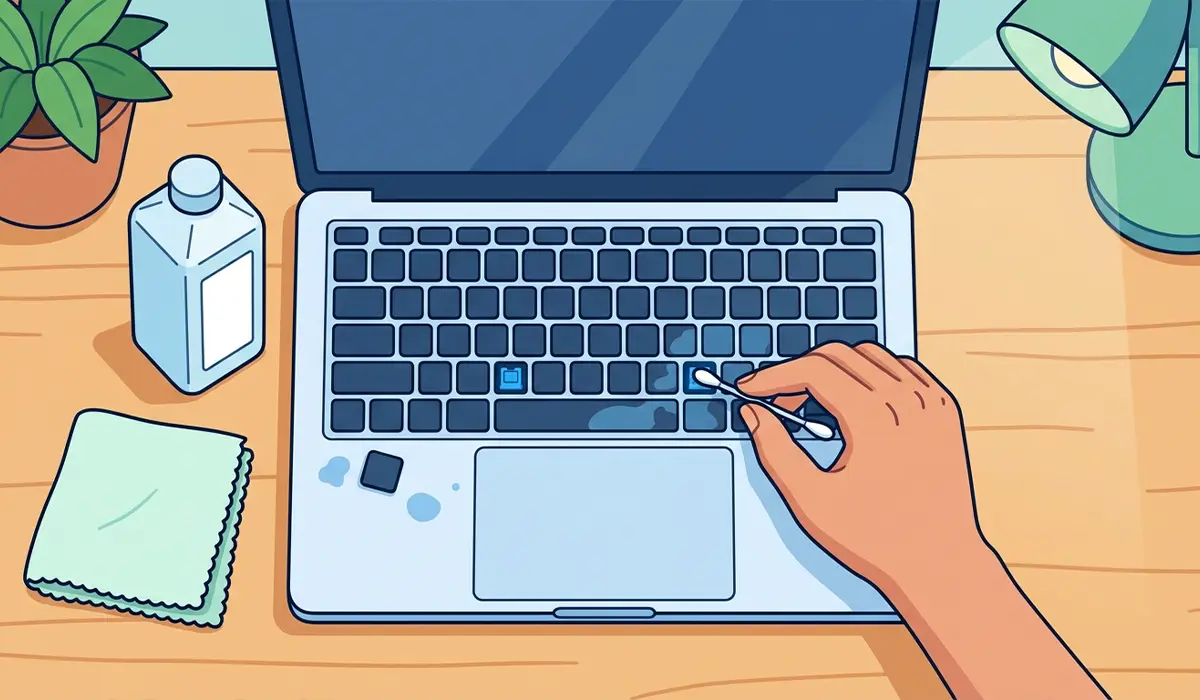
- Step 4: If the key still sticks, dip a cotton swab lightly in isopropyl alcohol, squeeze out the excess so it is barely damp, and run it carefully along the edges of the keycap where it meets the base.
- Step 5: Let the alcohol evaporate fully for a few minutes before pressing the key again. Isopropyl alcohol dries quickly and does not leave residue behind.
- Step 6: If sticking persists, gently pry up the affected keycap using a plastic tool, starting from the bottom edge and working upward with light, even pressure. Most laptop keycaps sit on plastic retainer clips that release with a small pop.
- Step 7: With the keycap off, use the soft brush to sweep away dust from the scissor mechanism or butterfly hinge, then follow with another short blast of compressed air.
- Step 8: Wipe the exposed base and the underside of the keycap with a barely damp alcohol swab to clear any sticky film, then let everything air dry for several minutes.
- Step 9: Reattach the keycap by aligning the retainer clips with the hinge points and pressing down evenly on all corners until it clicks into place.
- Step 10: Test the key several times to confirm it depresses and releases smoothly, with the same feel as the surrounding keys.
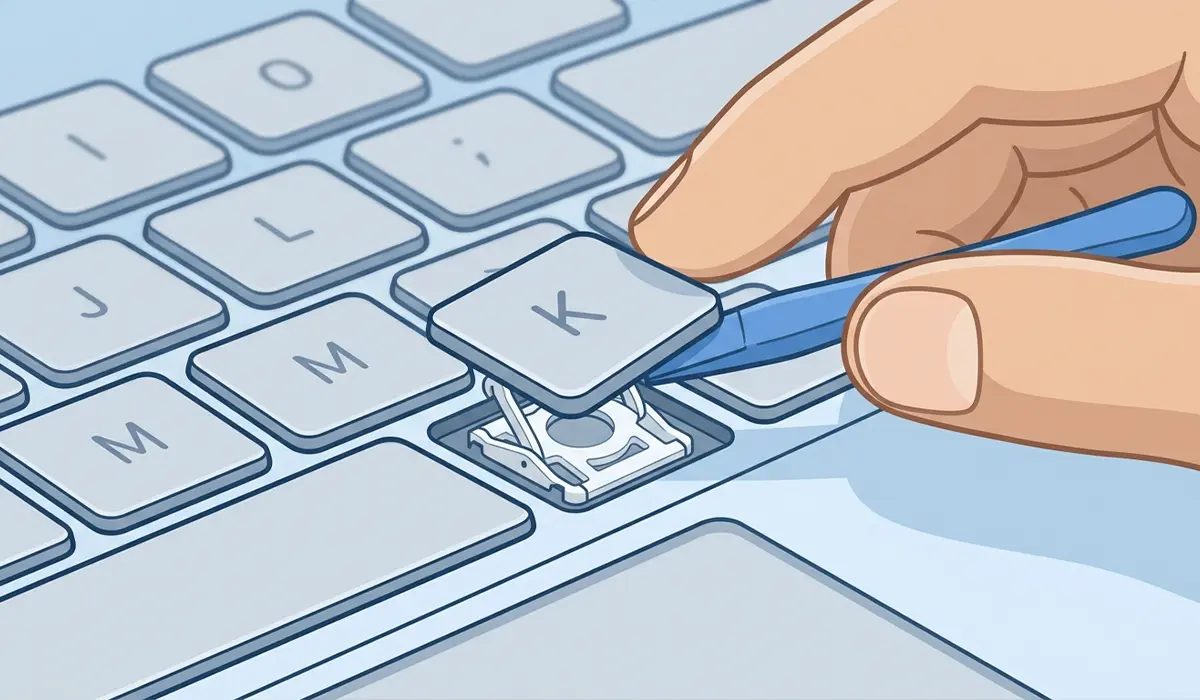
Tip: Photograph the keycap and hinge before removing it. Scissor mechanisms have a specific orientation, and a quick reference photo saves time when reattaching.
Cleaning After a Liquid Spill
Spilled coffee, soda, or juice behaves differently than dust because sugar and residue dry into a sticky film that keeps a key from springing back. Power down the laptop immediately and tip it upside down to let gravity pull liquid away from the circuitry rather than deeper into it. Avoid the instinct to press keys repeatedly right after a spill, since that can push liquid further into the switch.
Once the laptop has been off for at least a few hours, work through the same keycap removal and alcohol cleaning steps above, paying close attention to the switch housing where sugary residue tends to collect. Sticky spills sometimes need a second cleaning pass after the first one dries, since residue can reappear as a thin film.
Common Problems and Fixes
Key Still Sticks After Cleaning
This usually means residue reached the scissor clip or membrane layer beneath the switch. Repeating the alcohol cleaning on the hinge points, rather than just the keycap edges, often resolves it. If the key still resists after a second cleaning, the switch itself may be physically damaged and could need replacement.
Keycap Won’t Snap Back Into Place
A common cause is a bent or misaligned retainer clip. Check both the keycap and the base for small plastic hooks that look out of shape, and gently reshape them with a fingernail or the plastic pry tool before reattaching.
Key Feels Loose or Wobbly After Reinstalling
This typically points to a hinge point that did not fully seat. Removing the keycap once more and carefully realigning all four corners of the scissor mechanism before pressing down usually fixes the wobble.
Multiple Keys Are Sticky at Once
Widespread stickiness across several keys often means a spill spread under the keyboard tray rather than affecting a single switch. This calls for a broader cleaning pass across the whole keyboard, and in more serious cases, the keyboard assembly itself may need professional inspection.
Frequently Asked Questions
What causes keys to become sticky on a laptop?
Dust, food crumbs, skin oils, and dried liquid residue are the most common causes. Over time, this buildup collects around the scissor mechanism and slows down how the key springs back after being pressed.
Is it safe to remove a laptop keycap at home?
Yes, most laptop keycaps are designed to be removable for cleaning and are held on by simple plastic clips. Using a plastic pry tool and applying gentle, even pressure keeps the risk of damage low.
Can compressed air alone fix a sticky key?
It resolves many cases, especially when the cause is loose dust or crumbs rather than dried liquid. If the key remains sticky after several rounds of compressed air, a deeper cleaning with alcohol is the next step.
What alcohol percentage is safe for cleaning keyboard switches?
Isopropyl alcohol at 90 percent or higher works best, since it evaporates quickly and leaves minimal moisture behind. Lower concentrations contain more water, which increases the risk of residue or corrosion.
How long should a laptop dry after a liquid spill before cleaning?
Waiting at least a few hours, and ideally overnight, gives any liquid that reached deeper components time to evaporate before keys are removed and cleaned.
Why does a key still feel sticky after reattaching the keycap?
This often means the retainer clips were not fully aligned with the hinge points during reinstallation. Removing the keycap and reseating it slowly, corner by corner, usually resolves the issue.
When should a sticky key be handled by a professional instead?
If a key stays sticky after cleaning and keycap removal, or if a spill was significant, the switch or the keyboard membrane underneath may be damaged. At that point, a repair technician can properly inspect or replace the affected component. Note that opening a laptop may affect its warranty, especially on models still under coverage.
Can sticky keys damage other laptop components?
A sticky key by itself typically will not spread damage, but liquid spills that caused the stickiness can reach the motherboard or battery connector if left unaddressed for too long. Prompt cleaning reduces that risk.
Do all laptop keyboards use the same type of key switch?
No, most laptops use a scissor-switch or butterfly-style mechanism, though the exact design varies by manufacturer and model. The cleaning approach in this guide applies to the vast majority of these designs.
