
Learning how to set up Focused Inbox in Outlook the right way takes only a few minutes, and it pays off every day. Important messages land on one tab while newsletters and automated notices wait on another. Turning the feature on is only half the job, because a little training makes sure the right emails end up in the right place.
Key Takeaways
- Focused Inbox is switched on from the View tab in classic Outlook, from Settings in new Outlook and Outlook on the web, and from Settings in the mobile app.
- Once enabled, the inbox splits into a Focused tab and an Other tab.
- Moving a message and choosing an Always Move option teaches Outlook where a sender belongs.
- The feature works with Exchange, Microsoft 365, and Outlook.com accounts, but not with POP or IMAP accounts in desktop Outlook.
How to Set Up Focused Inbox in Outlook the Right Way: Step-by-Step
The steps differ slightly depending on which version of Outlook is in use. Pick the matching section below, then continue to the training steps, which apply to every version.
Classic Outlook for Windows
- Step 1: Open Outlook and switch to the Mail view.
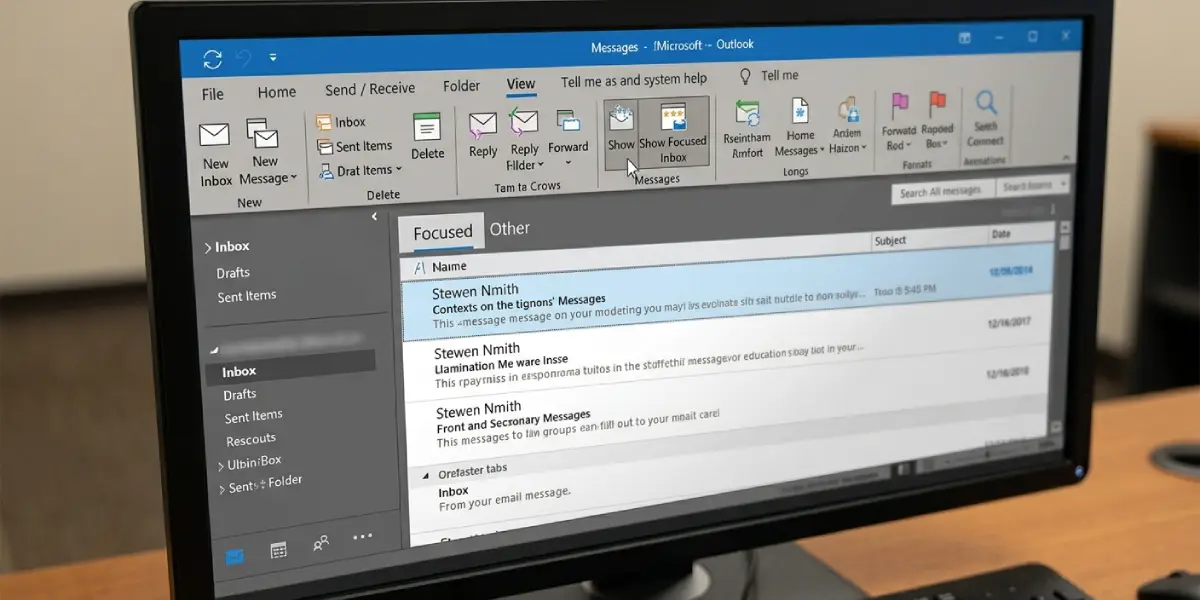
- Step 2: Select the View tab on the ribbon.
- Step 3: Select Show Focused Inbox. The button looks highlighted when the feature is on.
- Step 4: Look above the message list. The Focused and Other tabs now appear, and incoming mail is sorted between them.
Tip: Focused Inbox is a per-mailbox setting, so a person with several Exchange or Microsoft 365 mailboxes in one profile should select each mailbox and repeat the steps.
New Outlook for Windows and Outlook on the Web
- Step 1: Open Outlook and select Settings, the gear icon in the top-right corner.
- Step 2: Select Mail, then select Layout.
- Step 3: Find the Focused Inbox section and choose Sort messages into Focused and Other.
- Step 4: Select Save, then close Settings. The Focused and Other tabs appear at the top of the inbox.
Outlook Mobile App
- Step 1: Open the Outlook app and go to Settings.
- Step 2: Find the Focused Inbox option in the Mail section and turn the toggle on.
- Step 3: Return to the inbox. The Focused and Other tabs now sit above the message list.
Train Focused Inbox to Sort Mail Correctly
This is the step most people skip, and it is what separates a quick setup from a properly working one. Outlook makes its first guesses based on the sender and the content, and corrections tell it what to do next time. Think of it like training a new assistant: the first week needs a few reminders, then the sorting runs itself.
- Step 1: Open the Other tab and find an important message that landed there by mistake.
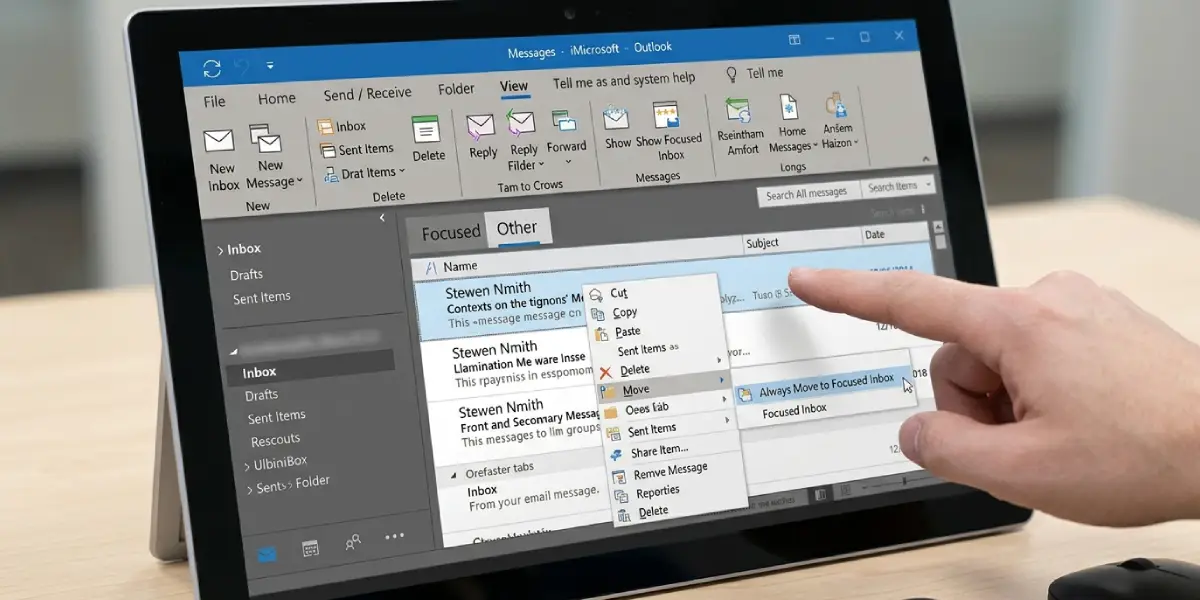
- Step 2: Right-click the message and select Move.
- Step 3: Choose Always Move to Focused Inbox. All current and future messages from that sender now go to Focused.
- Step 4: To do the reverse, open the Focused tab, right-click a message that does not belong, select Move, and choose Always Move to Other Inbox.
Tip: A real-world example is a delivery tracking email or a company newsletter that keeps showing up in the wrong place. Correcting it once with an Always Move option is usually enough, so there is no need to move it by hand every time.
Common Problems and Fixes
The Show Focused Inbox Button Is Missing
Focused Inbox is not available for POP or IMAP accounts in desktop Outlook. It works with Exchange, Microsoft 365, and Outlook.com accounts. If the mailbox in use is one of those and the button is still missing, the organization may have turned the feature off for the whole tenant. In that case, only an Exchange administrator can bring it back.
The Focused and Other Tabs Do Not Appear After Turning It On
Make sure the correct mailbox is selected in the folder pane, since the setting applies to one mailbox at a time. Then check that the Show Focused Inbox button on the View tab is highlighted, or that Sort messages into Focused and Other is selected in Settings. Restarting Outlook often refreshes the view when the tabs fail to show.
Important Emails Keep Landing in Other
Right-click one of the messages, select Move, and choose Always Move to Focused Inbox. Repeat this for each sender that matters. Most people find that a handful of corrections in the first week is all it takes.
Unwanted Emails Keep Appearing in Focused
Right-click the message, select Move, and choose Always Move to Other Inbox. The sender is then routed away from the Focused tab from that point on.
Focused Inbox Is Not Showing in the Mobile App
Open Settings in the Outlook app and confirm that the Focused Inbox toggle is on. The option only appears for supported account types, so a POP or IMAP account added to the app will not show it.
Frequently Asked Questions
How do I turn on Focused Inbox in Outlook?
In classic Outlook for Windows, select the View tab and then Show Focused Inbox. In new Outlook and Outlook on the web, open Settings, go to Mail, then Layout, and choose Sort messages into Focused and Other. In the mobile app, turn on the Focused Inbox toggle in Settings.
Where is the Focused Inbox button in classic Outlook?
The Show Focused Inbox button is on the View tab of the ribbon while the Mail view is open.
Why is Show Focused Inbox missing in my Outlook?
The most common reason is the account type. Desktop Outlook does not offer Focused Inbox for POP or IMAP accounts. An administrator can also disable the feature for an entire organization.
How do I make sure emails from one sender always go to Focused?
Right-click a message from that sender, select Move, and choose Always Move to Focused Inbox. Future messages from the sender are then delivered to the Focused tab.
Can Focused Inbox be set up in the Outlook mobile app?
Yes. Open Settings in the Outlook app and turn on the Focused Inbox toggle. The Focused and Other tabs then appear above the message list.
Does Focused Inbox move emails out of the Inbox folder?
No. Both tabs show messages from the same Inbox folder. The Other tab simply separates lower-priority mail from the Focused tab.
How do I turn off Focused Inbox if it does not suit my workflow?
In classic Outlook, select the View tab and select Show Focused Inbox again to switch it off. In new Outlook and Outlook on the web, open Settings, go to Mail, then Layout, and choose Don’t sort messages. In the mobile app, turn off the Focused Inbox toggle in Settings.
