
Knowing how to reset browser settings after malware infection is the quickest way to get rid of hijacked homepages, rogue search engines, and endless pop-ups. A reset undoes the changes that malicious software made inside the browser, but it only works properly when the infection itself has been removed first. The steps below cover the right order for Chrome, Edge, Firefox, and Safari.
Key Takeaways
- A browser reset fixes the damage malware did to browser settings, but it does not remove the malware itself, so a full security scan must come first.
- Resetting restores the default homepage, search engine, and startup pages, and turns off extensions, while bookmarks and saved passwords are normally kept.
- Check the browser shortcut, installed programs, and notification permissions, because these are common places for leftovers to hide.
- Passwords should be changed from a clean device after the cleanup, with two-factor authentication turned on where possible.
Before You Start
No hardware needs to be opened for this job, so the preparation is mostly about order. Doing things in the wrong sequence is the most common reason a hijacked browser keeps coming back.
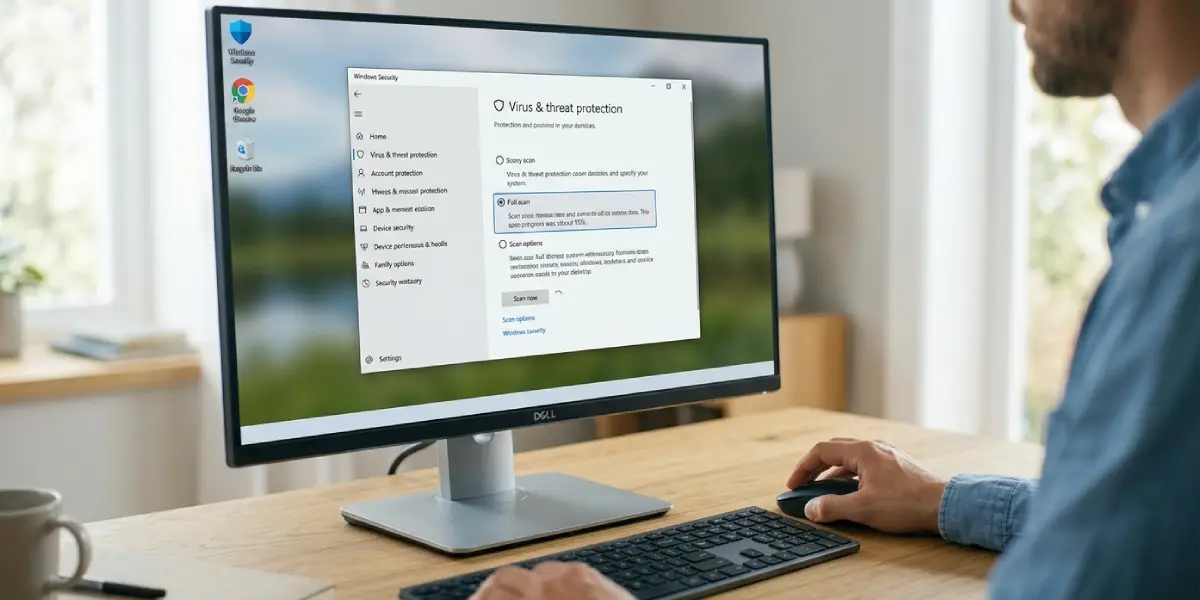
- Run a full scan with up-to-date security software first. On Windows, Microsoft Defender (Windows Security) includes a full scan and an offline scan option. A reputable second-opinion scanner such as Malwarebytes is also widely used.
- Export bookmarks if they are not synced to an account, so nothing important is lost.
- Have a second, clean device (a phone or another computer) ready for changing passwords later.
- Note which extensions are genuinely needed, since a reset turns all of them off.
Tip: If the browser keeps redirecting even after a scan, restart the computer and run the scan again before touching any browser settings. Some threats only finish cleaning up after a reboot.
How to Reset Browser Settings After Malware Infection: Step by Step
Part 1: Clean the System First
- Step 1: Run a full system scan with Windows Security or the security software already installed, and allow it to quarantine or remove everything it finds. Restart the computer when it finishes.
- Step 2: Open Settings, go to Apps, then Installed apps, and sort the list by install date. Uninstall anything unfamiliar that appeared around the time the problems began, such as unknown toolbars, PDF converters, or system optimizers.
- Step 3: Check the browser shortcut. Right-click the browser icon on the desktop or taskbar, choose Properties, and look at the Target field. It should end with the browser program name, such as chrome.exe, and nothing after it. A web address tacked onto the end means the shortcut was tampered with and should be deleted and recreated from the installed program.
Part 2: Reset the Browser
Pick the browser that was affected. If more than one browser is installed, repeat the process for each of them.
Reset Google Chrome
- Step 4: Click the three-dot menu in the top right corner and open Settings.
- Step 5: Select ‘Reset settings’ in the left sidebar, then click ‘Restore settings to their original defaults’.
- Step 6: Confirm with the ‘Reset settings’ button. Chrome restores the startup page, new tab page, search engine, and pinned tabs, turns off extensions, and clears temporary data such as cookies. Bookmarks, history, and saved passwords are kept.
Reset Microsoft Edge
- Step 7: Click the three-dot menu, open Settings, and choose ‘Reset settings’ from the sidebar.
- Step 8: Click ‘Restore settings to their default values’, then confirm with ‘Reset’. Edge returns the startup page, new tab page, and search engine to their defaults, disables extensions, and clears temporary data. Favorites and saved passwords stay in place.
Reset Mozilla Firefox
- Step 9: Open the menu, choose Help, then ‘More troubleshooting information’.
- Step 10: Click ‘Refresh Firefox’ and confirm. Firefox creates a fresh profile and carries over bookmarks, history, passwords, and open tabs, while removing extensions and custom settings.
Clean Up Safari on a Mac
Safari has no single reset button, so the cleanup is done in a few short passes.
- Step 11: Open Safari, go to Settings, then Extensions. Turn off and uninstall every extension that is not recognized.
- Step 12: In the General tab, check that the homepage is correct. In the Search tab, confirm the search engine is the one intended.
- Step 13: Open the Privacy tab, click ‘Manage Website Data’, and choose ‘Remove All’. Then use the History menu and select ‘Clear History’.
- Step 14: Open System Settings, go to Privacy and Security, and look for a Profiles section. A configuration profile that was not added on purpose can force a homepage or search engine, and it should be removed.
Tip: After any reset, open the browser and watch how it behaves for a few minutes before logging in anywhere. A clean browser opens to the expected page, and no new tabs appear on their own.
Part 3: Lock Things Down Afterward
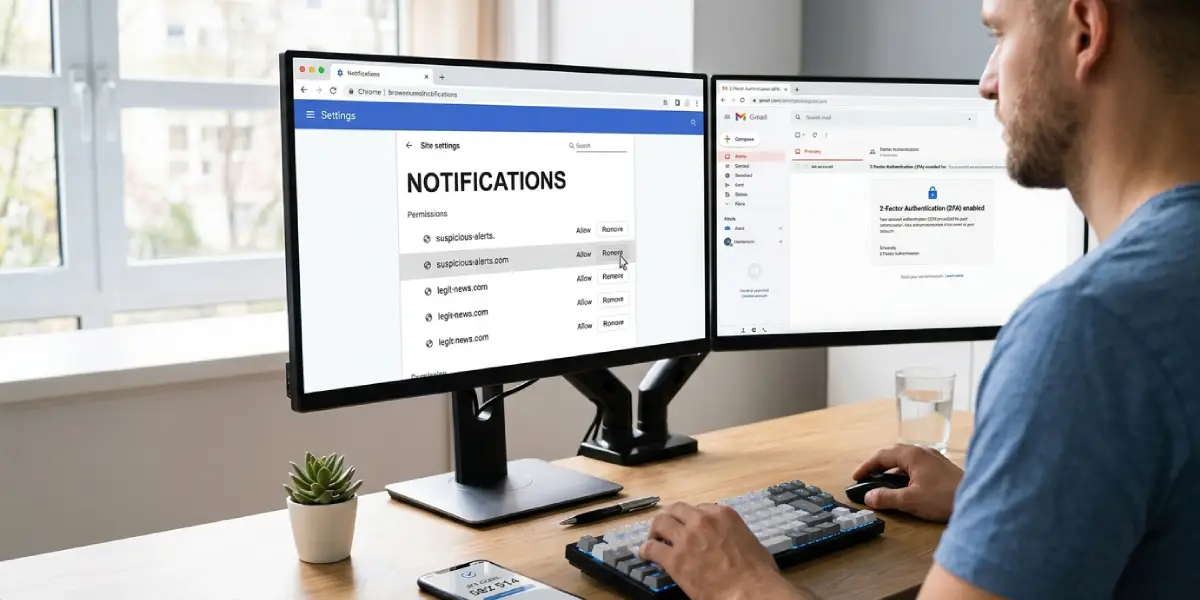
- Step 15: Review notification permissions. In Chrome or Edge, open Settings, go to Privacy and security, then Site settings, then Notifications, and remove any site that should not be sending alerts. Spam notification pop-ups are often caused by permission grants rather than by an extension.
- Step 16: Reinstall only the extensions that are truly needed, and only from the official browser store. Check the publisher name and the permissions requested before adding each one.
- Step 17: From a clean device, change the passwords for email, banking, and any account that was logged in on the infected computer. Turn on two-factor authentication wherever it is offered, and sign out of other active sessions in each account’s security settings.
Common Problems and Fixes
The Homepage or Search Engine Changes Back After the Reset
This usually means the malware is still on the system or a tampered shortcut is launching the browser. Run another full scan, including an offline scan, then check the shortcut Target field and the installed programs list again.
Pop-Up Ads Keep Appearing After the Reset
Check the notification permissions list in the browser. Sites that were granted permission can keep sending alerts that look like malware warnings. Remove them, and block notifications for any site that does not need them.
The Reset Button Is Missing or Greyed Out
On a work or school computer, an administrator may control browser settings through a policy. In Chrome, typing chrome://policy in the address bar shows whether policies are applied. If unexpected policies appear on a personal computer, that points to a leftover infection that needs another scan.
Extensions Are Gone After the Reset
This is normal behavior, because resetting disables extensions on purpose. Re-enable or reinstall the trusted ones one at a time and test the browser after each, which also helps identify an extension that causes trouble.
The Browser Still Redirects on Only One Device
If browser sync is turned on, the bad settings may be syncing back from the account. Turn sync off on the affected device, reset the browser, and check the synced data in the account settings before turning sync back on.
Stop and Get Professional Help When
Scans keep finding the same threat after repeated removals, or the machine holds sensitive business or financial data. In those cases, a technician can run deeper checks or perform a clean operating system reinstall, which is the only fully certain way to clear a stubborn infection.
Frequently Asked Questions
Does resetting my browser remove malware?
No. A reset only restores browser settings and disables extensions. The malware itself lives elsewhere on the system, so a full security scan and removal of suspicious programs must be done as well.
Will I lose my bookmarks and passwords if I reset the browser?
Normally not. Chrome, Edge, and Firefox keep bookmarks and saved passwords during a reset. Exporting bookmarks beforehand is still a smart precaution.
Should I scan for malware before or after resetting the browser?
Before. If the malware is still active, it can change the settings again right after the reset. Scan first, remove the threat, restart, and then reset the browser.
How do I reset Chrome after a virus?
Open the three-dot menu, go to Settings, choose Reset settings, and click ‘Restore settings to their original defaults’. Confirm with the Reset settings button.
Can I reset Safari the same way as Chrome?
No. Safari has no single reset option. The cleanup involves removing extensions, checking the homepage and search engine, removing website data, clearing history, and checking for unwanted configuration profiles in System Settings.
Do I need to reinstall the browser after a malware infection?
Usually a reset is enough. A reinstall is only needed if the browser program itself is damaged or keeps failing after a reset and a clean scan.
Why do pop-ups continue after the browser reset?
Remaining notification permissions, an unremoved program, or a tampered shortcut are the usual causes. Review site notification settings, uninstall unfamiliar apps, and recreate the browser shortcut.
Do I need to change my passwords after cleaning the browser?
Yes. Some malware captures saved logins and typed passwords. Change important passwords from a clean device, enable two-factor authentication, and sign out of all other sessions.
