
Random reboots, a PC that suddenly refuses to power on, or a faint burning smell coming from the case are classic signs your desktop PSU is failing. The power supply unit is easy to overlook because it just sits there quietly doing its job, but when it starts to go bad, it can take other components down with it. Catching the warning signs early makes the difference between a simple swap and a much more expensive repair bill.
Key Takeaways
- Random shutdowns, spontaneous reboots, or a PC that won’t power on at all are common early warning signs of PSU failure.
- Burning smells, buzzing, or loud coil whine are red flags that should never be ignored.
- A multimeter or a dedicated PSU tester can confirm whether voltage output is out of spec before any parts get replaced.
- Blue screens, graphics artifacts, or drive corruption under load can often trace back to a weak or aging power supply.
- A failing PSU should be replaced promptly, since unstable power can gradually damage the motherboard, GPU, or storage drives.
Common Signs Your Desktop PSU Is Failing
Power and Boot Problems
The most obvious symptom is a system that won’t turn on at all, or one that powers on for a split second and then dies. Some units develop an intermittent fault, so the PC might boot fine one morning and refuse to start the next. Random reboots during normal use, especially ones that happen with no error message, are another strong indicator. This is different from a driver crash, which usually produces a blue screen first.
Unusual Noises and Smells
A healthy PSU fan runs quietly. A grinding, rattling, or high-pitched whining noise coming from the power supply usually means the internal fan bearing is wearing out or that coil whine has developed under load. Coil whine on its own is not always dangerous, but combined with other symptoms it points toward a unit under stress. A burning or acrid electronic smell is the most serious warning sign here, since it usually means a capacitor or other internal component has already failed.
Instability Under Load
A PSU can pass every test at idle and still struggle once it has to deliver real power. Games or rendering tasks that cause sudden crashes, freezes, or reboots, while lighter tasks like browsing run fine, often point to a supply that can no longer hold steady voltage under demand. This is a scenario most builders run into after a GPU upgrade, when an older PSU that used to be adequate suddenly cannot keep up.
Physical Damage or Wear
Bulging or leaking capacitors, visible discoloration around vents, or a fan that has visibly slowed down are all signs of age catching up with the unit. Dust buildup alone will not cause failure, but it does raise internal temperatures and speeds up wear on the fan and capacitors over time.
Before You Start
Confirming a PSU issue usually means opening the case and taking some readings, so a few precautions matter here.
- Power off the PC completely and unplug it from the wall outlet.
- Press the power button briefly with the cable disconnected to discharge any residual power in the system.
- Touch a bare metal part of the case or use an anti-static wrist strap before handling internal components.
- Let the PSU cool down if the system was just running under load.
- Have a multimeter, a PSU tester tool, and a flashlight on hand for inspection and testing.
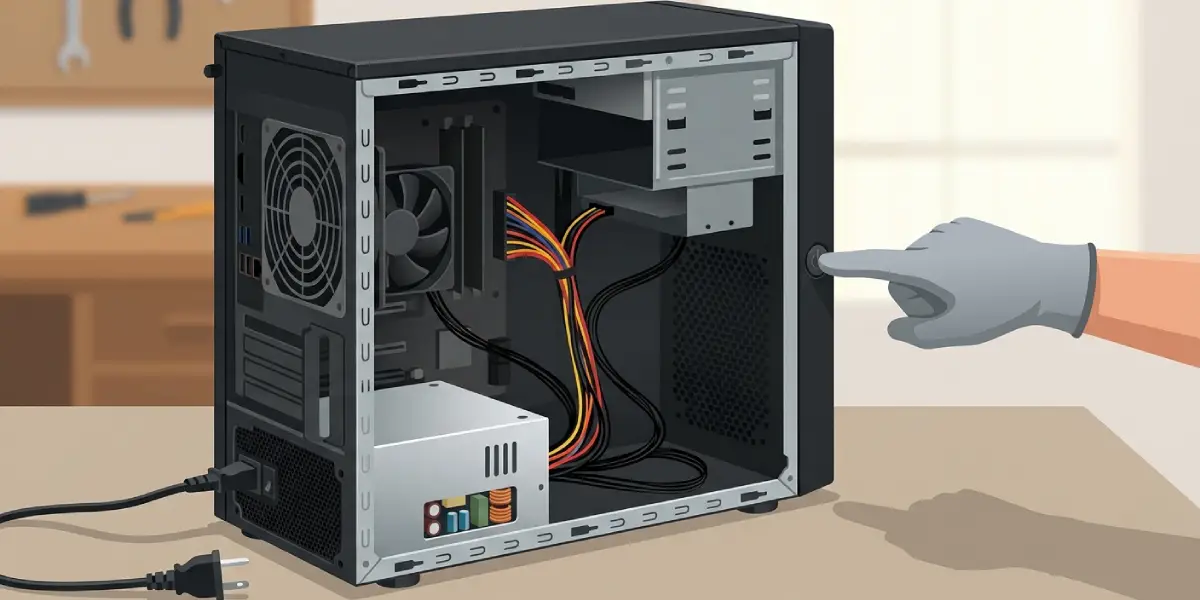
A power supply stores a genuine electrical charge even when unplugged, and opening the PSU casing itself is not necessary or safe for most home users. If there is visible burning, melted wiring, or a strong chemical smell, it is best to stop and let a qualified technician handle it rather than risk further testing. Opening the computer case to test or replace the PSU typically does not void a system warranty, but opening the PSU housing itself usually will.
How to Confirm a Failing PSU
- Step 1: Inspect the PSU visually with the case open and the system unplugged. Look for bulging capacitors, burnt smells, dust clumps blocking the fan, or discoloration near the vents.
- Step 2: Rule out simple causes first. Try a different wall outlet, a different power cable, and make sure the PSU’s rear power switch is firmly in the on position.
- Step 3: Run the paperclip test to check if the fan spins. With the PSU unplugged from the motherboard and disconnected from the wall, bridge the green wire and a black wire on the 24-pin connector, then plug the PSU back into the wall and flip it on. If the fan does not spin, the unit is very likely dead.
- Step 4: Use a multimeter to check the voltage rails while the PSU is powered and connected to a load, reading the +12V, +5V, and +3.3V pins on the 24-pin connector. Readings that drift more than a small percentage from their rated values point to a failing unit.
- Step 5: Use a dedicated PSU tester if one is available. These plug directly into the connectors and give a quick pass or fail readout without needing a multimeter.
- Step 6: Swap in a known-good PSU of similar or higher wattage if one is available. This is the most reliable real-world test, since it shows immediately whether the original problems disappear.
- Step 7: Monitor voltages under load using system monitoring software while running a demanding game or benchmark, watching for voltage sag or sudden drops that line up with crashes.
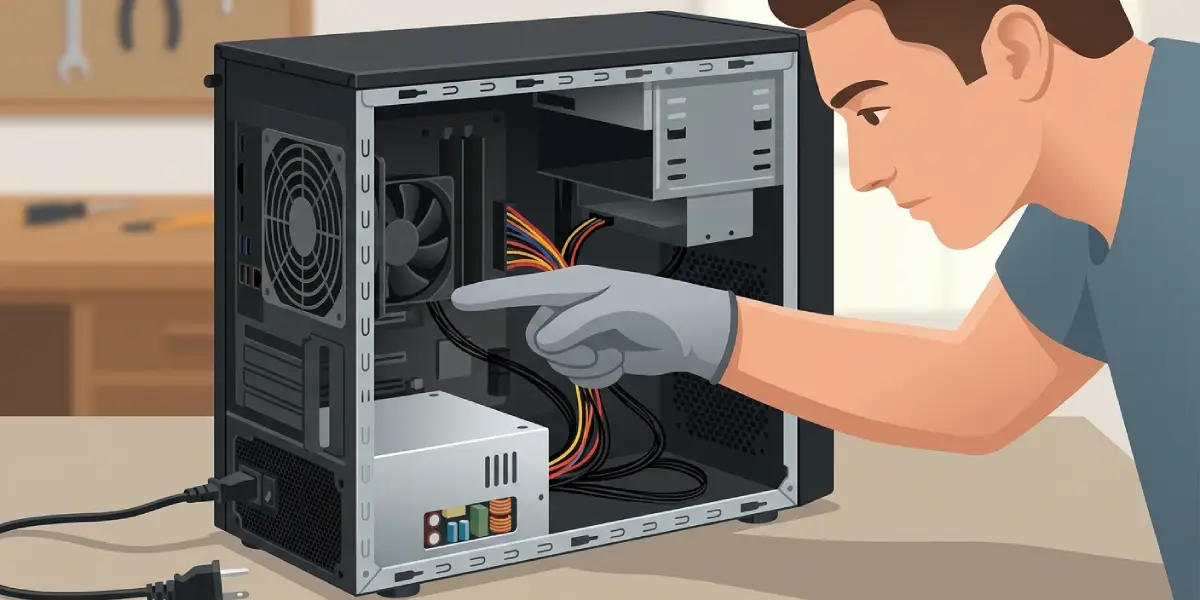
Tip: Write down the multimeter readings for each rail before making any decisions, since a PSU that is a few tenths of a volt off is very different from one that is several volts out of spec.
Common Problems and Fixes
PSU tests fine at idle but fails under load
This is common with aging units or ones undersized for the current hardware. Testing with a multimeter at idle will often look normal, but a load tester or a known-good replacement PSU will expose the real problem. If a recent GPU or CPU upgrade happened, the PSU may simply no longer have enough headroom.
New PSU still causes reboots
If replacing the PSU does not fix the issue, check that every cable is fully seated, especially the 24-pin motherboard connector and the CPU 8-pin (or 4+4-pin) connector. A loose connection can mimic PSU failure symptoms perfectly. If cables are secure, the reboots may point to a different component, such as failing RAM or a motherboard issue.
PSU fan not spinning but the system still powers on
Many modern PSUs use a semi-passive fan mode that keeps the fan off at low load and low temperatures, which is normal by design. If the fan stays off even during a demanding task and the PSU feels warm, that is a genuine fault and the unit should be replaced.
Coil whine persists after replacement
Some coil whine is simply a characteristic of certain PSU or GPU models and is not dangerous on its own. If the whine is loud, changes pitch dramatically with load, or is paired with instability, it is worth trying a different PSU model rather than assuming it will improve over time.
System won’t POST after installing a new PSU
Double-check that the 24-pin and CPU power connectors are fully clicked in, since these connectors can look seated when they are not. Reseating the RAM and GPU after a PSU swap is also worth doing, since components can shift slightly during the case work.
Frequently Asked Questions
What are the most common signs of a failing PSU?
Random reboots, a system that fails to power on, burning smells, unusual fan noise or coil whine, and crashes that only happen under heavy load are the most frequent signs.
Can a failing PSU damage other components?
Yes. Unstable voltage from a failing PSU can gradually stress the motherboard, GPU, and storage drives, and in rare cases a sudden power spike can damage connected hardware outright.
How long do desktop PSUs typically last?
Most quality PSUs last several years of regular use, though this varies with build quality, load levels, heat exposure, and how much dust accumulates inside the unit over time.
Can a PSU work fine at idle but fail under load?
Yes, this is one of the most common failure patterns. A unit can supply stable power for light tasks like browsing but sag or drop out once a GPU or CPU pulls near its full rated wattage.
Is coil whine always a sign of a failing PSU?
Not always. Mild coil whine can be a normal characteristic of certain components. Loud, worsening, or unstable-sounding whine paired with other symptoms is more concerning and worth investigating further.
Can software or drivers cause the same symptoms as a bad PSU?
Yes, driver crashes, overheating, or faulty RAM can all produce similar symptoms like reboots and blue screens. This is why testing with a multimeter, PSU tester, or a known-good replacement unit matters before assuming the PSU is at fault.
Should a failing PSU be repaired or replaced?
Replacement is almost always the right call. PSUs contain high-voltage capacitors and are not designed to be user-serviceable, so replacing the unit is both safer and more cost effective than attempting a repair.
What wattage PSU is needed as a replacement?
The right wattage depends on the specific CPU, GPU, and number of drives installed. Checking the GPU manufacturer’s recommended system power and adding some headroom for future upgrades is a reliable way to land on the right figure.
Can a multimeter accurately test a PSU?
Yes, a multimeter can check whether the +12V, +5V, and +3.3V rails are within their expected range while the PSU is under load, which gives a solid picture of whether the unit is degrading.
Is it safe to open a PSU to inspect it?
Opening the PSU housing itself is not recommended for most users, since capacitors inside can hold a dangerous charge even after the unit is unplugged. Visual inspection from the outside and testing with proper tools is the safer approach.
