
Learning how to safely replace a desktop power supply is one of the most useful skills a PC owner can pick up, especially when a system starts randomly shutting down or refuses to boot at all. The power supply unit, or PSU, feeds every component in the case, so swapping it out the wrong way can damage a motherboard, a graphics card, or worse. This guide walks through the entire process from prep to final testing, using safe, proven techniques.
Key Takeaways
- Always disconnect the system from the wall outlet and let capacitors discharge before opening the case.
- Photograph or label every cable before disconnecting it to avoid confusion during reassembly.
- Match the new PSU’s wattage and connector types to the components already installed.
- Mount the fan orientation correctly for the case’s airflow design.
- Test the build outside the case first if there is any doubt about compatibility.
Before You Start
A power supply stores a small amount of residual electrical charge even after being unplugged, so a bit of patience up front prevents an unpleasant surprise later. Shut the computer down completely, unplug the power cable from the wall, and press the case power button once to help release any stored charge in the system. Give the unit a minute or two to sit before opening it up. Touch a bare metal part of the case, or use an anti-static wrist strap, to discharge static electricity from the body before touching any internal components.
Gather these items before starting:
- A Phillips-head screwdriver, ideally magnetic-tipped
- The new power supply, matched in wattage and form factor
- An anti-static wrist strap, or a habit of touching bare metal regularly
- A notepad, phone camera, or masking tape and marker for labeling cables
- A flashlight for seeing into tight case corners
If the case is cramped, if cable routing looks unusually complex, or if there is any uncertainty about wattage requirements for a high-end graphics card, this is a reasonable point to hand the job to a professional. Opening a desktop case does not usually void a manufacturer’s warranty on prebuilt systems, but it is worth checking the paperwork first, since some manufacturers do apply restrictions.
How to Replace a Desktop Power Supply Step by Step
Once the system is unplugged and static has been discharged, the actual replacement follows a logical sequence. Working through it methodically, rather than rushing, keeps mistakes to a minimum.
Removing the Old Power Supply
- Step 1: Open the side panel of the case, usually by removing a few thumbscrews or standard screws along the back edge.
- Step 2: Take a photo of the current cable layout, or label each cable with tape, noting which connector goes to the motherboard, graphics card, drives, and case fans.
- Step 3: Disconnect the 24-pin motherboard connector first, followed by the CPU power connector (usually 4 or 8 pins near the top of the motherboard), then any PCIe power cables running to the graphics card.
- Step 4: Disconnect SATA and Molex power connectors from drives and case accessories.
- Step 5: Remove the four screws securing the power supply to the back of the case, typically arranged in a square pattern on the exterior panel.
- Step 6: Slide the old unit out carefully, guiding cables through the case as needed so nothing catches on drive bays or cable management brackets.
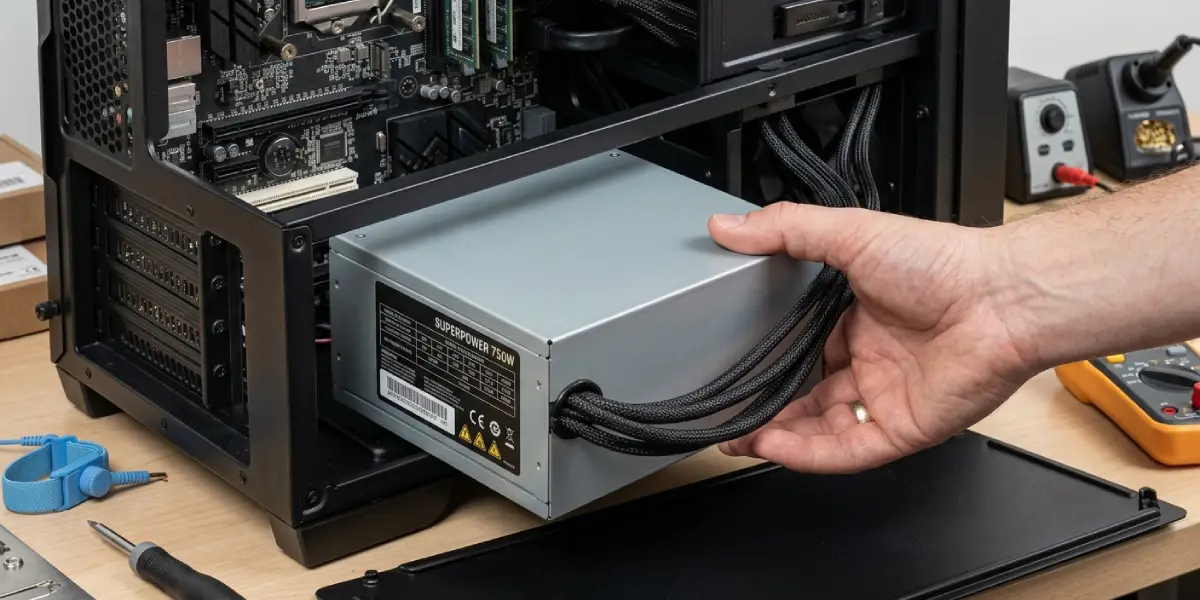
Tip: A phone camera makes this whole process far easier than memory alone. A quick photo before removing the first cable saves guesswork later, especially in cases with a lot of cable clutter.
Installing the New Power Supply
- Step 1: Check the fan orientation on the new unit. Most cases expect the fan to face downward toward a bottom vent, or inward toward the case interior if there is no bottom vent, so match this to how the old unit was mounted.
- Step 2: Slide the new power supply into the mounting bay and line up the screw holes with the case.
- Step 3: Secure it with the four screws removed earlier, tightening them evenly rather than fully driving one before starting the next.
- Step 4: Connect the 24-pin motherboard cable first, pressing firmly until the clip clicks into place.
- Step 5: Connect the CPU power cable, then the PCIe power cables for the graphics card if one is installed.
- Step 6: Connect SATA power cables to drives and any Molex connectors needed for fans or accessories.
- Step 7: Route the remaining cables along the back of the case where possible, using existing tie points or zip ties to keep them clear of fans and airflow paths.
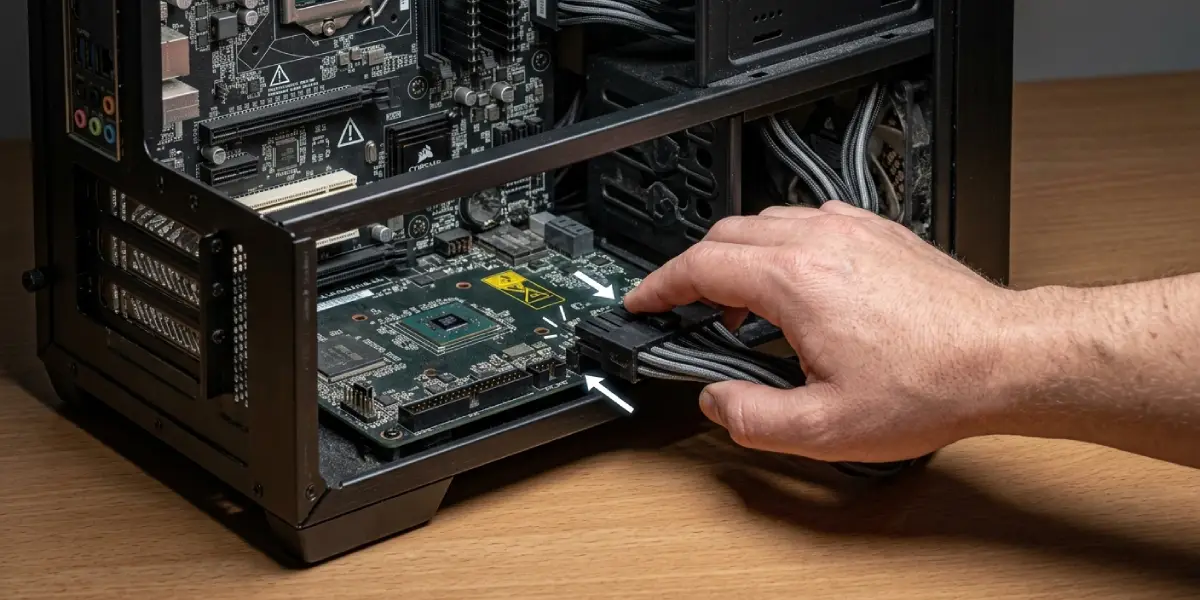
Tip: Modular and semi-modular power supplies only need the cables actually required for the build. Leaving unused cables unplugged at the PSU end keeps the case tidier and improves airflow.
Testing the New Power Supply
- Step 1: Double-check every connection against the earlier photo or notes before closing the case.
- Step 2: Plug the power cable back into the wall outlet and switch on the PSU’s rear power switch if it has one.
- Step 3: Power on the system and confirm it boots normally to the operating system or BIOS screen.
- Step 4: Listen for the case fans and PSU fan spinning up, and check that all drives and peripherals are recognized.
- Step 5: Once everything checks out, shut down, unplug, and reattach the side panel.
Common Problems and Fixes
Even a careful swap can run into a snag here and there. Most issues trace back to a loose connector or a mismatch between the new unit and the rest of the build.
System Does Not Power On
This is almost always a connection issue rather than a defective part. Reopen the case and confirm the 24-pin and CPU power connectors are fully seated, since these clips can look connected while sitting slightly loose. Also check that the PSU’s rear power switch, if present, is actually turned on.
Graphics Card Not Detected or Display Not Working
This usually points to a PCIe power cable that was not connected, or one plugged into the wrong port. Confirm the graphics card is receiving power directly from the PSU rather than relying only on the PCIe slot.
Drives Not Showing Up
Check that the SATA power cable is fully seated at both the drive and the PSU end. A cable that looks plugged in from one angle can still be sitting a few millimeters off the connector.
Unusual Fan Noise or No Spin
Confirm the PSU fan is not obstructed by a stray cable, and that airflow direction matches the case design. A fan that never spins under light load on some models is normal, since many modern units run silent until the system reaches a certain temperature.
Frequently Asked Questions
How long does it take to replace a desktop power supply?
Most swaps take between 30 minutes and an hour for someone doing it the first time, and closer to 15 to 20 minutes with more experience and a simple cable layout.
Does a new power supply need to match the wattage of the old one?
Not exactly. The new unit needs enough wattage to comfortably handle the CPU, graphics card, and drives installed, which sometimes means going higher than the old unit rather than matching it exactly.
Is it safe to replace a power supply without unplugging it from the wall first?
No. The system should always be unplugged from the wall outlet before opening the case or touching any internal cables.
Can a power supply be too powerful for a system?
A higher-wattage unit is not harmful on its own, since the components only draw the power they actually need. It does typically cost more upfront than a unit sized closer to the system’s real requirements.
What connector type does the motherboard need?
Most modern motherboards use a 24-pin main power connector along with a separate 4-pin or 8-pin CPU power connector near the top of the board.
Should the old power supply’s cables be reused with a new unit?
No. Power supply cables are not standardized between brands or models, and mixing cables from different units can cause serious damage. Always use the cables that came with the new PSU.
What happens if a cable is plugged into the wrong port on the power supply?
Most modern modular power supplies use keyed connectors that only fit their intended port, which helps prevent this. If a cable does not slide in easily, it is worth double-checking the port rather than forcing it.
Does replacing a power supply affect stored data?
No. Swapping the PSU does not affect data on drives, since it only supplies power and carries no data connections itself.
Can a power supply replacement fix random shutdowns?
In many cases, yes, since a failing or underpowered PSU is a common cause of random shutdowns under load. If shutdowns continue after the swap, other components may need further troubleshooting.
Is it necessary to reinstall the operating system after replacing a power supply?
No. The operating system is stored on the drive, not the power supply, so a PSU swap does not require any reinstallation.
