
Recognizing the signs your laptop charger is failing early can save a battery from permanent damage and prevent a dead laptop at the worst possible moment. A charger rarely quits all at once. It usually sends warning signals for days or weeks before it stops working completely.
Key Takeaways
- A charger that gets unusually hot, smells like burning plastic, or shows a frayed cable should be replaced right away.
- Charging that stops and starts when the cable is moved usually points to a loose connection or damaged wire, not the battery.
- Slow charging, a battery percentage that will not climb, or a charging light that flickers are all early warning signs.
- Testing with a different charger or a different outlet quickly narrows down whether the charger or the laptop is at fault.
- A visibly swollen, cracked, or sparking charger is a safety hazard and should be unplugged and stopped from further use immediately.
Common Signs of a Failing Laptop Charger
Most charger problems fall into a handful of patterns. Knowing what to look for makes it much easier to catch the issue before it leaves someone stranded with a dead battery.
Charging Stops When the Cable Moves
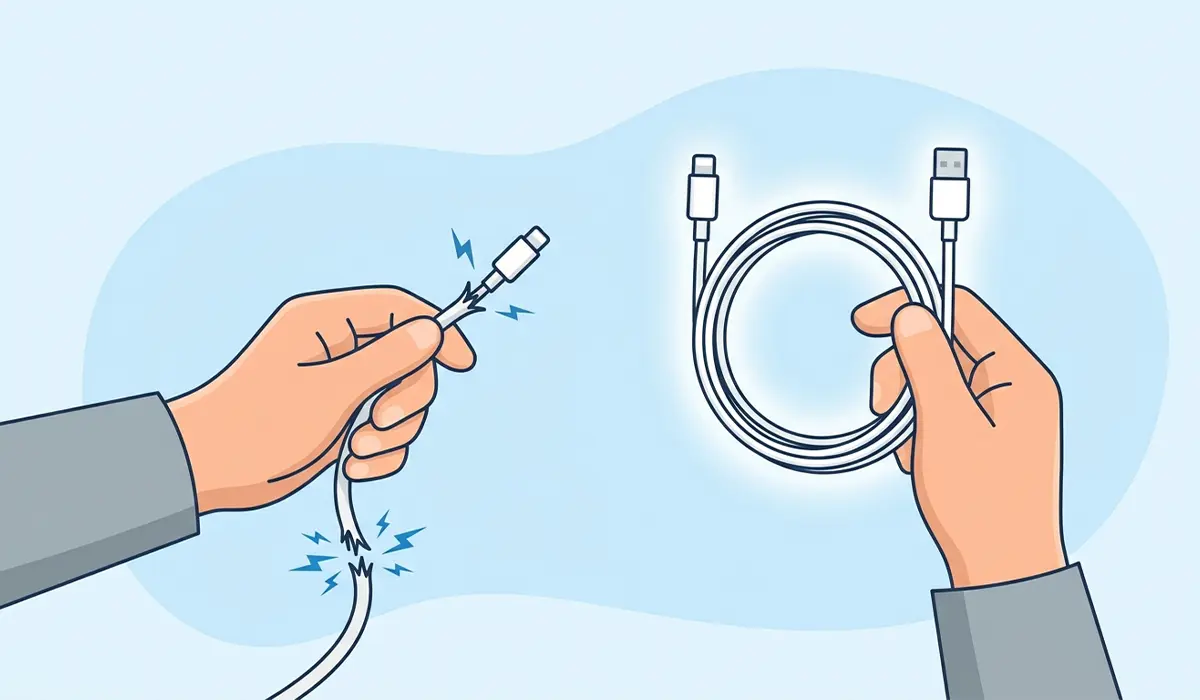
This is one of the most common complaints, and it almost always points to a break inside the cable near the connector. Bending the cord back and forth to keep the charge going is a strong sign the wire has partially snapped inside its insulation.
The Charger or Cable Runs Hot
A slight warmth during charging is normal. A charger that becomes too hot to hold comfortably, especially near the brick or the connector, is a different story. Overheating usually means a component inside the charger is failing or the cable is shorting out.
Charging Light Flickers or Will Not Turn On
Many laptops have a small LED near the charging port or on the cable itself. A light that flickers, dims, or refuses to turn on at all often means the charger is not delivering a steady stream of power.
Slow or Inconsistent Charging
A laptop that used to charge fully overnight but now barely moves past a low percentage is showing a classic symptom of a weakening charger. This works best when compared side by side with the original charging speed, since the drop-off can be gradual.
Visible Damage to the Cable or Brick
Fraying, exposed wiring, a cracked casing, or a connector that wobbles in the port are not cosmetic issues. They are mechanical failures that will only get worse with continued use.
Burning Smell or Discoloration
Any burning odor, scorch marks, or melted plastic around the charger brick is a serious warning sign. This points to an internal short or a failing power component and should never be ignored.
Tip: Keep an old charger around, even a slightly worn one, for exactly this kind of side-by-side comparison. It is the fastest way to confirm whether the problem is really the charger.
How to Confirm the Charger Is the Problem
Before buying a replacement, it helps to rule out other causes like a worn charging port or a battery nearing the end of its life. A few simple checks make the diagnosis much clearer.
- Step 1: Plug the laptop into a different wall outlet to rule out a weak or faulty outlet.
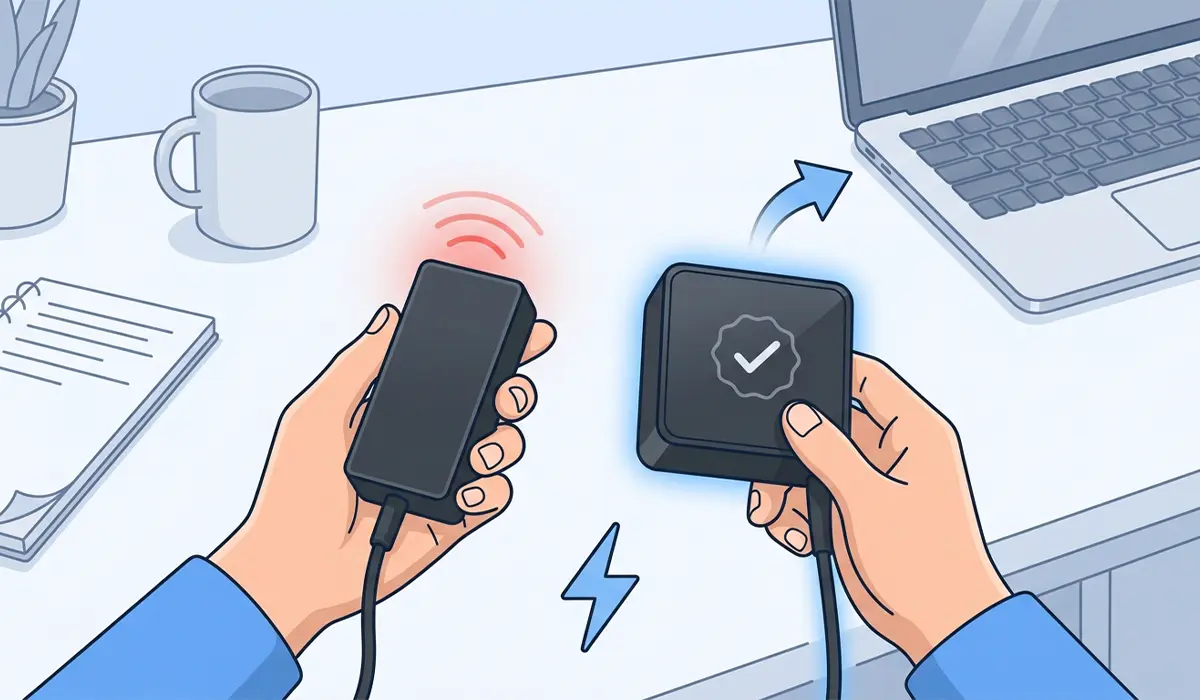
- Step 2: Try a different, compatible charger with the same laptop and watch whether charging becomes stable and consistent.
- Step 3: Test the original charger on a different laptop of the same brand, if one is available, to see if the same symptoms follow the charger.
- Step 4: Inspect the charging port on the laptop itself for bent pins, dust buildup, or a loose fit, since a damaged port can mimic charger problems.
- Step 5: Wiggle the cable gently at both ends while watching the charging indicator, which helps pinpoint whether the fault sits in the cable or the connector.
- Step 6: Check the laptop’s battery health tool, found in most manufacturer software or in Windows settings, to confirm the battery itself is not the actual source of the problem.
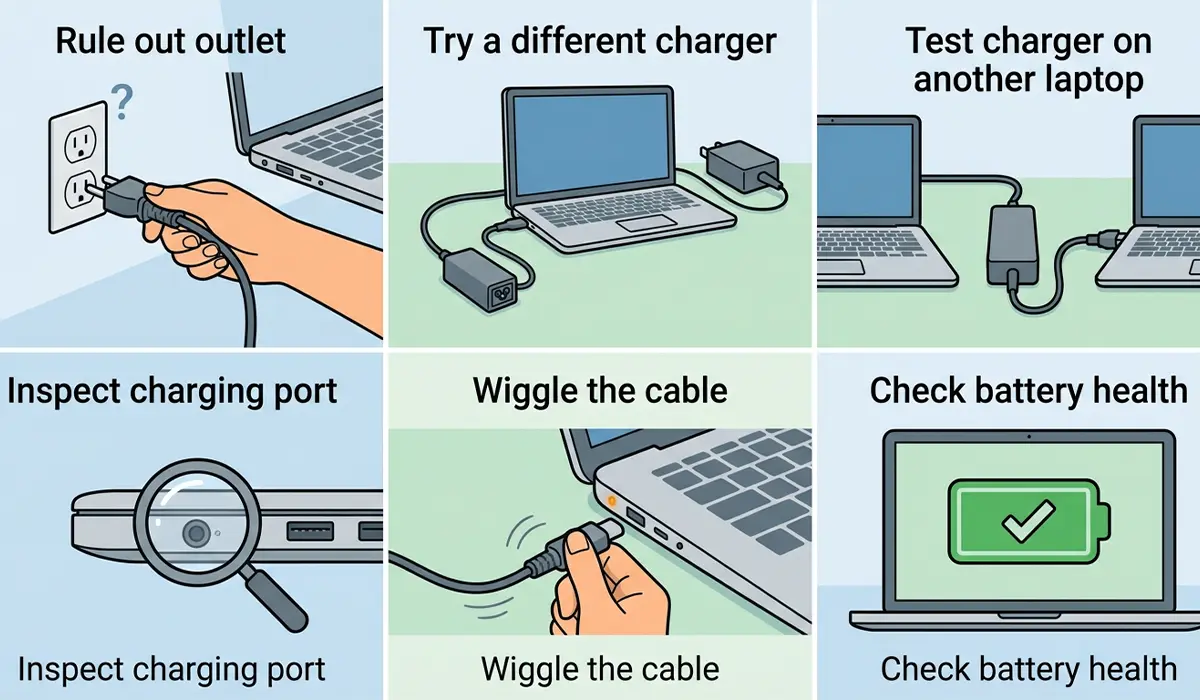
Tip: If the laptop charges normally with a different cable or brick, the original charger is confirmed as the failing part, not the laptop or the battery.
Common Problems and Fixes
Fix 1: Charging Cuts Out When the Cable Is Touched
This points to internal wire damage. Replacing the cable, or the full charger if the cable is not sold separately, resolves this. Wrapping a damaged cable in electrical tape is only a temporary patch and not a safe long-term fix.
Fix 2: Charger Works Only at a Certain Angle
A connector that only makes contact when held at a specific angle usually has a bent pin or worn internal contacts. Replacing the charger is the safest route, since bending metal pins back into place risks snapping them entirely.
Fix 3: Laptop Charges Slowly Even With a New Charger
If a brand new, compatible charger still charges slowly, the issue has likely shifted to the laptop’s charging port or the battery’s overall health rather than the charger itself. This is a good moment to check the manufacturer’s battery diagnostic tool.
Fix 4: Charger Overheats Even When New
A new charger that runs hot right out of the box may be an incompatible wattage or a poor-quality third-party unit. Using the original manufacturer’s charger, or a certified equivalent that matches the laptop’s required wattage, usually solves this.
Fix 5: No Response at All From the Charger
A charger with no light, no sound, and no reaction when plugged in has most likely failed internally. At this point, testing is done, and the safest step is replacing the unit rather than attempting an internal repair.
Where a charger shows sparking, a strong burning smell, or visible melted plastic, stop using it immediately and let a professional or the manufacturer’s support team handle the inspection. Chargers are sealed units and are not meant to be opened or repaired at home.
Frequently Asked Questions
What are the most common signs your laptop charger is failing?
The most common signs include charging that stops when the cable moves, a charger that runs hot, a flickering or dead charging light, slow charging speeds, and visible fraying or damage to the cable.
Can a bad charger damage a laptop battery?
Yes. A charger delivering inconsistent or incorrect power can stress the battery over time, leading to faster wear and reduced overall battery life.
Is it safe to keep using a charger that gets hot?
A charger that becomes too hot to hold comfortably should not keep being used. Excess heat usually signals an internal fault that can worsen and create a safety risk.
How long do laptop chargers usually last?
Laptop chargers typically last several years with normal use, though cable flexing, heat exposure, and frequent unplugging by the cord rather than the plug can shorten that lifespan.
Why does the laptop only charge when the cable is held a certain way?
This usually points to a broken wire inside the cable near the connector or a bent pin at the tip, both of which interrupt the steady flow of power.
Can a third-party charger cause charging problems?
A low-quality or mismatched third-party charger can cause slow charging, overheating, or inconsistent power delivery, especially if its wattage does not match what the laptop requires.
Should the charging port be checked before replacing the charger?
Yes. Testing with a different charger and inspecting the port for dust, bent pins, or a loose fit helps confirm whether the charger or the port is actually the source of the problem.
Is it normal for a laptop charger to make a buzzing sound?
A faint hum can be normal for some chargers. A loud buzzing, clicking, or crackling sound is not normal and usually means the internal components are failing.
Can a swollen charger brick be used safely?
No. A swollen or bulging charger brick indicates internal component failure and should be unplugged and replaced immediately rather than used further.
