
Knowing how to clean up Windows registry safely comes down to one habit: back up everything before changing a single key. The registry stores settings for Windows, drivers, and installed programs. Over time, uninstalled software can leave orphaned entries behind. A careful, manual cleanup removes that clutter without risking the stability of the system.
Key Takeaways
- Create a restore point and export a registry backup before any change.
- Uninstall unused programs through Windows first, then remove only the leftover keys that clearly belong to them.
- Avoid automatic registry cleaner tools, because Microsoft does not support them and a wrong deletion can break Windows.
- Never touch keys you cannot identify, especially those under Microsoft and system hives.
- A cleanup tidies the system but rarely makes a PC noticeably faster.
Before You Start
This is a software task, but the registry has no undo button. A little preparation turns a risky job into a controlled one.
- Sign in with an administrator account.
- Close all open programs and save any work.
- Have a spare folder ready on an external drive or cloud storage for the backup file.
- Know exactly which uninstalled program the cleanup is for. Random hunting for ‘junk’ is how mistakes happen.
If a key looks unfamiliar or belongs to Windows itself, stop and leave it alone. A professional technician can handle anything beyond simple leftover entries.
How to Clean Up Windows Registry Safely: Step-by-Step
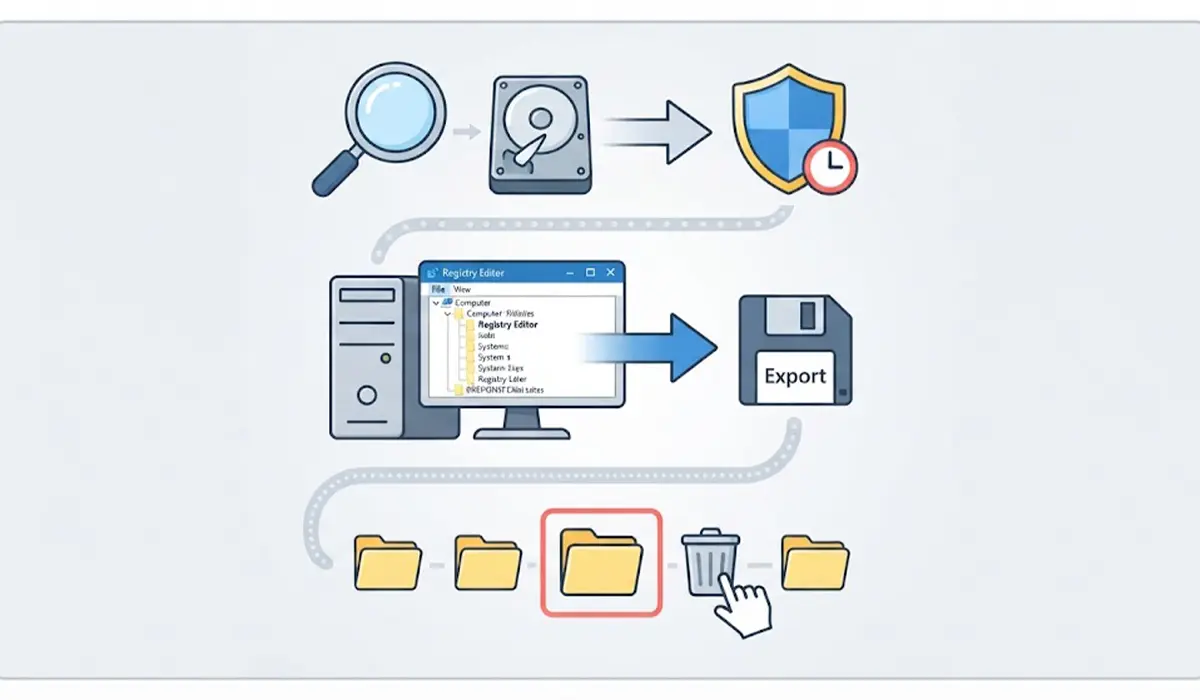
- Step 1: Create a system restore point. Type ‘Create a restore point’ into the Start menu search and open it. On the System Protection tab, select the system drive, click Create, name the point something clear like ‘Before registry cleanup’, and wait for confirmation. If protection shows as off for the drive, turn it on first.
- Step 2: Export a full registry backup. Press Windows key + R, type regedit, and press Enter. Approve the User Account Control prompt. In Registry Editor, click File, then Export. Under Export range, choose All, give the file a name with the date, and save it to the spare folder.
- Step 3: Remove unused programs the proper way. On Windows 11, open Settings, then Apps, then Installed apps. On Windows 10, open Settings, then Apps, then Apps and features. Select the unused program and choose Uninstall. The built-in uninstaller clears most of its registry entries automatically.
- Step 4: Review startup entries. Press Ctrl + Shift + Esc to open Task Manager and go to the Startup apps tab (called Startup on Windows 10). Right-click any entry for software that is no longer wanted and choose Disable. This stops the program from launching without deleting anything permanently.
- Step 5: Search for leftovers of the removed program. In Registry Editor, click Edit, then Find, and type the exact program or publisher name. Press Find Next. Matches usually appear under HKEY_CURRENT_USER, Software and HKEY_LOCAL_MACHINE, SOFTWARE, including the Wow6432Node folder for 32-bit programs.
- Step 6: Export each key before deleting it. Right-click the leftover key, choose Export, and save it with a descriptive name. This gives a small, targeted backup that is easy to restore later.
- Step 7: Delete only keys that clearly belong to the uninstalled program. Right-click the key, choose Delete, and confirm. Repeat the search with F3 to find other matches, and apply the same check to each one.
- Step 8: Restart the PC and test. Reboot, open the programs used every day, and confirm that everything behaves normally. Keep the backups for a few weeks before deleting them.
Tip: Work on one program at a time. If something breaks, it is obvious which change caused it, and the matching exported key restores it in seconds.
How to Restore a Backup if Something Goes Wrong
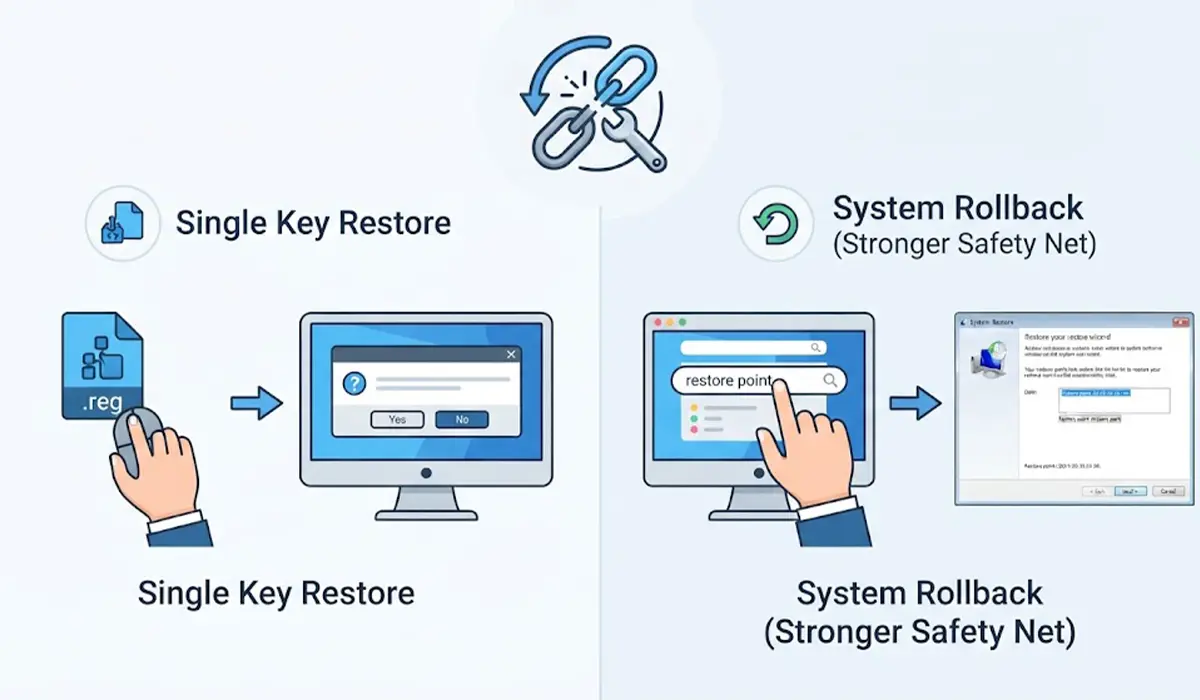
To bring back a single key, double-click its exported .reg file and approve the merge prompt. For a broader rollback, search for ‘Create a restore point’, click System Restore, and pick the restore point made in Step 1. Restoring a full registry export by merging adds old values back, but it does not remove entries created after the backup. That is why the restore point is the stronger safety net.
Should You Use a Registry Cleaner Tool?
Automatic registry cleaners promise quick results, but the risk outweighs the reward. Microsoft does not support the use of registry cleaning utilities, and a single wrong removal can cause errors or stop Windows from starting. Most of the entries these tools flag are tiny and harmless. Manual cleanup of specific leftovers is slower, but it keeps full control in the user’s hands.

Registry Areas to Leave Alone
Think of the registry like the wiring inside a wall. Removing a dead cable that is clearly labeled is fine, but cutting wires at random can switch off the whole house. Stay away from these areas:
- Anything under the Microsoft or Windows folders inside Software keys.
- The SYSTEM, SAM, SECURITY, and BCD00000000 hives.
- Driver and service entries, unless a specific driver is confirmed removed and documented.
- Any key or value whose purpose cannot be identified with certainty.
Optional Check After Cleanup
If Windows feels unstable after the cleanup, check system files. Open Command Prompt as administrator and run sfc /scannow. If it reports problems it cannot fix, run DISM /Online /Cleanup-Image /RestoreHealth, then run the SFC scan again. These tools repair Windows system files and do not replace a proper backup.
Tip: Most people find that removing unused programs and disabling unneeded startup items makes a bigger real-world difference than any registry deletion.
Common Problems and Fixes
A program stops opening after a key was deleted
Double-click the exported .reg file for that key and approve the merge. If no single-key backup exists, reinstall the program or use the restore point from Step 1.
Registry Editor says access is denied when deleting a key
Some keys are protected by permissions on purpose. Skip them. Changing ownership of protected keys carries real risk and is not needed for a safe cleanup.
A removed program still shows in the Apps list
This usually means a broken uninstall entry remains. Reinstalling the program and then uninstalling it again normally clears the entry cleanly.
The backup file will not import
Confirm Registry Editor was opened as administrator and that the .reg file was not moved or renamed with a different extension. Try importing through File, then Import, inside Registry Editor.
Windows will not start normally after changes
Restart the PC and open the Windows Recovery Environment, choose Troubleshoot, then Advanced options, then System Restore, and select the restore point created earlier.
The PC feels the same speed after cleanup
This is normal. The registry holds small text-style entries, so removing leftovers mainly tidies the system. For real speed gains, focus on startup apps, storage space, and background processes.
Frequently Asked Questions
Is it safe to clean the Windows registry?
Yes, when done manually with backups and limited to leftovers of programs that were already uninstalled. Random or automated deletion is where most problems begin.
Does cleaning the registry make Windows faster?
Rarely in any noticeable way. Registry entries are small, so removing a few orphaned ones has little effect on speed. Startup programs and low storage have a far bigger impact.
How do I back up the registry before cleaning it?
Open Registry Editor with Windows key + R and regedit, click File, then Export, choose All as the export range, and save the file somewhere safe. Pair it with a system restore point for the strongest protection.
Are registry cleaner programs worth using?
Generally not. Microsoft does not support registry cleaning utilities, and these tools can remove entries that Windows or other programs still need.
How do I restore the registry if something breaks?
Double-click an exported .reg file to merge it back, or use System Restore to return to the restore point created before the cleanup. System Restore is the more complete option.
Which registry keys should never be deleted?
Avoid Microsoft and Windows keys, the SYSTEM, SAM, and SECURITY hives, and any key whose purpose is unknown. Only delete keys that clearly belong to a program that is already uninstalled.
Can deleting registry keys cause a blue screen or boot failure?
Yes, if critical system or driver keys are removed. This is why backups, restore points, and a strict one-program-at-a-time approach matter.
How often should the registry be cleaned?
There is no need for a routine schedule. A cleanup only makes sense after removing a program that left clear, identifiable leftovers behind.
