
A bloated data file is one of the most common reasons Outlook slows to a crawl, so learning how to stop Outlook creating a huge OST file is often the fastest fix for a sluggish inbox. The good news is that the cause is almost always the same setting, and it takes only a few minutes to correct.
Key Takeaways
- The OST file grows because Outlook is set to cache too much mail offline for Exchange or Microsoft 365 accounts.
- The ‘Mail to keep offline’ slider in Account Settings controls how far back Outlook downloads and stores messages.
- Shrinking that window is safe – older mail still lives on the server and can be searched or opened online.
- Emptying Deleted Items and Junk Email regularly keeps the file from creeping back up.
- OST files cannot be compacted manually, so controlling what gets cached in the first place is the real solution.
Step-by-Step Guide to Stop Outlook Creating a Huge OST File
This method works for Outlook connected to an Exchange, Microsoft 365, or Outlook.com account using Cached Exchange Mode, which is the setup responsible for most oversized OST files.
- Step 1: Open Outlook, then go to the File tab in the top-left corner.
- Step 2: Select Account Settings, then click Account Settings again from the dropdown menu.
- Step 3: On the E-mail tab, highlight the account causing the trouble and click Change.
- Step 4: Look for the ‘Mail to keep offline’ slider under Offline Settings. Drag it to a shorter range, such as 3 months or 1 month, instead of leaving it on ‘All’.
- Step 5: Click Next, then Done, and close the Account Settings window.
- Step 6: Close Outlook completely and reopen it. This lets Outlook rebuild the OST file according to the new size limit rather than just trimming the old one.
- Step 7: Give Outlook time to resync in the background. A status bar at the bottom of the window shows progress, and the OST file size should drop noticeably once the sync finishes.
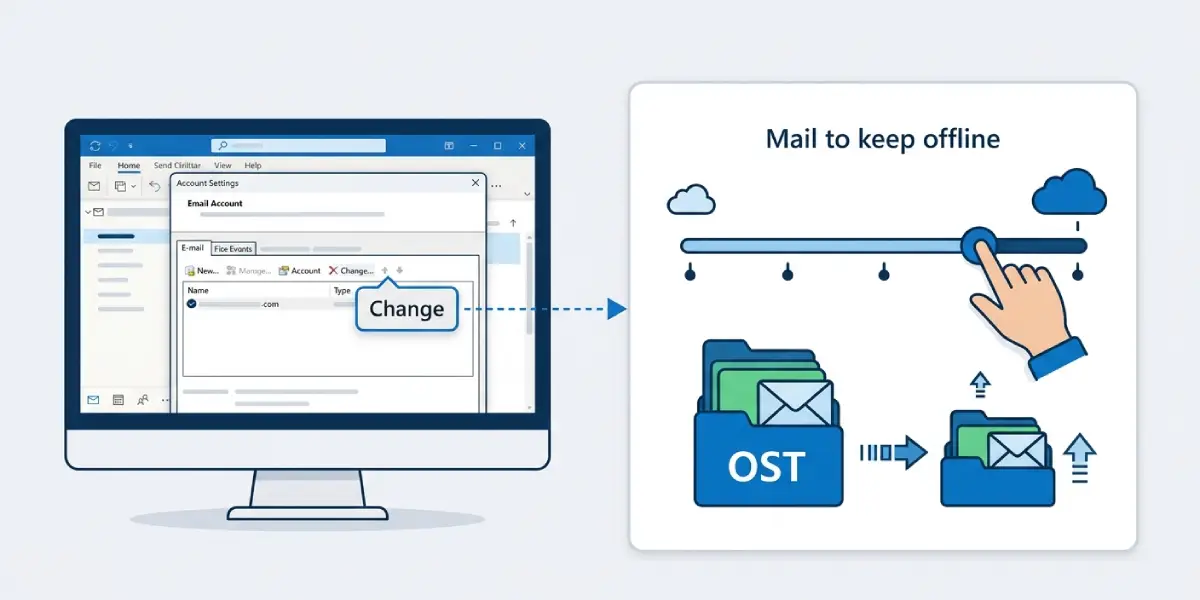
Tip: A mailbox with years of newsletters and attachments benefits most from a 1 or 3 month window, since most people only search recent mail day to day and can pull up older messages through Outlook on the web when needed.
Clearing Out Extra Bulk
Once the offline window is set, a couple of housekeeping habits keep the file from ballooning again.
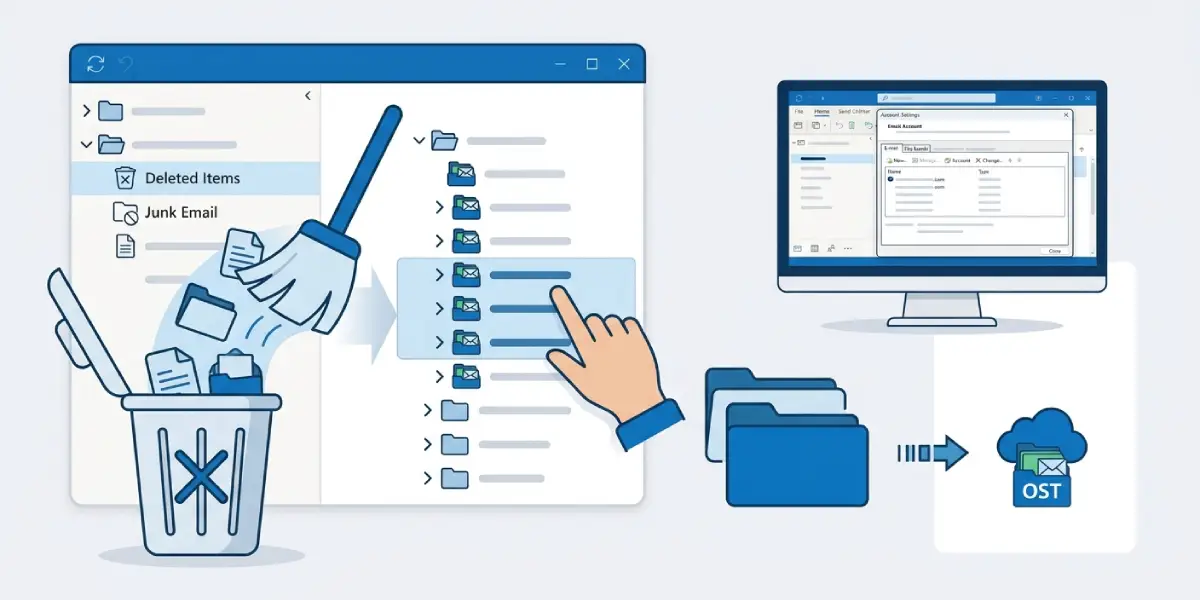
- Step 8: Right-click the Deleted Items folder and choose Empty Folder to clear space that Outlook is still tracking offline.
- Step 9: Do the same for the Junk Email folder, since spam with large attachments adds up quickly.
- Step 10: If any shared mailboxes or additional accounts were added to the Outlook profile out of habit rather than necessity, remove the ones no longer needed under Account Settings, since each one adds its own cached data.
Common Problems and Fixes
The Mail to Keep Offline Slider Is Grayed Out
Some work or school accounts are managed by an administrator through Group Policy, which locks this setting. Reach out to the IT team and ask them to adjust the cached mail policy on their end.
The OST File Size Doesn’t Change Right Away
Outlook does not shrink the file the instant the slider moves. It needs a full sync cycle to drop older items, which can take anywhere from a few minutes to a few hours depending on mailbox size and connection speed.
Outlook Runs Out of Disk Space While Resyncing
If the drive is nearly full, closing Outlook mid-resync can leave the OST file in a messy state. Free up disk space first, or move the OST file to a drive with more room using the Advanced tab in Account Settings before starting the process.
The File Grows Again a Few Months Later
This usually means the slider drifted back to a longer range during a profile repair or a new device setup. Simply revisit Account Settings and confirm the offline window is still set correctly.
Frequently Asked Questions
What causes Outlook’s OST file to grow so large?
Cached Exchange Mode downloads a local copy of mailbox data so Outlook works offline. When the ‘Mail to keep offline’ setting is left on ‘All’, every message, attachment, and folder gets cached indefinitely, and the file grows along with the mailbox.
Will reducing Mail to keep offline delete my old emails from the server?
No. That setting only controls what is stored locally for offline access. Every message stays on the mail server and remains fully accessible through search or Outlook on the web.
How do I check the current size of the OST file?
In Account Settings, select the account, click Change, then Advanced, and look for the ‘Outlook Data File Settings’ section, which shows the file location and size.
Can the OST file be compacted like a PST file?
No. OST files do not support manual compacting the way PST files do. The only reliable way to reduce their size is to lower how much mail Outlook is set to keep offline.
Is it safe to delete the OST file manually?
Yes, as long as the account is connected to a server. Outlook rebuilds the OST file automatically the next time it opens, though this triggers a full resync that can take a while on a large mailbox.
Does this setting work for IMAP accounts too?
Yes. IMAP accounts also use an OST file, and a similar sync duration setting appears under the account’s Change settings, though the options may be labeled slightly differently depending on the provider.
How long does it take for Outlook to resync after changing the slider?
It depends on mailbox size and internet speed. A modest mailbox may finish in under an hour, while a mailbox with many years of mail and large attachments can take considerably longer.
Why is the Mail to keep offline slider missing in Account Settings?
Older or heavily managed Exchange environments sometimes hide this option, and administrator policies can restrict it entirely. Contacting the organization’s IT support usually resolves this.
Does turning off Cached Exchange Mode stop OST growth?
Turning it off removes the OST file and switches Outlook to online-only mode, which avoids local storage growth but requires a constant server connection and can make Outlook feel slower day to day.
