
A blurry or soft-looking image is one of the most common complaints when connecting a laptop or desktop to a second screen, and learning how to fix blurry display on external monitor setups usually comes down to a handful of settings and cable issues rather than a hardware fault. Most cases trace back to resolution mismatches, scaling errors, or a weak video signal. The good news is that almost every one of these problems can be solved in a few minutes without opening the case or buying new equipment.
Key Takeaways
- Blurry external displays are almost always caused by software settings, not a broken monitor.
- Resolution mismatches and incorrect scaling are the two most frequent culprits.
- Cheap or damaged cables and adapters can noticeably soften image quality, especially over long runs.
- Refresh rate conflicts and outdated graphics drivers can also produce a soft or shimmering picture.
- Most fixes take under ten minutes and require no tools at all.
Common Causes of a Blurry External Monitor
Before jumping into fixes, it helps to understand what typically causes this. Most blurry-display complaints fall into one of these categories:
- Resolution mismatch: the monitor is running at a resolution other than its native one, which forces it to stretch or interpolate the image.
- Incorrect scaling: Windows or macOS is applying a scaling percentage that does not match the panel’s actual pixel density, making text and icons look soft.
- Cable or adapter quality: a worn HDMI cable, a bargain USB-C to HDMI dongle, or a cable that exceeds its rated length can all degrade signal clarity.
- Refresh rate conflicts: some GPUs default to a refresh rate the monitor cannot cleanly display at full resolution, causing softness or minor flicker.
- Outdated or generic graphics drivers: older drivers sometimes mishandle scaling or output the wrong signal timing to a second display.
- Duplicate versus extend display mode: mirroring two screens with different native resolutions forces one of them to scale awkwardly.
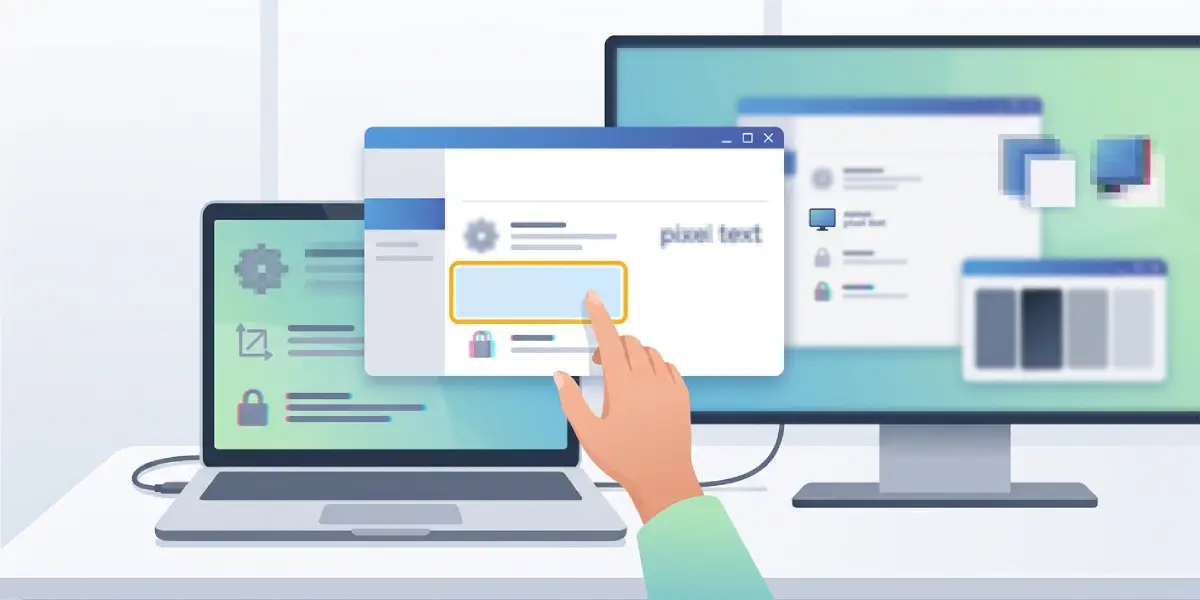
Tip: Before changing any settings, glance at the monitor’s on-screen menu and confirm which input port is active. Plugging into the wrong port is a surprisingly common reason a picture looks dull or soft.
How to Fix a Blurry External Monitor
- Step 1: Open display settings on the computer (Settings > System > Display on Windows, or Apple menu > System Settings > Displays on a Mac) and confirm the external monitor is selected.
- Step 2: Check the resolution and set it to the value labeled ‘(Recommended)’ on Windows, or select the native resolution on macOS. This single step resolves the majority of blurry-display cases, since the monitor renders sharpest at the resolution matching its physical pixel grid.
- Step 3: Adjust the scaling percentage. On Windows, this sits directly below the resolution setting; on a Mac, choose ‘Default’ or the scaled option that looks sharpest in the live preview. If text looks blurry but icons look fine, scaling is almost always the cause rather than resolution.
- Step 4: Set the correct refresh rate under Advanced Display Settings (Windows) or the Displays preview panel (Mac). Most monitors run cleanest at 60Hz unless they are specifically rated for a higher rate; mismatched refresh rates can introduce a subtle soft or shimmering look.
- Step 5: Swap the video cable. Try a different HDMI, DisplayPort, or USB-C cable, ideally one rated for high-resolution signal transfer. A cable that is too long or too cheaply shielded is a common hidden cause of softness, especially at 1440p or 4K.
- Step 6: Test with a different adapter or dock if one is in use. Multi-port docks and generic dongles sometimes bottleneck bandwidth, which forces the monitor to drop resolution or color depth quietly in the background.
- Step 7: Update the graphics driver directly from the GPU manufacturer’s website (Intel, AMD, or NVIDIA) rather than relying solely on Windows Update. Restart the computer after installing the update.
- Step 8: If using ‘Duplicate’ display mode, switch to ‘Extend’ instead, or match both screens to the same resolution before duplicating. Mismatched resolutions in duplicate mode force one display to scale, which is where a lot of blur comes from.
- Step 9: Check the monitor’s own on-screen sharpness, overscan, or ‘PC mode’ settings, which are common on TVs used as monitors. Many televisions apply motion smoothing or sharpening filters that actually make a PC signal look softer, not clearer.
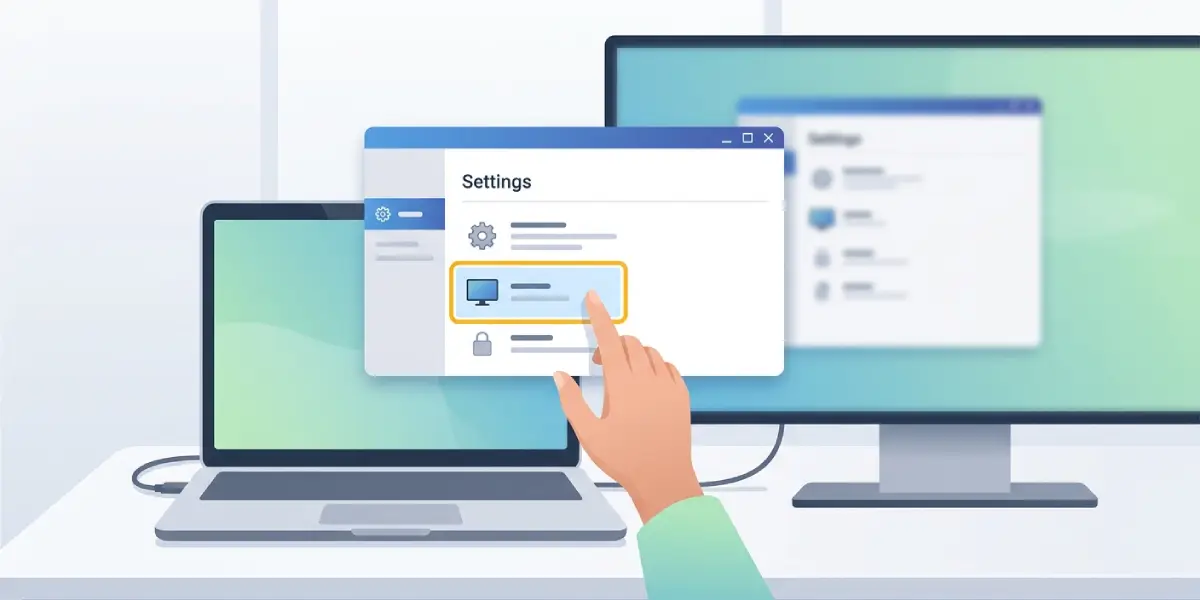
Tip: When testing whether the issue is the monitor, the cable, or the computer, connect the same monitor to a different device such as a phone with video-out or another laptop. If the image sharpens up, the original computer’s settings or GPU output are the more likely culprit.
Common Problems and Fixes
- Text still looks blurry after fixing resolution: this is almost always a scaling issue rather than resolution. Re-check the scaling percentage, and on Windows try toggling ClearType text tuning under ‘Adjust ClearType text’ in the search bar.
- Image sharp at the desktop but blurry in games or video: this points to the GPU control panel scaling method rather than the monitor. Check the GPU’s scaling setting (such as ‘GPU scaling’ in AMD or NVIDIA control panels) and set it to display native scaling instead of stretched or aspect-ratio scaling.
- Monitor looks fine on one port but blurry on another: older ports, particularly VGA or older HDMI revisions, carry less bandwidth than DisplayPort or newer HDMI standards. Switching to a higher-bandwidth port often resolves this instantly.
- Blur only appears with a docking station or hub: the dock may not support the monitor’s full resolution and refresh rate combination. Connecting the monitor directly to the computer helps confirm whether the dock is the bottleneck.
- Everything looks correct in settings, but the image is still soft: inspect the cable connectors for bent pins or corrosion, and try reseating both ends firmly. A partially seated cable can pass a signal while still degrading its quality.
- Blurriness appears only at certain resolutions, like 1440p but not 1080p: this usually signals a cable or port bandwidth limit. Higher resolutions demand more bandwidth, so a cable or port that struggles will show blur only once the load increases.
Frequently Asked Questions
Why does the external monitor look blurry only with a laptop and not a desktop?
Laptops often default to a lower output resolution or an aggressive scaling setting to save power. Checking the resolution and scaling settings specifically while the external monitor is connected usually resolves this.
Can a bad HDMI cable really cause blur?
Yes. A worn, damaged, or overly long cable can weaken the signal enough to visibly soften the image, particularly at higher resolutions like 1440p or 4K.
Is a blurry monitor a sign of a dying panel?
Rarely. A failing panel usually shows dead pixels, flickering, discoloration, or lines rather than general softness. Blur is overwhelmingly a settings or signal issue.
Why does text look fuzzy but images look sharp?
This pattern points to a display scaling mismatch rather than a resolution problem. Adjusting the scaling percentage in display settings typically fixes it.
Does using a USB-C to HDMI adapter cause blurry displays?
Lower-quality adapters can limit bandwidth, which forces the monitor into a lower resolution or refresh rate without clearly notifying the user. Swapping to a certified, higher-bandwidth adapter often clears this up.
Should the refresh rate always be set to the highest available number?
Not necessarily. The refresh rate should match what the monitor is actually rated for at the resolution in use, since forcing an unsupported combination can cause softness or instability rather than a sharper picture.
Why is the monitor sharp in Windows but blurry in a specific app or game?
This usually points to that application’s own scaling or resolution setting, or to the GPU control panel’s scaling method, rather than a system-wide display problem.
Does extending versus duplicating displays affect sharpness?
Yes. Duplicating two monitors with different native resolutions forces one of them to scale, which often introduces visible blur. Extending the displays avoids this issue entirely.
Can old graphics drivers cause a blurry picture?
Outdated drivers can mishandle scaling or output incorrect signal timing to a secondary display. Updating directly from the GPU manufacturer’s website usually resolves driver-related blur.
What should be checked first when a brand-new monitor looks blurry out of the box?
Confirm the resolution matches the monitor’s native specification and that the correct cable and port are being used, since factory default settings do not always match the monitor’s optimal configuration.
