
The easy way to migrate from Classic Outlook to the New Outlook takes a single toggle and a few minutes of checking. Because mail, calendars, and contacts live on the server, nothing has to be exported or copied by hand. The steps below walk through the switch, plus a short review to confirm everything landed correctly.
Key Takeaways
- The switch is done with the ‘New Outlook’ toggle in the top-right corner of Classic Outlook.
- Server-based accounts sync automatically, so no manual export or import is needed.
- Updating Microsoft 365 first prevents most switching problems.
- A quick check of folders, signatures, rules, and add-ins finishes the job.
- Switching back to Classic Outlook is possible at any time with the same toggle.
Step-by-Step Guide to Migrate From Classic Outlook to the New Outlook
This works best when Outlook is closed of any pending drafts and the computer has a stable internet connection. Think of the move like changing the front door of a house – the rooms and furniture stay where they are, only the entrance looks different.
- Step 1: Save or send any open drafts in Classic Outlook, then make sure the device is online.
- Step 2: Update Microsoft 365 apps. In Classic Outlook, select File, then Office Account, then Update Options, then Update Now. Let the update finish and restart Outlook if prompted.
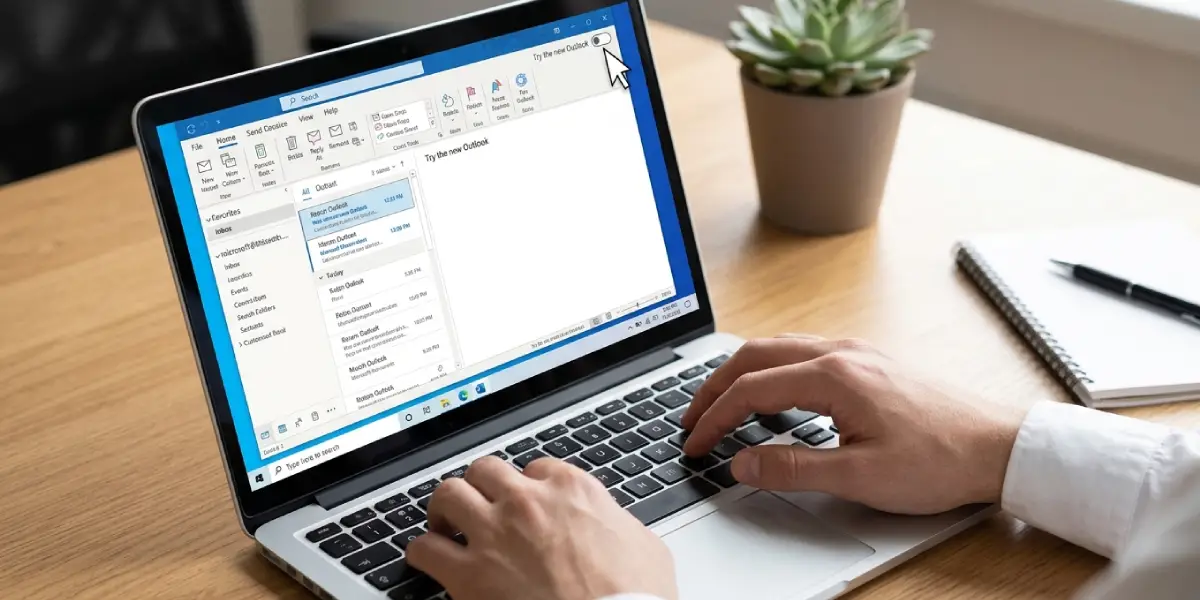
- Step 3: Look at the top-right corner of the Classic Outlook window and find the ‘New Outlook’ toggle.
- Step 4: Turn the ‘New Outlook’ toggle on. If the app is not yet installed, it is downloaded automatically, which usually takes a minute or two.
- Step 5: When the new app opens, follow the prompts to confirm the accounts that were detected from Classic Outlook, and sign in again if asked.
- Step 6: Wait for the folders to populate. Large mailboxes keep syncing in the background, so the Inbox may fill in gradually.
- Step 7: Add any account that did not appear. Select Settings (the gear icon), then Accounts, then Your accounts, then Add account, and enter the email address.
Tip: Do the switch at the start of a workday rather than right before a meeting. Having a few spare minutes makes it easy to sign in and verify calendar entries without pressure.
Check That Everything Moved Over
Once the new app is running, a short review catches surprises early. Most people find that a five-minute check saves an awkward moment later, like discovering a missing signature in the middle of sending an important email.
- Step 1: Open the Inbox, Sent Items, and a few custom folders and confirm recent messages appear.
- Step 2: Open the Calendar and confirm upcoming meetings show the right times.
- Step 3: Open the People view and confirm key contacts are present.
- Step 4: Go to Settings, then Mail, then Compose and reply, and confirm the email signature is correct.
- Step 5: Go to Settings, then Mail, then Rules, and confirm the expected rules are listed.
Tip: Leave Classic Outlook installed for the first week. It stays on the computer after the switch, so it remains available as a fallback if something needs comparing.
How to Switch Back if Needed
If something does not work as expected, turn off the ‘New Outlook’ toggle in the top-right corner of the new app. Classic Outlook reopens, and the mailbox data on the server is untouched.
Common Problems and Fixes
The ‘New Outlook’ Toggle Is Missing
An outdated Microsoft 365 build is the most common cause. Run Update Now from File, then Office Account, then Update Options, and restart Outlook. On a work or school computer, the toggle may be hidden by an administrator policy, and the IT team would need to allow it.
An Account Does Not Appear After Switching
Some accounts need to be added again. Open Settings, then Accounts, then Your accounts, then Add account, and sign in with the email address and password for that account.
Folders Look Empty Right After the Switch
The mailbox is usually still syncing. Give it several minutes on a good connection, and the messages will fill in. Large mailboxes with years of mail take longer.
A Sign-In Prompt Keeps Returning
Close the new app completely, reopen it, and sign in again with the correct account. If the prompt continues, remove that account under Settings, then Accounts, then Your accounts, and add it again.
An Add-in or Macro No Longer Works
The New Outlook does not support COM add-ins or VBA macros. Web-based add-ins are supported, so check for a web version of the add-in under Get Add-ins on the ribbon, or switch back to Classic Outlook for that specific task.
A Rule or Signature Is Missing
Rules that run on the server carry over, but rules that only ran inside Classic Outlook may need to be recreated under Settings, then Mail, then Rules. Signatures can be rebuilt under Settings, then Mail, then Compose and reply.
Frequently Asked Questions
Will I lose emails when I migrate from Classic Outlook to the New Outlook?
No. Mail stored on the server, such as Microsoft 365, Exchange, Outlook.com, or Gmail, stays there and syncs into the new app. Switching does not delete anything.
Can I switch back to Classic Outlook after migrating?
Yes. Turn off the ‘New Outlook’ toggle in the top-right corner of the new app, and Classic Outlook opens again.
Where is the New Outlook toggle?
The toggle sits in the top-right corner of the Classic Outlook window. If it does not appear, update Microsoft 365 apps and restart Outlook.
Do I need to install the New Outlook separately?
In most cases, no. Turning on the ‘New Outlook’ toggle installs the app automatically if it is not already on the computer.
Do I need to enter my passwords again?
Sometimes. The new app may ask for a one-time sign-in for each account, so keep the account passwords handy during the switch.
Do my signatures carry over to the New Outlook?
Not always. Check Settings, then Mail, then Compose and reply, and recreate any signature that is missing.
Does the New Outlook support COM add-ins and VBA macros?
No. The New Outlook supports web-based add-ins only. Tasks that depend on COM add-ins or VBA macros still need Classic Outlook.
How long does the migration take?
The switch itself usually takes a few minutes. Large mailboxes may continue syncing in the background for a while afterward.
Is Classic Outlook removed when I switch?
No. Classic Outlook stays installed on the computer, so it remains available whenever the toggle is turned off.
