
The best practices for storing a laptop long-term come down to three things: a partial battery charge, a fully powered-off machine, and a cool, dry spot. Get those right and a laptop can sit on a shelf for months without battery damage, corrosion, or nasty surprises. Get them wrong and the battery may be dead, or worse, swollen, by the time the laptop is needed again.
Key Takeaways
- Store the battery at around 50 percent charge, never fully charged and never fully drained.
- Shut the laptop down completely. Sleep and hibernate keep the system drawing power.
- Pick a cool, dry, indoor spot with a stable temperature. Attics, garages, cars, and damp basements are the worst choices.
- Clean the laptop, remove accessories, and pack it closed in a padded sleeve or its original box.
- Check the battery every three to six months and top it back up to about 50 percent.
Best Practices for Storing a Laptop Long-Term at a Glance
Lithium-ion batteries age fastest when they sit at a full charge or at a very low charge, and heat speeds up that aging. A laptop left in a warm cupboard at 100 percent will lose capacity faster than one kept cool at half charge. A battery left to drain to zero can also fall into a deep discharge state, where the laptop’s charging circuit refuses to recharge it.
The ideal storage setup looks like this:
- Battery charge: around 50 percent (anywhere from roughly 40 to 60 percent is fine).
- Power state: completely shut down, with the charger unplugged.
- Condition: clean, free of crumbs and dust, with no cards, drives, or dongles left inside.
- Location: an indoor spot that stays cool, dry, and out of direct sunlight.
- Packaging: closed, padded, and kept flat with nothing heavy on top.
Before You Start
This process only involves cleaning the outside and changing a few settings, so no disassembly is needed. Gather a dry microfiber cloth, a soft brush, a can of compressed air, a padded laptop sleeve or the original box, and a few silica gel packets if humidity is a concern. Shut the laptop down and unplug it before cleaning. If the battery is sealed inside the chassis, leave it there. Opening the case can affect the warranty, and a damaged lithium-ion cell is a real hazard.
How to Prepare a Laptop for Long-Term Storage
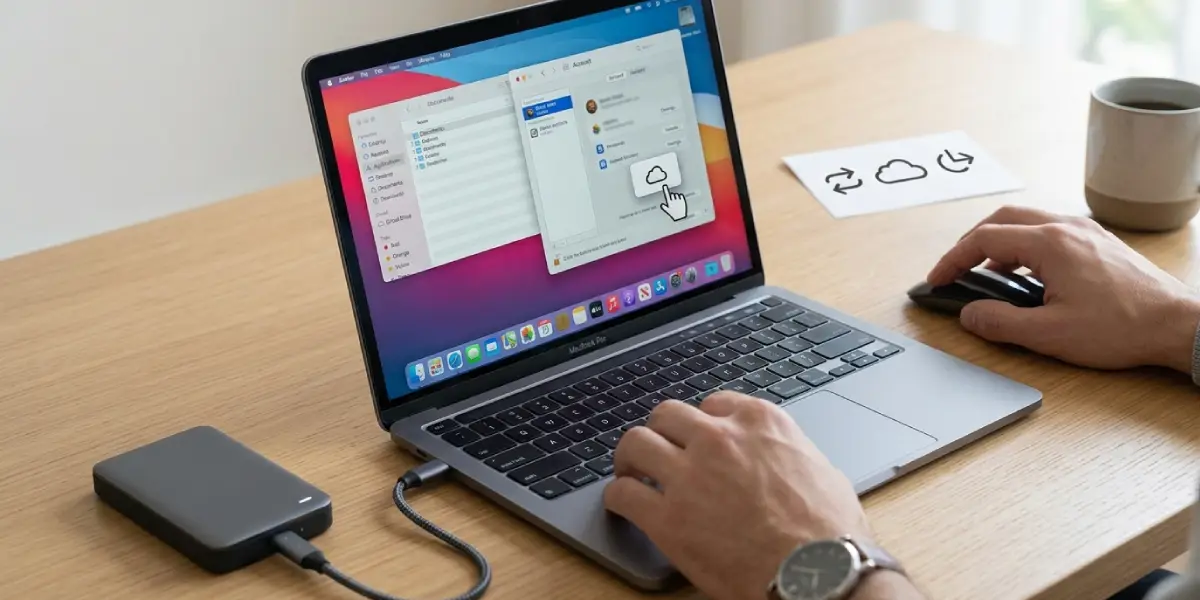
- Step 1: Back up everything important. Copy files to an external drive or cloud storage, and sign out of any accounts that should not stay active. A laptop in storage should never hold the only copy of a file, since unpowered drives are not meant to hold data forever.
- Step 2: Clean the laptop. Wipe the screen, palm rests, and body with a dry microfiber cloth. Use a soft brush and short bursts of compressed air, held upright, to clear crumbs from the keyboard and dust from the vents. For stubborn marks on the body only, use a cloth lightly dampened with isopropyl alcohol, and never spray liquid directly onto the laptop. For the screen, follow the manufacturer’s cleaning advice.
- Step 3: Remove everything plugged in or inserted. SD cards, USB drives, dongles, and discs should all come out. Also take batteries out of any wireless mouse or accessories stored alongside, since leaking cells cause corrosion.
- Step 4: Set the battery to about 50 percent. If the laptop is above that level, use it on battery power until it drops. If it is below, charge it up. Some manufacturer utilities include a charge limit setting that makes this easier.
- Step 5: Shut the laptop down fully. Choose Shut down rather than Sleep or Hibernate, and confirm that the screen and any indicator lights are off.
- Step 6: Unplug the charger and all peripherals. Coil the charger cable loosely, since tight bends stress the wires over time, and keep it with the laptop so nothing gets lost.
- Step 7: Pack the laptop closed. A thin, clean microfiber cloth over the keyboard helps prevent keyboard marks on the screen. Slide the laptop into a padded sleeve or its original box, and place a few silica gel packets in the container, away from direct contact with the laptop.
- Step 8: Label the container with the storage date and the charge level. That note makes the first battery check much easier to schedule.
Tip: A sealed plastic bin with silica gel packets is a good option for humid climates. In dry indoor conditions, a padded sleeve on a shelf is usually enough.
Choosing the Best Place to Store a Laptop
What Works Well
A closet shelf, a drawer, or a cabinet inside the living space works well because the temperature stays fairly steady there. Think of it as a spot where a person would be comfortable sitting, since electronics and people generally like the same conditions. Lay the laptop flat, with nothing stacked on top.
What to Avoid
Attics and garages swing between hot and cold. A parked car can become an oven in summer. Basements and spots near bathrooms tend to be damp, which invites corrosion on ports and internal contacts. Windowsills and areas near heaters are also poor choices, and direct sunlight can warm the case enough to speed up battery aging.

What to Do With a Removable Battery
Some older or business-class laptops still have a battery that can be removed without tools or a screwdriver. In that case, storing the battery separately is a good idea, at about 50 percent charge, in a cool, dry place. Keep it in a plastic case or its original sleeve so the metal contacts cannot touch anything conductive. Most modern laptops have sealed internal batteries, and those should stay in place and be left alone.
Checking In on a Stored Laptop
Batteries slowly lose charge even when a laptop is off, so a stored laptop needs an occasional visit. Every three to six months, take it out, plug it in, power it on, and let it charge back to about 50 percent. Install any pending updates while it is awake, then shut it down and put it back. The whole check takes a few minutes and prevents the deep discharge problem.
Tip: A recurring phone reminder set on the storage date is the easiest way to remember this. Most people find that a stored laptop gets forgotten without one.
Taking the Laptop Out of Storage
When it is time to use the laptop again, let it sit at room temperature for an hour or two before switching it on, especially if it was kept somewhere cold. Moving straight from a cold spot into a warm room can cause condensation. Inspect the case for gaps around the trackpad or keyboard, which can indicate a swollen battery. Then plug in the charger, charge fully, install pending updates, and confirm that the date and time are correct.
Common Problems and Fixes
The Laptop Will Not Turn On After Storage
The battery is most likely fully drained. Connect the original charger and leave it plugged in for at least 30 minutes before trying again. If the laptop still shows no signs of life, try a different wall outlet, check the charger for damage, and hold the power button for around 15 seconds to reset the hardware before pressing it once normally.
The Battery Will Not Charge or Shows 0 Percent
A battery that dropped too low may have entered a protective deep discharge state. Leave the laptop connected to power for several hours. If the battery never recovers, replacement is the fix, and that job is best left to a professional if the battery is sealed inside the case.
The Case, Trackpad, or Keyboard Looks Lifted or Bulged
This is a classic sign of a swollen lithium-ion battery. Stop using the laptop, do not charge it, and do not press on or puncture the battery. Take it to a qualified technician for battery replacement.
The Date and Time Are Wrong, or Settings Have Reset
A laptop kept unpowered for a long time can run down its small CMOS battery, which holds the system clock and firmware settings. Correct the date and time in Windows or the firmware setup, and if the problem returns after a shutdown, the CMOS battery needs replacing.
Ports or Contacts Show Corrosion or a Musty Smell
Moisture got in during storage. Power the laptop off, unplug it, and gently clean visible residue with a soft brush. For heavier corrosion, professional cleaning is the safer route. Next time, use silica gel packets and pick a drier storage spot.
Frequently Asked Questions
What is the best battery level for storing a laptop long-term?
Around 50 percent is the widely recommended level, and anywhere from roughly 40 to 60 percent is acceptable. A full charge stresses the cells, and a very low charge risks a deep discharge that prevents recharging.
Should a laptop be turned off or left in sleep mode during storage?
The laptop should be fully shut down. Sleep and hibernate keep some parts of the system active, which drains the battery and can leave it empty after a few weeks.
Can a laptop be stored with the charger plugged in?
Leaving it plugged in for months keeps the battery at a high charge and adds heat, both of which speed up aging. For long-term storage, unplug the charger and store the battery at about 50 percent.
How often should a stored laptop’s battery be recharged?
Checking every three to six months works well. Plug the laptop in, charge it back to about 50 percent, install any updates, then shut it down again.
Where is the best place to store a laptop for months?
A cool, dry, indoor spot with a stable temperature, such as a closet shelf or a drawer, is ideal. Avoid attics, garages, cars, damp basements, and areas in direct sunlight or near heaters.
Is it okay to store a laptop in its original box?
Yes. The original box and its padding protect the laptop from knocks and dust. Add a few silica gel packets if the room is humid, and keep the box on a flat shelf with nothing heavy on top.
Should the battery be removed from a laptop before storing it?
Only if the battery is designed to be removed without opening the case. In that case, store it separately at about 50 percent charge in a cool, dry place. Sealed internal batteries should be left in the laptop.
How long can a laptop sit unused before the battery is damaged?
It depends on the charge level and temperature. A battery kept at partial charge in a cool room can sit for months, while one left fully drained can slip into a deep discharge state and stop accepting a charge.
Can data be lost on a laptop stored for a long time?
It can. Unpowered drives, especially SSDs, are not designed to retain data indefinitely, so a full backup should be made before storage, and the laptop should be powered on periodically.
