
A touchpad scroll not working is one of the most common laptop annoyances, and it almost always traces back to a driver glitch, a disabled setting, or a gesture that got switched off somewhere along the way. The good news is that most cases get fixed in a few minutes without opening the laptop at all. This guide walks through the usual causes and the exact steps to get two-finger and edge scrolling working again.
Key Takeaways
- Most scrolling failures come from a software setting, outdated driver, or accidentally disabled gesture, not a hardware fault.
- Windows and macOS both have dedicated touchpad gesture settings that get reset after updates.
- Updating or reinstalling the precision touchpad driver solves the majority of stubborn cases.
- External mice, Bluetooth devices, or certain apps can silently interfere with touchpad gestures.
- A physically damaged or worn touchpad is rare but worth testing for if software fixes do not help.
Common Causes of Touchpad Scroll Not Working
Before diving into fixes, it helps to understand what typically breaks scrolling in the first place. Most people find the issue falls into one of these categories.
- Scrolling gesture disabled in touchpad settings, often after a Windows update resets preferences.
- Outdated, corrupted, or mismatched touchpad driver, especially after a fresh OS install or update.
- A connected external mouse or Bluetooth device that automatically disables the internal touchpad.
- Touchpad drivers conflicting with third-party utilities from laptop manufacturers.
- Dirt, moisture, or a thin film of oil on the touchpad surface reducing gesture recognition.
- A specific application overriding scroll behavior, such as certain PDF readers or design software.
- In rare cases, a loose internal ribbon cable or a worn touchpad sensor.
How to Fix Touchpad Scroll Not Working
Work through these steps in order. Each one rules out a common cause before moving to something more involved.
Method 1: Check the Touchpad Gesture Settings
- Step 1: On Windows, open Settings, go to Bluetooth and devices, then select Touchpad. Confirm the touchpad toggle is turned on and that two-finger scrolling is enabled under scroll and zoom options.
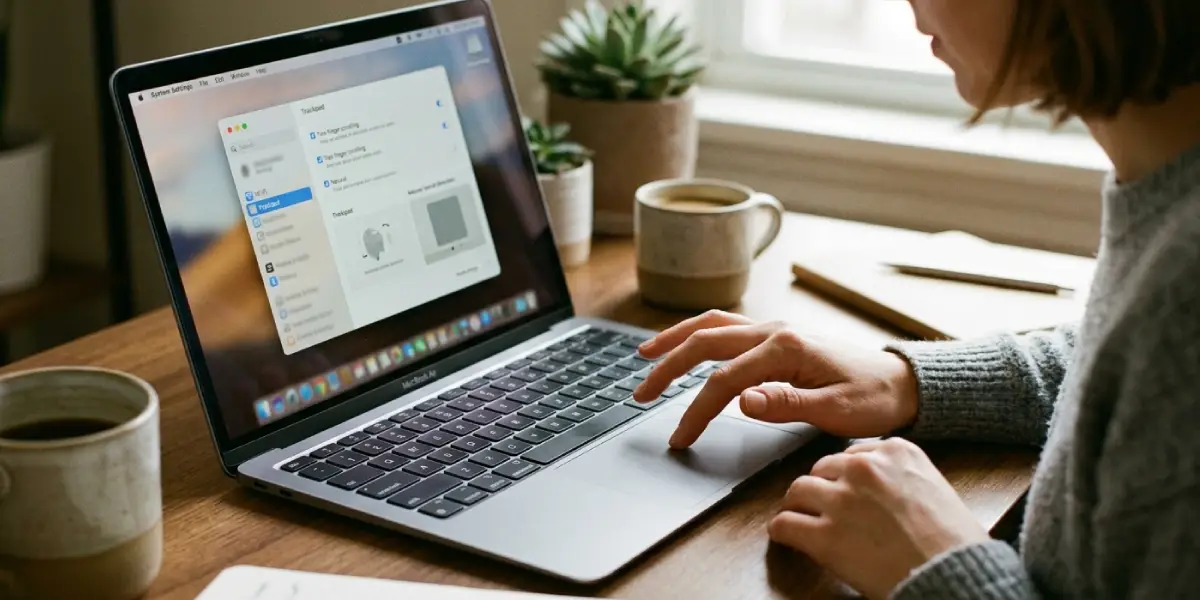
- Step 2: On a Mac, open System Settings, select Trackpad, then Scroll and Zoom, and make sure ‘Scroll direction: Natural’ and the two-finger scroll option are both checked.
- Step 3: Test scrolling in a browser or document immediately after adjusting the setting to confirm the change took effect.
Tip: A surprising number of scroll issues disappear the moment the gesture toggle is simply switched back on after a routine update quietly reset it.
Method 2: Restart the Laptop
- Step 1: Save any open work and restart the laptop fully rather than just putting it to sleep.
- Step 2: After restart, test two-finger scrolling on a webpage right away.
This clears out any temporary driver or input service glitch that built up during the current session, and it costs nothing to try first.
Method 3: Update or Reinstall the Touchpad Driver
- Step 1: On Windows, right-click the Start button and open Device Manager.
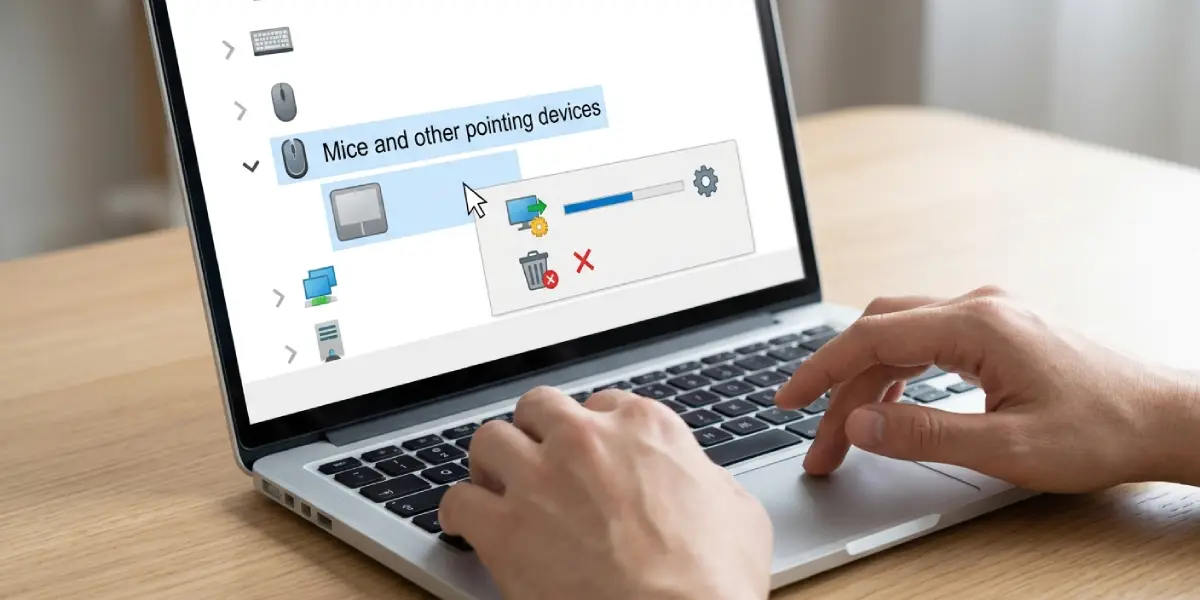
- Step 2: Expand ‘Mice and other pointing devices,’ right-click the touchpad entry (often listed as a precision touchpad or by the laptop brand name), and select Update driver.
- Step 3: Choose ‘Search automatically for drivers.’ If Windows reports the driver is up to date but scrolling still fails, right-click the same entry again and select Uninstall device, then restart the laptop so Windows reinstalls a fresh copy automatically.
- Step 4: For added reliability, visit the laptop manufacturer’s support page and download the latest touchpad or precision touchpad driver specific to that exact model.
Tip: Searching by the exact laptop model number, not just the brand, on the manufacturer’s support page returns the correct driver far more often than relying on Windows Update alone.
Method 4: Disconnect External Mice and Bluetooth Devices
- Step 1: Unplug any USB mouse and disable Bluetooth or unpair any wireless mouse connected to the laptop.
- Step 2: Test the touchpad again. Many laptops include a setting that automatically disables the internal touchpad the moment an external pointing device connects.
- Step 3: If scrolling only fails with an external mouse plugged in, look for a setting labeled something like ‘Leave touchpad on when a mouse is connected’ inside the touchpad settings menu.
Method 5: Close or Update Third-Party Touchpad Utilities
- Step 1: Check for manufacturer-specific touchpad software, such as a gesture control app that runs in the system tray.
- Step 2: Update that utility to its latest version through the manufacturer’s site, since these apps sometimes conflict with the core Windows touchpad driver.
- Step 3: If the conflict continues, temporarily uninstall the third-party utility and rely on the built-in Windows touchpad settings instead.
Method 6: Clean the Touchpad Surface
- Step 1: Power off the laptop and unplug it.
- Step 2: Lightly dampen a lint-free or microfiber cloth with 90 percent or higher isopropyl alcohol.
- Step 3: Wipe the touchpad surface gently in one direction, avoiding excess liquid pooling around the edges.
- Step 4: Let the surface air dry fully for a minute or two before powering the laptop back on and testing again.
A thin layer of skin oil or dust genuinely does reduce how well a touchpad reads multi-finger gestures, similar to how a smudged phone screen misses swipes.
Method 7: Run the Windows Hardware Troubleshooter
- Step 1: Open Settings, go to System, then Troubleshoot, then Other troubleshooters.
- Step 2: Run the Keyboard troubleshooter if listed, since it also checks related input device services, and check for a Hardware and Devices troubleshooter option as well.
- Step 3: Follow any prompts it suggests and restart once finished.
Before You Start (If Checking for Physical Damage)
If every software step above fails, a physical issue becomes more likely. Before opening the laptop to inspect the internal touchpad cable, take these precautions.
- Power off the laptop completely and unplug the charger.
- Remove the battery if it is user-removable, or disconnect the internal battery connector once the back panel is off.
- Discharge static electricity by touching a bare metal surface, or use an anti-static wrist strap.
- Use a plastic pry tool to release the back panel rather than metal tools that can scratch or short internal components.
Opening the laptop’s chassis may void the manufacturer’s warranty on some models, so it is worth checking warranty status first. If the touchpad ribbon cable looks intact and reseating it does not help, this is a reasonable point to hand the laptop to a qualified repair technician rather than risk further disassembly.
Common Problems and Fixes
- Scrolling works with one app but not others: The issue is likely app-specific settings overriding gestures. Check that app’s own scroll or navigation preferences.
- Touchpad clicks and moves the cursor but scroll gestures do nothing: This points to a gesture-recognition setting or driver issue rather than a fully dead touchpad. Revisit Step 1 and Step 3.
- Scrolling worked, then stopped after a Windows update: Updates commonly reset touchpad preferences or replace the driver with a generic version. Reinstalling the manufacturer’s driver usually resolves this.
- Touchpad scroll not working only when the laptop is on battery power: Check power management settings, since some systems reduce touchpad polling rate on battery to save power. Look under Device Manager, touchpad properties, and the Power Management tab.
- Scrolling still fails after reinstalling the driver: Try a different Windows user account to rule out a corrupted user profile setting before considering a hardware inspection.
Frequently Asked Questions
Why did my touchpad scroll stop working after a Windows update?
Windows updates sometimes reset touchpad settings to default or replace a manufacturer driver with a generic one. Reinstalling the correct driver and re-enabling the two-finger scroll setting usually fixes this.
Can a dirty touchpad cause scrolling to stop working?
Yes. A layer of oil, dust, or moisture on the surface can interfere with how the touchpad reads multiple fingers at once, which is what two-finger scrolling relies on.
Does connecting a mouse disable touchpad scrolling?
On many laptops, yes, by design. A setting often automatically disables the internal touchpad when an external mouse connects. That setting can be changed in the touchpad menu.
How can gesture settings be checked on Windows 11?
Open Settings, select Bluetooth and devices, then Touchpad, and review the scroll and zoom section to confirm two-finger scrolling is turned on.
Is touchpad scroll not working usually a hardware problem?
Rarely. The large majority of cases come from a disabled setting, an outdated driver, or a software conflict rather than a damaged touchpad.
Why does scrolling work in some apps but not others?
Certain applications, particularly PDF readers and design tools, can override system-level scroll gestures with their own input handling. Checking that app’s settings usually resolves it.
What should be done if reinstalling the driver does not fix scrolling?
Test a different Windows user account to rule out a corrupted profile, then check power management settings, and finally consider inspecting the internal touchpad cable if the issue persists.
Can outdated BIOS or firmware affect touchpad scrolling?
It is possible on some models, since firmware controls low-level input handling. Checking the manufacturer’s support page for a BIOS update is worth trying if driver updates alone do not help.
Is it safe to clean a touchpad with isopropyl alcohol?
Yes, as long as the laptop is powered off and a lint-free cloth lightly dampened with 90 percent or higher isopropyl alcohol is used, avoiding excess liquid near the edges.
When should a laptop be taken to a professional for touchpad issues?
If every software fix fails and physical inspection shows a loose or damaged ribbon cable, or if opening the laptop feels beyond comfort level, a qualified repair technician is the safer option.
