
Knowing how to fix Office activation error 0x80070005 saves a lot of frustration, because the message is really an ‘Access is denied’ warning from Windows. Office is trying to write licensing data somewhere it lacks permission to touch. The steps below restore that access in a logical order, starting with the quickest checks.
Key Takeaways
- Error 0x80070005 means Windows blocked Office from reading or writing its licensing files.
- Running Office as administrator and resetting folder permissions solves most cases.
- Clearing the cached licensing folder forces Office to request a fresh license.
- If activation still fails, an Office repair or the Microsoft Support and Recovery Assistant finishes the job.
How to Fix Office Activation Error 0x80070005 Step by Step
This works best when each step is completed in order, and Office is tested after every one. Many people find the problem disappears after Step 2 or Step 4, so there is no need to rush through everything.
Prepare Windows and Office
- Step 1: Save any open work, close every Office app, and restart the computer. Then sign in to Windows with an administrator account. A standard account is the most common reason Office cannot save its license.
- Step 2: Click Start, type the name of any Office app such as Word, right-click it, and choose Run as administrator. Open File, then Account, and select Sign in or Activate Product. Sign in with the Microsoft account or work account that holds the Office license.
- Step 3: Check that the date, time, and time zone are correct under Settings, Time and language, Date and time. Confirm the internet connection is working too. A clock that is off by even a few minutes can make licensing requests fail.
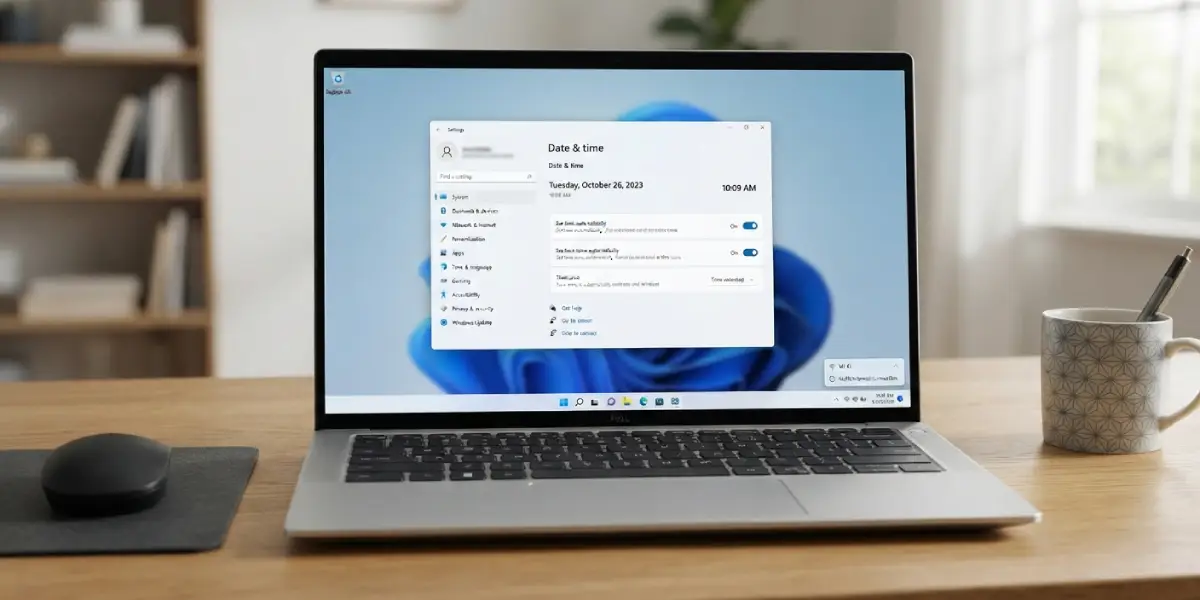
Tip: Right-click and Run as administrator is a quick test. If activation works this way, permissions are clearly the cause, and Step 4 will fix it for good.
Reset Permissions and Clear Licensing Data
- Step 4: Open File Explorer, select the View tab, then Show, and turn on Hidden items. Go to C:\ProgramData\Microsoft\OfficeSoftwareProtectionPlatform. Right-click the folder, choose Properties, open the Security tab, and select Edit. Pick the Users group, tick Full control under Allow, then select Apply and OK. Restart Office and try activating again.
- Step 5: Open an Office app, go to File, then Account, and select Sign out. Close all Office apps. Press the Windows key and R together, paste %localappdata%\Microsoft\Office\16.0\Licensing, and press Enter. Delete every file inside that folder. Think of it as clearing a stuck ticket so Office can request a clean one. Open an Office app and sign in again.
Repair Office and Run the Recovery Tool
- Step 6: Open Settings, go to Apps, then Installed apps, and find Microsoft 365 or Microsoft Office in the list. Select the three dots, choose Modify, and pick Quick Repair. If the error remains, repeat the process and choose Online Repair, which reinstalls Office files without removing documents.
- Step 7: Download the Microsoft Support and Recovery Assistant from Microsoft’s official support site, run it, select Office, and choose the option for activation problems. The tool checks licensing, permissions, and sign-in settings automatically and applies fixes.
- Step 8: Restart the computer once more, open Word or Excel normally, and go to File, then Account. The page should show Product Activated, or the name of the subscription, near the top.
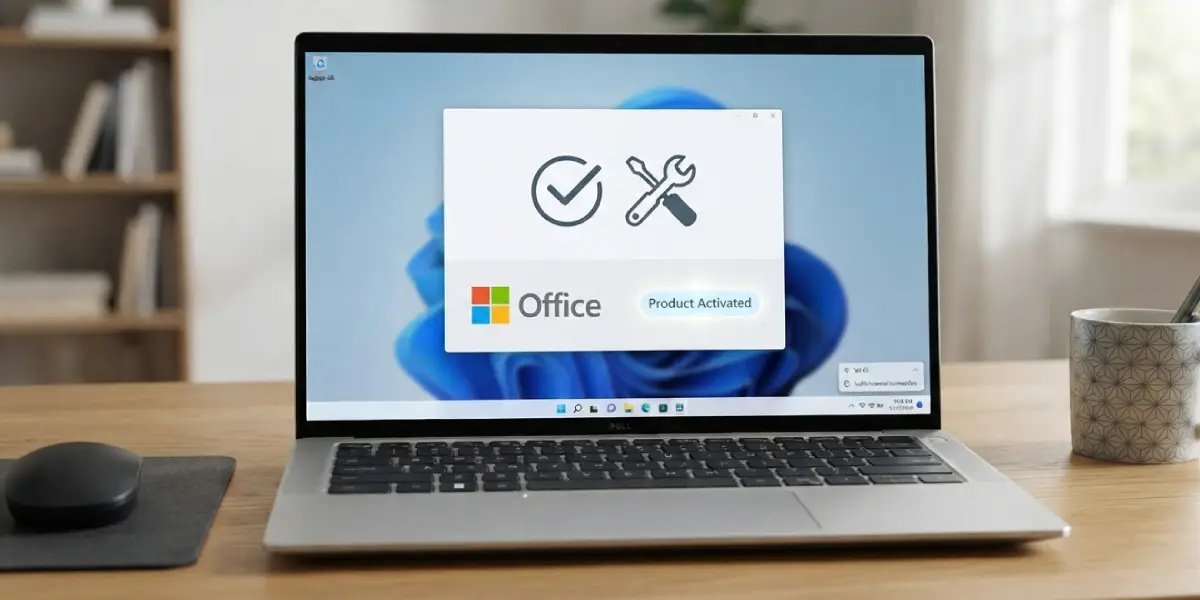
Tip: Online Repair takes longer than Quick Repair, but it replaces damaged files instead of only checking them. It is the better choice when Quick Repair changes nothing.
Common Problems and Fixes
The Users group is missing in the folder permissions
In the Security tab, select Edit, then Add, type Users, choose Check Names, and select OK. Once the group appears, tick Full control and apply the change.
Windows says the permissions cannot be changed
This usually means the signed-in account is not an administrator. Switch to an administrator account, or ask the IT department to grant admin rights, then repeat Step 4.
Office is managed by an organization
A work or school license may be controlled by policy. Sign in with the work account assigned to the license, and contact the IT administrator if the error returns after Step 5.
Antivirus or security software blocks the license
Third-party security tools sometimes block Office from writing licensing files. Pause the protection briefly, repeat the activation, and turn protection back on straight afterward.
The error returns after a Windows update
Updates can reset folder permissions. Repeat Step 4, then restart the computer and activate again.
Damaged system files keep triggering access errors
Open Command Prompt as administrator, type sfc /scannow, and press Enter. Let the scan finish, restart Windows, and test Office activation again.
Frequently Asked Questions
What does Office activation error 0x80070005 mean?
It is an ‘Access is denied’ error. Office tried to read or write licensing information, but Windows did not give it the permission needed to complete the action.
Is error 0x80070005 caused by an invalid product key?
Usually not. The key or subscription is often fine. The problem is typically folder permissions, a standard user account, or a corrupted licensing cache.
Do administrator rights fix Office activation error 0x80070005?
Very often, yes. Running an Office app as administrator lets it write license data to protected locations, and that alone solves many cases.
Which folder permissions affect Office activation?
The OfficeSoftwareProtectionPlatform folder inside ProgramData is the key location. When the Users group lacks Full control there, activation can fail with this error.
Is it safe to delete the Office licensing folder contents?
Yes. The files in the Licensing folder under the local Office 16.0 path are cached license data. Office recreates them the next time the user signs in.
Will repairing Office delete my documents?
No. Quick Repair and Online Repair fix program files only, so saved documents, spreadsheets, and presentations stay untouched.
Should Quick Repair or Online Repair be used first?
Start with Quick Repair because it is faster. Move to Online Repair if the error still appears afterward.
Can the Microsoft Support and Recovery Assistant fix this error?
Yes. The tool has an activation option that checks permissions, sign-in details, and license settings, then applies fixes automatically when it finds a problem.
Why does the error come back after a Windows update?
Major updates can reset folder permissions or leave licensing files out of sync. Reapplying the permissions and clearing the licensing cache normally resolves it again.
