
A USB hub not powering devices is one of the most common desk-setup headaches, and it almost always comes down to power delivery rather than a dead hub. Most of the time the fix takes just a few minutes once the actual cause is identified. This guide walks through the real reasons it happens and how to correct each one.
Key Takeaways
- Most power failures come from an underpowered USB port, a passive hub, or a cable that only carries data.
- Bus-powered hubs split limited power across every connected device, so high-draw gadgets often get starved first.
- A powered hub with its own AC adapter solves the majority of chronic power problems.
- Drivers, USB selective suspend settings, and outdated firmware can all block power delivery even when the hardware is fine.
- Testing one device at a time on a single port quickly isolates whether the hub, the cable, or the host port is at fault.
Common Causes of a USB Hub Not Powering Devices
Bus-Powered Hub Overload
Many budget hubs draw all their power from the host computer’s USB port instead of a wall outlet. That port only has a limited amount of power to share, and once several devices are plugged in at once, there is not enough current left to run power-hungry accessories like external hard drives, RGB peripherals, or phone chargers.
Faulty or Charge-Only Cable
Some USB cables are built for charging only and are missing the internal wires needed for full data and power negotiation. Using one of these between the computer and the hub can make everything downstream act starved for power, even though the hub itself is working correctly.
Damaged or Worn Hub Ports
Frequent plugging and unplugging wears down the tiny contacts inside a USB port over time. A port that looks fine can still fail to make a solid connection, which shows up as devices that connect intermittently or never get enough power to turn on.
Host Port Power Limits or USB Selective Suspend
Laptops in particular limit how much power certain USB ports can deliver, especially on battery. Windows also has a power-saving feature called USB selective suspend that can cut power to idle ports to save battery life, which sometimes mistakenly affects hub-connected devices.
Outdated Drivers or Firmware
Chipset drivers and USB controller drivers manage how power is negotiated between the computer and connected devices. When these are outdated or corrupted, power delivery can fail even though the physical connection is solid.
How to Fix a USB Hub Not Powering Devices
Step-by-Step Troubleshooting
- Step 1: Unplug all devices from the hub, then reconnect just one at a time. This shows whether the issue is total power overload or a problem with a single device or port.
- Step 2: Swap the USB cable connecting the hub to the computer with a known-good data cable. A cable rated for both charging and data transfer avoids the charge-only cable problem entirely.
- Step 3: Plug the hub directly into a different USB port on the computer, preferably one connected straight to the motherboard rather than a front-panel or keyboard pass-through port, since those often carry less power.
- Step 4: If the hub is bus-powered, switch to a powered hub that plugs into a wall outlet with its own AC adapter. This gives every connected device a dedicated power supply instead of sharing the computer’s limited output.
- Step 5: On a laptop, check Device Manager, expand Universal Serial Bus controllers, right-click each USB Root Hub, open Properties, go to the Power Management tab, and uncheck ‘Allow the computer to turn off this device to save power.’
- Step 6: Update the chipset and USB controller drivers through the computer manufacturer’s website or Windows Update, then restart before testing the hub again.
- Step 7: Test the hub on a different computer if one is available. If it still fails to power devices, the hub itself is likely faulty and needs replacing.
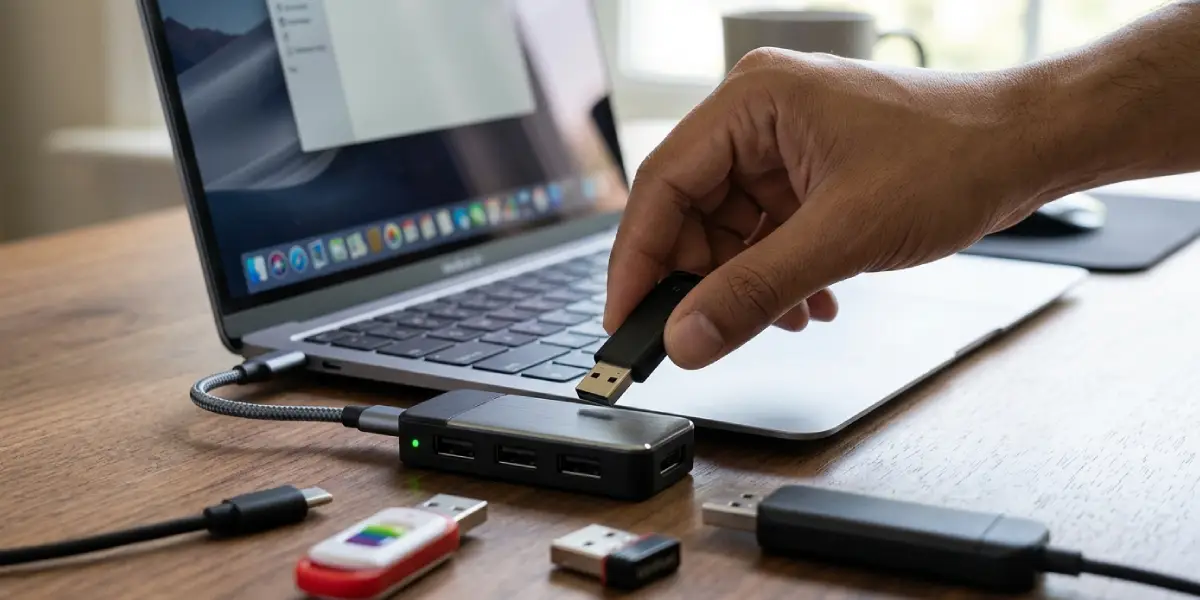
Tip: Label which hub port each device is normally plugged into before troubleshooting. It makes it much easier to spot whether one specific port has failed versus a wider power issue.
Before You Start
No disassembly is required for most of these fixes, but a few basic precautions help avoid wasted time and prevent damage to connected drives or accessories.
- Close any programs actively reading from or writing to devices connected through the hub before unplugging anything.
- Safely eject external drives using the operating system’s eject function rather than pulling them out live.
- Power off the computer before opening the case if checking an internal USB header, and touch a bare metal part of the case first to discharge static.
- If a hub or cable feels unusually hot, smells burnt, or shows visible damage, stop using it and replace it rather than attempting a repair.

Common Problems and Fixes
Hub Powers Some Devices But Not Others
This points to total power capacity being exceeded rather than a full hub failure. Removing lower-priority devices or upgrading to a powered hub usually resolves it, since high-draw accessories like portable SSDs need more current than simple peripherals like a mouse or keyboard.
Hub Works on One Computer But Not Another
This is almost always a difference in how much power each computer’s USB ports supply, or a driver conflict on the machine that is failing. Updating USB drivers on the problem computer typically fixes it.
Devices Disconnect and Reconnect Repeatedly
Intermittent power delivery like this often traces back to a loose or worn hub port, a marginal cable connection, or selective suspend cycling the port on and off. Testing with a different cable and disabling power-saving settings usually narrows it down quickly.
Powered Hub Still Not Providing Power
Check that the AC adapter is fully seated and that the hub’s power switch, if it has one, is actually turned on. A failed internal fuse or dead adapter is also possible on an older hub and typically means it is time to replace the unit.
Frequently Asked Questions
Why does a USB hub stop powering devices after working fine before?
This usually happens when a new high-draw device gets added to the mix, when a driver update changes power management behavior, or when a port or cable starts to wear out. Testing devices individually helps pinpoint the change.
What is the difference between a powered and unpowered USB hub?
A powered hub plugs into a wall outlet and supplies its own electricity to connected devices. An unpowered, or bus-powered, hub pulls all its power from the host computer’s USB port, which limits how much it can deliver.
Can a USB cable really cause a power problem even if data works?
Yes. Some cables are designed mainly for charging and lack the full wiring for reliable power negotiation, which can cause devices to charge slowly or not get recognized properly even though basic data transfer still works.
Why do external hard drives fail to work on a USB hub but work when plugged directly into the computer?
External drives typically need more consistent power than a bus-powered hub can reliably supply once other devices are also connected. Plugging directly into the computer, or using a powered hub, usually solves this.
Does USB selective suspend cause power problems on hubs?
It can. This Windows power-saving feature occasionally cuts power to a USB port it considers idle, which may disconnect or fail to power a device connected through a hub. Disabling it for the USB root hubs in Device Manager often fixes the issue.
How much power does a USB hub actually provide per port?
It varies by hub design and USB standard, and depends on whether the hub is bus-powered or has its own AC adapter. Checking the hub’s specifications or manual gives the exact rated output per port.
Is it safe to use a USB hub to charge a phone or tablet?
A powered hub with adequate per-port output is generally fine for charging. A bus-powered hub may charge more slowly, especially with several devices connected at once, since available power is shared across all ports.
Can outdated motherboard drivers cause a USB hub to lose power?
Yes. The chipset driver manages power negotiation between the motherboard’s USB controller and connected devices, so an outdated or corrupted version can interfere with proper power delivery even when the hub itself is healthy.
When should a USB hub be replaced instead of repaired?
If a hub still fails to power devices after trying a different cable, port, and computer, and especially if it shows signs of physical damage or overheating, replacing it is the safer and more practical option.
Do USB-C hubs have the same power delivery issues as USB-A hubs?
The same basic principles apply, though USB-C hubs often support higher power output through USB Power Delivery. A USB-C hub without its own power source can still be limited by how much the host port or laptop can supply.
