
External speakers not detected is one of the most common audio complaints on both Windows and Mac systems, and it almost always comes down to a handful of predictable causes. This guide walks through the exact troubleshooting order a technician would use, starting with the simplest checks and moving toward driver and system-level fixes. Most cases get resolved without needing to buy new hardware.
Key Takeaways
- Loose cables, wrong output selection, and outdated drivers cause the vast majority of detection failures.
- Windows and Mac both include a built-in sound troubleshooter worth running before anything else.
- Wired, USB, and Bluetooth speakers each have slightly different failure points and fixes.
- Reinstalling the audio driver clears up stubborn cases that survive a basic reboot.
- A quick test on a second device rules out a dead speaker in under a minute.
Before You Start
Power down the speakers and disconnect them from the computer before inspecting any cable or port. Avoid forcing a plug into a port at an angle, since that can bend or snap internal pins over time. None of the fixes below require opening the computer or the speaker enclosure, so no static precautions or disassembly are needed. Having a second known-working cable and an alternate USB port on hand makes the process faster.
Common Causes of External Speakers Not Detected
Before jumping into fixes, it helps to understand what typically triggers this problem. Narrowing down the cause first saves time and prevents chasing the wrong fix.
- A loose, worn, or damaged audio cable, USB cable, or connector.
- The wrong device selected as the default playback output in the operating system.
- Outdated, corrupted, or missing audio drivers.
- The Windows Audio service stopped or disabled.
- A faulty or underpowered USB port, especially on laptops with limited USB power budgets.
- Bluetooth pairing that connects but never gets set as the active audio output.
- Audio enhancements or an app’s exclusive mode setting blocking other programs from using the device.
- A dead speaker, blown internal fuse, or failed amplifier inside the speaker itself.
Step-by-Step Fixes for Undetected External Speakers
Check the Physical Connection First
- Step 1: Unplug the speaker cable from both the speaker and the computer, then plug it back in firmly until it clicks or seats fully.
- Step 2: If the speaker uses a 3.5mm jack, confirm it is in the correct port, since many laptops and desktops share a combo jack for headphones and microphones that can cause mismatched detection.
- Step 3: Try a different cable if one is available. A pinched or frayed cable often causes intermittent or total loss of detection.
- Step 4: For USB speakers, switch to a different USB port, ideally one built directly into the motherboard rather than through a hub or dock.
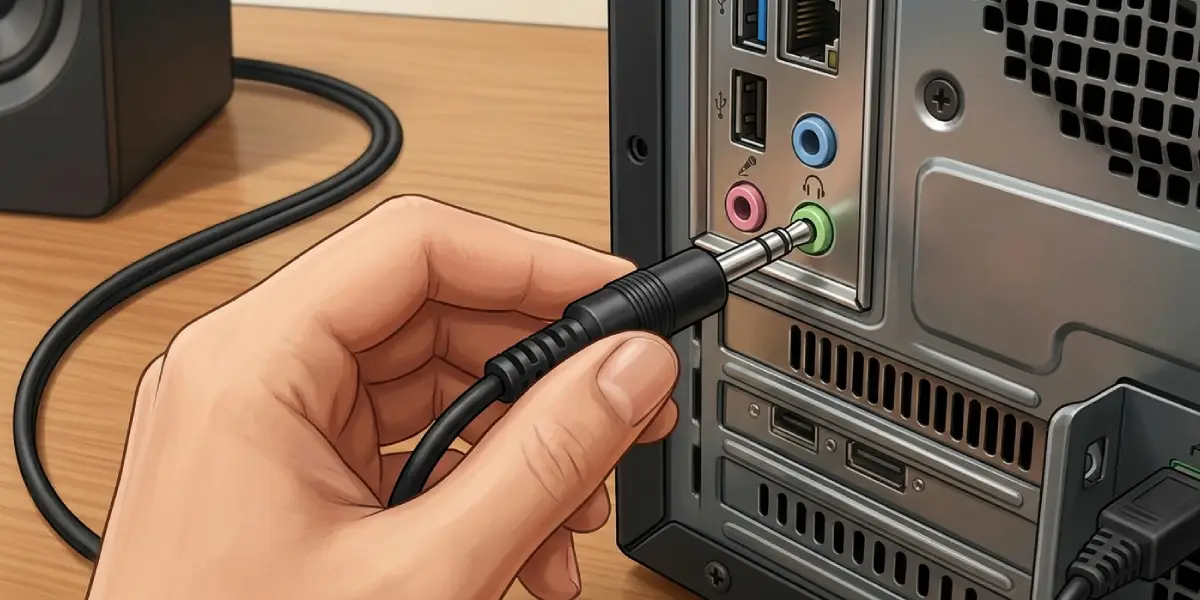
Tip: Test the speaker on a phone, tablet, or another computer using the same cable type. If it stays silent there too, the speaker itself is the likely problem, not the computer.
Check the Default Output Device
- Step 5: On Windows, right-click the speaker icon in the taskbar and select ‘Sound settings’, then confirm the correct speaker is chosen under ‘Output’.
- Step 6: On Mac, open ‘System Settings’, select ‘Sound’, and check the ‘Output’ tab for the correct device.
- Step 7: If the speaker does not appear in the list at all, open Device Manager on Windows or ‘About This Mac’ > ‘System Report’ > ‘Audio’ on Mac to see if the operating system recognizes the hardware at a lower level.
Run the Built-In Audio Troubleshooter
- Step 8: On Windows, go to ‘Settings’ > ‘System’ > ‘Troubleshoot’ > ‘Other troubleshooters’ and run the ‘Playing Audio’ troubleshooter.
- Step 9: Follow the prompts, since it automatically checks for disabled devices, incorrect defaults, and stopped services.
Update or Reinstall the Audio Driver
- Step 10: Open Device Manager, expand ‘Sound, video and game controllers’, right-click the audio device, and select ‘Update driver’.
- Step 11: If updating does not help, right-click the same device and select ‘Uninstall device’, then restart the computer so Windows reinstalls a fresh driver automatically.
- Step 12: For USB speakers with dedicated software, check the manufacturer’s website for the current driver package rather than relying only on the generic Windows driver.

Tip: A driver reinstall fixes far more cases than most people expect, especially after a Windows feature update quietly resets or breaks an existing audio driver.
Check the Windows Audio Service
- Step 13: Press the Windows key and R, type ‘services.msc’, and press Enter.
- Step 14: Find ‘Windows Audio’ in the list, right-click it, and confirm it is set to ‘Running’ and the startup type is ‘Automatic’.
- Step 15: Do the same for ‘Windows Audio Endpoint Builder’, since both services need to be active for any playback device to register.
Fix Bluetooth Speaker Detection
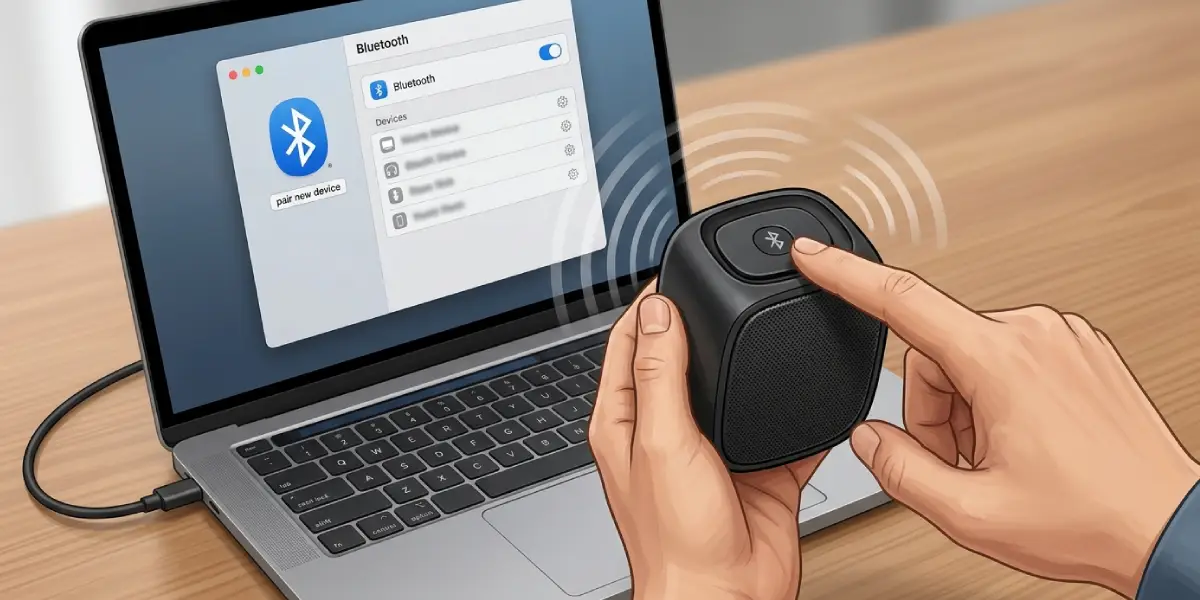
- Step 16: Remove the speaker from the paired devices list, turn the speaker off and back on, then pair it again from scratch.
- Step 17: After pairing, manually select it as the audio output, since Bluetooth devices sometimes connect for control purposes without becoming the active sound device.
- Step 18: Keep the speaker within a few feet of the computer during setup, since interference from other wireless devices can disrupt the initial handshake.
Common Problems and Fixes
Speaker Is Detected but Produces No Sound
Check for muted volume both on the speaker itself and in the operating system’s volume mixer, since apps can sometimes have their own independent mute setting separate from the system volume.
Speaker Shows Up as a Generic or Unknown Device
This usually points to a missing driver rather than a hardware fault. Reinstalling the driver as described above typically restores the correct device name and functionality.
Speaker Works on One USB Port but Not Another
This points to a weak or failing USB port rather than the speaker. Ports connected through an external hub sometimes cannot supply enough power, so connecting directly to the computer often resolves it.
Speakers Stopped Working After a Windows Update
Updates occasionally roll back or replace audio drivers. Reinstalling the driver, or rolling back to a previous version through Device Manager’s ‘Roll Back Driver’ option, usually restores normal function.
Speaker Not Detected Only in a Specific App
Some applications reserve the audio device in ‘exclusive mode’. In Windows Sound settings, open the speaker’s ‘Properties’, go to the ‘Advanced’ tab, and uncheck ‘Allow applications to take exclusive control of this device’.
Frequently Asked Questions
Why does Windows not detect external speakers at all?
The most frequent cause is a loose connection or an outdated driver. Running the built-in audio troubleshooter and reinstalling the driver resolves this in most cases.
Why do external speakers work on one computer but not another?
This usually points to a driver or output setting issue on the computer that fails to detect the speaker, rather than a problem with the speaker itself, since the speaker already proved functional elsewhere.
Can a bad USB port cause speakers not to be detected?
Yes. A worn or underpowered USB port can fail to supply enough power for a USB speaker to initialize properly, which prevents it from appearing as an audio device.
Why did external speakers stop working after a Windows update?
Windows updates sometimes reset or replace audio drivers. Reinstalling the current driver or rolling back to the previous version through Device Manager typically fixes it.
How to fix Bluetooth speakers not showing up as an output device?
Remove the pairing, restart the speaker, pair it again, and manually select it under Sound settings, since a successful pairing does not always automatically set it as the active output.
Do external speakers need special drivers?
Basic wired speakers typically use the computer’s generic audio driver. USB speakers, audio interfaces, and soundbars sometimes need a manufacturer-specific driver for full detection and functionality.
Why does the speaker icon show a red X or exclamation mark?
This indicates the operating system does not currently see an active playback device. It usually means the speaker is disconnected, disabled in Device Manager, or affected by a driver issue.
Can outdated BIOS or firmware affect audio device detection?
On rare occasions, outdated motherboard firmware affects onboard audio controllers used for connected speakers. Checking for a BIOS update is worth trying only after standard software fixes have been ruled out.
Is it safe to reinstall audio drivers?
Yes. Uninstalling and letting Windows reinstall the driver on restart is a standard, low-risk troubleshooting step that resolves many stubborn detection issues.
When should professional repair be considered?
If the speaker fails to produce sound on multiple devices and cables, and driver troubleshooting does not help, the issue is likely an internal hardware fault such as a blown amplifier, which calls for professional repair or replacement.
