
Quick Answer: Click the network/sound/battery icons in the bottom-right corner of the taskbar, then drag the brightness slider. That’s the fastest way to adjust screen brightness in Windows 11 — no settings menu required.
Windows 11 makes brightness control pretty simple once you know where to look. Whether the screen is blinding in a dark room or dimming on its own while switching apps, there’s a setting for that. Here are the easiest methods, starting with the most beginner-friendly.
Method 1: Quick Settings Panel (Easiest, No Menus Needed)
This is the go-to method for most people. Two clicks and done.
- Step 1: Click the Wi-Fi, volume, or battery icon cluster in the bottom-right corner of the taskbar. Or press Windows key + A.
- Step 2: A small panel pops up with a brightness slider near the top.
- Step 3: Drag the slider left to dim or right to brighten.
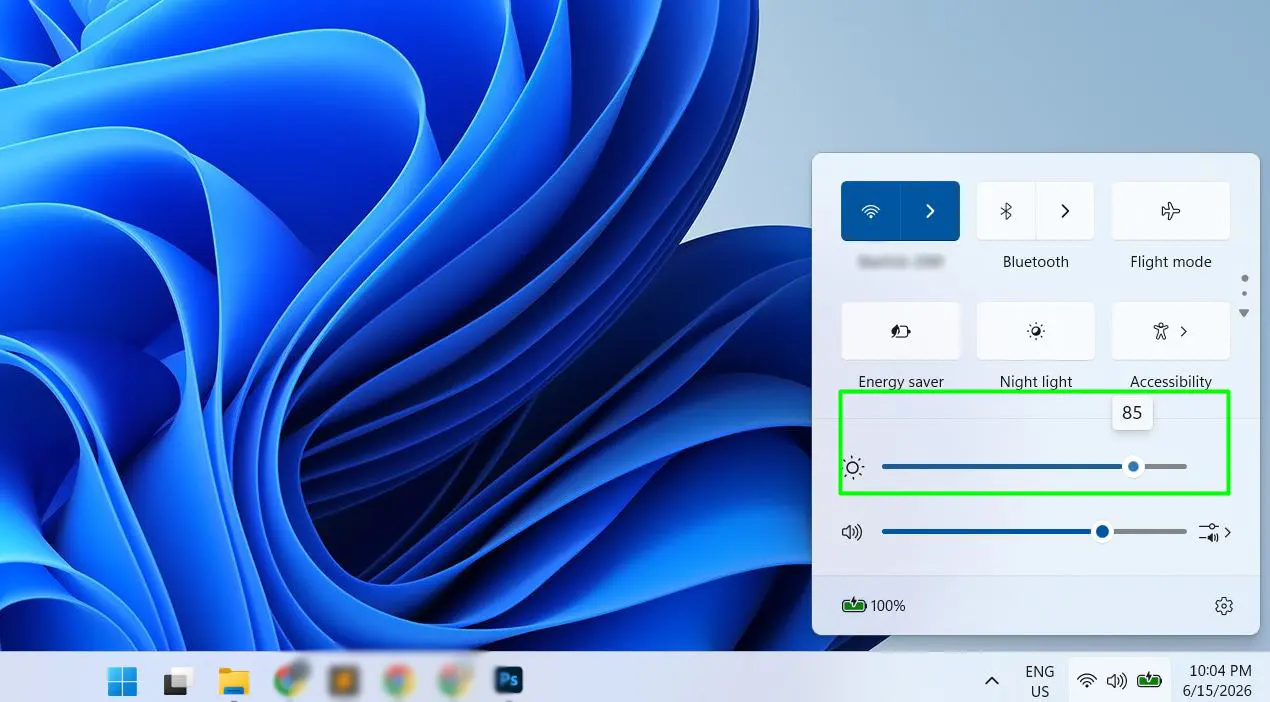
Tip: Hover the mouse over the battery or volume icon in the taskbar and scroll the mouse wheel up or down — brightness changes instantly without opening anything.
No slider visible? That usually means an external monitor is connected. External monitors don’t respond to the Windows brightness slider — use the physical buttons on the monitor itself.
Method 2: Keyboard Shortcut Keys (Fastest Overall)
Most laptops have dedicated brightness keys built into the function row. Here’s the thing — this is even faster than the panel.
- Step 1: Look at the F1–F12 keys on the keyboard. Find the ones with sun icons (small sun = dim, large sun = bright).
- Step 2: Press the brightness up or down key.
- Step 3: If nothing happens, hold the Fn key while pressing the brightness key.
Method 3: Windows Settings (Most Control)
Need a specific brightness percentage or access to extra options? Go here.
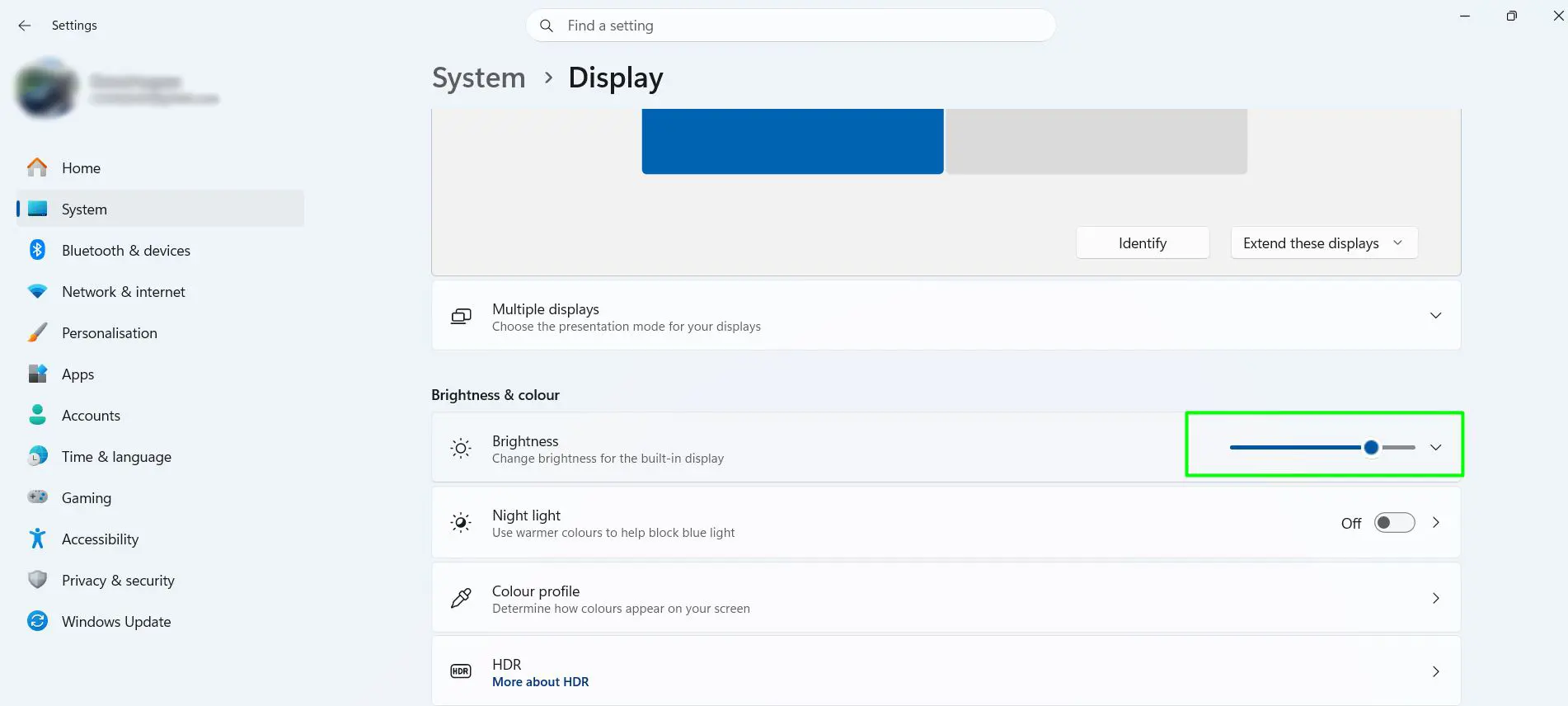
- Step 1: Press Windows key + I to open Settings.
- Step 2: Click System, then select Display.
- Step 3: Under Brightness & color, drag the slider to the desired level.
Method 4: Windows Mobility Center (Laptops Only)
A handy all-in-one panel that’s been around forever and still works great.
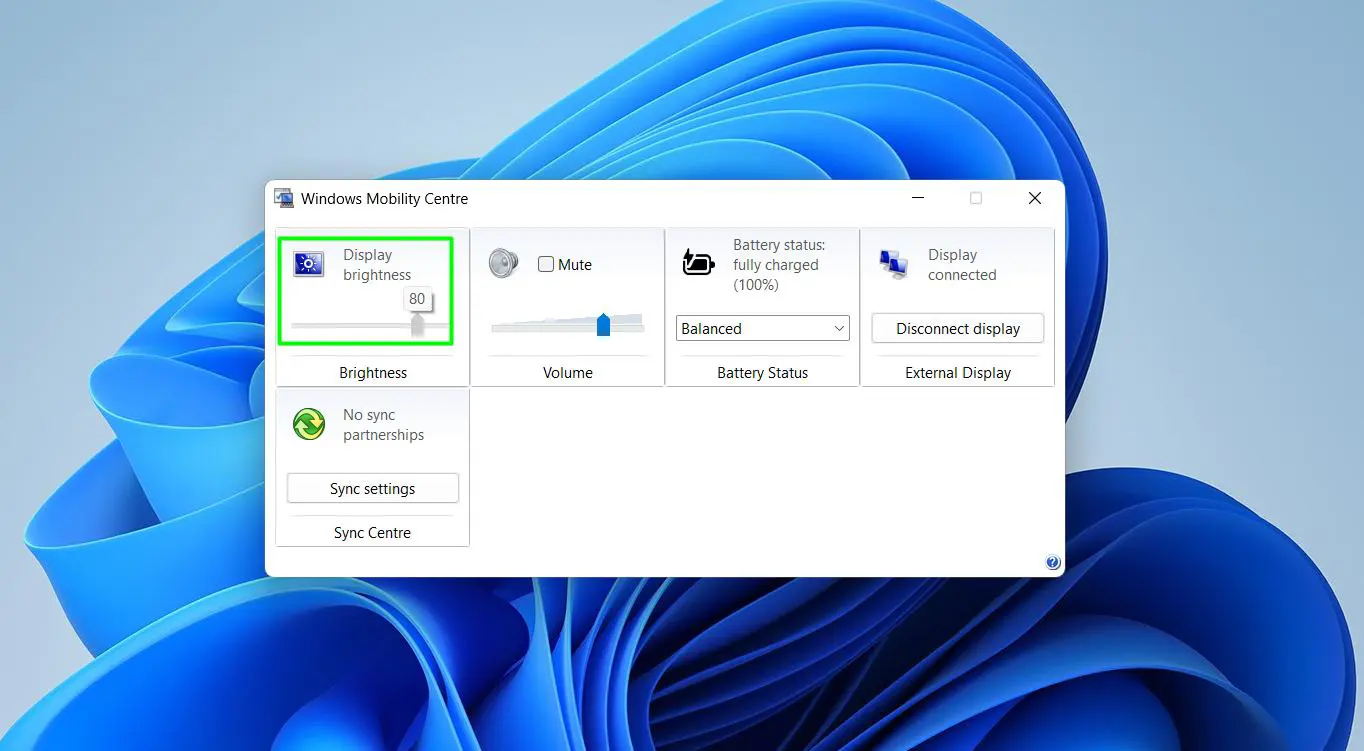
- Step 1: Press Windows key + X.
- Step 2: Select Mobility Center from the list.
- Step 3: Drag the brightness slider to the preferred level.
Method 5: Graphics Card Control Panel (NVIDIA, AMD, or Intel)
This is especially useful for desktop PC users where the Windows brightness slider is unavailable.
- Step 1: Right-click on an empty area of the desktop.
- Step 2: Open NVIDIA Control Panel, AMD Software, or Intel Graphics Command Center — whichever appears.
- Step 3: Go to display or color settings.
- Step 4: Adjust brightness, gamma, or color correction and apply.
Method 6: Voice Commands (Hands-Free)
For anyone who prefers not to use a mouse or keyboard at all, Windows 11 has voice control built in.
- Step 1: Go to Settings > Accessibility > Voice Access and turn it on.
- Step 2: Say “Open Quick Settings” — the brightness panel appears.
- Step 3: Say “Click brightness slider”, then “Move right” or “Move left”.
How to Stop Brightness from Changing on Its Own
Screen keeps shifting brightness automatically? That’s almost always caused by a feature called Content Adaptive Brightness Control (CABC). It adjusts based on what’s on the screen to save power — but most people find it more annoying than helpful. Here’s how to turn it off permanently.
- Step 1: Press Windows key + I to open Settings.
- Step 2: Go to System > Display.
- Step 3: Click on “Brightness” to expand the options.
- Step 4: Find “Change brightness based on content” and set it to Off.
- Step 5: Also turn off “Change brightness automatically when lighting changes” if it’s there.
- Step 6: Close Settings — brightness stays fixed from now on.
The “On Battery Only” option is a great middle ground — CABC only activates when unplugged, so it saves power on the go while keeping brightness stable at the desk.
How to Set Different Brightness for Battery vs. Plugged In
Want the screen dimmer on battery and brighter when plugged in? Windows 11 handles this natively.
- Step 1: Go to Settings > System > Display.
- Step 2: Scroll to Brightness & color.
- Step 3: Click the dropdown next to the brightness slider.
- Step 4: Under “Change brightness based on content”, choose Off, On battery only, or Always.
The “On battery only” setting is the most practical choice for laptop users who want both performance and power savings.
What Brightness Level Is Actually Good for Your Eyes?
The key is matching the screen brightness to the room lighting. A screen that’s much brighter than the room acts like a light source aimed at the eyes — that’s what causes strain.
Quick test: Open a blank white document and hold a sheet of white paper next to the screen. If the screen looks noticeably brighter than the paper, it’s too high. Adjust until they look roughly the same.
| Environment | Recommended Brightness | Extra Tip |
| Bright Sunlight | 80% – 100% | Angle screen away from direct glare. |
| Typical Office | 50% – 70% | Match the brightness of overhead lights. |
| Dimly Lit Room | 25% – 40% | Turn on Night Light to reduce blue light. |
| Pitch Black Room | 10% – 20% | Use Dark Mode across all apps. |
Also worth practicing: the 20-20-20 rule. Every 20 minutes, look at something about 20 feet away for 20 seconds. Sounds simple, and it genuinely helps reduce eye fatigue over long sessions.
Brightness Tips Worth Knowing
- Enable Night Light in the evenings. It shifts the display to warmer tones and reduces blue light. Go to Settings > System > Display and toggle Night Light on. Set a schedule so it activates automatically at sunset.
- Lower brightness = longer battery life. The display typically uses 20–40% of total system power. Dropping from 100% to 50% can add 30–60 minutes of runtime — that’s a meaningful difference on a long day.
- Create a desktop shortcut for direct brightness access. Right-click the desktop, choose New > Shortcut, and type
ms-settings:displayas the location. Name it and finish. Pin it to the taskbar for one-click access to the brightness slider. - OLED screen users: keep brightness below 60%. OLED pixels emit their own light, so high brightness on static content like the taskbar can cause burn-in over time. Lower brightness also directly reduces power draw on OLED displays.
- For external monitors, use Twinkle Tray. It’s a free app from the Microsoft Store that adds individual brightness sliders for all connected monitors directly in the system tray — much easier than navigating the monitor’s physical button menu every time.
- Battery Saver dims the screen automatically. When enabled, Windows 11 lowers brightness as part of its power-saving routine. Find it under Settings > System > Power & battery.
Frequently Asked Questions
Why is my brightness slider grayed out or missing in Windows 11?
This almost always means the display driver needs updating. Right-click the Start button, open Device Manager, expand Display adapters, right-click the graphics card, and select Update driver. Do the same under the Monitors section. After updating, restart the PC. If the slider still doesn’t appear, try disabling and re-enabling the display adapter in Device Manager to force Windows to re-detect it.
Why does my screen brightness keep changing on its own?
Three things cause this. First, Content Adaptive Brightness Control (CABC) adjusts brightness based on screen content — turn it off under Settings > System > Display > Brightness > Change brightness based on content > Off. Second, the ambient light sensor reacts to room lighting — disable “Change brightness automatically when lighting changes” in the same menu. Third, the graphics card software may have dynamic contrast or eco-mode enabled — open the GPU control panel and turn those off too.
How do I adjust brightness on an external monitor in Windows 11?
The Windows brightness slider doesn’t control external monitors. Use the physical buttons on the monitor to open the on-screen display (OSD) menu, then navigate to Brightness or Picture settings. For a software solution, install Twinkle Tray from the Microsoft Store — it adds sliders for all connected monitors in the system tray, as long as DDC/CI is enabled in the monitor’s OSD settings.
Does lowering screen brightness actually save battery life?
Yes, significantly. The display is one of the biggest power consumers on a laptop — typically 20–40% of total usage. Cutting brightness from 100% to 50% can realistically add 30–60 minutes of battery life. OLED displays benefit even more since each pixel draws less power at lower brightness. It’s one of the easiest battery wins available.
What is the best brightness for eye health?
Most people find that matching screen brightness to room lighting works best. In a typical office, 50–70% is comfortable. In a dim room, 25–40% is better. For pitch-dark environments, drop to 10–20% and enable Dark Mode. The paper test is a reliable guide: hold a white sheet next to a white document on screen — if they look roughly the same brightness, the setting is right. Also enable Night Light in the evenings to reduce blue light exposure.
Can brightness be scheduled to change automatically in Windows 11?
Yes — through Night Light. Go to Settings > System > Display > Night Light settings and set a schedule for it to activate at sunset or at a custom time. This warms the display tone and reduces perceived brightness in the evening. For full brightness automation at specific percentages, a PowerShell script combined with Windows Task Scheduler can trigger exact brightness levels at set times of day.
My laptop function keys aren’t changing brightness — what’s wrong?
This is almost always a missing hotkey driver. Visit the laptop brand’s support website (Dell, HP, Lenovo, ASUS, Acer, etc.), search for the exact laptop model, and download the Hotkey Driver or Function Key Driver. Install it and restart. The brightness keys should work immediately after. If they still don’t respond, check the BIOS/UEFI settings — some laptops have a “Function Key Lock” setting that needs to be toggled.
Why is the screen still too bright even at the lowest brightness setting?
A few things could cause this. The GPU control panel (Intel, AMD, or NVIDIA) may have a minimum brightness floor set — open it and check the display or color settings. If HDR is enabled, the SDR content brightness slider in Settings > System > Display may be set too high — lower it separately. Enabling Night Light and reducing its strength slider can also help reduce perceived brightness in dark environments.
Can brightness be set differently for battery and plugged-in modes?
Yes. In Settings > System > Display, click the dropdown next to the brightness slider and choose “On battery only” for the CABC setting. For precise percentage control per power state, create a custom power plan through Control Panel > Power Options > Create a power plan, where separate brightness sliders for battery and plugged-in use are available.
Does Windows 11’s Battery Saver mode lower brightness automatically?
Yes. When Battery Saver activates — either manually or when the battery drops below a set threshold — Windows 11 dims the screen as part of its power-saving routine. The threshold and behavior can be adjusted under Settings > System > Power & battery > Battery saver. It’s an easy hands-free way to protect battery life without touching the brightness slider manually every time the charger is unplugged.
