
Quick Answer: Go to Settings > Personalization > Colors, then set “Choose your mode” to Dark. That’s it — no restart needed, changes apply instantly.
How to Switch to a Dark Background Theme on Windows 11
Eyes hurting from a blazing white screen at night? Dark mode is the fix — and it takes less than a minute to turn on. The Start menu, taskbar, File Explorer, and most apps all flip to dark backgrounds automatically once it’s on.
Three methods are listed below, starting with the easiest. Pick the one that works for the situation.
Method 1: Change It Through Colors Settings (Easiest)
This is the fastest and most straightforward way. It changes everything at once — Start menu, taskbar, File Explorer, notification panels, and all system windows.
- Step 1: Press Windows key + I to open Settings.
- Step 2: Click Personalization in the left sidebar.
- Step 3: Click Colors.
- Step 4: Under “Choose your mode,” open the dropdown and select Dark.
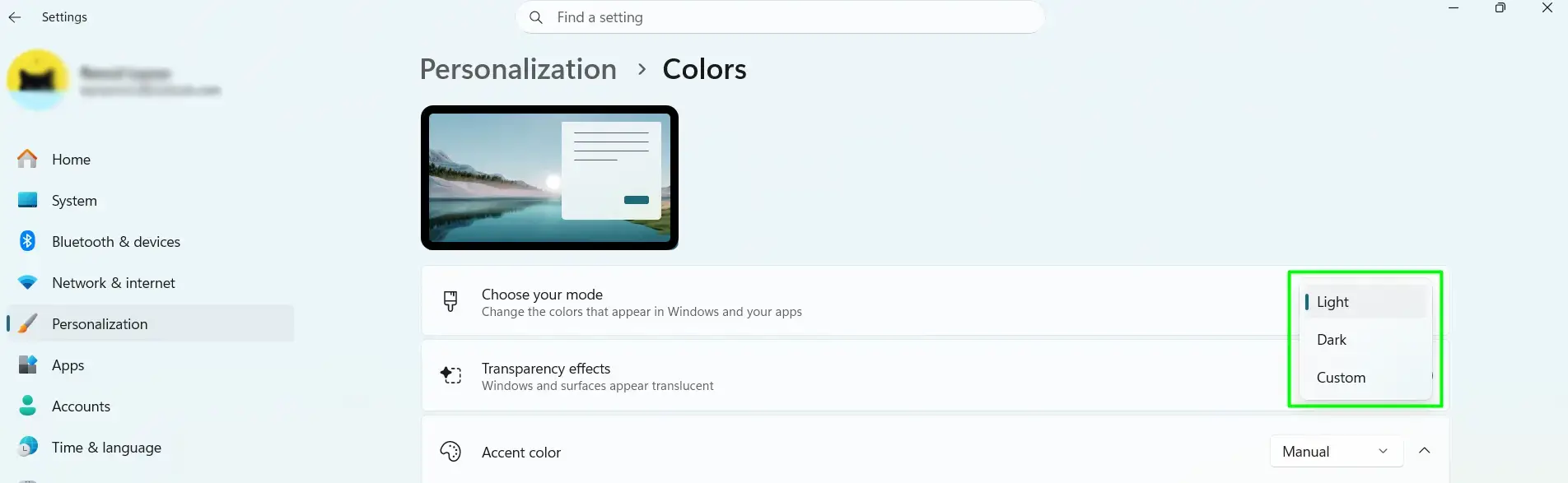
Done. The entire interface switches instantly — no restart, nothing extra to do.
Bonus tip: Selecting Custom instead of Dark lets you keep Windows dark while certain apps stay in light mode, or the other way around. Handy if some apps are easier to read on a white background.
Method 2: Right-Click the Desktop (Quickest Shortcut)
Here’s the thing — if navigating through Settings feels like too many clicks, this skips most of it.
- Step 1: Right-click anywhere on the desktop and select Personalize.
- Step 2: Click Colors.
- Step 3: Set “Choose your mode” to Dark.
Same result as Method 1 — just a faster path to get there.
Method 3: Apply a Full Dark Theme (Wallpaper + Colors Together)
The key is that this method does more than just change interface colors. It applies a matching wallpaper, cursor style, and sounds — everything packaged as one dark theme. Good choice if a consistent, put-together look matters.
- Step 1: Press Windows key + I to open Settings.
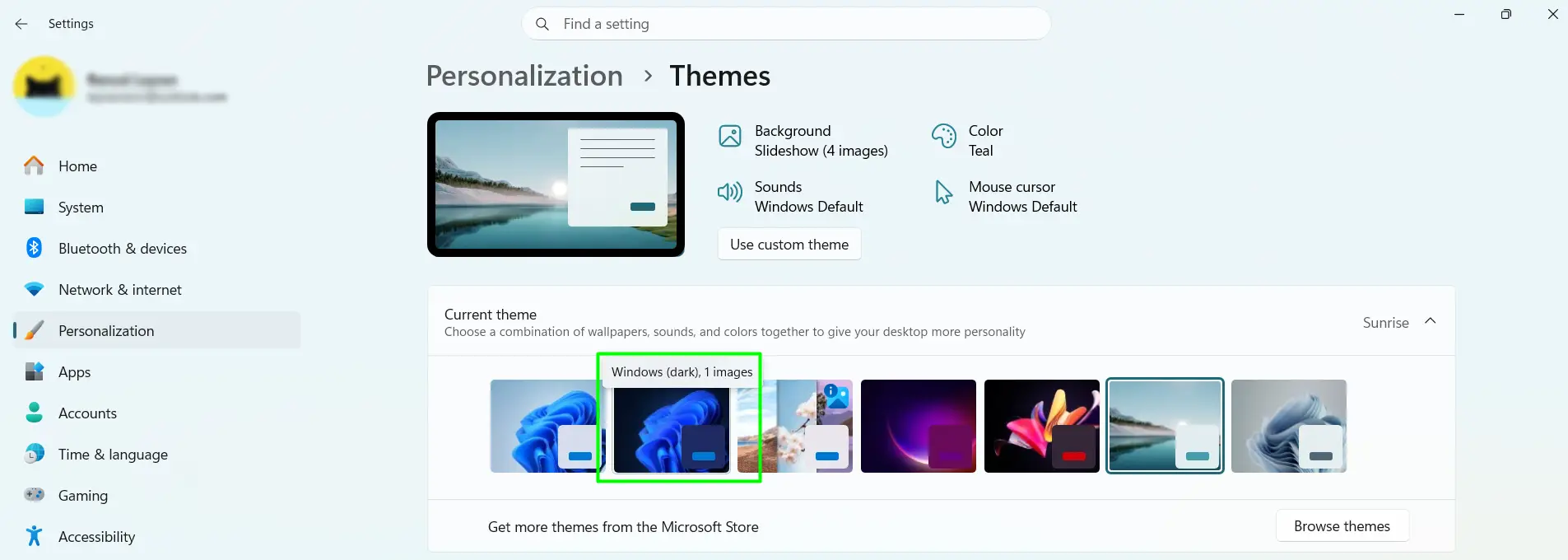
- Step 2: Click Personalization, then click Themes.
- Step 3: Under Current theme, click the theme named Dark to apply it.
- Step 4: Want more options? Click Browse themes to find and download free dark theme packs from the Microsoft Store.
Tips to Get More Out of Dark Mode
- Use a dark wallpaper. A bright, colorful image clashes badly with a dark interface. Swap it for something neutral or dark-toned for a cleaner look.
- Turn on Night Light too. Go to Settings > System > Display and enable Night Light. It warms the screen tone in the evening and pairs well with dark mode for easier late-night viewing.
- Set your browser to dark as well. Edge, Chrome, and Firefox all have their own dark theme settings. Switching them keeps the whole screen consistent instead of a jarring white browser on a dark desktop.
- Pick an accent color. Head to Personalization > Colors and choose an accent color. A well-chosen color against dark backgrounds makes the interface feel sharp and intentional.
- Check apps individually. Older apps don’t follow the Windows system theme. Look inside their own settings for a display or theme toggle if they stay white after switching.
- Try Auto Dark Mode. Windows doesn’t schedule theme switching on its own. The free app Auto Dark Mode (available on the Microsoft Store and GitHub) handles this — set preferred hours and it switches automatically every day without any manual effort.
- Adjust screen brightness. Most people find that dark mode works best at a moderate brightness level. Cranked all the way up, it still puts strain on the eyes.
Frequently Asked Questions
Does dark mode actually reduce eye strain?
Yes — especially in dim or dark rooms. A bright white screen in low light acts like a flashlight pointed at the face. Dark mode cuts that intensity down significantly. It won’t eliminate all strain, but most people notice the difference quickly, especially during evening or night use.
Will dark mode save battery life on a Windows laptop?
It depends on the screen type. On laptops with OLED or AMOLED displays, yes — dark pixels draw almost no power, so battery savings are real. On standard LCD screens, the backlight stays on regardless of what’s displayed, so the battery benefit is minimal. The eye comfort gain applies either way.
Why didn’t dark mode change all my apps?
Some apps — mostly older or third-party ones — aren’t built to read the Windows system theme. They keep their own built-in appearance no matter what the system is set to. Open that specific app’s settings and look for a theme or display mode option to change it manually.
Can dark mode be scheduled to turn on automatically?
Windows 11 doesn’t include built-in scheduling for this. A free app called Auto Dark Mode fills that gap well. It’s available on the Microsoft Store and GitHub. Set the preferred light and dark hours once and it handles switching automatically every day.
How do I go back to light mode?
Go to Settings > Personalization > Colors and select Light from the mode dropdown. The change is instant. Switching back and forth as often as needed is fine — no restart required either way.
What is the difference between dark mode and high contrast mode?
Dark mode switches the interface to dark backgrounds with light text — it’s built for comfort and aesthetics. High contrast mode (found under Accessibility > Contrast themes) uses much stronger, bolder color combinations specifically for users who need maximum visibility. High contrast mode overrides dark mode when active, so turn it off first if switching to standard dark mode.
Does switching to dark mode change the wallpaper?
Not with Methods 1 or 2 — the wallpaper stays exactly as set. If a full theme is applied using Method 3 (Themes section), the wallpaper may change depending on the theme selected.
What if the dark mode option is grayed out?
This usually happens when a high contrast theme is currently active. Go to Settings > Accessibility > Contrast themes and set it to None, then return to Personalization > Colors to switch to dark mode normally.
