
Quick Answer: Right-click your desktop → Display settings → scroll down to Advanced display → open the Choose a refresh rate dropdown → pick the highest option listed. That’s it. No restart needed.
Here’s the thing — buying a 144Hz monitor doesn’t mean Windows automatically uses it. Nine times out of ten, the system keeps running at 60Hz until you change it manually. That sluggish scrolling and choppy window movement? It’s a settings issue, not a hardware defect. This guide shows exactly how to fix it.
What Is Refresh Rate and Why Does It Matter?
Refresh rate is how many times per second the monitor redraws what’s on screen. At 60Hz, that’s 60 redraws per second. At 144Hz, it’s 144 — and the difference is immediately noticeable in how smooth scrolling, mouse movement, and animations feel.
The key is that three things all need to support the rate: the monitor, the graphics card, and the cable connecting them. If any one of those falls short, the higher refresh rate option simply won’t appear.
Method 1: Change Refresh Rate in Windows 11 Display Settings
This is the fastest way — built into Windows, no extra software needed.
- Right-click anywhere on the desktop
- Select Display settings from the menu
- Scroll down and click Advanced display
- Find the Choose a refresh rate dropdown
- Select the highest number in the list — that’s the maximum your monitor and cable can handle together
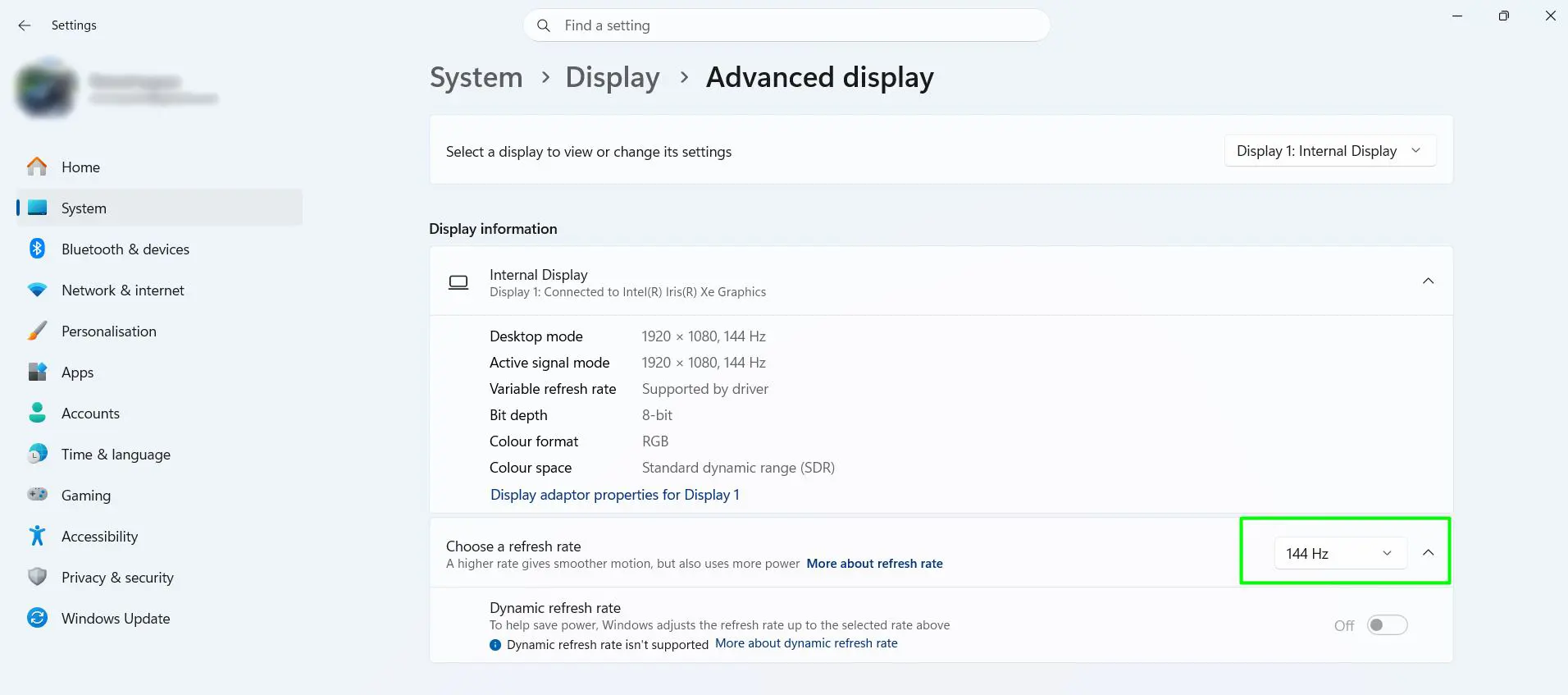
The change takes effect immediately — no restart required. The lower options in that dropdown exist for compatibility reasons only. Always go for the highest number listed.
Method 2: Change Refresh Rate for a Specific Monitor (Multiple Displays)
Running two screens? Each monitor has its own refresh rate setting. Here’s how to change one without affecting the other.
- Right-click the desktop and select Display settings
- At the top of the page, find the Select a display dropdown
- Choose the specific monitor you want to adjust
- Scroll down and click Advanced display
- Use the Choose a refresh rate dropdown to set the rate for that screen
- Repeat these steps for any other monitors if needed
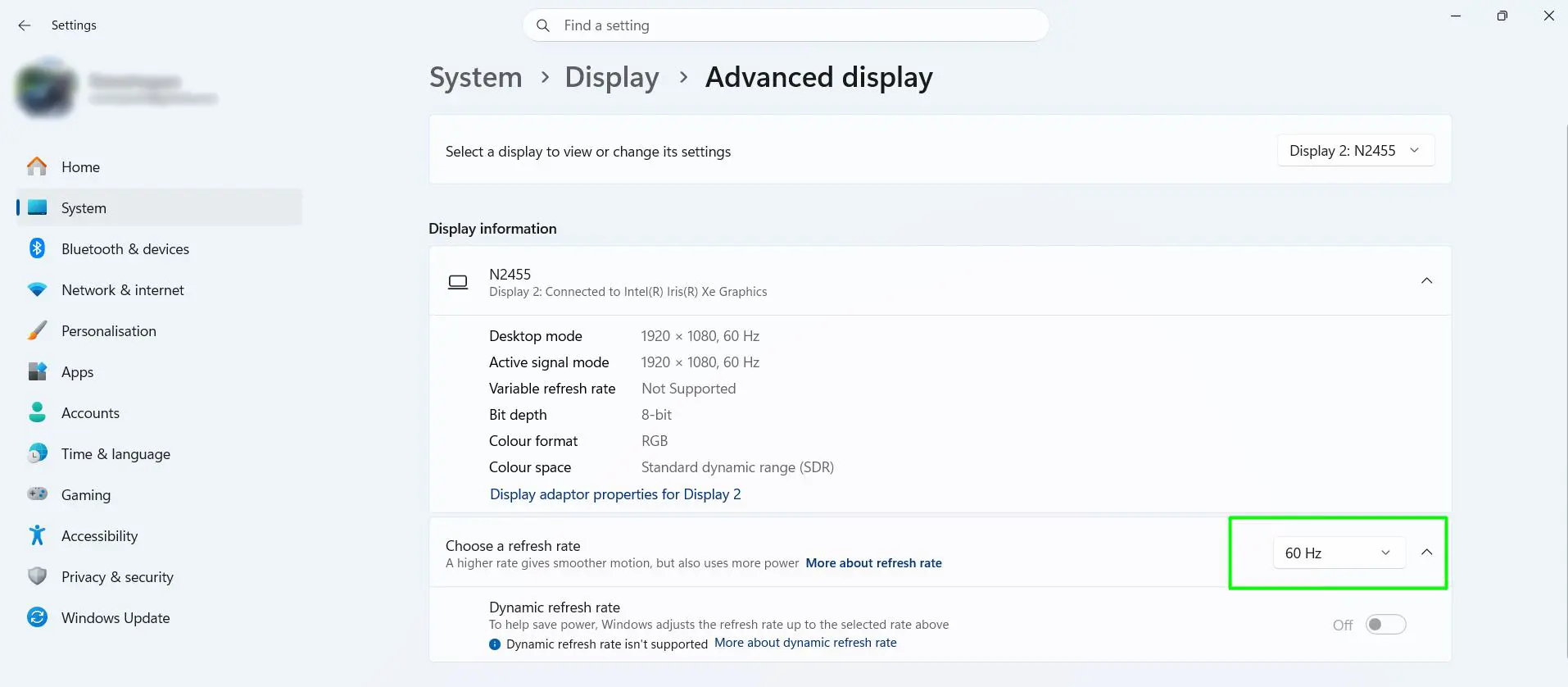
A 144Hz gaming monitor and a 60Hz office display can run side by side without any conflicts. Windows treats them as completely independent devices.
Tips
- Check your cable first if 144Hz isn’t showing up. An HDMI 1.4 cable physically cannot carry 144Hz at 1080p or higher. Swap it for a DisplayPort 1.4 or HDMI 2.1 cable and the option will appear. This is the most common reason the expected refresh rate is missing from the dropdown.
- Update your GPU drivers if the option still doesn’t appear. Outdated NVIDIA or AMD drivers sometimes hide available refresh rates. A driver update can unlock options that weren’t showing before.
- Lower the refresh rate on a laptop when unplugged. Running 144Hz on battery can reduce runtime by 30–60 minutes. Drop to 60Hz to extend battery life when away from a power source.
- Expect a lower max rate when HDR is on. Some monitors cap their refresh rate in HDR mode due to bandwidth limits — for example, dropping from 144Hz to 120Hz. Check the monitor’s spec sheet for its HDR-mode maximum.
- Verify the change actually took effect. Go back to Advanced display and confirm the dropdown shows the new rate. Most monitors also display the active refresh rate in their on-screen menu, accessible through the physical buttons on the monitor.
- For gaming, the frame rate needs to match. A 144Hz monitor only shows its full benefit if the GPU is pushing at least 144 frames per second in the game. If performance falls short, try lowering in-game graphics settings.
Frequently Asked Questions
Why is my 144Hz monitor stuck at 60Hz in Windows 11?
Most likely it’s the cable. An HDMI 1.4 cable can’t carry 144Hz at most resolutions — this is a physical limitation, not a settings bug. Switch to DisplayPort 1.4 or HDMI 2.1, then recheck the refresh rate dropdown. If the cable isn’t the issue, update your GPU drivers and try again.
Do I need to restart Windows after changing the refresh rate?
No. The change applies the moment you select it. The screen may flicker briefly — that’s normal and just means the new rate is being applied.
What refresh rate should be used for everyday desktop use?
Use the highest rate the monitor supports. Most people find that 120Hz or 144Hz makes scrolling and cursor movement noticeably smoother, even outside of gaming. There’s no meaningful downside for regular desktop work.
Why isn’t the expected refresh rate showing in the dropdown?
Three things control what appears in that list: the monitor’s maximum rate, the graphics card’s output capability, and the cable standard. HDMI 1.4 tops out at 1080p/120Hz. If a higher rate isn’t listed, start by replacing the cable with DisplayPort 1.4 or HDMI 2.1.
Can two monitors run at different refresh rates at the same time?
Yes. Windows 11 handles each monitor independently. A 144Hz gaming display and a 60Hz secondary monitor can run simultaneously without any issues. Just configure each one separately through Advanced display settings.
Does a higher refresh rate use more GPU power?
For basic desktop tasks, the impact is minimal and barely noticeable. In games, yes — getting 144 frames per second requires more from the GPU than 60fps. If the GPU can’t keep up, lowering in-game graphics settings is the solution.
Why does the refresh rate drop when HDR is turned on?
HDR requires more bandwidth than standard mode, and some monitors compensate by reducing their maximum refresh rate — for instance, from 144Hz down to 120Hz. This is a hardware limitation. The monitor’s spec sheet will list the maximum refresh rate available in HDR mode.
Is it safe to change the refresh rate in Windows 11?
Completely safe. Windows only shows rates the connected monitor officially supports, so nothing in that dropdown can cause hardware damage. If the screen goes black after a change, just wait — Windows automatically reverts to the previous setting after about 15 seconds if the change isn’t confirmed.
