
Knowing how to run a RAM diagnostic test is the fastest way to confirm whether random crashes, blue screens, or freezes are coming from a faulty memory module. This guide walks through the built-in Windows tool and a more thorough third-party option, so the problem can be pinned down without guessing.
Key Takeaways
- Windows Memory Diagnostic is built into every modern Windows PC and works well as a quick first check.
- MemTest86 runs outside the operating system and catches errors that Windows’ own tool sometimes misses.
- A full memory test can take anywhere from twenty minutes to several hours, depending on how much RAM is installed.
- Errors found during testing usually point to a specific stick, a loose connection, or a stability setting rather than a dead motherboard.
- Testing one module at a time is the only reliable way to isolate which stick is actually causing the problem.
Before You Start
Running a RAM diagnostic test itself is completely software-based and carries no risk to the hardware. The only physical step involved comes later, if a faulty stick needs to be reseated or removed for isolation testing. For that part, a few basic precautions matter.
- Shut the computer down completely and unplug it from the wall before opening the case.
- Touch a bare metal part of the case or use an anti-static wrist strap before handling any component inside.
- Have a small Phillips screwdriver on hand for opening a desktop case or laptop back panel.
- Keep a USB flash drive of at least 1GB free for creating a bootable MemTest86 drive.
Opening a laptop chassis can affect its warranty on some models, so check the manufacturer’s policy first. If a stick appears physically damaged, or the system will not power on at all, that is a sign to have a repair technician take a closer look rather than continuing to troubleshoot solo.
How to Run a RAM Diagnostic Test
Method 1: Windows Memory Diagnostic
This tool ships with every recent version of Windows and is the simplest way to start.
- Step 1: Click the Start menu, type ‘Windows Memory Diagnostic’, and open the app that appears.
- Step 2: Choose ‘Restart now and check for problems’ when the two options appear on screen.
- Step 3: Allow the computer to restart. The test runs automatically before Windows loads, showing progress on a blue screen.
- Step 4: Wait for the test to complete its standard pass. This typically takes ten to twenty minutes, though it varies with the amount of installed memory.
- Step 5: Let the PC boot back into Windows. Results appear as a notification, or can be found by searching ‘Event Viewer’ and looking under Windows Logs > System for an entry labeled MemoryDiagnostics-Results.
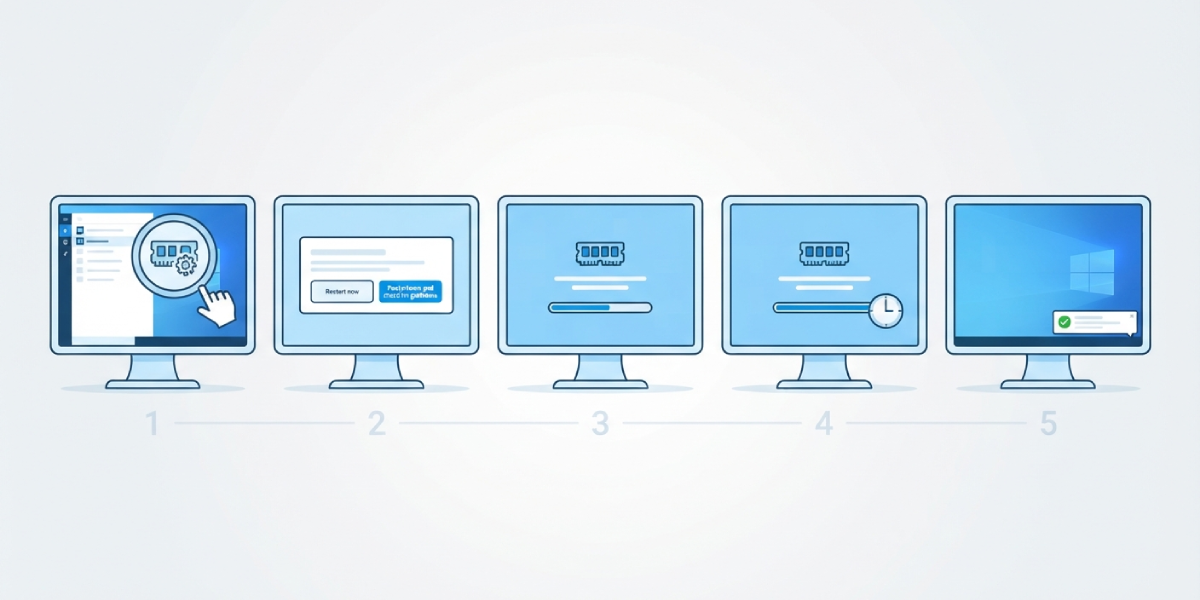
Tip: For a deeper scan, press F1 while the test is running to open extended options and switch from ‘Standard’ to ‘Extended’ test mode before it begins.
Method 2: MemTest86
MemTest86 runs from a bootable USB drive, completely independent of Windows, which makes it more sensitive to certain memory errors. This is the tool most technicians reach for when a stick is genuinely suspect.
- Step 1: On a working computer, download the official MemTest86 image from the developer’s website and use the included USB imaging tool to write it to the flash drive.
- Step 2: Insert the USB drive into the computer being tested and restart it.
- Step 3: Enter the boot menu during startup, usually by pressing a key like F12, F10, or Esc (the exact key depends on the motherboard or laptop brand), and select the USB drive.
- Step 4: Let MemTest86 load automatically and begin its test passes. A full run usually completes four full passes, which can take anywhere from thirty minutes to several hours on larger amounts of RAM.
- Step 5: Watch for any lines that appear in red or that report an error count above zero. A clean run shows all passes complete with zero errors.
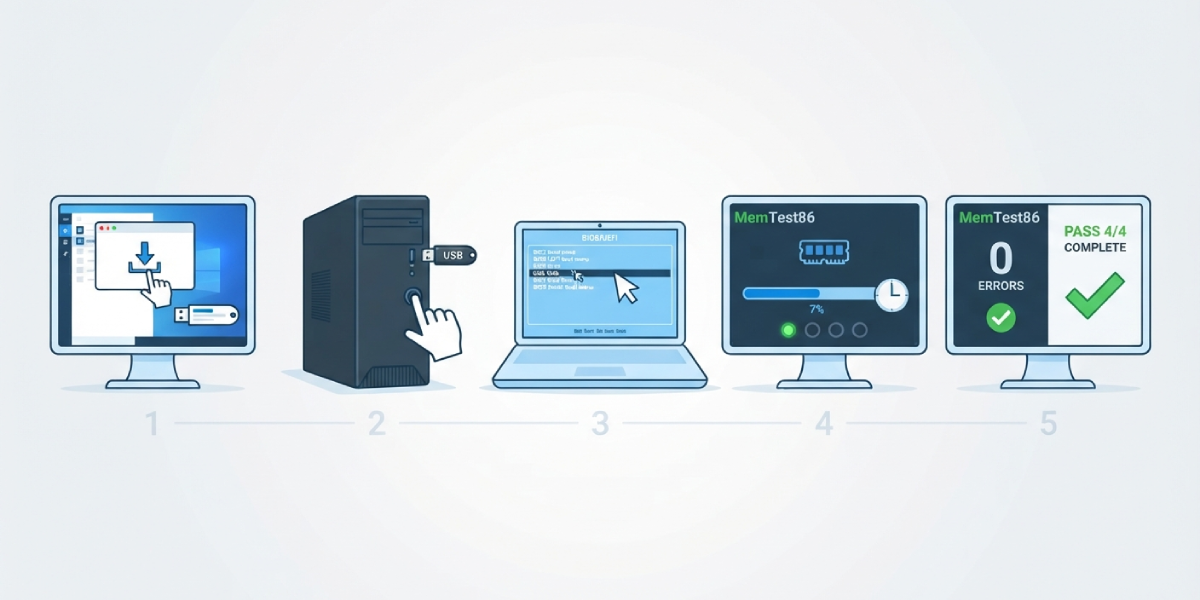
Tip: Letting MemTest86 run overnight is common practice, since a single pass sometimes misses intermittent errors that only show up after several hours of continuous testing.
Isolating a Faulty Stick
If either tool reports errors and more than one memory module is installed, the next task is figuring out which stick is responsible.
- Step 1: Power down, unplug the machine, and open the case or laptop panel following the precautions above.
- Step 2: Remove all but one memory module, leaving only a single stick installed in its slot.
- Step 3: Run the diagnostic test again with just that one stick installed.
- Step 4: Repeat the process, swapping in each remaining stick one at a time, testing each individually and noting which one produces errors.
- Step 5: Once the faulty module is identified, reinstall the good sticks and replace the failing one.
Common Problems and Fixes
The test freezes partway through. This often points to a genuinely bad module rather than a software glitch. Let it sit for a few minutes to rule out a temporary hang, then restart and try isolating individual sticks as described above.
MemTest86 will not boot from the USB drive. This is usually a BIOS setting issue. Enter the BIOS or UEFI setup and confirm that USB boot is enabled and that Secure Boot is temporarily disabled, since it can block unsigned boot media on some systems.
Windows Memory Diagnostic shows no results after restarting. The results sometimes fail to pop up as a notification. Check Event Viewer manually, since the log entry is usually there even when the on-screen alert does not appear.
Errors show up in Windows Memory Diagnostic but MemTest86 comes back clean, or the other way around. These tools use different testing patterns, so this discrepancy does happen. Treat MemTest86 as the more reliable result, since it runs outside the operating system and is less likely to be influenced by driver conflicts.
A reseated stick still throws errors in the same slot. This can mean the socket itself, not the module, is the problem. Try the same stick in a different slot on the motherboard before concluding the RAM itself is defective.
Frequently Asked Questions
How long does a RAM diagnostic test take?
A standard Windows Memory Diagnostic pass usually finishes in ten to twenty minutes. A full MemTest86 run with four passes can take anywhere from thirty minutes to several hours, depending on how much memory is installed.
Can a RAM diagnostic test damage the memory or the computer?
No. Running a diagnostic test only reads and writes data to check for errors, and it carries no risk of damaging a healthy or faulty memory module.
Do all memory sticks need to be tested at once, or one at a time?
Testing all sticks together first gives a quick overall answer. If errors turn up and more than one stick is installed, testing them individually afterward is the only way to identify which specific module is failing.
What do the error results actually mean?
Any error reported during a memory test indicates that a location in the RAM did not store or return data correctly. Even a single error is enough to explain crashes, freezes, or corrupted files, since memory data needs to be perfectly reliable.
Is MemTest86 better than Windows Memory Diagnostic?
MemTest86 is generally considered more thorough because it runs independently of Windows and uses a wider range of test patterns. Windows Memory Diagnostic is still a solid first check, but MemTest86 is the better tool for confirming a suspected fault.
What should be done if a RAM diagnostic test finds errors?
First isolate which stick is causing the errors by testing modules individually. If a specific stick consistently fails, it needs to be replaced, since memory errors do not resolve on their own and tend to get worse over time.
Can a loose RAM stick cause diagnostic errors even if the memory itself is fine?
Yes. A stick that is not fully seated in its slot can produce the same kind of errors as a genuinely faulty module. Reseating the stick firmly and retesting is a quick way to rule this out before assuming the hardware is bad.
How often should a RAM diagnostic test be run?
There is no need to test regularly if the system is running normally. A test is worth running whenever unexplained crashes, blue screens, or random restarts start happening, or after installing new memory.
Does running a RAM diagnostic test require removing the memory sticks first?
No, the initial test can be run with all sticks installed. Removing sticks is only necessary afterward, if errors are found and the faulty module needs to be isolated.
Will overclocked or XMP memory settings cause false errors during testing?
They can. Memory running at aggressive overclocked or XMP timings is more likely to show errors that would not appear at standard speeds. If errors show up, try resetting the memory to its default JEDEC speed in the BIOS and running the test again before concluding the hardware itself is faulty.
