
RAM not detected by BIOS is one of the most common reasons a PC refuses to boot or shows less memory than it should. The good news is that this problem is almost always caused by a loose connection, a compatibility mismatch, or an outdated setting rather than a dead stick of memory. Working through the causes in order usually gets the system back to full capacity within a few minutes.
Key Takeaways
- Most cases of RAM not being detected trace back to a module that is not fully seated in its slot.
- Testing one stick at a time in different slots isolates whether the problem is the module, the slot, or the motherboard.
- Outdated motherboard firmware and disabled memory settings in BIOS can hide otherwise healthy RAM.
- Mixing incompatible RAM speeds, voltages, or capacities can prevent modules from being recognized together.
- A visual inspection of the slot and contacts often reveals the issue before any software troubleshooting is needed.
Common Causes of RAM Not Detected by BIOS
Before diving into fixes, it helps to understand what typically causes this issue. Most desktop and laptop systems run into the same handful of culprits.
- Improper seating: the RAM module looks installed but is not clicked in all the way, so the contacts never make a full connection.
- Dust or oxidation on the contacts: a thin film on the gold pins can block the electrical signal between the module and the slot.
- Incompatible or mismatched modules: pairing sticks with different speeds, voltages, or capacities can confuse the memory controller.
- Outdated BIOS or UEFI firmware: older firmware sometimes lacks support for newer or higher-capacity memory kits.
- Incorrect slot placement: many motherboards require RAM to be installed in specific slot pairs for dual-channel operation to work correctly.
- Faulty RAM module or slot: physical damage, bent pins, or a worn-out slot can prevent detection entirely.
Before You Start
A few basic precautions protect both the hardware and the person working on it.
- Power off the computer completely and unplug it from the wall outlet.
- On a laptop, remove the battery if it is user-accessible, or hold the power button for a few seconds after unplugging to drain residual power.
- Discharge static electricity by touching a bare metal part of the case or using an anti-static wrist strap before touching any components.
- Let the system cool down for a few minutes if it was recently running, since some components near the RAM slots can retain heat.
Gather a Phillips screwdriver, a can of compressed air, and a soft eraser or lint-free cloth in case the contacts need cleaning. If the motherboard shows signs of physical damage, burnt components, or corrosion around the slots, that is a sign to stop and let a qualified repair technician take a closer look rather than continuing on. Opening a laptop case can also void the manufacturer’s warranty, so it is worth checking the warranty terms first.
How to Fix RAM Not Detected by BIOS
Step-by-Step Troubleshooting
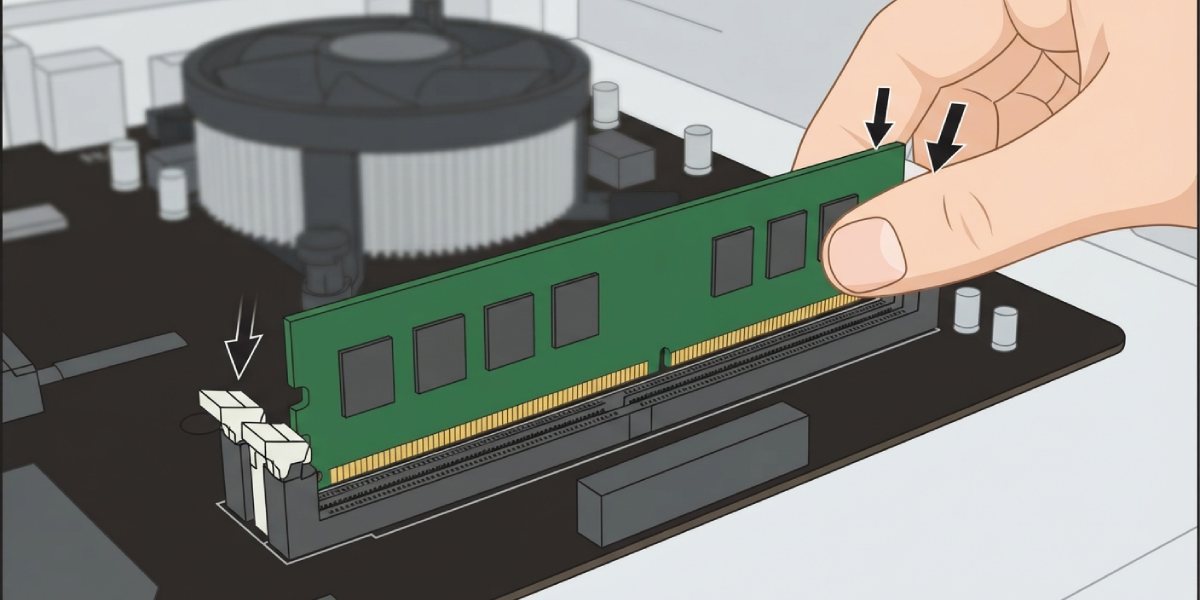
- Step 1: Open the case or laptop panel and locate the RAM slots. Press down firmly on both ends of each module until the side clips lock into place. A module that clicks in evenly on both sides is usually the fix right there.
- Step 2: Remove each RAM module and inspect the gold contacts for dust, debris, or a slight haze. Wipe them gently with a lint-free cloth, then use compressed air to clear out the slot itself before reinserting the module.
- Step 3: Test one module at a time in a single slot, ideally the one labeled as the primary slot in the motherboard manual. This isolates whether a specific stick or a specific slot is causing the issue.
- Step 4: If a module fails in one slot, move it to a different slot. A stick that works in one location but not another points to a damaged or worn slot rather than a bad module.
- Step 5: Check the motherboard manual for the correct dual-channel slot pairing, since installing two sticks in the wrong slots can cause detection issues even when each module works fine on its own.
- Step 6: Confirm that all installed modules match in speed, voltage, and ideally capacity and brand. Mixing mismatched kits is a frequent cause of intermittent detection problems.
- Step 7: Update the motherboard BIOS or UEFI firmware to the latest version available from the manufacturer’s support page. Newer firmware often adds support for memory kits that were not recognized under older versions.
- Step 8: Enter the BIOS setup menu and check that the memory is not disabled or set to an unsupported profile. Resetting BIOS settings to their default values, sometimes labeled ‘Load Optimized Defaults,’ can clear a misconfigured setting.
- Step 9: If a memory profile such as XMP or EXPO is enabled, disable it temporarily and let the system run at its default JEDEC speed. Some boards fail to detect RAM when an aggressive overclocking profile is applied incorrectly.
Tip: When testing multiple sticks, label each one with a small piece of tape noting which slot it came from. This makes it far easier to track down the exact combination causing the fault instead of retracing every step from scratch.
Common Problems and Fixes
RAM still not detected after reseating
If reseating does not resolve the issue, the module itself may be faulty. Testing it in a different computer, or testing a known-good stick in the original machine, quickly confirms whether the RAM or the motherboard is at fault.
Only part of the installed capacity shows up
This usually points to one module in a multi-stick setup not being detected. Isolating each module individually, as described in the steps above, identifies which specific stick is causing the shortfall.
RAM detected but system won’t boot
A beep code or a series of diagnostic LEDs on the motherboard can indicate a memory error even when the BIOS technically detects the module. Reseating the RAM and testing with a single stick often clears this up.
New RAM kit not recognized at rated speed
This is typically a firmware limitation rather than a detection failure. Updating the BIOS and enabling the correct memory profile in BIOS settings usually resolves it.
Detection issues after a laptop repair or upgrade
Laptops with soldered memory next to an upgrade slot can behave unpredictably if the added module is not fully compatible with the onboard memory. Checking the laptop manufacturer’s supported memory list before purchasing an upgrade avoids this problem.
Frequently Asked Questions
Why is my RAM not detected by BIOS after installation?
The most common reason is that the module is not fully seated in the slot. Reseating it firmly until the clips lock into place resolves the majority of these cases.
Can a BIOS update fix RAM detection problems?
Yes. Motherboard manufacturers regularly release firmware updates that add support for newer memory kits or fix bugs related to memory detection, so checking for an update is a worthwhile step.
Does mismatched RAM cause detection issues?
It can. Modules with different speeds, voltages, or capacities are not always recognized correctly when installed together, even if each one works fine on its own.
How can bad RAM slots be identified?
Testing a single known-good module in each slot one at a time reveals whether a specific slot fails to detect memory while the others work normally.
Is it safe to clean RAM contacts with alcohol?
A dry lint-free cloth is usually enough for dust and light residue. If deeper cleaning is needed, a small amount of 90 percent or higher isopropyl alcohol on a lint-free cloth is safe for the gold contacts, as long as the module is fully dry before reinserting it.
Why does RAM show up in BIOS but not in the operating system?
This can happen with 32-bit operating systems that cannot address more than a limited amount of memory, or when memory has been manually limited in BIOS settings rather than left at its default detection state.
Should XMP or EXPO be enabled when troubleshooting RAM detection?
It is best to disable these profiles temporarily while troubleshooting. Running at default JEDEC speed removes one variable and confirms whether the memory profile itself was causing the detection failure.
Can a loose CPU cooler cause RAM not to be detected?
Indirectly, yes. If a cooler is pressing unevenly on the motherboard, it can slightly warp the board and affect how firmly nearby RAM slots make contact with the module.
What does it mean if RAM is detected but shows the wrong capacity?
This usually indicates one module in a multi-stick configuration is not being read correctly. Testing each stick individually pinpoints which one is causing the shortfall.
When should a RAM detection issue be taken to a professional?
If reseating, testing individual slots, updating firmware, and confirming compatibility all fail to resolve the issue, and there are visible signs of damage on the motherboard or module, a professional repair technician should take a closer look.
