
Laptop speakers crackling during music, calls, or video playback is almost always a fixable software or driver issue rather than a dead speaker. This guide walks through the most common causes and the exact steps to get clean, distortion-free sound back on a Windows laptop.
Key Takeaways
- Crackling speakers are usually caused by outdated audio drivers, sound enhancements, or a mismatched sample rate – not physical damage.
- Updating or reinstalling the audio driver resolves the issue in most cases.
- Turning off audio enhancements and exclusive mode often clears up static and popping noises immediately.
- If crackling persists after every software fix, worn speaker hardware or a damaged internal connection becomes the likely culprit.
Common Causes of Laptop Speakers Crackling
Before jumping into fixes, it helps to understand what typically triggers the problem. Most cases trace back to one of the following.
Outdated or Corrupted Audio Drivers
The audio driver is the software layer that translates digital sound into what the speakers actually output. When it becomes outdated or a recent Windows update leaves it slightly out of sync with the hardware, crackling and popping are common symptoms.
Audio Enhancements and Sound Effects
Built-in enhancements like bass boost, loudness equalization, or spatial sound effects add processing on top of the raw audio signal. On some hardware configurations, that extra processing introduces distortion instead of improving the sound.
Sample Rate Mismatch
Every playback device has a default sample rate and bit depth. If an application sends audio at a different rate than what the sound device expects, the result is often a crackling or stuttering effect, especially noticeable during video calls or streaming.
Interference From Other Hardware
USB devices, Bluetooth accessories, and even some power management settings can create small conflicts that show up as audio glitches. This is more common on laptops with several peripherals plugged in at once.
Physical Debris in the Speaker Grille
Dust and debris trapped in the speaker grille can cause rattling or crackling that sounds electrical but is actually mechanical. This is easy to rule out and fix.
Worn or Damaged Speaker Hardware
On older laptops, the speaker cone or voice coil can degrade over time. When every software fix has been tried and the crackling remains, this is usually the explanation.
How to Fix Laptop Speakers Crackling
Work through these steps in order. Most people find the problem resolves within the first two or three fixes.
- Step 1: Open Device Manager, expand ‘Sound, video and game controllers’, right-click the audio device, and select ‘Update driver’. Choose ‘Search automatically for drivers’. If an update installs, restart the laptop and test the speakers again.
- Step 2: If updating does not help, right-click the same audio device and select ‘Uninstall device’, then restart the laptop. Windows reinstalls a fresh driver automatically on boot, which often clears corrupted driver files that a simple update does not fix.
- Step 3: Right-click the speaker icon in the system tray, select ‘Sounds’, then open the ‘Playback’ tab. Double-click the active speaker device, go to the ‘Enhancements’ tab, and check ‘Disable all enhancements’. Click ‘Apply’.
- Step 4: While still in the speaker properties window, open the ‘Advanced’ tab and try switching the default format to a lower sample rate, such as 16-bit, 44100 Hz, then test playback. Cycle through a couple of the available options if the first one does not help.
- Step 5: In that same ‘Advanced’ tab, uncheck ‘Allow applications to take exclusive control of this device’. Some apps grab full control of the sound device and cause conflicts with system sounds, which can show up as crackling.
- Step 6: Run the built-in troubleshooter by going to Settings, then System, then Sound, then Troubleshoot common sound problems. Let it scan and apply any recommended fixes.
- Step 7: Disconnect other USB and Bluetooth peripherals one at a time and test the speakers after each disconnection to rule out hardware interference.
- Step 8: Power off the laptop, then use a soft-bristled brush or a short burst of compressed air held at a slight angle to clear dust from the speaker grilles. Never use liquid or insert anything rigid into the grille.
- Step 9: If the crackling still happens after every step above, boot from a Linux live USB or test on another OS installation if available. If the crackling disappears, the issue is software-related on the main installation. If it persists, this points to a hardware fault in the speakers themselves.
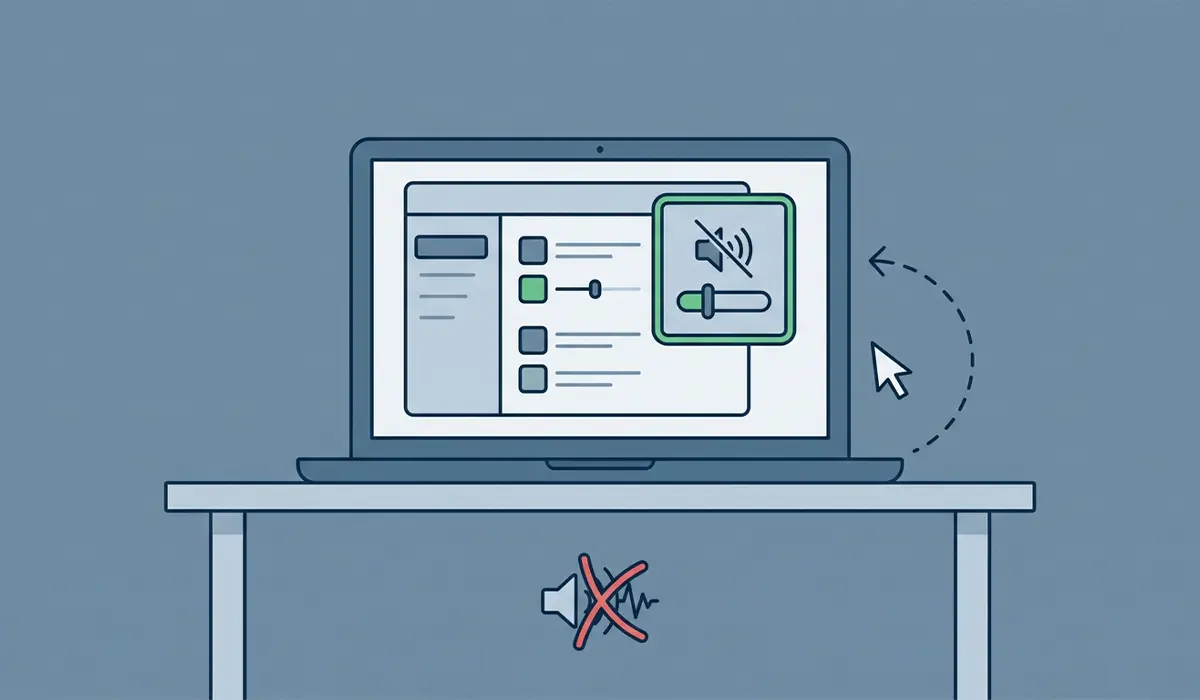
Tip: Test with a different audio source, such as a downloaded music file instead of a streaming service, at each step. This helps confirm whether the fix actually worked or whether the crackling was just less noticeable with that particular content.
Common Problems and Fixes
Crackling Returns After a Windows Update
Windows updates sometimes reset audio enhancement settings or reinstall a generic driver over a previously working one. Repeat Step 3 and Step 1 after any major update to reapply the fix.
Crackling Only Happens at High Volume
This points toward either a speaker enhancement pushing the volume beyond what the hardware handles cleanly, or early signs of speaker wear. Confirm enhancements are disabled first, and if the crackling still only appears near maximum volume, treat it as a hardware symptom rather than a settings issue.
Crackling Happens Only During Video Calls
Video conferencing apps often apply their own audio processing on top of Windows settings. Check the audio settings inside the specific app, such as Zoom or Microsoft Teams, and disable any built-in noise suppression or automatic gain control, since these can conflict with the system driver.
Crackling Persists After Reinstalling the Driver
If a fresh driver install does not help, download the driver directly from the laptop manufacturer’s support page instead of relying on the generic Windows Update version. Manufacturer-specific drivers are often better tuned to that exact speaker hardware.
Where crackling remains after every fix above and testing confirms it is hardware-related, this is the point to stop troubleshooting and have a qualified repair technician inspect the internal speaker wiring and connections. Opening the laptop chassis to inspect speakers directly may affect the manufacturer’s warranty, so check warranty status first.
Frequently Asked Questions
Why do laptop speakers suddenly start crackling?
A sudden onset usually follows a Windows update, a new driver installation, or a newly installed application that changed default audio settings. Physical damage or wear tends to develop gradually rather than appear suddenly, so a sudden change points toward software first.
Can a Windows update cause speaker crackling?
Yes. Updates occasionally overwrite a working audio driver with a generic version or reset enhancement settings, both of which are known to cause crackling.
Is crackling a sign the speakers are broken?
Not usually. In most cases it traces back to drivers, enhancements, or sample rate settings. Hardware damage becomes the likely explanation only after every software fix has been tried without success.
Does disabling audio enhancements reduce sound quality?
Disabling enhancements removes extra processing like artificial bass boost or virtual surround effects, but the underlying audio quality from the source file or stream stays the same. Many people find the sound is actually clearer without enhancements layered on top.
Why does crackling only happen with certain apps?
Some applications manage their own audio settings independently of Windows, including sample rate handling and volume normalization. A conflict between an app’s internal audio settings and the system driver often shows up only in that specific app.
Should the laptop be restarted after updating the audio driver?
Yes. A restart ensures the new driver fully loads and replaces the previous one in memory, rather than running alongside leftover driver files from the old version.
Can dust actually cause speaker crackling?
Yes, though it tends to sound more like rattling or buzzing than true electrical crackling. Clearing the grille with a soft brush or compressed air rules this out quickly.
Is it safe to use compressed air on laptop speakers?
Yes, when used correctly. Hold the can upright, use short bursts from a few inches away, and avoid angling the nozzle directly into the grille at full pressure, which can push debris further in rather than out.
Do external speakers or headphones also crackle if it’s a driver issue?
Often yes, since a driver-level problem affects the audio output path regardless of which device is connected. If external headphones plugged into the same laptop crackle too, that supports a software cause over a physical speaker fault.
When should a technician be called instead of troubleshooting further?
Once driver updates, enhancement settings, sample rate changes, and interference checks have all been tried without success, and the crackling still occurs across multiple audio sources and apps, a technician can inspect the physical speaker connections and confirm whether hardware replacement is needed.
