
A USB 3.0 port running at USB 2.0 speed is one of the most common annoyances with external drives and flash storage, and it almost always comes down to a cable, driver, or connection mismatch rather than a dead port. This guide walks through every likely cause and the exact fixes that restore full SuperSpeed transfer rates.
Key Takeaways
- Most USB 3.0 speed drops trace back to a USB 2.0-rated cable, a blue port cover mismatch, or an outdated driver.
- Windows Device Manager and the port color are the fastest ways to confirm whether a port is actually USB 3.0 hardware.
- Updating the USB controller driver and disabling USB selective suspend fixes the issue in a large share of cases.
- Front-panel ports on desktop towers are a frequent culprit if the case header was not connected to a USB 3.0 motherboard header.
- A genuinely faulty port or cable is the last thing to check, not the first.
Common Causes of a USB 3.0 Port Running at USB 2.0 Speed
Before diving into fixes, it helps to understand why this happens in the first place. A handful of specific issues account for nearly every case.
USB 2.0 Cable or Adapter in the Chain
USB 3.0 cables need extra internal wiring to hit SuperSpeed rates, and a lot of cables that ship in the box with printers, external drives, or phone chargers are USB 2.0 only, even when the connector looks identical. Plugging a USB 3.0 device into a USB 3.0 port with a USB 2.0 cable caps the connection at USB 2.0 speed every time.
Outdated or Generic USB Controller Drivers
Windows sometimes falls back to a generic USB driver instead of the manufacturer-specific one, and that generic driver does not always negotiate the full USB 3.0 protocol correctly.
Front-Panel Ports Wired to a USB 2.0 Header
On desktop PCs, the ports on the front of the case connect to the motherboard through an internal header cable. If that cable is plugged into a USB 2.0 header instead of a USB 3.0 header, every front port behaves like USB 2.0 regardless of what the port itself is rated for.
Power Management Settings Throttling the Port
Windows’ USB selective suspend feature and aggressive power plans can sometimes cause a port to renegotiate at a lower speed, particularly on laptops running in battery saver mode.
BIOS or UEFI Configuration
Some motherboards include a BIOS setting for legacy USB support or XHCI hand-off that, when misconfigured, forces ports into a slower compatibility mode.
How to Fix a USB 3.0 Port Running at USB 2.0 Speed
Work through these fixes in order. Most people resolve the issue in the first two or three steps.
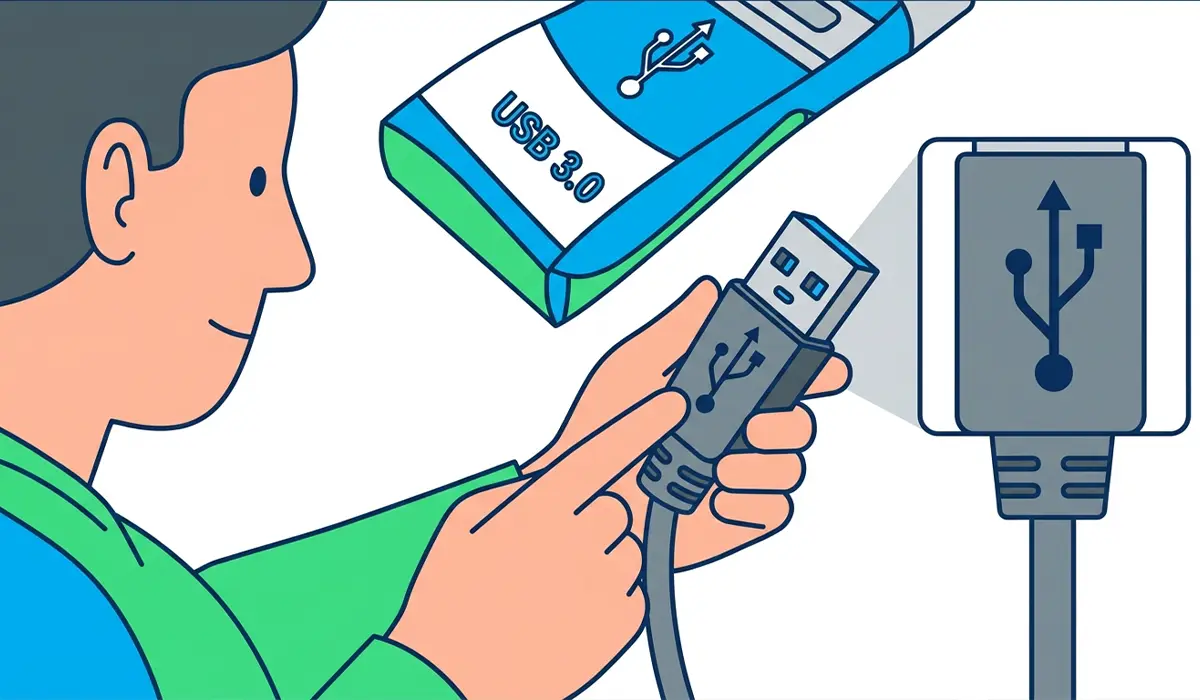
- Step 1: Confirm the cable and device are both actually rated for USB 3.0. Check for the SuperSpeed logo (a trident-style icon) on the cable and device, or check the packaging or manufacturer listing. Swap in a cable known to be USB 3.0 if there is any doubt.
- Step 2: Plug directly into a port confirmed as USB 3.0 by its blue interior color (or a badge like SS, 3.0, or 3.1 near the port). Avoid USB hubs for this test, since a USB 2.0 hub in the chain will bottleneck everything connected to it.
- Step 3: Open Device Manager by right-clicking the Start button and selecting it from the list. Expand ‘Universal Serial Bus controllers’ and look for an entry containing ‘eXtensible Host Controller’ or ‘USB 3.0/3.1 Extensible Host Controller.’ If the entry instead reads ‘Enhanced Host Controller’ or shows a generic driver name, the port is being handled by USB 2.0 controller logic.
- Step 4: Right-click the USB 3.0 host controller entry, choose ‘Update driver,’ then select ‘Search automatically for drivers.’ For the most reliable result, visit the motherboard or laptop manufacturer’s support page and download the chipset or USB 3.0 driver package directly, since Windows Update does not always carry the newest version.
- Step 5: Disable USB selective suspend to rule out power management interference. Go to Control Panel, then Power Options, then ‘Change plan settings,’ then ‘Change advanced power settings.’ Expand ‘USB settings’ and set ‘USB selective suspend setting’ to Disabled for both battery and plugged-in states.
- Step 6: On a desktop, open the case and check where the front-panel USB header cable connects on the motherboard. USB 3.0 headers are typically wider (a 19 or 20-pin block, often labeled USB3_1 or similar) and physically distinct from the smaller USB 2.0 header pins. Reseat it on the correct header if it is plugged into the wrong one.
- Step 7: Restart the PC and enter the BIOS or UEFI setup, usually by pressing Delete or F2 during boot. Look for a ‘USB Configuration’ or ‘Legacy USB Support’ section and ensure XHCI hand-off is enabled and legacy modes are not forcing a compatibility fallback. Save changes and exit.
- Step 8: Test the device on a different USB 3.0 port, and if possible, on a different computer entirely. This isolates whether the problem lives with the port, the device, or the original system’s configuration.
Tip: Run a quick transfer speed test with a large file (several gigabytes) rather than judging by feel. A short file copy can look fast even on a USB 2.0 connection, but a large transfer makes the speed difference obvious in the copy dialog’s estimated rate.
Common Problems and Fixes
Device Still Shows USB 2.0 After a Driver Update
Uninstall the USB controller from Device Manager (right-click, then ‘Uninstall device’), restart the PC, and let Windows reinstall it fresh. This clears out any corrupted driver state that a simple update did not fix.
Only One Port Runs Slow While Others Work Fine
This usually points to a physical issue with that specific port, such as bent pins inside the connector or a damaged solder joint on the motherboard. Inspect the port with a flashlight for visible damage or debris before assuming it is a settings problem.
Speed Drops Only Under Battery Power on a Laptop
Many laptops throttle USB performance to save battery life. Check the power plan settings from Step 5 again, and also look for a manufacturer-specific power utility (common on gaming and business laptops) that may have its own USB power-saving toggle separate from Windows.
External Hard Drive Enclosure Is the Bottleneck
Some external drive enclosures use an older USB-to-SATA bridge chip internally, even if the enclosure’s outer port is USB 3.0. If a specific drive is always slow across multiple ports and computers, the enclosure itself, not the PC, is the limiting factor.
Speed Corrects Itself Then Drops Again Randomly
Intermittent drops often trace back to a loose or worn connector, particularly with USB-A cables that have been plugged and unplugged frequently. Try a new, high-quality cable before suspecting anything else.
Frequently Asked Questions
How can someone tell if a port is really USB 3.0 just by looking at it?
USB 3.0 Type-A ports are typically colored blue inside the connector, and many are labeled with ‘SS,’ ‘3.0,’ or ‘3.1’ near the port. USB-C ports do not have a consistent color code, so checking Device Manager or the manufacturer’s specifications is more reliable for those.
Does a USB 3.0 port automatically make a USB 2.0 device faster?
No. A USB 3.0 port only delivers SuperSpeed rates when the connected device and cable are also USB 3.0 rated. A USB 2.0 device plugged into a USB 3.0 port still runs at USB 2.0 speed, since the device itself sets the ceiling.
Can a USB hub cause a USB 3.0 port to run at USB 2.0 speed?
Yes. If the hub itself is USB 2.0, every device connected through it is limited to USB 2.0 speed even when plugged into a USB 3.0 port on the computer. Always check the hub’s own rating when troubleshooting.
Why does a brand-new USB 3.0 flash drive still show USB 2.0 transfer speeds?
This is often the cable or port, not the drive. It also happens when the flash drive’s internal flash memory chips simply cannot sustain higher speeds even though the USB controller inside supports USB 3.0, which is common on lower-cost drives.
Is it normal for USB 3.0 real-world speeds to be lower than the advertised maximum?
Yes, real-world speeds are almost always lower than the theoretical maximum. Drive type, file size, formatting, and system overhead all affect actual throughput, so a noticeably lower but still clearly faster-than-USB-2.0 speed is expected and normal.
Can Windows Update cause a USB 3.0 port to downgrade to USB 2.0 speed?
It can, in some cases, if an update installs a generic driver over a manufacturer-specific one. Checking Device Manager after any major Windows update is a good habit if USB speeds seem to have changed.
Does reinstalling Windows fix a USB 3.0 port stuck at USB 2.0 speed?
It can help if the problem is driver corruption, since a clean install pulls fresh drivers. However, it will not fix a hardware issue like a damaged port or a front-panel header connected incorrectly, so it should not be the first fix attempted.
Are USB-C ports affected by this same USB 2.0 speed issue?
Yes. USB-C is just a connector shape, not a speed guarantee, so a USB-C port can still be wired internally for USB 2.0 speeds only. The same driver, cable, and BIOS checks in this guide apply to USB-C ports as well.
When should a professional take a look at the problem instead?
If every software fix has been tried and one specific port still underperforms while others on the same machine work correctly, that usually points to a hardware fault on the motherboard or a damaged connector, and a qualified repair technician is the safer next step rather than continuing to try software-side changes.
