
Learning how to fix high refresh rate not showing in settings usually comes down to one of a few culprits: the wrong cable, a missing graphics driver, a hidden monitor option, or a laptop power limit. A 144 Hz or 165 Hz display that only offers 60 Hz feels sluggish, and the cause is almost always something that can be corrected in a few minutes. The steps below move from the quickest checks to the deeper fixes.
Key Takeaways
- The refresh rate list in Windows only shows what the monitor, cable, port, and graphics driver can all handle together.
- An old HDMI cable or the wrong video port is one of the most common reasons high rates disappear.
- A generic or outdated graphics driver often limits the list to 60 Hz.
- Laptops can hide higher rates when running on battery, in a power-saving mode, or on the wrong graphics processor.
- Always confirm the panel’s rated refresh rate in its specifications before troubleshooting.
Common Causes of Missing High Refresh Rate Options
Before changing anything, it helps to know what usually goes wrong. Think of the signal path like a water pipe: the monitor, cable, port, and driver all have to be wide enough, and the narrowest one sets the limit.
- A cable that cannot carry enough bandwidth for the chosen resolution and refresh rate, often an older HDMI cable.
- The monitor plugged into a motherboard video port instead of the graphics card.
- The Microsoft Basic Display Adapter or an outdated driver running in place of the proper graphics driver.
- A monitor menu setting that limits the HDMI or DisplayPort mode.
- An adapter, dock, or splitter that cannot pass high refresh rates.
- A laptop on battery power, in a power-saving mode, or using only the integrated graphics.
- A resolution set higher than the connection can support at a high refresh rate.
Before You Start
Most of the fixes below are software changes, but a few involve swapping cables, so a little prep keeps things safe. Turn off the PC and monitor before unplugging or connecting video cables, and hold the connector by its plastic or metal housing rather than bending it at an angle. Have the monitor model name handy to look up its rated refresh rate and supported ports. A known-good DisplayPort cable or a certified high-speed HDMI cable is the main item that may be needed. If the monitor still will not offer higher rates after every step, contact the monitor or PC manufacturer rather than opening the device.
How to Fix High Refresh Rate Not Showing in Settings Step by Step
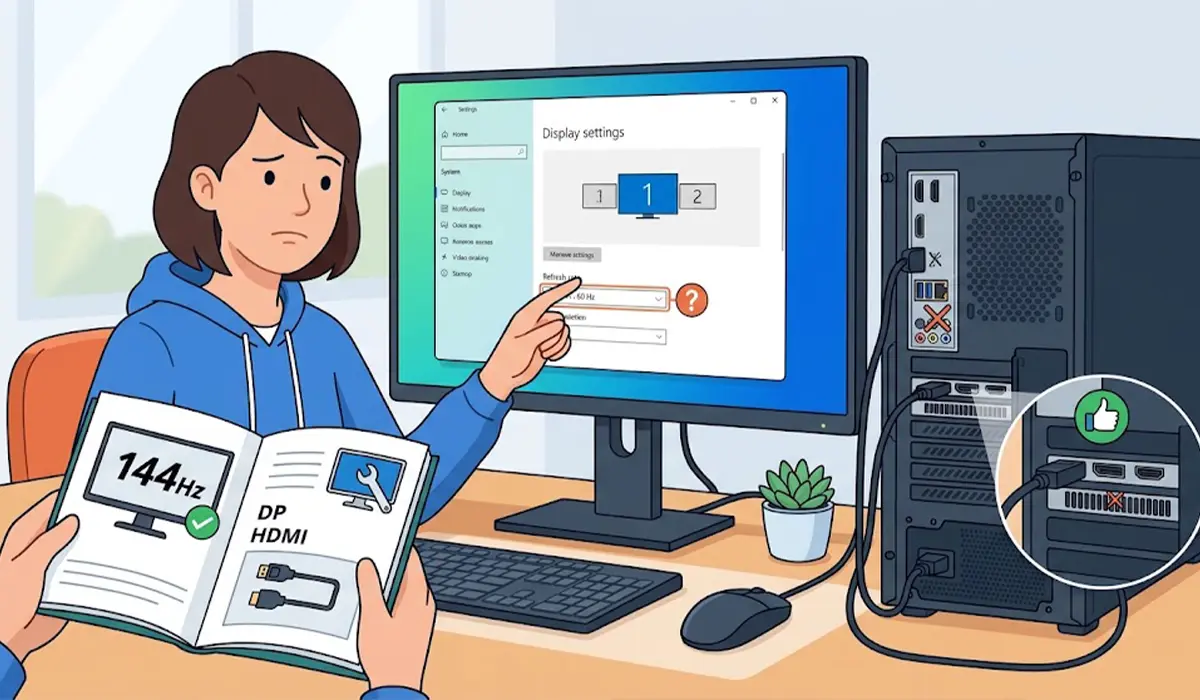
- Step 1: Confirm the panel’s maximum refresh rate. Check the monitor’s model page or manual for its rated refresh rate and the resolution at which that rate is available. Some displays reach their top rate only over DisplayPort, or only at a certain resolution. Many laptop panels are simply 60 Hz, in which case there is nothing to unlock.
- Step 2: Look in the correct Windows menu. In Windows 11, open Settings, go to System, then Display, then Advanced display, and use the ‘Choose a refresh rate’ dropdown. In Windows 10, open Settings, go to System, then Display, then Advanced display settings, and use the refresh rate dropdown. If several monitors are connected, select the correct display at the top of the page first, since each one has its own list.
- Step 3: Check the cable and port. Connect the monitor with a DisplayPort cable if it has that port, as DisplayPort is the most reliable way to reach high rates on a gaming monitor. If HDMI is the only option, use a certified high-speed cable and a monitor port that supports the target rate. Make sure the cable is plugged into the graphics card on a desktop, not the motherboard video output. Power the PC off before moving the cable.
- Step 4: Check the monitor’s on-screen menu. Open the monitor’s own menu with its buttons or joystick and look for an HDMI or DisplayPort mode option. Some monitors ship with an older signal mode enabled that caps the refresh rate. If the menu has a factory reset, running it can clear a stuck setting.
- Step 5: Update the graphics driver. Download the latest driver directly from the graphics card maker (NVIDIA, AMD, or Intel), or from the laptop manufacturer’s support page for laptops with custom drivers. If the display adapter is listed as Microsoft Basic Display Adapter in Device Manager, the proper driver is not installed, and that alone can limit the list to 60 Hz. Restart after installing.
- Step 6: Set the rate in the graphics control panel. In the NVIDIA Control Panel, open ‘Change resolution’ and pick the refresh rate. In AMD Software, check the Display section. In the Intel Graphics Command Center, open the Display settings. These panels sometimes show options that the Windows list does not.
- Step 7: Test with fewer variables. Temporarily lower the resolution and see whether higher refresh rates appear. If they do, the connection is running out of bandwidth at the original resolution, which points back to the cable or port. Also try disconnecting docks, USB-C adapters, and splitters, and test with one monitor connected.
- Step 8: Check laptop power and graphics settings. Plug in the charger, set the Windows power mode to Best performance, and check the manufacturer’s control app for any power-saving or battery-saver display option. On Windows 11, a ‘Dynamic refresh rate’ option may appear under the refresh rate dropdown, which lowers the rate to save power on supported panels. On laptops with both integrated and dedicated graphics, make sure the dedicated GPU is driving the display in the graphics control panel, or use the manufacturer’s GPU mode switch if one exists.
- Step 9: Reinstall the driver cleanly. If nothing has worked, remove the graphics driver completely and install a fresh copy. The free Display Driver Uninstaller utility is widely used for this and is best run in Windows Safe Mode. Then install the latest driver and check the refresh rate list again.
Tip: Change one thing at a time and recheck the refresh rate list after each change. That makes it obvious which fix actually worked and avoids creating new problems.
How to Confirm the New Refresh Rate Is Active
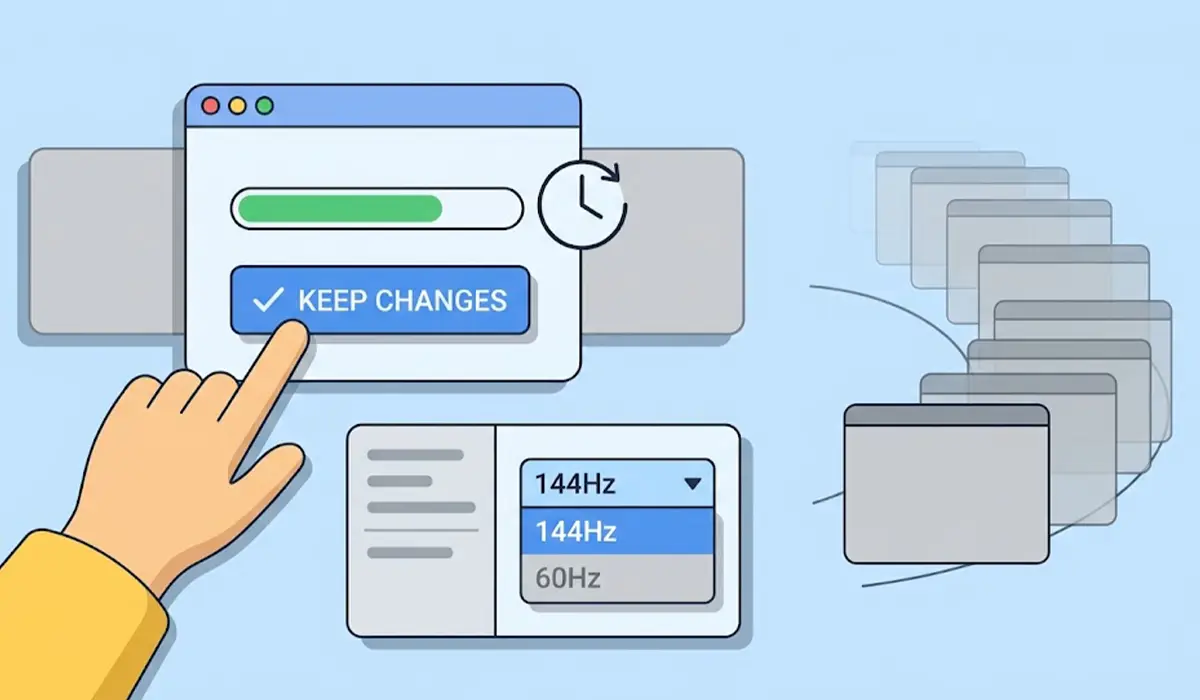
After selecting a higher rate, Windows shows a short confirmation prompt. Click ‘Keep changes’ before the timer runs out, or the screen reverts to the previous setting. To double-check, return to the Advanced display page and confirm the dropdown shows the higher value. Moving a window quickly across the screen also makes the smoother motion easy to notice.
Common Problems and Fixes
The refresh rate list still only shows 60 Hz after a driver update
The cable or port is the next suspect. Switch to DisplayPort or a certified high-speed HDMI cable, confirm the cable is in the graphics card output, and check the monitor menu for an HDMI or DisplayPort mode that limits the rate.
The screen goes black after choosing a higher refresh rate
Wait about 15 seconds without touching anything, as Windows reverts to the previous setting automatically. If the screen stays black, reconnect the cable, try a different port, or start in Safe Mode and choose a lower refresh rate. The cable or the monitor mode is usually the limiting factor.
The refresh rate resets to 60 Hz after a restart
This points to a driver or control panel conflict. Set the refresh rate in the graphics control panel as well as in Windows, and perform a clean driver reinstall if it keeps resetting.
The refresh rate drops when a laptop runs on battery
Plug in the charger, switch to a performance power mode, and check whether Dynamic refresh rate or a manufacturer power-saving feature is lowering the rate on purpose.
A second monitor shows different options
Each display has its own refresh rate list based on its own capabilities and cable. Select the correct monitor in Display settings and check its cable and port separately.
Tip: When a laptop is connected to an external monitor through a USB-C or Thunderbolt port, confirm that the port supports video output at the target refresh rate. Not every USB-C port handles high refresh rates.
Frequently Asked Questions
Why is my monitor stuck at 60 Hz in Windows?
The most common reasons are an unsuitable cable, the wrong video port, a generic graphics driver, or a monitor menu setting that limits the signal mode. Checking each of these in order usually reveals the cause.
Does the HDMI cable affect refresh rate?
Yes. A cable or port that does not support enough bandwidth for the chosen resolution can cap the refresh rate. A certified high-speed HDMI cable or a DisplayPort cable is the safer choice for high refresh rate displays.
Where do I change the refresh rate in Windows 11?
Open Settings, go to System, then Display, then Advanced display, and use the ‘Choose a refresh rate’ dropdown for the selected monitor.
Why does the refresh rate option disappear on my laptop?
Laptops may hide higher rates when running on battery, in a power-saving mode, or when the display is connected to the integrated graphics instead of the dedicated GPU. Plugging in the charger and checking the graphics settings usually restores the options.
Can an outdated graphics driver cause missing refresh rates?
Yes. If Windows is using a basic display driver or an old graphics driver, it may only offer standard rates such as 60 Hz. Installing the latest driver from the graphics card or laptop manufacturer often brings the higher options back.
Is DisplayPort better than HDMI for high refresh rates?
DisplayPort is generally the more dependable choice for reaching a monitor’s full refresh rate, especially at higher resolutions. HDMI can work well too, as long as both the cable and the ports support the required rate.
Will lowering the resolution unlock higher refresh rates?
Sometimes. If higher refresh rates appear at a lower resolution, the connection is likely limited by bandwidth, which points to the cable, port, or adapter as the bottleneck.
Do I need to enable the high refresh rate in the monitor menu?
On some monitors, yes. Certain models have an HDMI or DisplayPort mode option that must be set correctly before the full refresh rate becomes available, so it is worth checking the on-screen menu.
Do all monitors support high refresh rates?
No. Many displays, including a large share of standard office monitors and laptop panels, are limited to 60 Hz. The monitor’s specifications confirm the maximum supported rate.
