
A USB-C port not charging a laptop is one of the most common power complaints on modern ultrabooks and convertibles, and it usually comes down to a handful of predictable culprits rather than a dead motherboard. This guide walks through the real causes and the exact order to test them in, starting with the cheapest fixes first.
Key Takeaways
- Most USB-C charging failures trace back to a faulty cable, charger, or wall outlet rather than the laptop itself.
- Windows and macOS both have power delivery settings that can silently block charging, especially on multi-port docks.
- A worn or debris-filled port is a frequent hidden cause, particularly on laptops that travel in bags.
- Testing with a different charger and cable first saves time and rules out two variables in under a minute.
- Persistent charging failure after every fix below usually points to a failing charging IC or port connector that needs professional repair.
Before You Start
Power the laptop off completely and unplug it from any charger, dock, or power strip before inspecting the port. Let the device cool down first if it has been charging or running hot, since a warm charging port can be more sensitive to handling. No disassembly is required for the fixes below, so there is no need to remove the battery or open the chassis. If a later step does involve opening the laptop, stop and consider a professional repair shop instead, since prying near the USB-C daughterboard can crack solder joints and voids most manufacturer warranties.
Common Causes of a USB-C Port Not Charging
Cable or Charger Failure
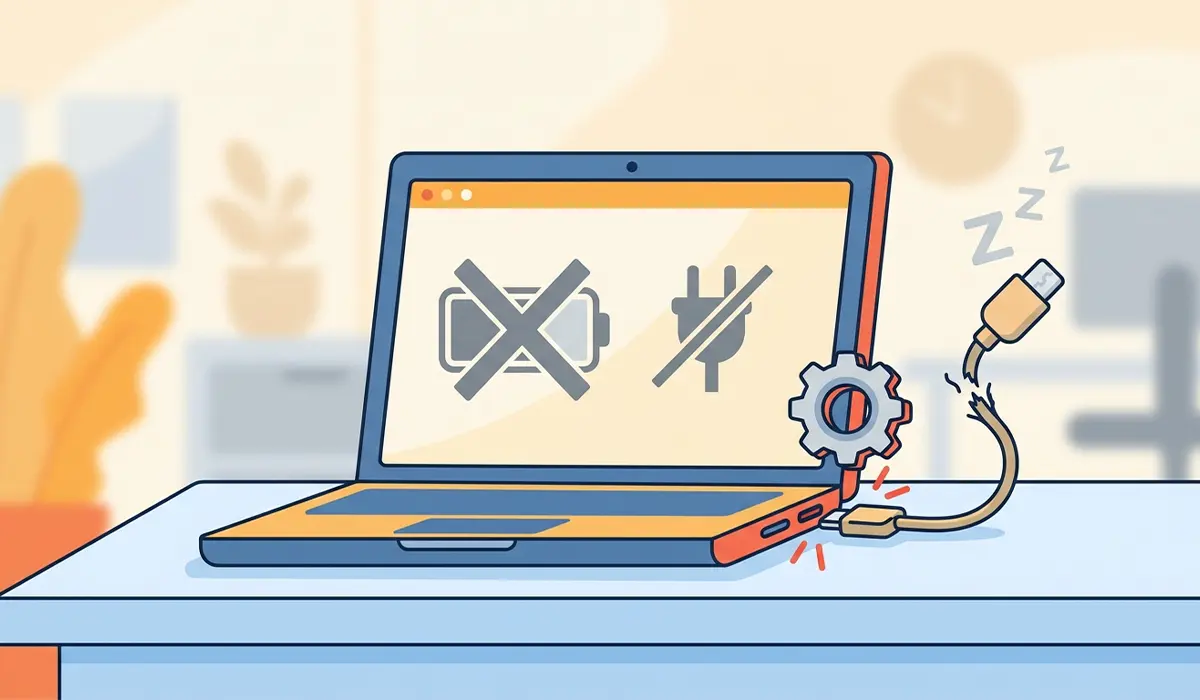
USB-C cables take a lot of physical stress from bending near the connector, and that is exactly where the internal wires tend to fray first. A cable can look perfectly fine on the outside while carrying no power at all on the inside.
Insufficient Power Delivery
Not every USB-C cable or charger supports Power Delivery (PD) at the wattage a laptop needs. A phone charger rated for 18 watts will not charge a 65-watt laptop, and some cables are data-only with no power wires at all.
Debris or Damage in the Port
Lint, dust, and pocket debris build up inside USB-C ports over time, especially on laptops carried in bags without a sleeve. A bent contact pin inside the port has the same effect as a blocked one.
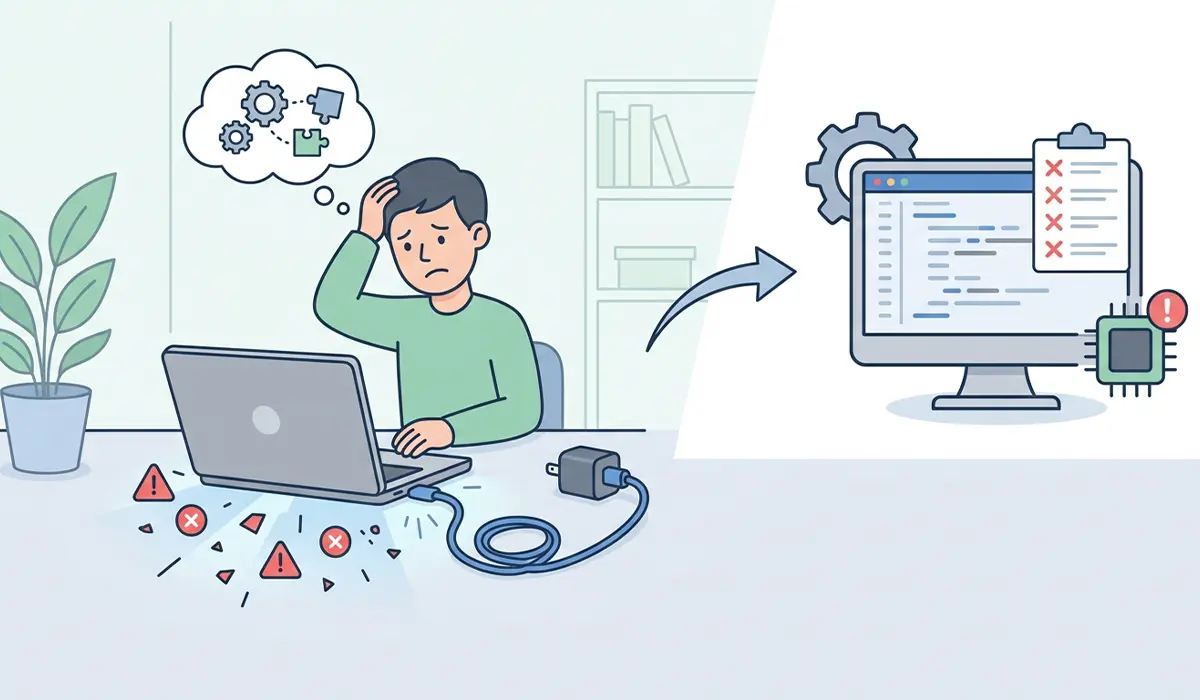
Driver or Firmware Issues
Outdated USB-C controller drivers or an out-of-date system BIOS can cause a laptop to fail at negotiating a charging contract with the charger, even when the hardware itself is fine.
Power Settings Blocking Charging
Some laptops with multiple USB-C ports designate only one or two as charging-capable, and a setting called USB-C power management or a similar toggle in the operating system can sometimes disable charging over that port entirely.
How to Fix a USB-C Port Not Charging
- Step 1: Swap the cable first. Borrow a known-working USB-C cable, ideally one already confirmed to charge a laptop, and plug it into the same charger and port.
- Step 2: Test a different charger and outlet. Try a different USB-C PD charger rated for the laptop’s wattage, and plug it into a different wall outlet to rule out a dead outlet or power strip.
- Step 3: Inspect the port for debris. With the laptop off, shine a flashlight into the USB-C port and look for lint, dust, or a bent contact tab. Clear light debris with a wooden toothpick or a can of compressed air held at a slight angle, never with a metal tool.
- Step 4: Try every USB-C port on the laptop. Many laptops only support charging through specific ports, so test the charger in each USB-C port before assuming the whole system has failed.
- Step 5: Update chipset and USB-C controller drivers. Open Device Manager, expand Universal Serial Bus controllers, and update any USB-C or Thunderbolt-related driver. Also check the laptop manufacturer’s support page for a chipset driver package.
- Step 6: Update the BIOS or firmware. Check the manufacturer’s support site for a BIOS or EC firmware update, since these often include power delivery and charging fixes for known USB-C issues.
- Step 7: Check power management settings. On Windows, open Device Manager, find the USB Root Hub entries under Universal Serial Bus controllers, right-click each one, choose Properties, and review the Power Management tab for any option disabling the device to save power.
- Step 8: Reset the battery and power system. Shut the laptop down fully, hold the power button for around 15 seconds with the charger disconnected, then reconnect the charger and power the laptop back on. This clears a stuck power state on many models.
- Step 9: Rule out a docking station or hub. If charging normally happens through a dock or hub, plug the charger directly into the laptop’s USB-C port instead. A failing dock is a very common false alarm for a bad laptop port.
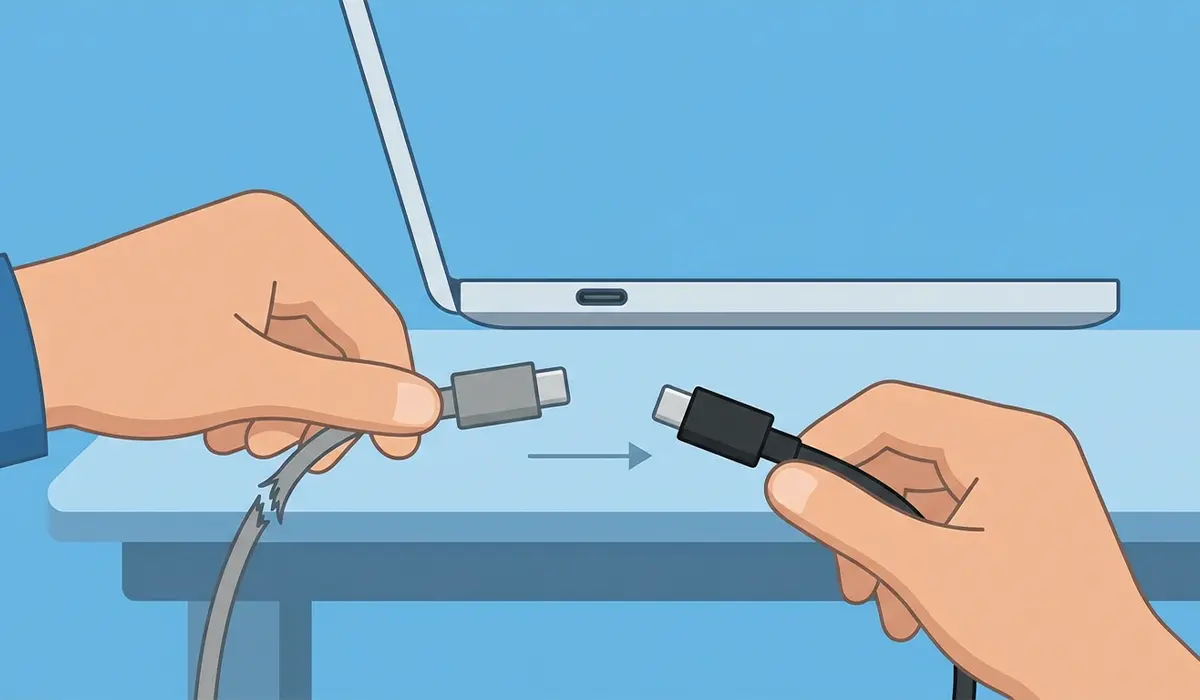
Tip: Label a cable and charger combo once confirmed working, and keep that pair as the go-to test kit for future charging problems. It saves guesswork the next time something stops charging.
Common Problems and Fixes
Laptop Charges Only at a Certain Angle
This points to a loose or partially damaged port connector rather than a cable issue. Try the port with a couple of different cables to confirm, and if the angle sensitivity remains, the port likely needs a professional repair or replacement.
Charging Icon Shows But Battery Percentage Does Not Rise
This usually means the connection is negotiating some power but not enough to outpace the laptop’s power draw. Close demanding background apps, lower screen brightness, and confirm the charger meets the laptop’s rated wattage.
Charging Works With One Charger But Not Another
This almost always comes down to Power Delivery wattage or protocol mismatch. Check both chargers’ rated output and confirm the cable used with each one is rated for the wattage and supports data plus power, not power-only.
Port Feels Loose or Wiggly
A loose USB-C port usually indicates a physically damaged connector from repeated cable insertion at an angle. This is a hardware repair, not a software fix, and continuing to use a loose port risks further internal damage.
Charging Stops Randomly During Use
Intermittent charging during active use often points to a cable that is failing under movement, or a laptop running hot enough to reduce charging current temporarily. Check cable integrity first, then monitor whether the laptop is running unusually hot during the drop.
Frequently Asked Questions
Why does the USB-C port not charge my laptop but still transfer data?
USB-C cables and ports can be data-only, meaning they carry no power wires at all. If data transfer works but charging does not, the cable or port combination in use likely does not support Power Delivery.
Can any USB-C charger charge any USB-C laptop?
Not always. The charger needs to support Power Delivery at a wattage the laptop can accept, and using a charger rated well below the laptop’s requirement can result in no charging or very slow charging.
Is it safe to use a phone charger on a laptop USB-C port?
It is generally safe since USB-C negotiates power automatically, but a phone charger’s lower wattage will likely be too weak to charge a laptop, especially while the laptop is in use.
Why does the laptop only charge in certain USB-C ports?
Many laptops wire only specific USB-C ports to the charging circuit, particularly on models with more than one USB-C port. Checking the manufacturer’s port diagram confirms which ports support charging.
Can dust inside the port really stop a laptop from charging?
Yes. Dust and lint can prevent the charging cable’s contacts from making a full connection with the port’s internal pins, which blocks the power delivery handshake entirely.
Does updating Windows fix USB-C charging problems?
Sometimes. Windows updates occasionally include USB and power management fixes, but the more direct fix usually comes from updating the chipset or USB-C controller driver from the laptop manufacturer.
Why does the laptop charge slowly through USB-C?
Slow charging typically means the charger, cable, or port is negotiating a lower wattage than the laptop needs, often due to a cable rated for lower power or a charger below the laptop’s rated wattage.
Should the laptop be off while troubleshooting the charging port?
Powering the laptop off is not strictly required for basic cable and charger swaps, but it is recommended when inspecting or cleaning the port itself to avoid any risk of a short.
When does a USB-C charging problem require professional repair?
If the port feels loose, charging only works at a specific angle, or nothing above restores charging after testing multiple cables and chargers, the internal connector or charging circuit likely needs professional diagnosis.
Does using a USB-C hub or dock damage the charging port over time?
A hub or dock itself does not damage the port under normal use, but repeatedly plugging and unplugging cables at an angle is the more common cause of port wear over time.
