
A PC stuck in a boot loop restarts itself over and over before ever reaching the desktop, and it usually points to a specific software or hardware conflict rather than a dead machine. Most cases can be resolved without a full reinstall once the actual trigger is identified.
Key Takeaways
- A boot loop is almost always caused by a corrupted system file, a failing driver update, a loose connection, or a failing storage drive.
- Booting into Windows Recovery Environment (WinRE) is the starting point for most fixes.
- Startup Repair, System Restore, and driver rollback solve the majority of boot loop cases.
- Hardware causes, such as a failing hard drive or a loose RAM stick, need to be ruled out if software fixes do not work.
- A clean install should be the last resort, not the first attempt.
Common Causes of a PC Boot Loop
Before jumping into fixes, it helps to understand what typically triggers this problem. A boot loop generally comes from one of the following:
- A failed or interrupted Windows Update that left system files in a corrupted state.
- A recently installed driver, especially a graphics or chipset driver, that conflicts with the current hardware configuration.
- Corrupted or missing boot configuration data (BCD).
- A loose or failing internal connection, such as a RAM stick or storage cable that has shifted out of place.
- A failing hard drive or SSD that can no longer reliably read the operating system files.
- Malware that has altered startup files or the boot sector.
Tip: Note whether the boot loop started right after an update, a new driver install, or a power outage. That timing is often the single biggest clue to the actual cause.
Before You Start
Power the PC off completely rather than letting it keep cycling, and unplug it from the wall for a minute before continuing. For laptops with a removable battery, take the battery out and hold the power button for about 15 seconds to clear any residual charge. If any internal work is planned, such as reseating RAM, discharge static electricity first by touching a bare metal part of the case or using an anti-static wrist strap. Opening a laptop chassis may affect the manufacturer warranty, so check the terms before removing any panels.
Tools and materials that may be needed: a Windows installation USB drive (created on another working PC), a small Phillips-head screwdriver for laptops or desktops, and an anti-static wrist strap if available.
How to Fix a PC Stuck in a Boot Loop
- Step 1: Force the PC to enter Windows Recovery Environment. Power the machine on, and as soon as it starts to boot, hold the power button to force a shutdown. Repeat this two or three times. After the third interrupted boot, Windows should automatically load into WinRE, showing a blue ‘Choose an option’ screen.
- Step 2: Run Startup Repair. From the WinRE screen, select ‘Troubleshoot’, then ‘Advanced options’, then ‘Startup Repair’. This tool scans for missing or damaged system files that prevent a normal boot and attempts to fix them automatically. Let it run fully, since it can take several minutes.
- Step 3: Try System Restore if Startup Repair does not resolve it. From the same ‘Advanced options’ menu, choose ‘System Restore’ and pick a restore point dated before the boot loop began. This rolls back system files and settings without touching personal files.
- Step 4: Roll back a recent driver update. If the boot loop began right after installing a new graphics or chipset driver, boot into ‘Advanced options’, select ‘Startup Settings’, restart, and choose ‘Enable Safe Mode’. Once inside Safe Mode, open Device Manager, locate the driver in question, and use ‘Roll Back Driver’ or uninstall it entirely.
- Step 5: Repair the boot configuration data. From WinRE, open ‘Command Prompt’ under ‘Advanced options’ and run these commands in order: bootrec /fixmbr, bootrec /fixboot, bootrec /scanos, and bootrec /rebuildbcd. These rebuild the files Windows relies on to locate and load the operating system.
- Step 6: Check for a failing storage drive. Still inside Command Prompt from WinRE, run chkdsk C: /f /r to scan the drive for bad sectors and file system errors. If the drive reports a large number of errors or fails to complete the scan, it may be nearing failure and should be backed up and replaced.
- Step 7: Reseat internal hardware connections. Power the unit off and unplug it, then open the case or laptop panel and reseat the RAM sticks and the storage drive cable. A connection that has worked loose from vibration or shipping is a common and easily overlooked cause of a boot loop.
- Step 8: Perform a clean installation as a last resort. If none of the previous steps resolve the issue, back up any accessible personal files from WinRE, then use a Windows installation USB drive to perform a clean install. This replaces the entire operating system and resolves virtually any software-based boot loop.
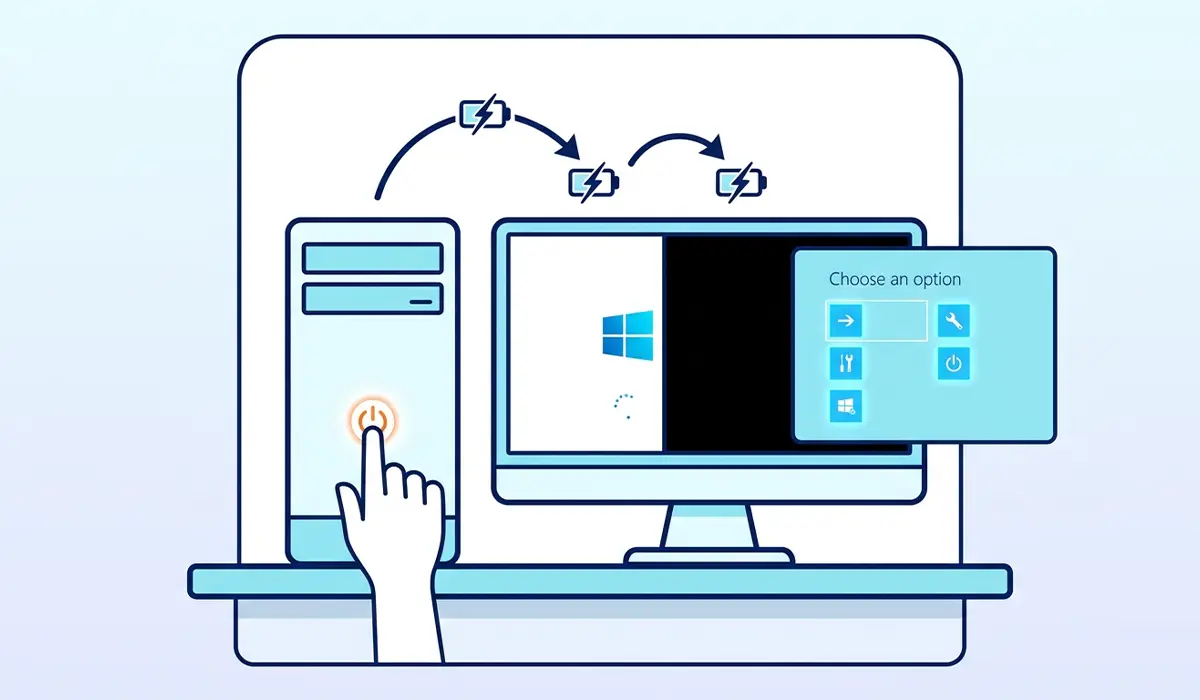
Tip: Work through these steps in order rather than skipping ahead. Jumping straight to a clean install often means missing a five-minute fix like a driver rollback or a loose RAM stick.
Common Problems and Fixes
- WinRE will not load, even after forced shutdowns: This usually points to a more serious storage or boot sector issue. Boot from a Windows installation USB drive instead, select ‘Repair your computer’, and access the same recovery tools from there.
- Startup Repair reports it could not fix the problem: Move on to System Restore or the bootrec commands, since Startup Repair does not catch every type of corruption, particularly deeper boot configuration issues.
- The PC boots into Safe Mode fine but loops in normal mode: This is a strong sign of a driver conflict rather than a corrupted system file. Focus on Step 4 and roll back or uninstall the most recently installed driver.
- Chkdsk gets stuck or restarts repeatedly without finishing: This often means the drive itself is failing physically. Back up any recoverable data immediately and plan for a drive replacement.
- The loop continues even after a clean install: At this point, hardware is the most likely cause. A failing power supply, a bad RAM stick, or a failing motherboard component can all produce the same symptom, and testing with one RAM stick at a time or swapping in a known-good power supply helps isolate it.
Frequently Asked Questions
What does it mean when a PC is stuck in a boot loop?
It means the computer restarts itself repeatedly before completing the startup process, usually because Windows cannot load a required system file or driver successfully.
Can a boot loop fix itself without any intervention?
It is unlikely. While an occasional single restart during an update is normal, a repeating cycle almost always requires manual troubleshooting to resolve.
Will a boot loop delete personal files?
No, a boot loop by itself does not delete files. Files are only at risk if a clean install or drive replacement becomes necessary, which is why backing up from WinRE first is worth doing when possible.
How long should Startup Repair be allowed to run?
It can take anywhere from a few minutes to around 20 minutes depending on the extent of the corruption. Interrupting it partway through can make the problem worse.
Is a boot loop always caused by software?
No. While software issues such as failed updates or bad drivers are the most common cause, hardware problems like a loose RAM stick, a failing drive, or a failing power supply can produce the same symptom.
Does entering Safe Mode help diagnose the cause?
Yes. If the PC boots successfully into Safe Mode but loops in normal mode, that points toward a driver or startup program conflict rather than deeper system corruption.
What is the difference between Startup Repair and System Restore?
Startup Repair scans for and attempts to fix damaged system files automatically, while System Restore rolls the system back to an earlier saved state. They address different types of problems, so trying both is worthwhile.
Can a failing hard drive cause a boot loop?
Yes. If the drive cannot reliably read the files Windows needs to start, the system can crash and restart repeatedly. Running chkdsk helps confirm whether the drive is the source of the problem.
Is it safe to run the bootrec commands?
Yes, these commands are built into Windows recovery tools specifically for rebuilding boot data and do not affect personal files.
When should a professional be called in instead of troubleshooting further?
If chkdsk reports extensive drive errors, if hardware swaps do not resolve the loop, or if there is no comfort opening the case, a professional repair technician can diagnose the hardware more precisely with dedicated tools.
