
A desktop PC overheating is usually a sign that heat isn’t escaping the case fast enough, whether that’s from dust buildup, poor airflow, or aging thermal paste. The good news is that most causes are easy to diagnose and even easier to fix without any special skills. This guide walks through the usual suspects and the exact steps to cool things back down.
Key Takeaways
- Dust buildup on fans, heatsinks, and filters is the single most common cause of overheating.
- Poor case airflow, blocked vents, or fans facing the wrong direction can trap hot air inside.
- Dried-out or poorly applied thermal paste reduces heat transfer from the CPU to the cooler.
- Background software and overly aggressive overclocks can push components harder than the cooling can handle.
- Most fixes take under an hour and require nothing more than compressed air, a screwdriver, and some patience.
Common Causes of Desktop PC Overheating
Before diving into fixes, it helps to understand what’s actually driving the temperatures up. In most cases, it comes down to one or more of the following.
Dust Clogging Fans and Heatsinks
Dust acts like a blanket over metal fins that are supposed to release heat into the air. Over months of regular use, it builds up on the CPU cooler, graphics card heatsink, case fans, and power supply intake, choking off airflow even when every fan is spinning normally.
Poor Case Airflow
A case with too few fans, fans mounted in the wrong direction, or cables blocking the airflow path traps hot air near the components instead of pushing it outside. This is common in budget builds or cases that were upgraded without rethinking the fan layout.
Degraded Thermal Paste
Thermal paste fills tiny gaps between the CPU and the cooler’s baseplate so heat transfers efficiently. After a few years, that paste can dry out or separate, creating an air gap that acts as an insulator instead of a conductor.
Overworked or Undersized Cooling
A stock cooler paired with a high-performance CPU, or a cooler that was never rated for the component’s heat output, will struggle under sustained load. This shows up most during gaming sessions, video exports, or other CPU and GPU-intensive tasks.
Background Software and Malware
Runaway background processes, outdated drivers, or malware quietly using the CPU or GPU can keep utilization high even when the desktop looks idle. That constant load generates heat that the cooling system was never expecting to manage around the clock.
How to Fix a Desktop PC That’s Overheating
Before You Start
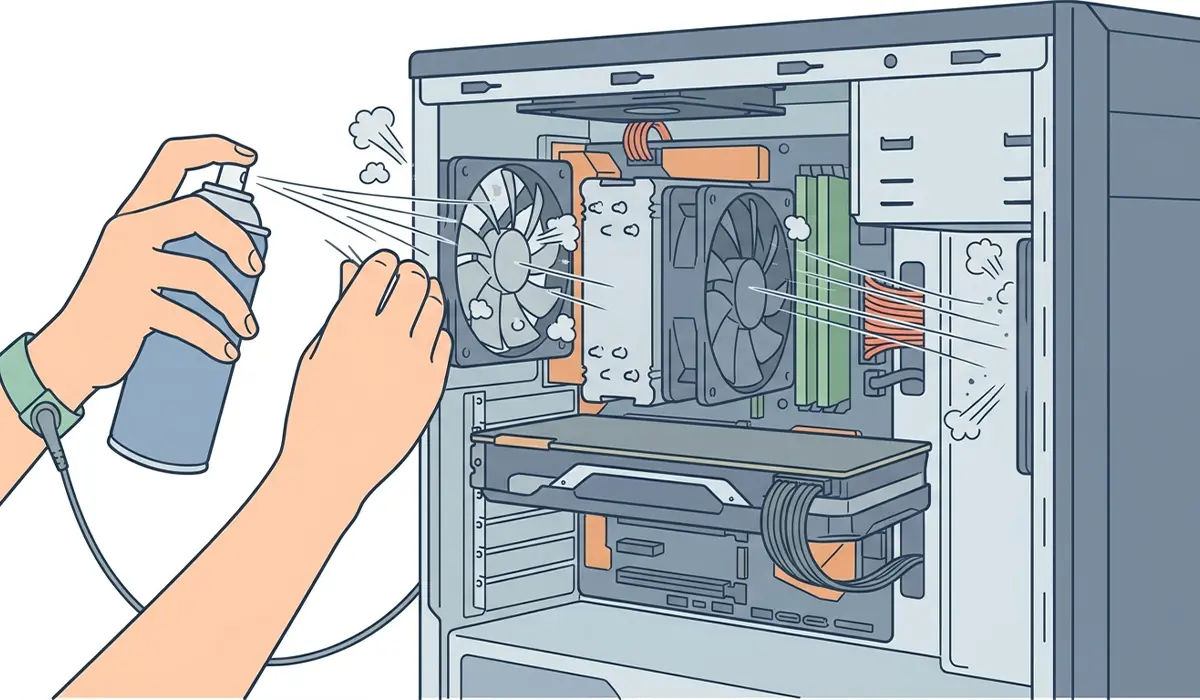
Power down the PC completely and unplug it from the wall outlet. Wait a few minutes for internal components to cool if the system was just running under load. Touch a bare metal part of the case or use an anti-static wrist strap before handling any internal components to avoid static discharge.
Tools and materials needed: a Phillips screwdriver, a can of compressed air, a soft-bristle brush, a lint-free cloth, isopropyl alcohol at 90 percent or higher, and fresh thermal paste if reapplication is needed.
- Step 1: Open the case and use compressed air in short bursts to clear dust from the CPU cooler, GPU heatsink, case fans, and power supply intake. Hold fan blades still while spraying to prevent them from spinning too fast and damaging the bearings.
- Step 2: Check that case fans are oriented correctly, with front and bottom fans pulling cool air in and rear and top fans pushing warm air out. Reverse any fans that are working against this pattern.
- Step 3: Tidy loose cables away from the airflow path using zip ties or the case’s cable management channels, so air can move freely from the front of the case to the back.
- Step 4: Remove the CPU cooler, wipe off the old thermal paste from both the CPU surface and the cooler baseplate using a lint-free cloth and isopropyl alcohol, then apply a small pea-sized amount of fresh paste before reseating the cooler.
- Step 5: Confirm the CPU cooler is fully seated and its mounting bracket is evenly tightened, since an uneven mount creates hot spots even with fresh paste applied.
- Step 6: Check for open software updates, especially GPU and chipset drivers, and run a malware scan to rule out background processes silently spiking usage.
- Step 7: Reassemble the case, power the system back on, and monitor temperatures at idle and under load using a hardware monitoring tool to confirm the fix worked.
Tip: Running the system with the side panel off for a quick temperature test can help confirm whether the case itself is the bottleneck, since open-air temps that are noticeably lower point to an airflow problem rather than a component issue.
Additional Adjustments Worth Checking
If temperatures are still high after cleaning and repasting, a few other angles are worth a look. Reviewing fan curves in the BIOS or a fan control app ensures fans are actually ramping up under load instead of staying at a fixed low speed. For anyone running an overclock, dialing it back slightly or leaving performance at stock settings can bring temperatures down considerably with a minimal performance trade-off. Tip: placing the case a few inches away from a wall and out of direct sunlight or enclosed furniture also makes a noticeable difference in ambient airflow.
Common Problems and Fixes
- Temperatures stay high even after cleaning: This usually points to thermal paste that still needs replacing, or a cooler that isn’t making full contact with the CPU. Reseating the cooler with fresh paste typically resolves it.
- Fans spin but airflow still feels weak: Check that intake and exhaust fans aren’t fighting each other, and confirm dust filters aren’t clogged, since a filter caked in dust can choke airflow even with fans running at full speed.
- One component runs hotter than the rest: This often means that specific part, like the GPU, has its own dust buildup or degraded thermal pads separate from the CPU cooler and needs its own cleaning pass.
- Temperatures spike only during gaming or rendering: This points to sustained load exceeding what the current cooler can handle, and may mean it’s time to upgrade to a larger air cooler or an all-in-one liquid cooler.
- PC shuts down unexpectedly under heavy use: This is a thermal protection response and should be treated as urgent. Stop use, check for the causes above, and if temperatures remain unsafe after basic fixes, consulting a professional technician is the safer path forward.
Frequently Asked Questions
What temperature is considered too hot for a desktop PC?
Most modern CPUs are rated to run safely up into the 80s Celsius under heavy load, but sustained temperatures above that, or GPU temperatures consistently near their rated maximum, are a sign that cooling needs attention.
How often should dust be cleaned out of a desktop PC?
Every three to six months is a reasonable interval for most environments, though homes with pets or higher dust levels may need cleaning more frequently.
Can overheating damage a desktop PC permanently?
Occasional high temperatures usually aren’t destructive on their own, since modern components throttle performance or shut down to protect themselves. Prolonged excessive heat over time, however, can shorten the lifespan of components.
Does thermal paste really need to be replaced?
Yes. Thermal paste dries out over time, typically over the span of a few years, and loses its ability to transfer heat efficiently, which is why cleaning alone sometimes isn’t enough to fully solve overheating.
Is it normal for a desktop PC to sound louder when it’s overheating?
Yes, louder fan noise is often the system’s fan curve responding to rising temperatures by spinning faster to compensate, and it’s usually one of the first warning signs worth investigating.
Can adding more fans fix an overheating problem?
Sometimes, especially in cases with only one or two fans, but more fans without proper intake and exhaust balance can actually make airflow worse, so orientation matters more than fan count alone.
Does opening the side panel help cool a desktop PC down?
It can lower temperatures temporarily by improving airflow, but it isn’t a long-term fix since it exposes internal components to more dust and doesn’t address the underlying airflow or dust issue.
Should overheating be fixed before upgrading hardware?
Yes. Adding a more powerful CPU or GPU into a case that already struggles with heat will only make the problem worse, so resolving existing cooling issues first is the safer approach.
When is it time to call a professional instead of fixing it personally?
If temperatures remain dangerously high after cleaning, repasting, and checking airflow, or if there’s uncertainty about safely removing a CPU cooler, a professional technician can diagnose deeper issues without risking damage to the components.
