
Losing years of email because a hard drive failed is a gut-punch most people only experience once. This guide shows how to back up an Outlook PST file automatically, using Windows Task Scheduler and a simple copy script, so the backup happens on its own without anyone remembering to do it.
Key Takeaways
- Locate the exact PST file path through Outlook’s Account Settings before doing anything else.
- A short batch file using the ‘robocopy’ command handles the actual copying reliably.
- Windows Task Scheduler runs that batch file on a set schedule, even when nobody is logged in to trigger it.
- Schedule the backup for a time when Outlook is closed, since a PST file in use can block a clean copy.
- Always verify the backup by checking the destination folder after the first scheduled run.
Step-by-Step Guide to Backing Up a PST File Automatically
Find the PST File Location
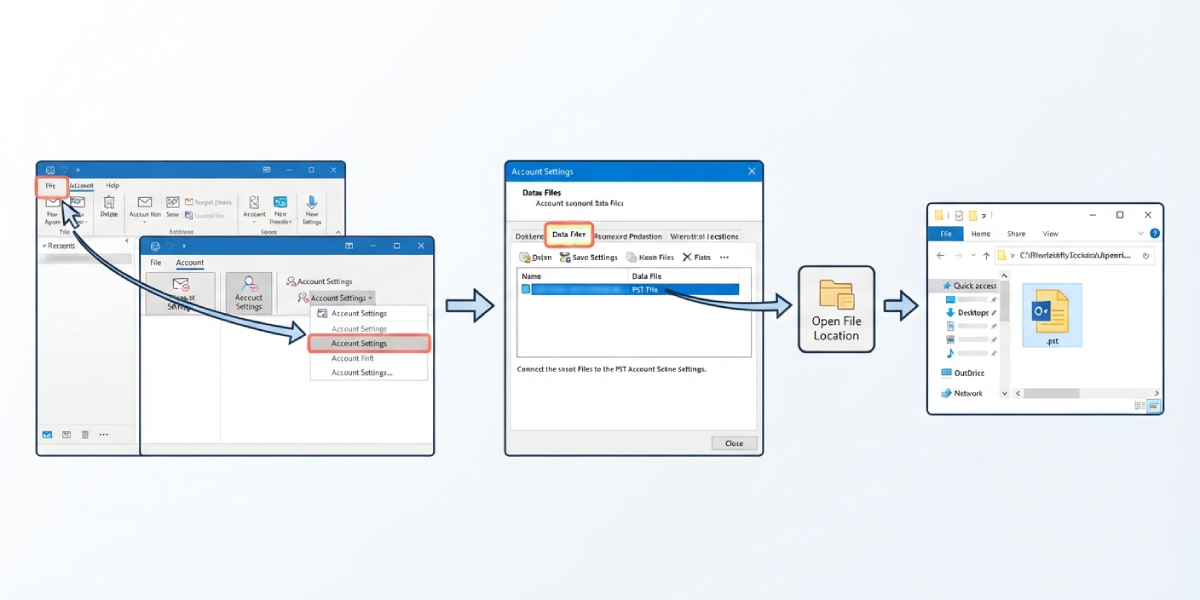
- Step 1: Open Outlook, click ‘File’, then ‘Account Settings’, and choose ‘Account Settings’ again from the dropdown.
- Step 2: Select the ‘Data Files’ tab. Each PST file listed there shows its full folder path. Click on the file, then click ‘Open File Location’ to jump straight to it in File Explorer, and note that path somewhere handy.
Create a Backup Destination
- Step 3: Pick a backup location that is not on the same physical drive as the PST file, such as an external drive, a network share, or a synced cloud folder. This matters more than most people realize; a backup sitting on the same failing drive protects against nothing.
Build the Backup Script
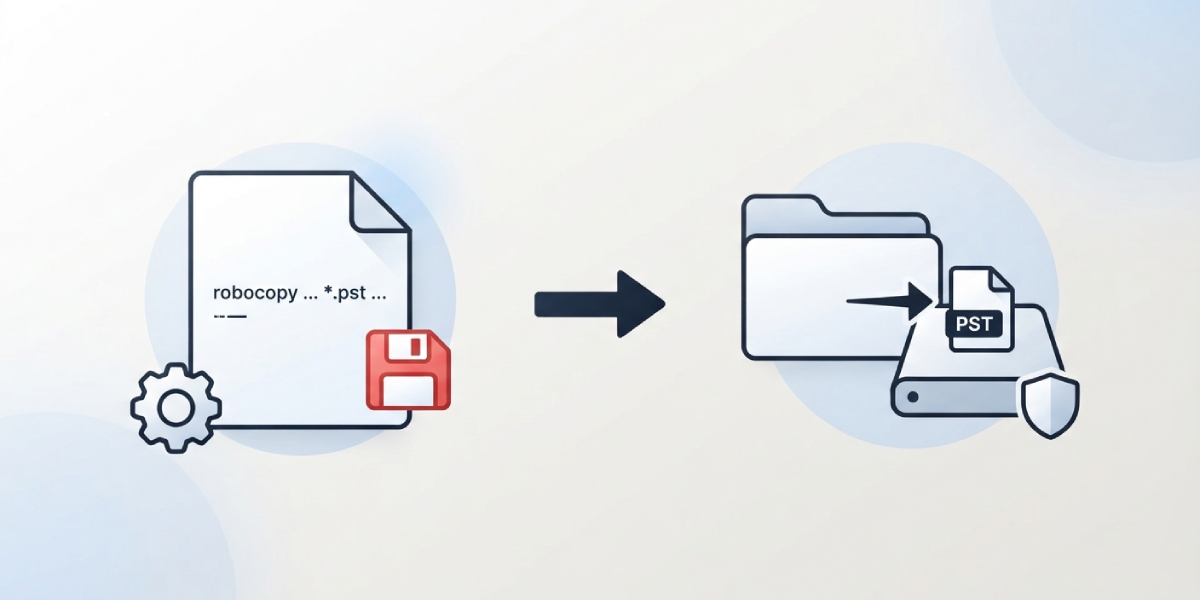
- Step 4: Open Notepad and create a simple script using the ‘robocopy’ command, which handles file locks and partial copies far better than a basic copy command. A typical line looks like this: robocopy ‘C:\Users\Username\AppData\Local\Microsoft\Outlook’ ‘D:\Outlook Backups’ *.pst /R:2 /W:5
- Step 5: Save the file with a .bat extension, for example ‘BackupPST.bat’, and store it somewhere permanent, like a ‘Scripts’ folder that will not accidentally get deleted or moved.
Tip: Adding a date to the destination filename inside the script keeps multiple backup versions instead of overwriting the same file every time, which is useful if a PST becomes corrupted and an older copy is needed.
Schedule the Task in Windows Task Scheduler
- Step 6: Open Task Scheduler from the Start menu and click ‘Create Basic Task’ in the right-hand panel.
- Step 7: Name the task something clear, like ‘Outlook PST Backup’, then choose how often it should run. Daily, in the early morning before Outlook typically opens, works well for most home and small-office setups.
- Step 8: On the Action screen, select ‘Start a program’, browse to the saved .bat file, and finish the wizard.
Confirm Outlook Is Closed During the Backup Window
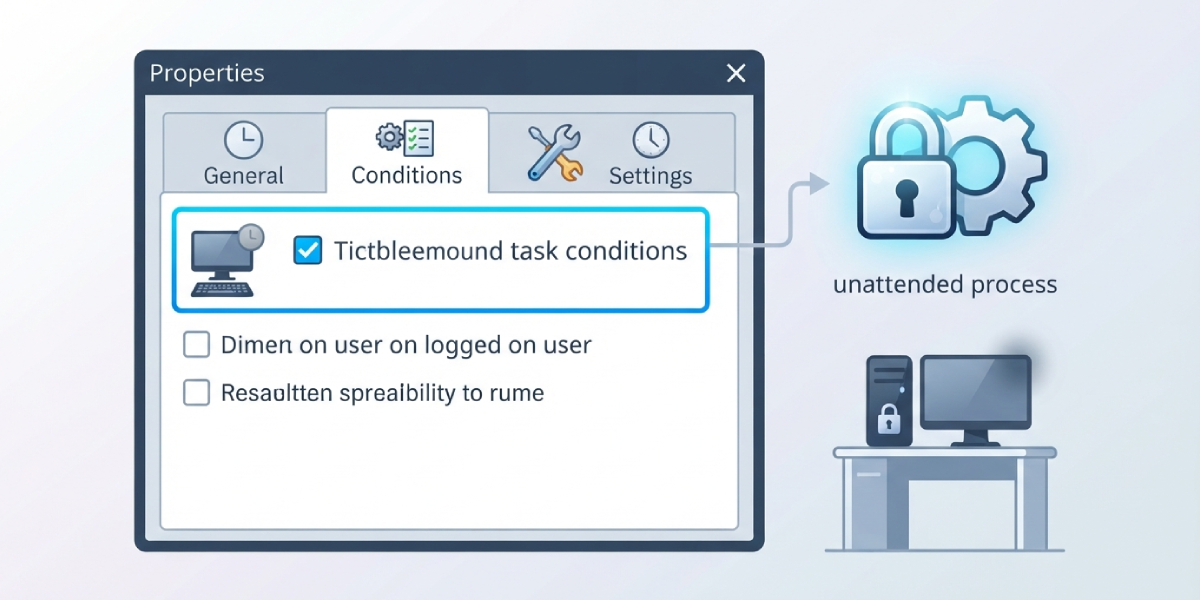
- Step 9: Check the ‘Conditions’ and ‘Settings’ tabs in the task’s properties. Enabling ‘Run whether user is logged on or not’ allows the backup to fire even if the computer is left unattended overnight.
Tip: Scheduling the task 15 to 30 minutes after the usual end of the workday, rather than right at shutdown, gives Outlook time to fully release the PST file before the script tries to copy it.
Test and Verify
- Step 10: Right-click the new task in Task Scheduler and select ‘Run’ to trigger it manually. Then open the backup destination folder and confirm the PST file appears with a current timestamp and a file size that matches the original.
Common Problems and Fixes
- The backup file is 0 KB or missing: Outlook was likely still open and holding the PST file when the task ran. Adjust the schedule to a time when Outlook is reliably closed, or add a step to the script that closes Outlook first using ‘taskkill /IM outlook.exe /F’ before the copy runs.
- Task Scheduler shows the task ran but nothing changed: Double-check the file paths in the batch script for typos, and confirm the account running the task has permission to read the source folder and write to the destination.
- The scheduled task does not run when the computer is asleep: Open the task’s ‘Conditions’ tab and enable ‘Wake the computer to run this task’, or adjust power settings so the machine does not fully sleep during the backup window.
- Backup destination fills up over time: Since PST files can grow into gigabytes, older backups pile up fast on a small drive. Adding a cleanup line to the script, or manually removing backups older than 30 days, keeps storage under control.
Frequently Asked Questions
How often should a PST file be backed up automatically?
Daily is a safe default for anyone using Outlook heavily for work. Lighter users can often get by with a weekly schedule, as long as the interval matches how much data would be acceptable to lose.
Can the PST file be backed up while Outlook is still open?
It is risky. Outlook locks the PST file while running, and a copy attempted mid-use can result in a corrupted or incomplete backup file. Scheduling the task for a time Outlook is closed avoids this entirely.
Where is the default PST file usually stored?
Most modern Outlook installations store it under C:\Users\Username\AppData\Local\Microsoft\Outlook, though the exact path can vary depending on how the profile was set up.
Is robocopy better than a simple copy command for this task?
Yes. Robocopy includes retry logic and handles locked or in-use files more gracefully, which reduces the chance of a failed or partial backup compared to a basic copy command.
Does Outlook have a built-in automatic backup feature?
Outlook includes AutoArchive, but that moves old items into a separate archive file rather than creating a true backup copy of the current PST. Task Scheduler combined with a copy script remains the more reliable route for a genuine automatic backup.
What happens if the scheduled task runs but the computer is off?
Task Scheduler simply skips that run. Most versions offer a setting to run the missed task as soon as the computer turns back on, found under the task’s ‘Settings’ tab.
Can the backup be sent to a cloud folder instead of an external drive?
Yes, as long as the destination path in the script points to a synced folder, such as one managed by OneDrive. Just be aware that very large PST files can take time to sync, so build in a little buffer before assuming the cloud copy is complete.
How can it be confirmed the backup task is actually working long-term?
Check the destination folder periodically and compare timestamps against the schedule. Task Scheduler also keeps a history log under the task’s properties, which shows whether recent runs succeeded or failed.
Should the original PST file be replaced with the backup if something goes wrong?
Yes, once a problem is confirmed. Close Outlook first, rename or move the damaged PST out of its original folder, then copy the most recent good backup into that location before reopening Outlook.
