
Digging through a crowded inbox for one old message wastes time, but learning to search by date range in Outlook turns that hunt into a two-minute task. This guide walks through the exact clicks and search commands needed to pull up emails from a specific day, week, or month.
Key Takeaways
- Outlook lets users filter search results by date using the Search Tools ribbon or typed search operators.
- Typing ‘received:’ followed by a date or range narrows results instantly, without opening any menu.
- Advanced Find offers more control for searching across multiple folders or mailboxes at once.
- Search scope (Current Folder, Current Mailbox, or All Outlook Items) affects how many results appear.
- Saved searches can be reused for recurring date-based lookups, such as monthly reports.
How to Search by Date Range in Outlook: Step-by-Step Guide
There are two reliable ways to filter by date in Outlook: the ribbon-based Search Tools menu, and typed search operators directly in the search box. Both get the job done, and most people end up mixing the two depending on the situation.
Method 1: Using the Search Tools Ribbon
- Step 1: Click inside the Search box at the top of the Outlook window. This activates the Search Tools tab on the ribbon.
- Step 2: Select the Search Tools tab, then click the Search Tools dropdown (sometimes shown as a small filter icon) and choose ‘This Week’, ‘Last Week’, ‘This Month’, or a similar preset if one matches the target range.
- Step 3: For a custom range, click ‘More Options’ or open the filter panel and enter a start date and end date in the date fields provided.
- Step 4: Press Enter to run the search. Outlook displays only messages received within the chosen dates.
- Step 5: Adjust the search scope in the ribbon (Current Folder, Subfolders, or All Mailboxes) if the expected message does not appear right away.
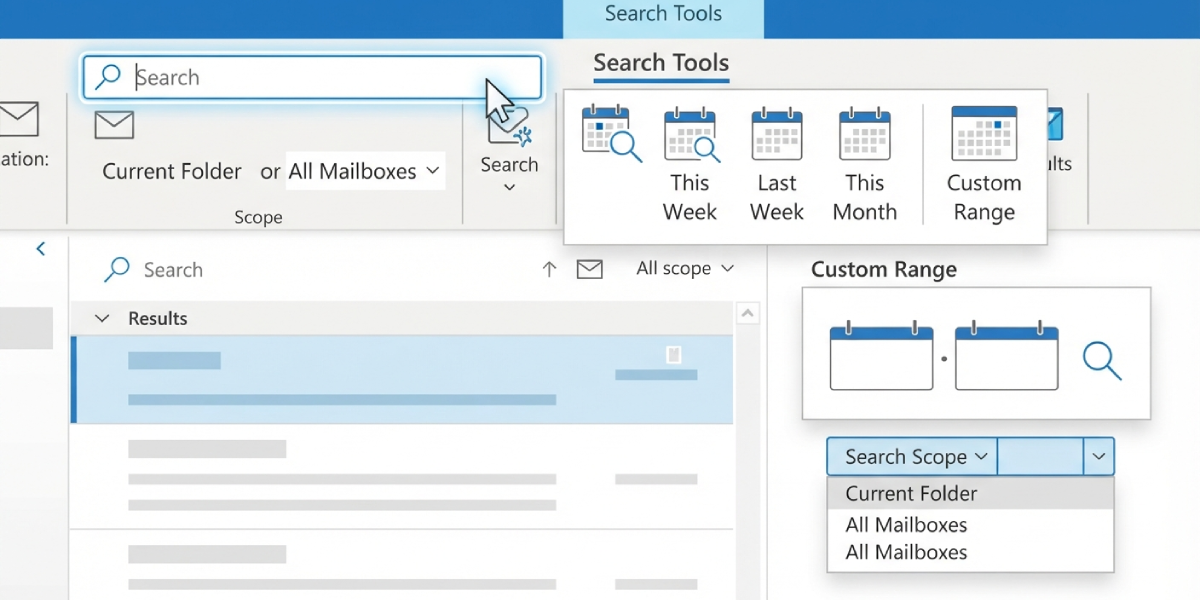
Tip: If the date presets do not include the exact range needed, typing directly into the search box is usually faster than clicking through menus.
Method 2: Using Search Operators
- Step 1: Click the Search box and type received: followed by a date, such as received:8/1/2026, to find messages from that exact day.
- Step 2: To search a range, type received: followed by two dates separated by two periods, for example received:8/1/2026..8/15/2026.
- Step 3: Use relative terms when exact dates are not needed, such as received:last week, received:this month, or received:yesterday.
- Step 4: Press Enter to see the filtered list. Outlook keeps the search term visible in the box, so it can be edited without starting over.
- Step 5: Combine the date operator with other terms, like received:8/1/2026..8/15/2026 invoice, to narrow results further by keyword.
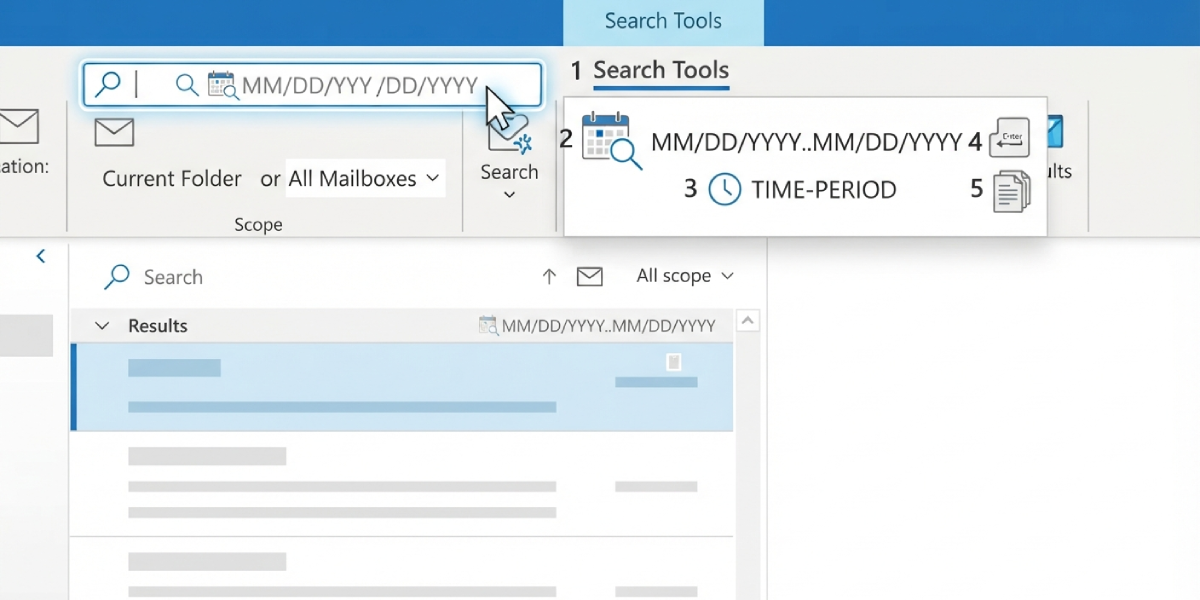
Tip: The same received: operator works for sent items too, just change the search folder to the Sent folder before typing the command.
Using Advanced Find for a Deeper Search
- Step 1: Press Ctrl+Shift+F to open the Advanced Find window.
- Step 2: Select the folder or mailbox to search under the ‘Look for’ and ‘In’ fields near the top.
- Step 3: Switch to the ‘More Choices’ tab, check the box next to ‘Received’, and pick ‘between’ from the dropdown menu.
- Step 4: Enter the start and end dates in the two fields that appear next to ‘between’.
- Step 5: Click ‘Find Now’ to display every message that falls within that window, across all selected folders.
Common Problems and Fixes
- No results appear for a known date range: Check the search scope. If it is set to ‘Current Folder’, switch it to ‘All Mailboxes’ or ‘All Outlook Items’ since the message may sit in a different folder, such as Archive.
- Date operator returns an error or ignores the range: Confirm the date format matches the region setting in Windows. Some systems expect day/month/year instead of month/day/year, so a date like 8/1/2026 could be read differently than intended.
- Search feels slow or results seem incomplete: Outlook may still be indexing the mailbox. Let it finish in the background, or check indexing status under File, Options, Search, Indexing Options.
- Advanced Find window does not show the More Choices tab: Resize the Advanced Find window, since smaller screens sometimes hide tabs until the window is expanded.
- Shared mailbox dates do not filter correctly: Make sure the shared mailbox is added as a separate account or opened correctly, since search scope settings do not always extend automatically to shared mailboxes.
Frequently Asked Questions
What is the exact syntax for searching by date range in Outlook?
Type received: followed by the start date, two periods, and the end date, such as received:8/1/2026..8/15/2026, directly into the search box.
Can Outlook search by the date a message was sent instead of received?
Yes. Use the sent: operator the same way, for example sent:8/1/2026..8/15/2026, or search within the Sent Items folder using the received: operator there.
Does the date range search work on mobile Outlook apps?
The mobile app does not support typed date operators the same way desktop Outlook does. It relies on scrolling or basic filter options, so date-range searches are more reliable on desktop or web versions.
Why does a date range search miss some emails?
The search scope is likely limited to one folder. Broaden it to ‘All Outlook Items’ or ‘All Mailboxes’ to include Archive, Deleted Items, and other folders.
Can a date range search be saved for repeated use?
Yes. After running the search, click ‘Search Folder’ options or save it as a Search Folder so the same date-based query can be reused without retyping it.
What date format should be used when typing a range manually?
Match the regional date format set in Windows. Most US settings use month/day/year, while many other regions use day/month/year, so check Windows date settings if results look off.
Is there a way to search a date range in Outlook on the web?
Yes. Outlook on the web supports the same received: operator syntax in its search box, along with a filter dropdown for common date presets.
Can a date range search be combined with sender or subject filters?
Yes. Add terms like from: or subject: alongside the received: operator, for example received:8/1/2026..8/15/2026 from:john to combine filters in one search.
Does searching by date range work across shared or delegated mailboxes?
It can, provided the shared mailbox is properly added to the Outlook profile and the search scope includes that mailbox.
