
A keyboard typing wrong characters is one of the most disruptive problems a Windows user can run into, especially in the middle of an email or a document. Sometimes it is a simple settings mix-up, and sometimes it points to a real hardware fault. This guide walks through the most common causes and the exact steps to get the keyboard back to typing correctly.
Key Takeaways
- Most cases of a keyboard typing wrong characters come from language, layout, or key-toggle settings rather than a broken keyboard.
- Sticky Keys, Filter Keys, and an active NumLock are common hidden culprits that get overlooked.
- Testing with an external USB or Bluetooth keyboard is the fastest way to tell software issues from hardware issues.
- Debris, worn key switches, and liquid exposure are the leading physical causes on laptops.
- A driver reinstall or a language reset solves the majority of cases without opening the device.
Before You Start
None of the steps below require opening the laptop or desktop case, so preparation stays simple. It still helps to have a couple of things ready before troubleshooting begins.
- Save any open work, since some fixes involve a restart.
- Have a spare USB keyboard on hand, even a basic one, since it is the quickest way to isolate the problem.
- Close background apps that auto-type or auto-correct text, since these can mimic a keyboard fault.
- If liquid was recently spilled on the keyboard, power the device off immediately and let it dry fully before typing again. That situation goes beyond software troubleshooting and often needs a professional cleaning or keyboard replacement.
Common Causes of a Keyboard Typing Wrong Characters
A keyboard rarely starts producing the wrong letters, numbers, or symbols for just one reason. The list below covers what actually causes this in most real-world cases.
Wrong Language or Keyboard Layout
Windows supports multiple input languages, and each one maps keys differently. A US layout and a UK or international layout put symbols like the at sign, quotation marks, and the hash sign in different places. Switching layouts by accident, often with the Windows key plus spacebar shortcut, is one of the most common triggers for this exact issue.
NumLock, Caps Lock, or Scroll Lock Left On
On laptops without a dedicated number pad, an active NumLock can turn part of the regular keyboard into a numeric pad, so letters suddenly type as numbers. Caps Lock stuck on flips letter case, which can look like garbled text at a glance.
Sticky Keys or Filter Keys Enabled
These are Windows accessibility features. Sticky Keys lets modifier keys like Shift or Ctrl stay active after one press, and Filter Keys ignores brief or repeated keystrokes. Either one, turned on by accident, can make typing feel wrong even though every key is functioning correctly.
Outdated or Corrupted Keyboard Driver
A driver that has become corrupted after a Windows update, or one that is simply out of date, can send incorrect signals to the operating system even when the physical key is working fine.
Debris or Sticky Residue Under the Keys
Crumbs, dust, and dried spill residue under a keycap can cause a key to register twice, register the wrong character, or fail to register at all. This is especially common with laptop keyboards, where the space under each key is tight.
Worn or Failing Key Switches
Keys that have been pressed heavily for years can develop mechanical wear, causing intermittent or incorrect input. This is a hardware-level cause rather than a software one, and it usually shows up as one or two specific keys misbehaving rather than the whole keyboard.
Wireless Keyboard Interference or Pairing Issues
Bluetooth and RF wireless keyboards can drop or misread signals when battery levels are low, when paired incorrectly, or when there is interference from other wireless devices nearby.
Third-Party Software Conflicts
Remapping tools, macro software, and some antivirus or clipboard managers hook into keyboard input. A conflict or bug in one of these programs can alter what actually gets typed.
How to Fix a Keyboard Typing Wrong Characters
Work through these fixes in order, since they move from the quickest checks to the more involved ones.
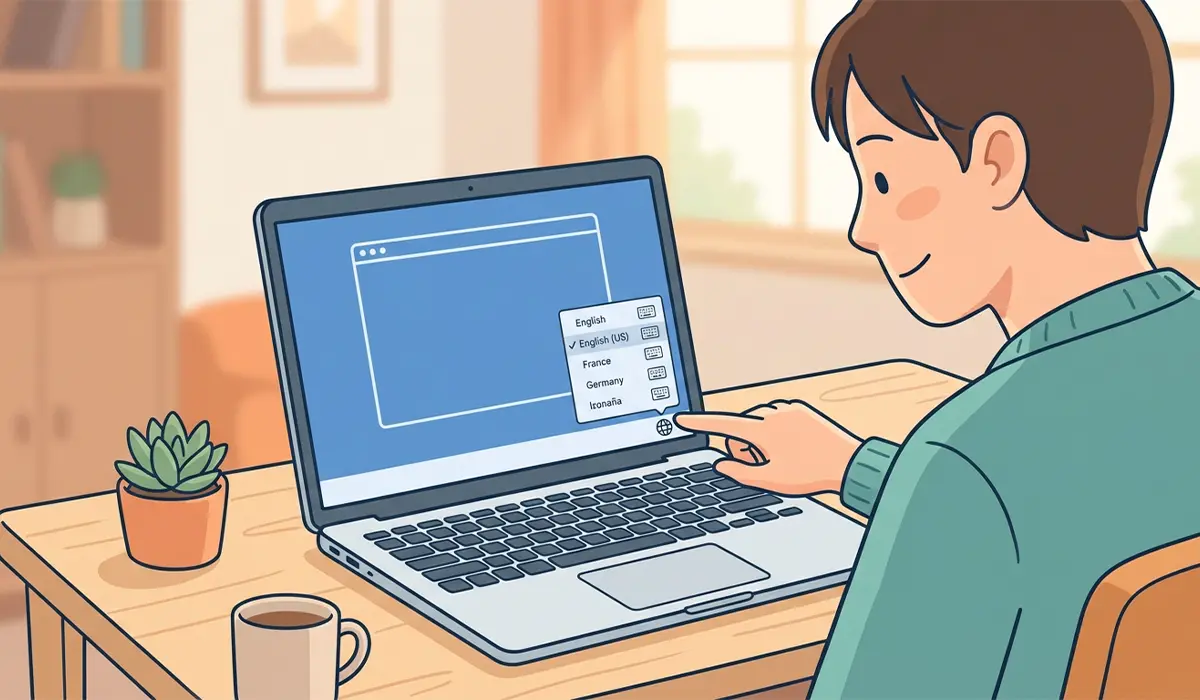
- Step 1: Check the keyboard language and layout. Click the language indicator in the taskbar, or press Windows key plus spacebar to cycle through installed layouts, and confirm the correct one is selected.
- Step 2: Press NumLock once to toggle it off, then test typing again on the affected keys.
- Step 3: Open Settings, go to Accessibility, then Keyboard, and turn off Sticky Keys, Filter Keys, and Toggle Keys if any of them are enabled.
- Step 4: Test the keyboard in a different program, such as Notepad, to rule out an issue specific to one app.
- Step 5: Connect a spare USB or Bluetooth keyboard and test typing with it. If the external keyboard types correctly, the issue points to the built-in keyboard or its driver rather than Windows itself.
- Step 6: Open Device Manager, expand Keyboards, right-click the listed keyboard, and choose Update driver. If an update is not available, uninstall the device and restart the computer to let Windows reinstall it automatically.
- Step 7: Run the Keyboard troubleshooter through Settings, then Update and Security, then Troubleshoot, then Additional troubleshooters, and let it scan for and fix detected issues.
- Step 8: Power the device off, unplug it or remove external power, and gently clean between and around the affected keys using compressed air held at a slight angle. For visible residue, lightly dampen a lint-free cloth with 90 percent or higher isopropyl alcohol and wipe the key surface, keeping liquid away from the edges of each key.
- Step 9: For a wireless keyboard, replace or recharge the batteries, then unpair and re-pair it through Bluetooth settings.
- Step 10: Temporarily disable or uninstall any recently added keyboard remapping, macro, or typing-assistance software, then test again.
Tip: If only one or two specific keys are producing the wrong character and every software fix has already been tried, that pattern usually points to a worn key switch rather than a settings problem.
Common Problems and Fixes
Wrong Characters Only Happen in One Specific App
This almost always points to an app-level setting, such as an autocorrect or text-expansion feature inside that program, rather than the keyboard itself. Check that app’s input or autocorrect settings first.
Symbols Are Swapped, but Letters Type Correctly
This is the classic sign of a keyboard layout mismatch, since letters occupy the same position across most layouts while symbols and punctuation shift. Re-checking the input language setting from the fix steps above resolves this in most cases.
Issue Started Right After a Windows Update
A recent update can occasionally install a generic keyboard driver in place of the correct one. Rolling back the driver in Device Manager, or checking the manufacturer’s site for an updated driver, typically corrects this.
External Keyboard Also Types Wrong Characters
If a second, known-working keyboard shows the same problem, the cause is almost certainly a Windows setting rather than hardware, so the language, Sticky Keys, and driver steps deserve another close look.
Cleaning Did Not Fix a Specific Key
If a key still misfires after cleaning, the switch underneath it has likely worn out or been damaged. Replacing an individual key or keyboard assembly is a precise repair, and this is the point where handing the laptop to a qualified repair technician makes more sense than continuing on its own. Note that opening a laptop’s casing to access the keyboard assembly can affect the manufacturer’s warranty.
Frequently Asked Questions
Why is the keyboard suddenly typing the wrong characters?
The most common reasons are an incorrect language or layout setting, NumLock being active, or Sticky Keys and Filter Keys being turned on by accident. Driver issues and physical debris under the keys are the next most likely causes.
How can it be confirmed whether the problem is hardware or software?
Connecting a different keyboard, such as a spare USB keyboard, and testing it on the same computer is the fastest way to tell. If the external keyboard types correctly, the built-in keyboard or its driver is the likely cause.
Why do numbers appear instead of letters while typing?
This usually means NumLock is active on a laptop that shares its number pad with the regular letter keys. Pressing NumLock once, often combined with the Fn key on some laptops, resolves it.
Why are symbols like the at sign or quotation marks in the wrong place?
This is a keyboard layout mismatch. Different regional layouts, such as US versus UK, place punctuation and symbols in different positions even though the letters stay the same.
Can a Windows update cause a keyboard to type wrong characters?
Yes. An update can sometimes replace a manufacturer-specific keyboard driver with a generic one, which occasionally leads to incorrect input until the correct driver is reinstalled.
Is it safe to clean a laptop keyboard while it is still plugged in?
No. The laptop should be powered off and unplugged, and the battery disconnected if it is easily removable, before any cleaning takes place. This avoids short circuits and prevents unexpected keystrokes during cleaning.
Why does only one key type the wrong character?
A single misbehaving key, especially after cleaning and driver checks have been ruled out, usually points to a worn or damaged switch under that specific key rather than a system-wide issue.
Does a low battery affect a wireless keyboard’s accuracy?
Yes. A wireless keyboard running low on battery can drop keystrokes or send delayed and incorrect signals. Replacing or recharging the batteries often resolves intermittent typing errors.
Will resetting the keyboard driver delete any settings?
Uninstalling and letting Windows reinstall a keyboard driver does not affect personal files or most system settings. It only resets the driver itself back to a clean, default state.
When should a keyboard issue be handled by a professional instead of a DIY fix?
Once liquid damage, multiple failing keys, or a key switch replacement is involved, a qualified repair technician is the safer route, since laptop keyboard assemblies are precise and can be damaged further by improper disassembly.
